

10 Useful Postman Tips to Boost Your Development Productivity
Looking for practical Postman tips to improve your API testing workflow?
Postman is more than just an API testing tool! It’s packed with advanced features, powerful tricks, and productivity boosters that many developers overlook. In this guide, we’ll walk you through essential Postman tips and tricks, covering everything from hidden gems to Postman best practices that can significantly streamline your daily work.
Whether you’re debugging endpoints, working with environments, or automating test scripts, these Postman advanced features can help you save time and reduce friction. Here are 10 useful Postman tips and features that every developer should know.
1. Workspaces
You can create multiple workspaces to isolate all collections, environments, etc.
There are three different kinds of Postman workspaces for your different needs: personal workspaces, team workspaces, and public workspaces.

2. Environments and variables
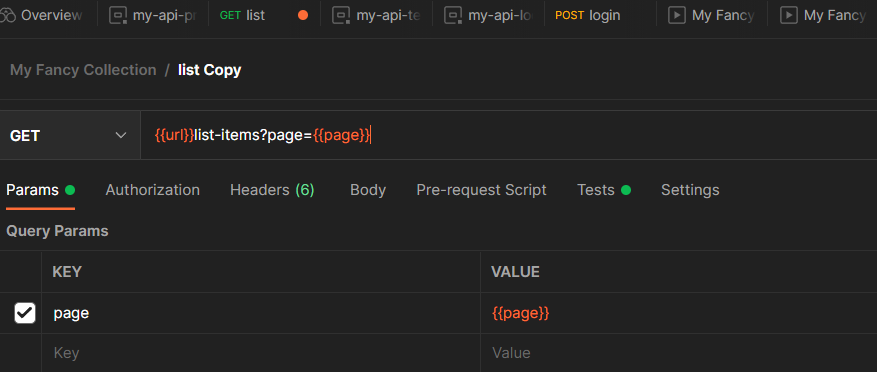
An environment is a set of variables you can use in your Postman requests. You can use environments to group related sets of values together and manage access to shared Postman data if you are working as part of a team.
Create your environment (like local, test, pre-prod) variables in the Environments tab, then use them in your requests.
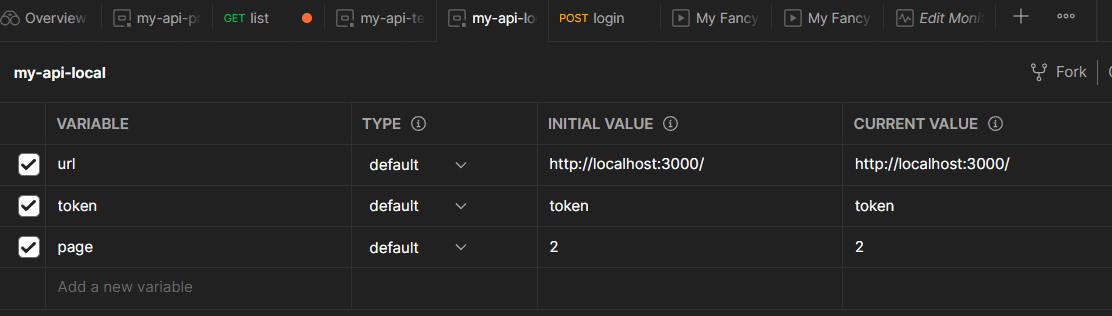
Define variables
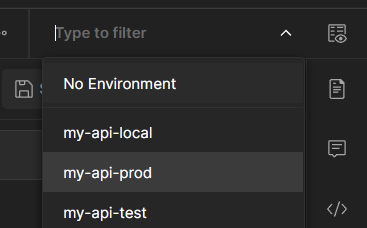
Choose active environment


3. Running scripts
Suppose you have a login API to get a token. Then use this token in all your requests. You can create a test script and save tokens as environment variables. Now your token variable is updated after each successful login request.
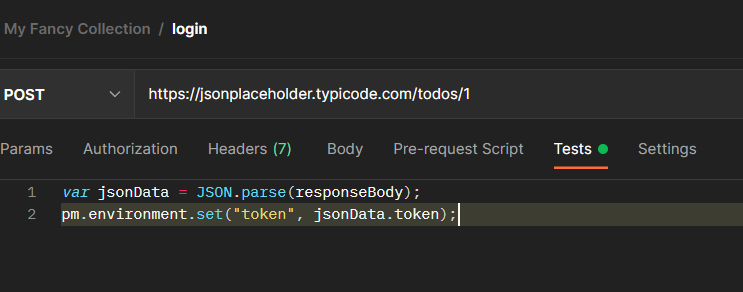
Parse and set token from login response
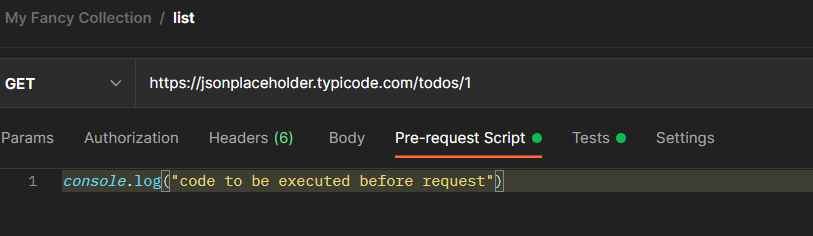
You can also run scripts before each request with Pre-request Scripts
4. Inherit Authorization
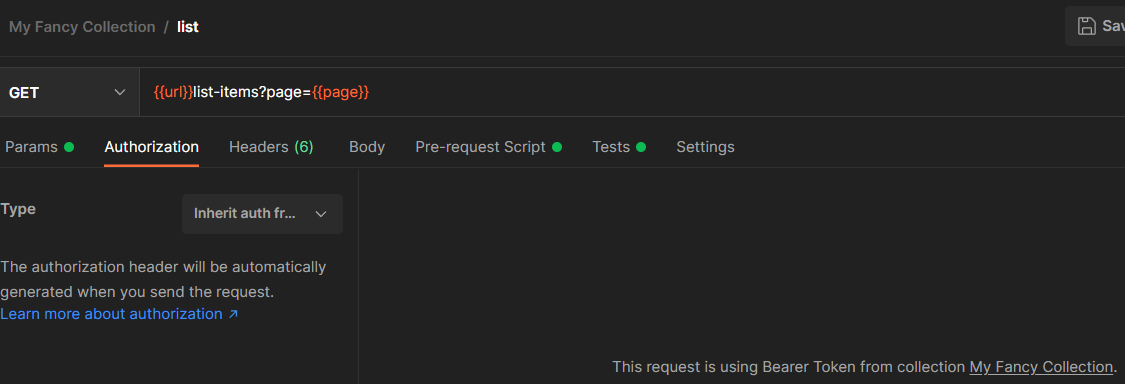
Click the collection, select an authorization type from the Authorization tab. Fill in the requested fields.

Choose Inherit auth from parent option for your request. Authorization is done for all your request.
5. Run Automated Tests
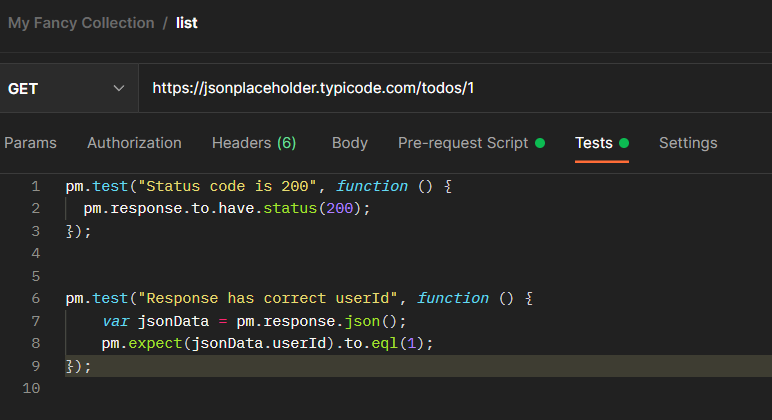
Create assertion scripts (HTTP status code, response objects for all your request. Here is an example test to check if HTTP status code is 200 and the response JSON has userId:1 field.

Running tests
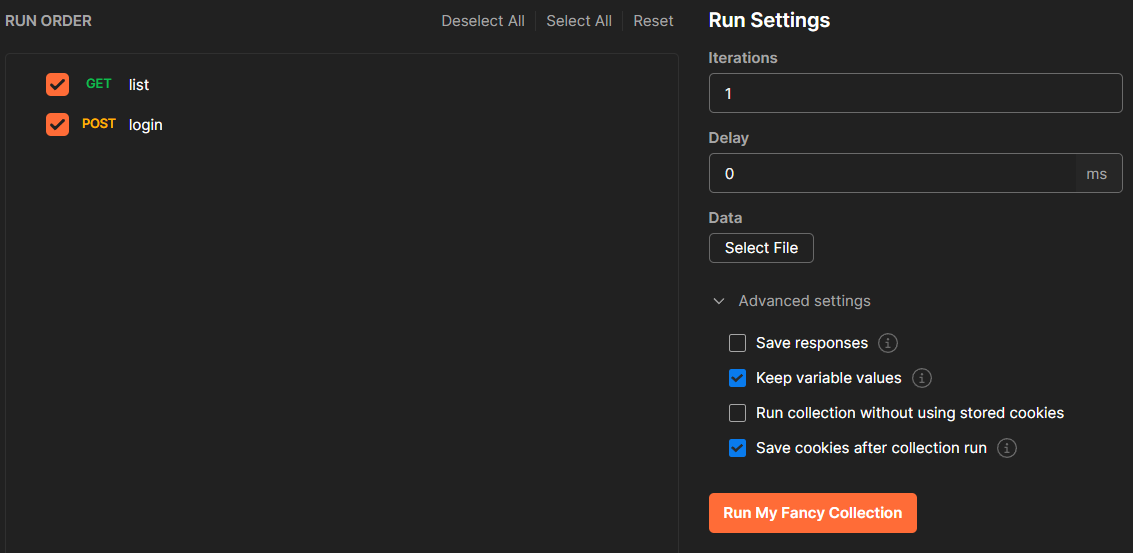
Select options and tests to run.

Test results
Check the Postman documentation for more testing scenarios.
6. Examples
Examples show your API endpoints in action and provide additional details on exactly how requests and responses work. You can add an example to a request by saving a response, or you can create an example with a custom response to illustrate a specific use case.
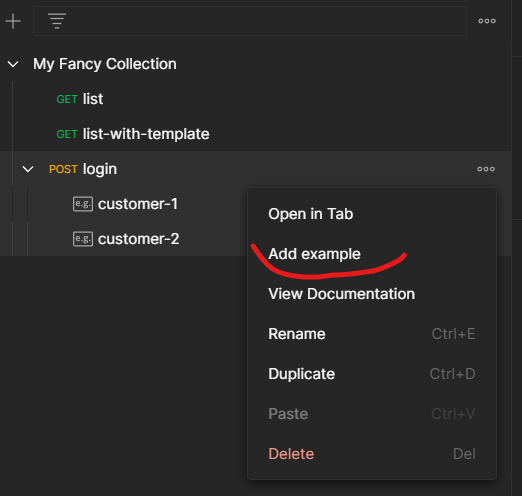
Adding an example request
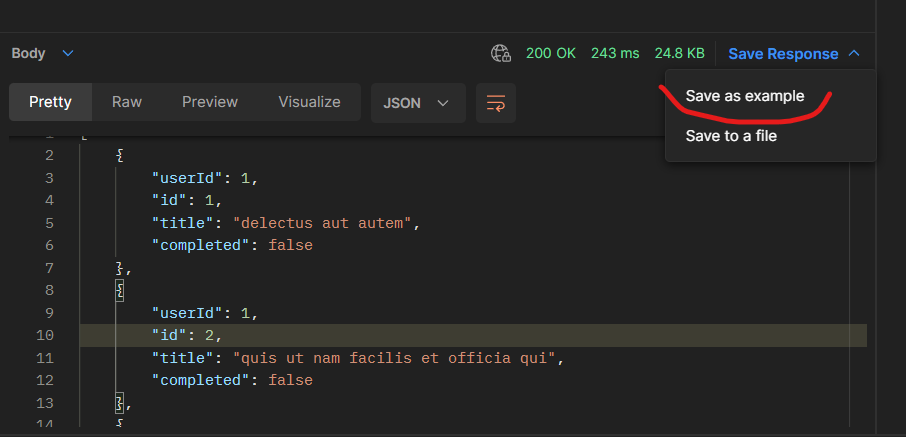
Saving a response as an example
7. Monitors
Postman Monitors give you continuous visibility into the health and performance of your APIs. Uptime monitors (open beta) enable you to keep watch on a single API endpoint, while collection-based monitors enable you to run API test scripts, chain together multiple requests, and validate critical API flows.
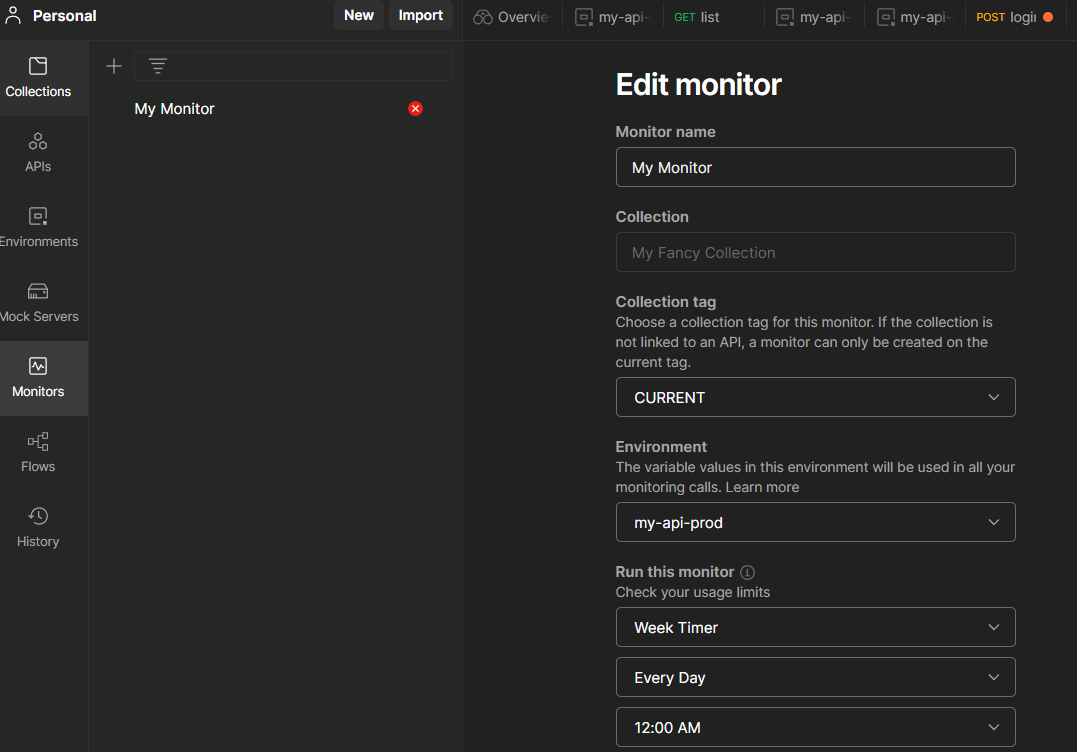
Configure a monitor
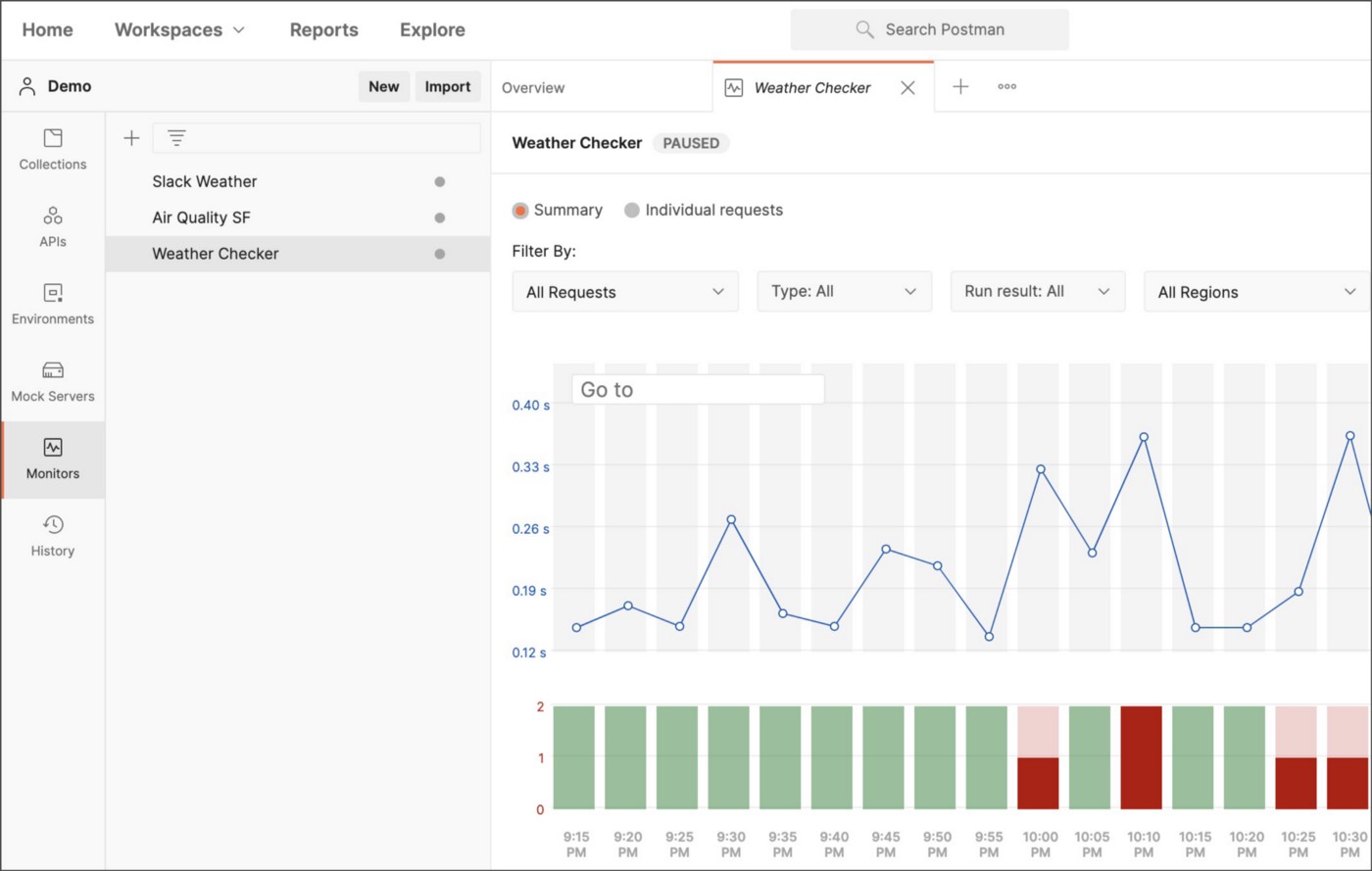
You can refer to the Postman documentation on viewing monitor results for more details.
8. Visualize Responses
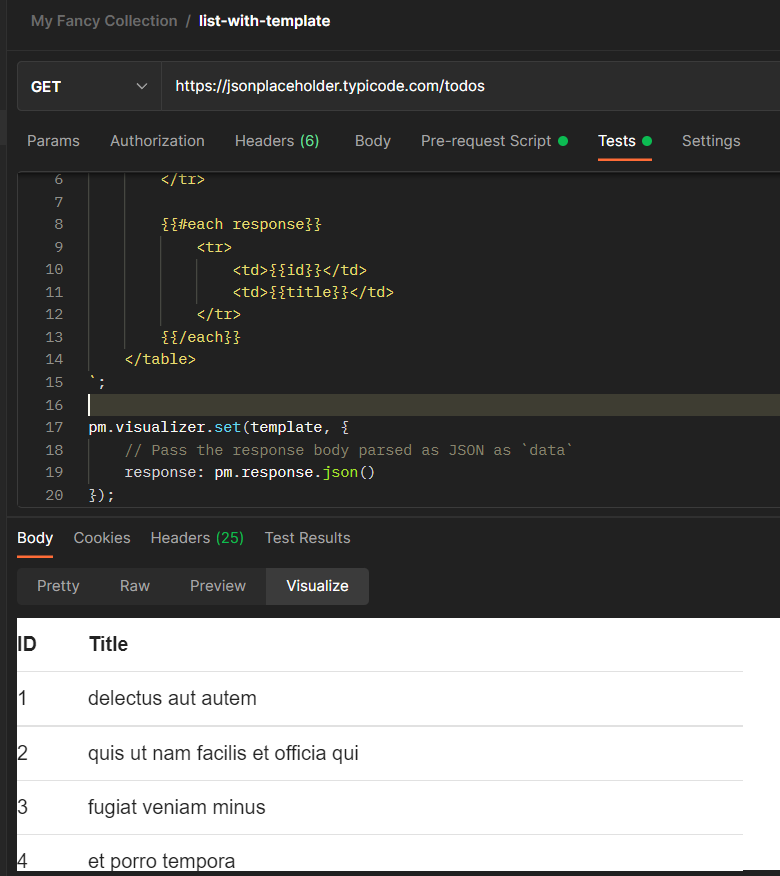
The Postman Visualizer provides a programmable way to visually represent your request responses. Visualization code added to the Tests for a request will render in the Visualize tab for the response body, alongside the Pretty, Raw, and Preview options.
var template = `
<table bgcolor="#FFFFFF">
    <tr>
        <th>ID</th>
        <th>Title</th>
    </tr>
    {{#each response}}
    <tr>
        <td>{{id}}</td>
        <td>{{title}}</td>
    </tr>
    {{/each}}
</table>
`;

pm.visualizer.set(template, {
    // Pass the response body parsed as JSON as `data`
    response: pm.response.json()
});
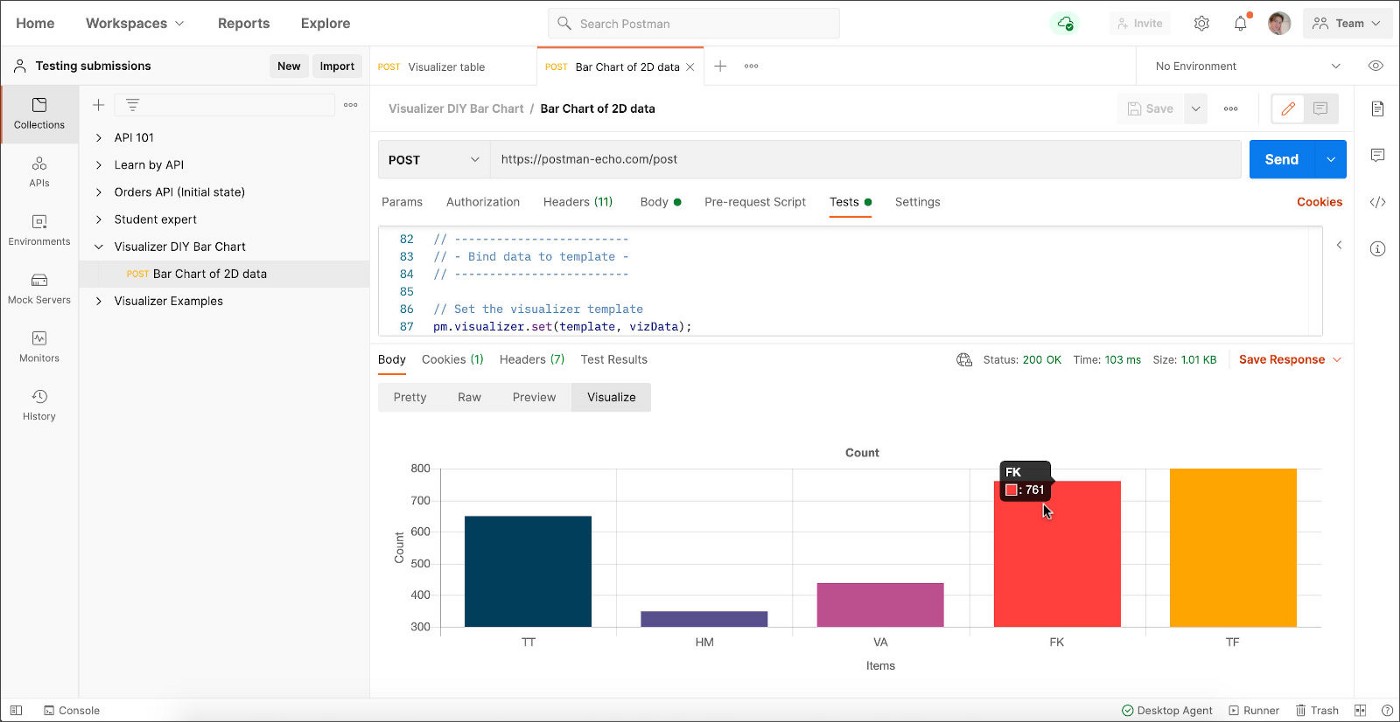
You can refer to the Postman documentation on visualizing request responses using Postman Visualizer for more details.
9. Share Collections
You can share your work with others by sharing
- directly to emails
- Run in Postman
- Via JSON link
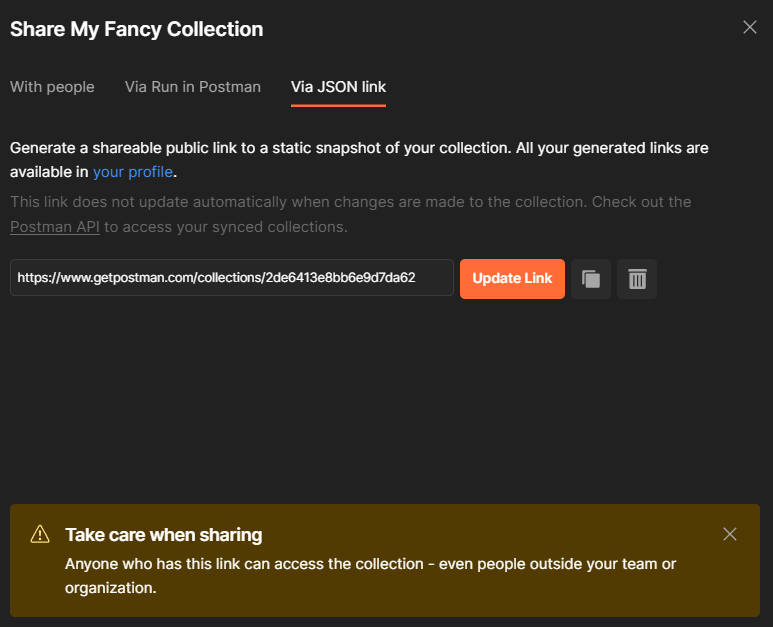
The Run in Postman button is a way to share a Postman Collection (and optional environment) with your users.

Live Run in Postman buttons automatically stay updated with changes to your collection, providing consumers with its most recent version. You can also attach an environment to your live button to help onboard new users to your API quickly and efficiently.
10. Flows
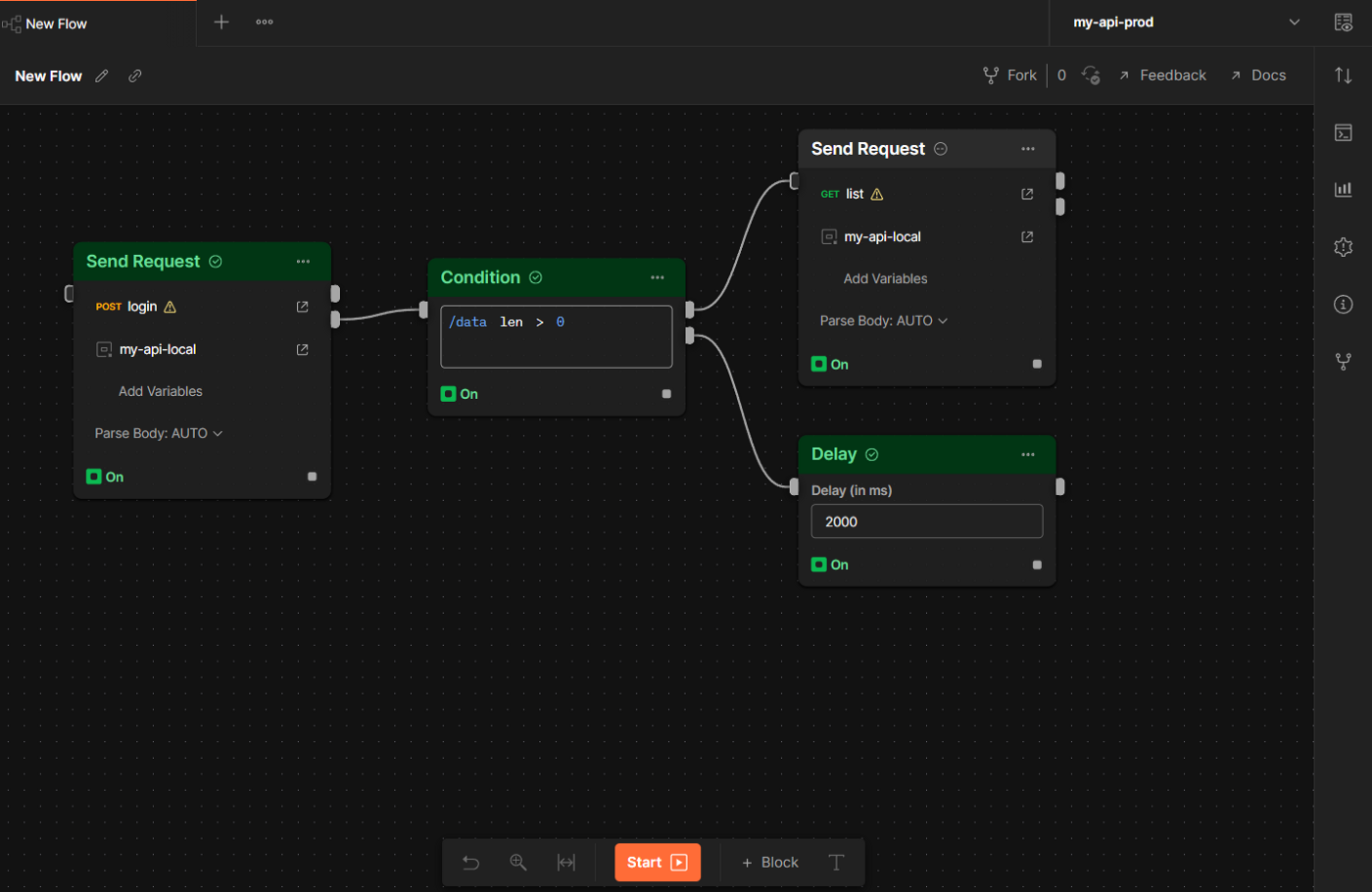
You can use Flows to chain requests, handle data and create real-world workflows right in your Postman workspace. Flows help you create API workflows by connecting a series of requests through a drag-and-drop UI.
Conclusion
Exploring advanced features and best practices in Postman not only improves your productivity but also ensures more reliable and scalable API workflows. By applying these Postman tips, you can simplify debugging, enhance test automation, and streamline collaboration across your dev team.
Want to bring the same level of automation and efficiency to your mobile CI/CD pipeline?
Explore Appcircle’s end-to-end CI/CD platform tailored for mobile workflows.
FAQs
1. What is Postman and why should developers use it?
Postman is an API platform that simplifies the development, testing, and documentation of APIs. It provides an intuitive interface for sending requests, viewing responses, and organizing collections. Developers use Postman to accelerate debugging, automate testing, and improve collaboration across teams.
2. How can I use Postman more effectively?
To get the most out of Postman:
Organize your API requests into collections and folders.
Use environment variables for dynamic values.
Leverage pre-request scripts and test scripts for automation.
Monitor and document APIs directly in Postman.
For more insights, check out Postman Learning Center.
3. How can I use Appcircle APIs with Postman?
To use Appcircle APIs in Postman, visit the API documentation and copy the desired request as a curl command. When you paste it into Postman, most fields will be populated automatically. From there, all you need to do is fill in the required values for specific keys, and you’re ready to send the request.

