

Streamline Project Integration and Test Automation with Repeato and Appcircle
In today’s fast-paced digital landscape, efficient project integration and test automation play a crucial role in ensuring successful software development. Repeato and Appcircle are two powerful tools that can significantly streamline these processes. In this blog post, we will explore what Repeato is, its benefits, and how it can be easily integrated into your project using Appcircle. We will also discuss the configuration steps and showcase example screenshots to help you visualize the process.
What is Repeato?
Repeato is a versatile project integration and automation tool that allows for smooth coordination and collaboration among various software applications and systems. It serves as a bridge, connecting disparate platforms and facilitating the exchange of data, tasks, and notifications. By automating repetitive tasks and streamlining workflows, Repeato improves efficiency and enhances project outcomes.
Benefits of Repeato:
- Enhanced Efficiency:One of the key advantages of Repeato is its ability to automate repetitive tasks and processes. By eliminating manual interventions, organizations can save time, reduce errors, and improve overall operational efficiency. With Repeato, project managers and team members can focus on more critical tasks that require human expertise and creativity, leading to increased productivity and better outcomes.
- Seamless Integration:
Repeato offers seamless integration with a wide range of software applications and systems commonly used in project management, such as task management tools, collaboration platforms, customer relationship management (CRM) systems, and more. This integration allows for smooth data transfer, real-time updates, and ensures that all relevant stakeholders have access to the most up-to-date information, fostering better communication and collaboration.
- Customizable Workflows:
Repeato provides a user-friendly interface that enables organizations to design and customize workflows according to their specific project requirements. With its drag-and-drop functionality, users can easily configure rules, triggers, and actions, tailoring the integration and automation processes to suit their unique needs. This flexibility ensures that Repeato adapts to the organization’s existing workflows rather than forcing them to adapt to the tool.
- Real-time Notifications and Alerts:
Keeping everyone involved in a project informed and up to date is crucial for successful project management. Repeato offers real-time notifications and alerts, ensuring that team members receive timely updates on task progress, deadlines, and any changes or developments in the project. This feature promotes transparency, minimizes delays, and allows for quick decision-making, resulting in smoother project execution.
How to Integrate Repeato into Your Project:
⚠️ The test folder should be located in the same directory as your project files.
Integrating Repeato into your project is a straightforward process that involves the following steps:
- Assess Project Compatibility: Ensure that Repeato is compatible with your programming language, testing framework, and target environment. Repeato supports a wide range of frameworks, including Flutter, React Native, and Xamarin.
- Install Repeato: Install Repeato and its dependencies according to the instructions provided by the documentation. Repeato offers comprehensive documentation and resources to guide you through the installation process.
- Define Test Scenarios: Identify the test scenarios and cases that would benefit from automation. Determine the test scripts, data inputs, and expected outputs for each scenario.
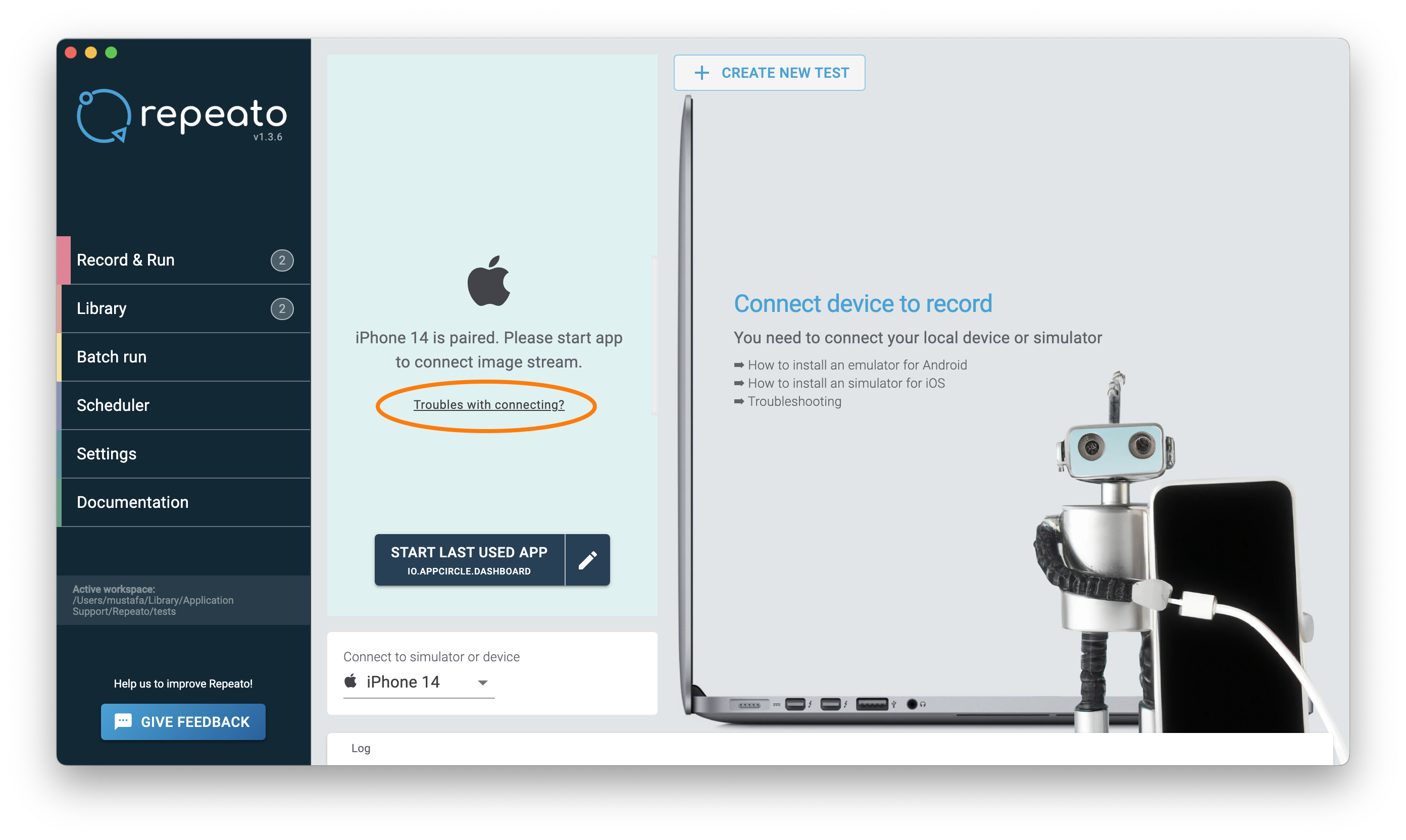
If you need help with this step click the Troubles with connecting button
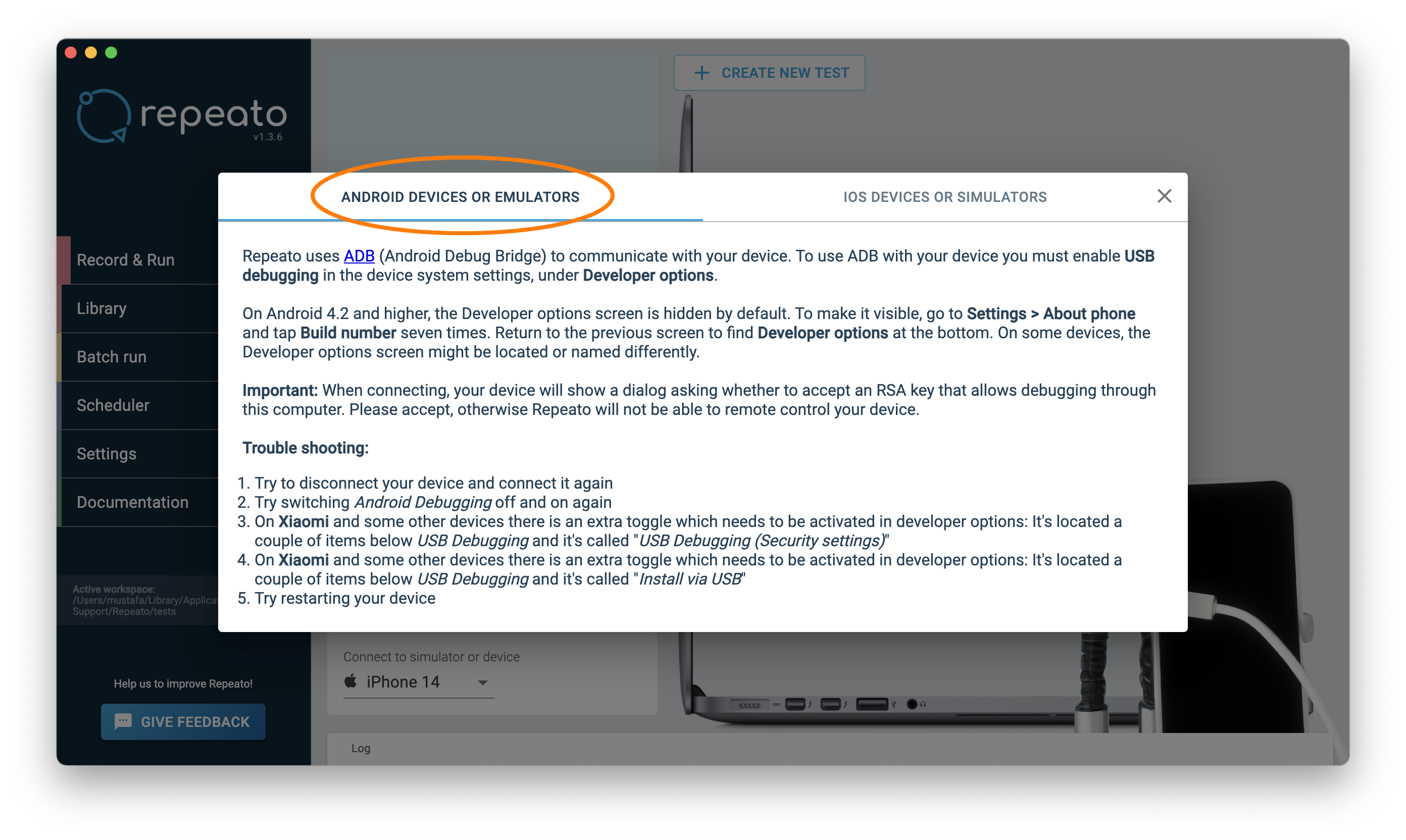
If you will define an Android test you must click the ANDROID DEVICES OR EMULATORS tab (it is default already).
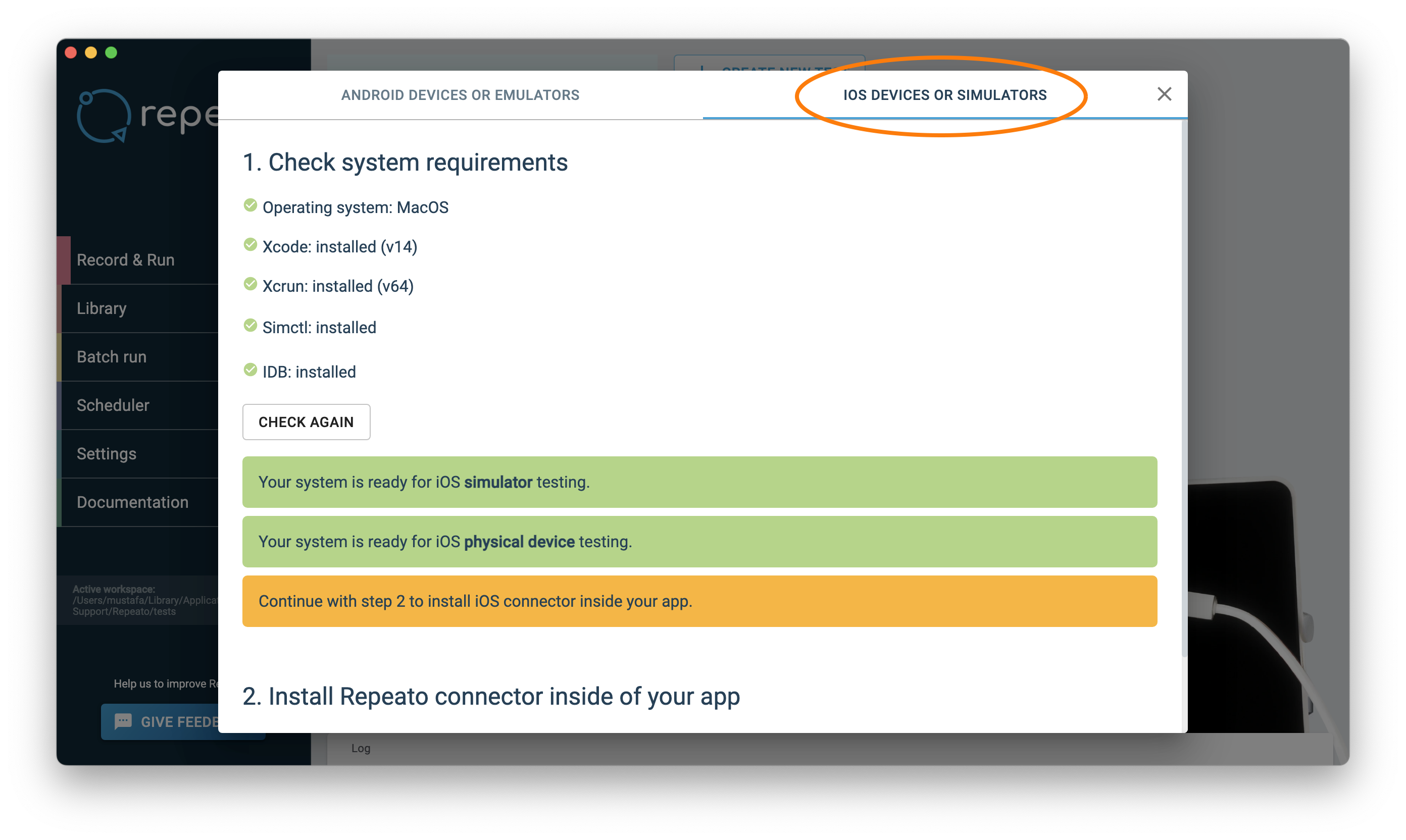
If you will define an iOS test you must click the IOS DEVICES OR EMULATORS tab.
- Create Test Scripts: Use the Repeato interface or the supported programming language to create test scripts. Repeato provides a rich set of libraries and tools to facilitate test script development, making it easier to write robust and maintainable tests.
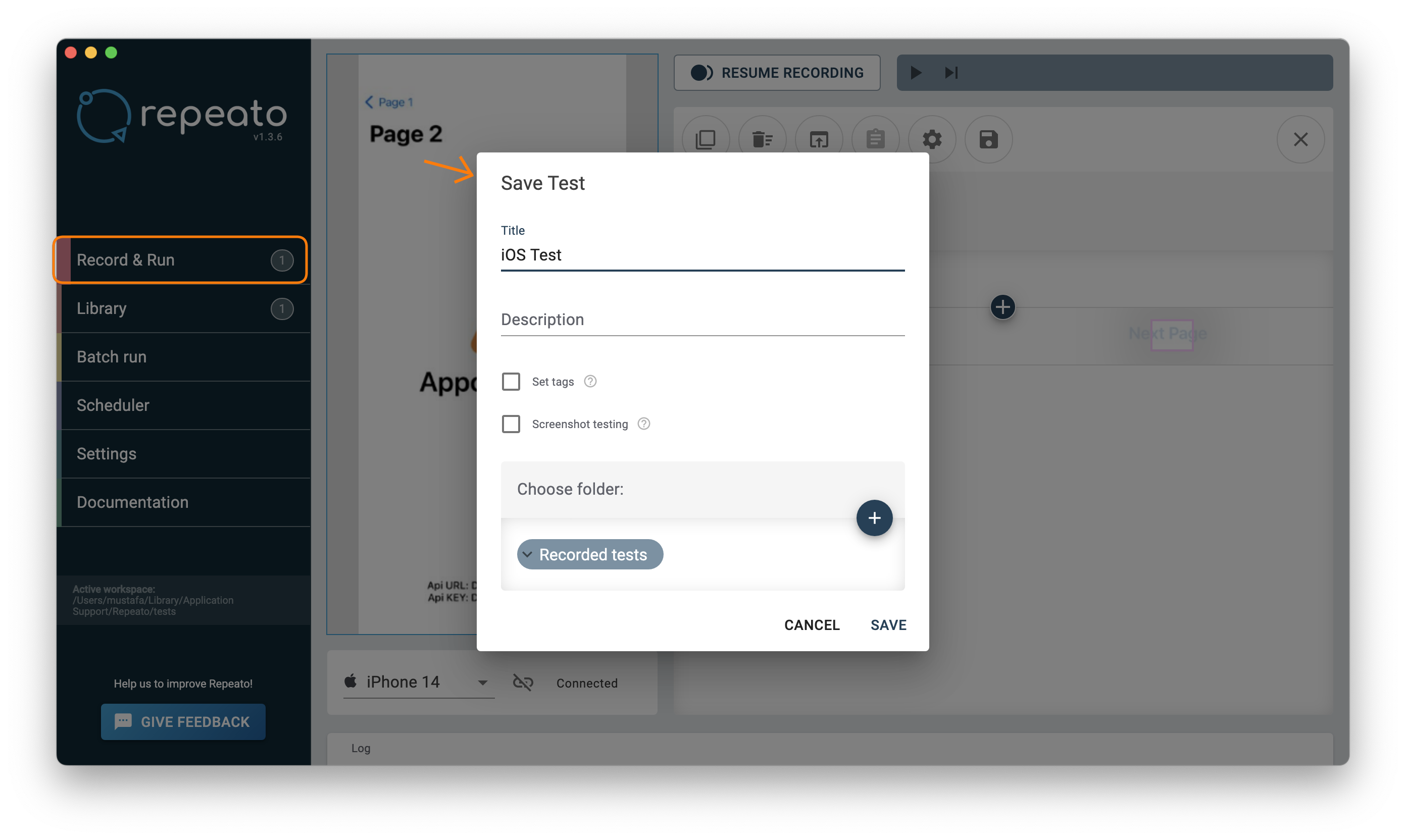
- Save the Test Suites: Name and save the test suites, and include them in the batch run. View the test suites in the
Librarytab.
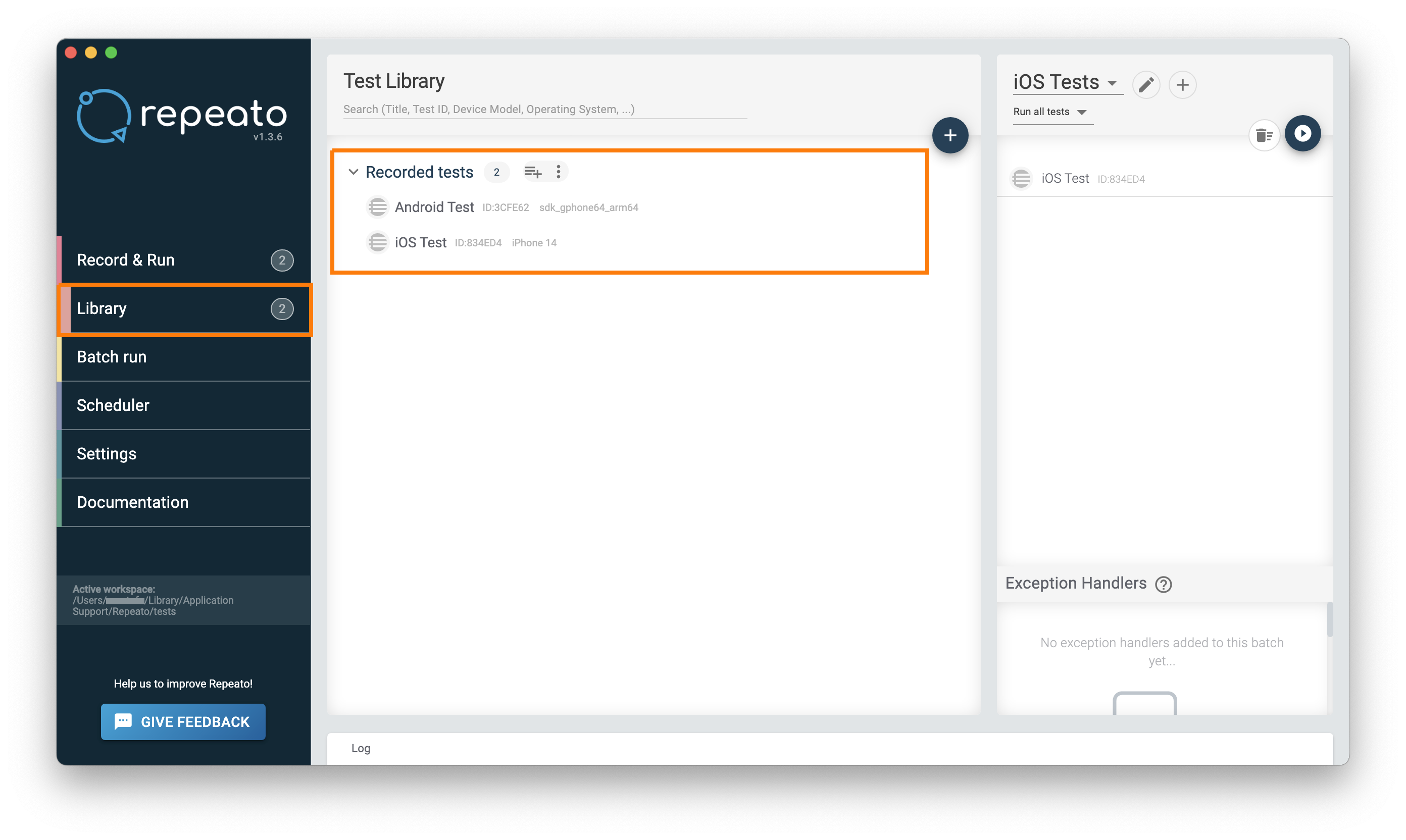
- Execute Test Suites: Configure and execute test suites within Repeato. You can specify test execution parameters, such as test environment configurations, test data, and parallel execution options, to suit your project requirements. Test run steps are as follows:
- Navigate to the Batch Runner and choose your tests from the dropdown menu.
- Click the
SHOW DEVICE MIRRORbutton to view the device screen.
- Press the
Start Batch Runbutton.
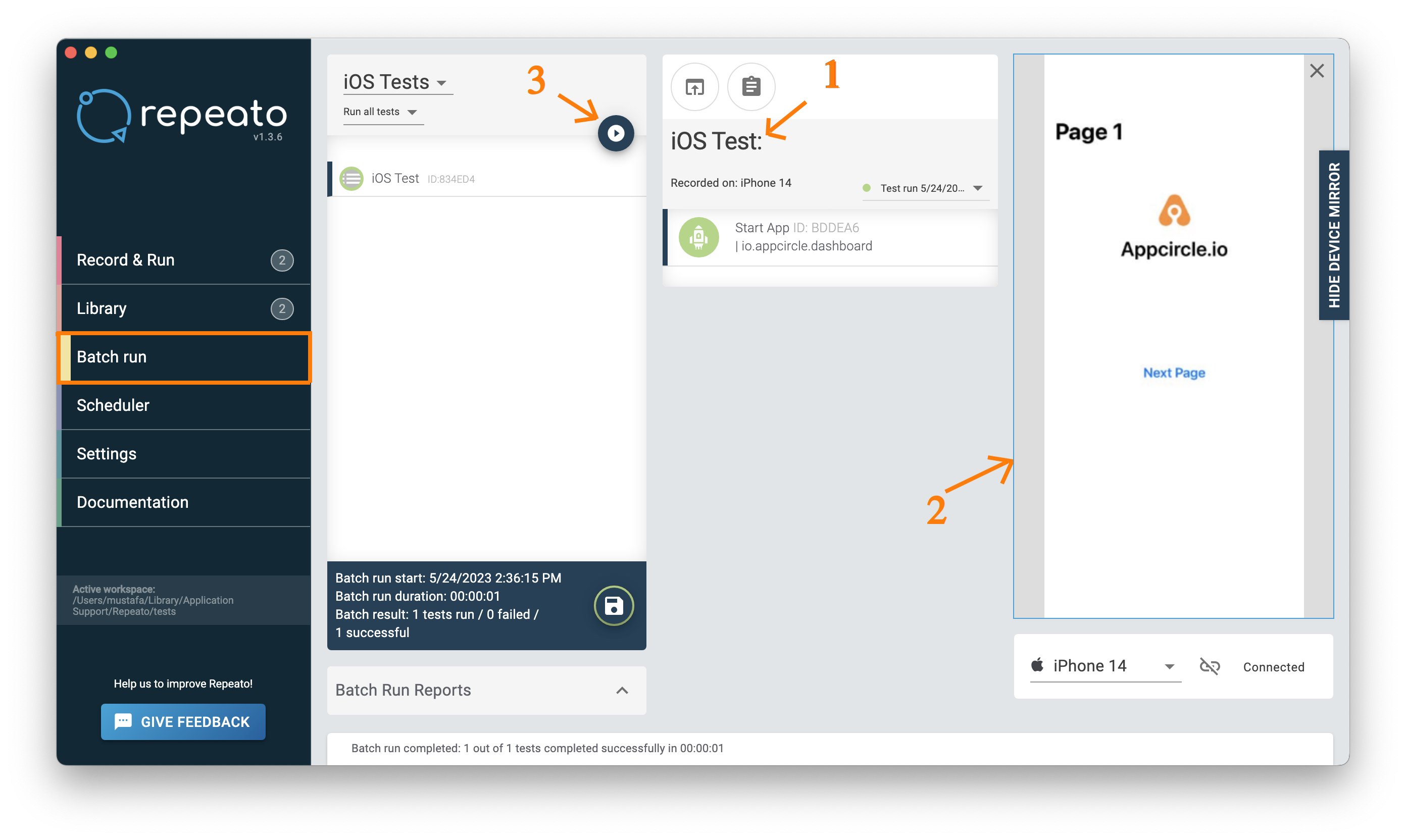
- Analyze Test Results: Repeato provides detailed reports and logs to analyze test results. You can easily identify failed tests, investigate the causes, and share the results with the development team for prompt resolution. Example of Repeato CLI report result:
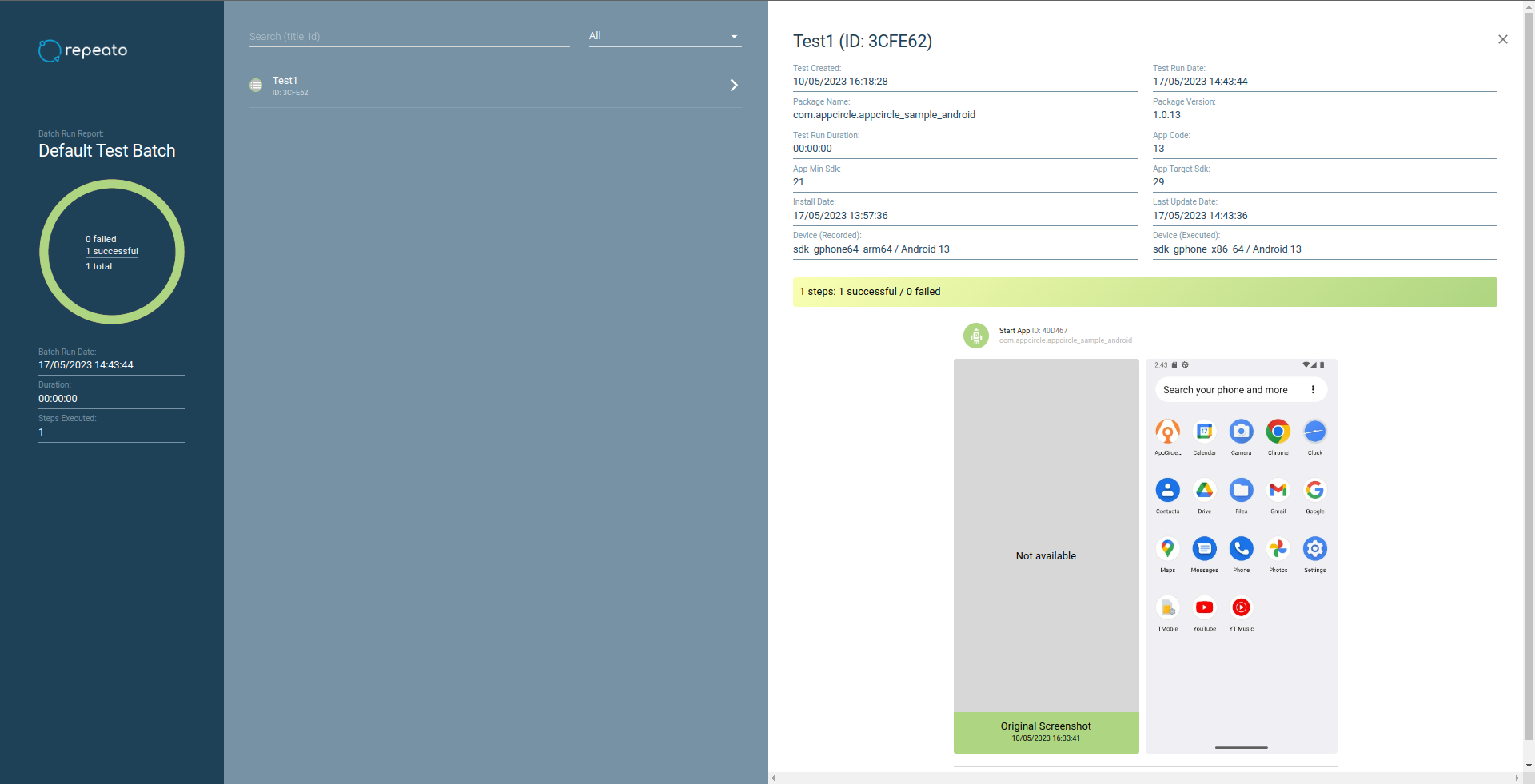
How to Integrate Repeato into Your Project with Appcircle
Repeato seamlessly integrates with Appcircle, a mobile CI/CD and testing platform. Using Appcircle’s intuitive interface, you can easily set up Repeato integration and benefit from its capabilities.
⚠️ The test folder should be located in the same directory as your project files.
To integrate with Appcircle, you can follow the steps provided below:
- Integrating Repeato with Android App Testing: Let’s take Android app testing as an example:
- In Appcircle, navigate to your Android project and go to the
Buildsection.
- Select the profile you want to test. If you wish, you can use Appcircle’s sample Android or iOS project.
Note: Please make sure to select the branchfeature/repeatoas in the linked link. - Add a new Repeato component to your workflow. If you need help please follow the steps in this document.

- In Appcircle, navigate to your Android project and go to the
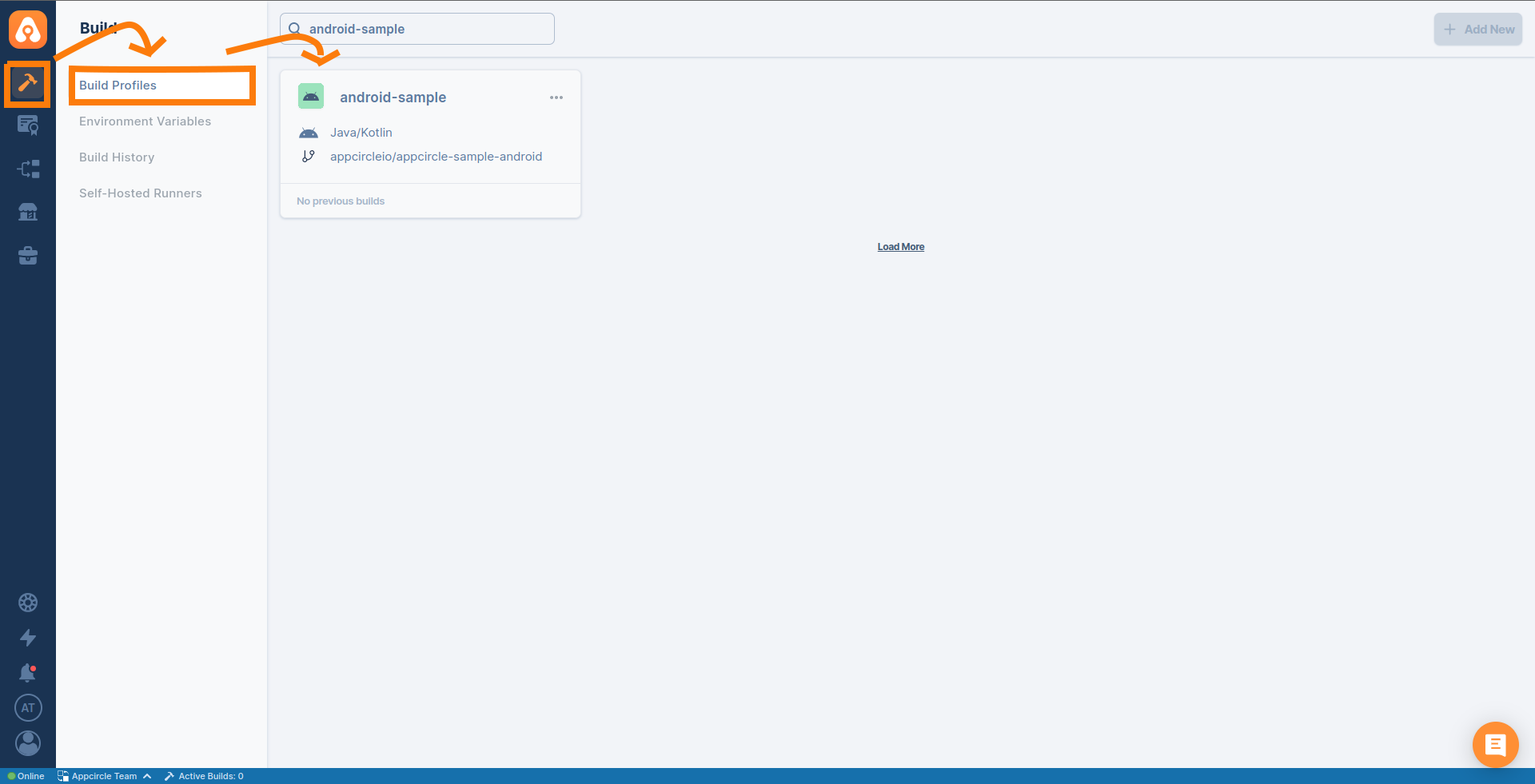
- Configuring the Repeato Component: In the Repeato component settings, specify the location of your tests folder. This is where your test scripts and related files are located within your project structure. This information allows Repeato to execute the tests accurately.

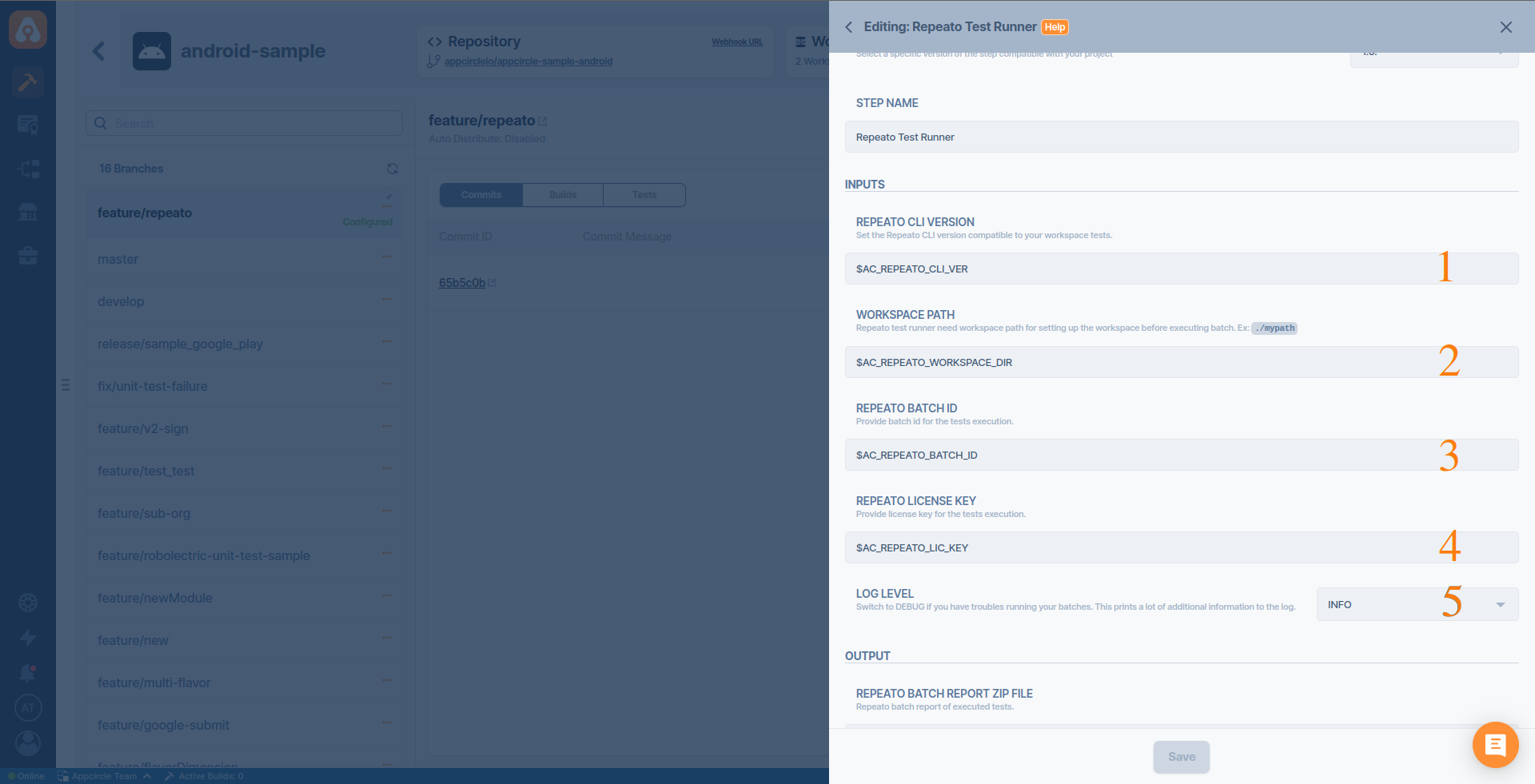
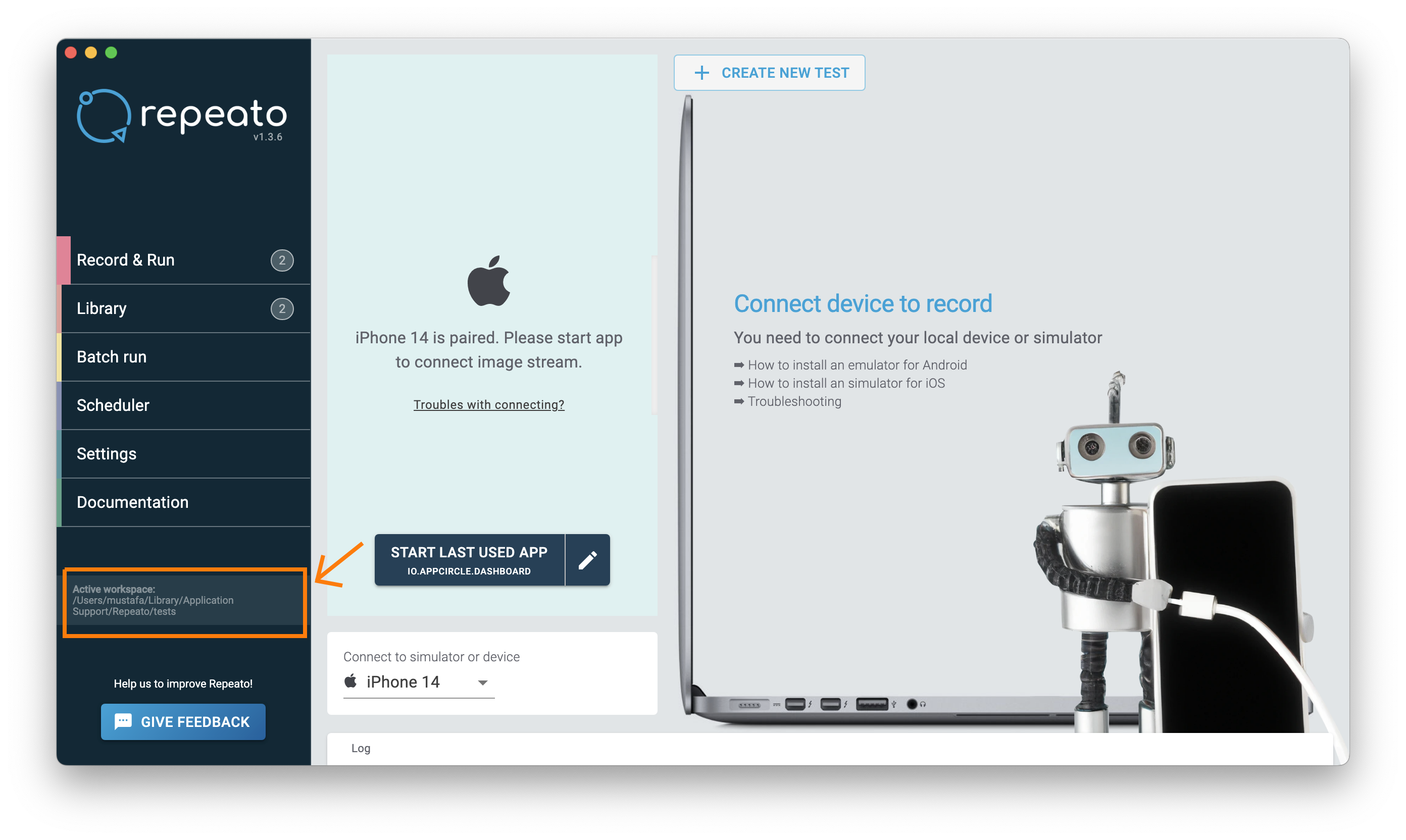
AC_REPEATO_CLI_VER: CLI version of Repeato. If no data is entered, it will default tolatest.AC_REPEATO_WORKSPACE_DIR: Repeato’s workspace directory. You can get it through the Repeato app.
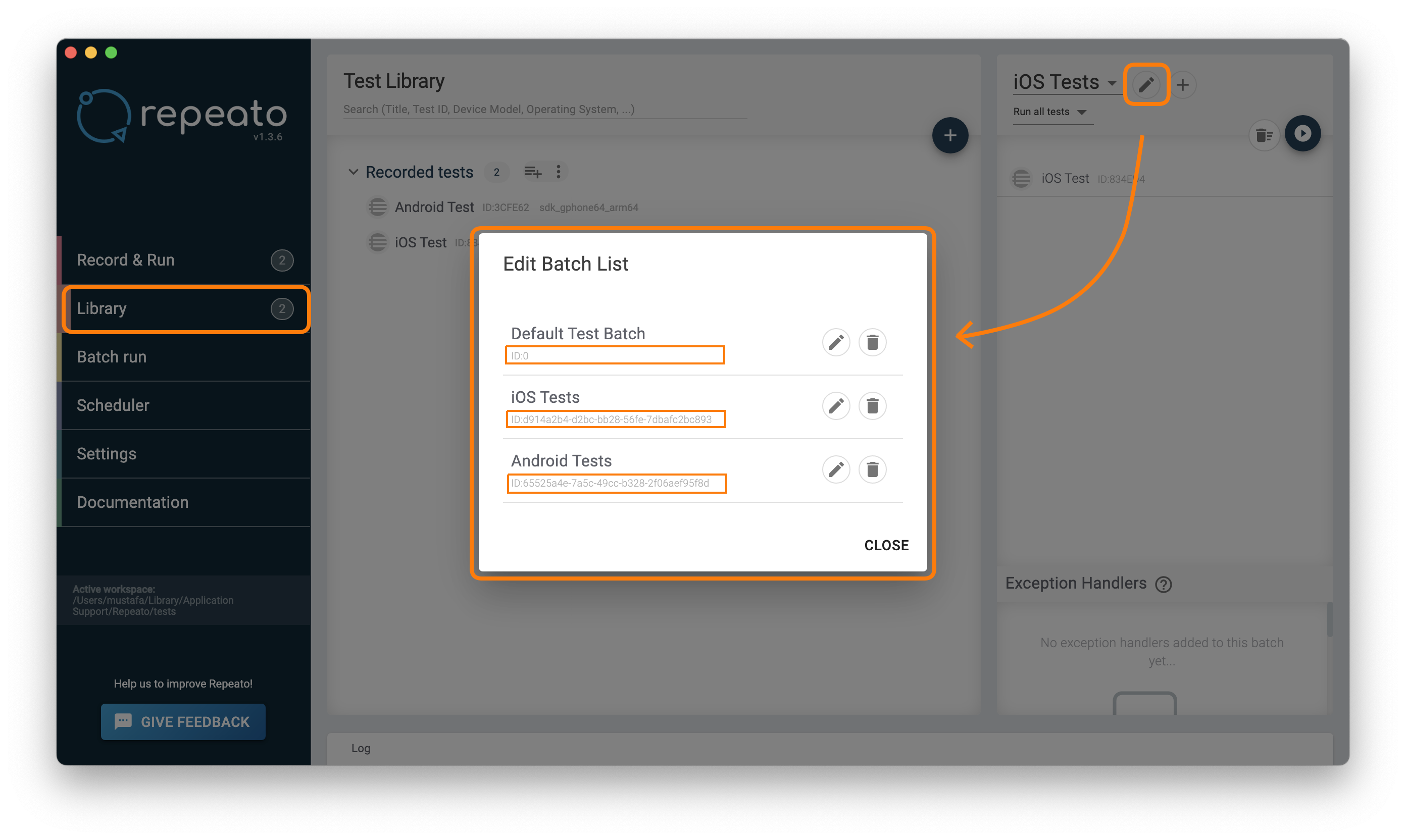
AC_REPEATO_BATCH_ID: You can get it through the Repeato app with these steps:
Library > Batch edit button [ ✏️ ] > Under of each test
AC_REPEATO_LIC_KEY: Repeato’s license key. You can get it through the Repeato appLOG LEVEL: You can use one of the options according to the desired detail.
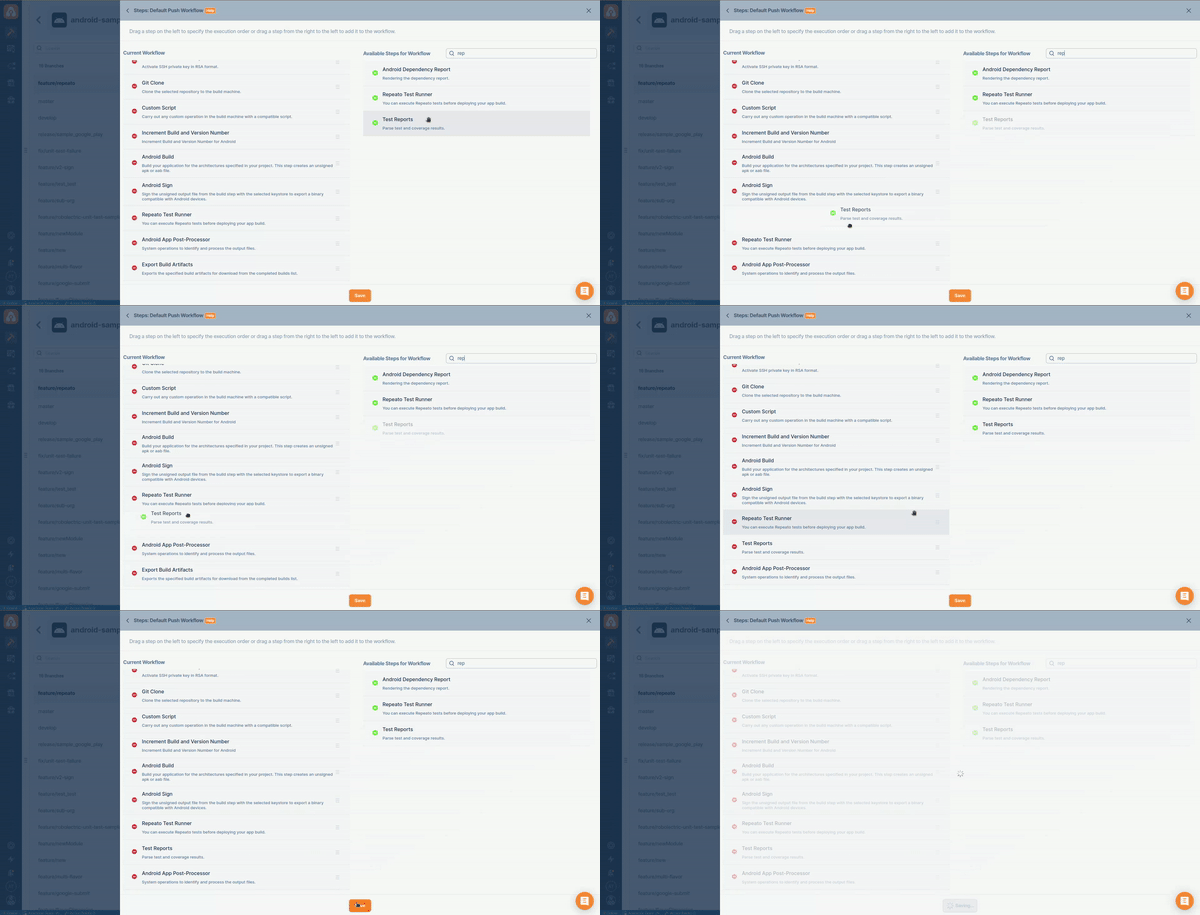
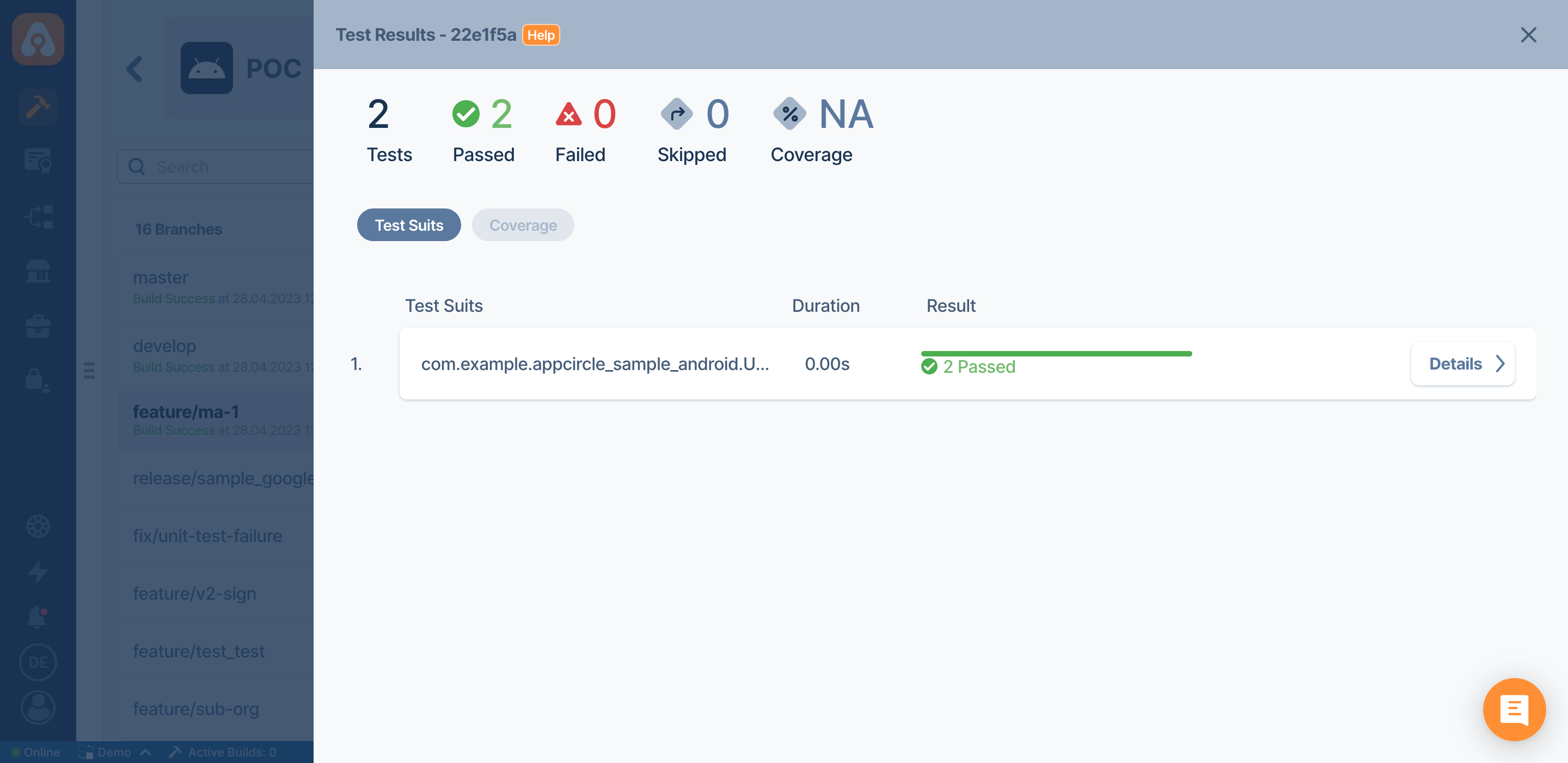
- Test Results in Appcircle: Once the Repeato component is configured and the workflow is triggered, you can view the test results in Appcircle using the
Test Reportscomponent. It provides a comprehensive overview of the test execution, including passed and failed tests, logs, and any relevant details.
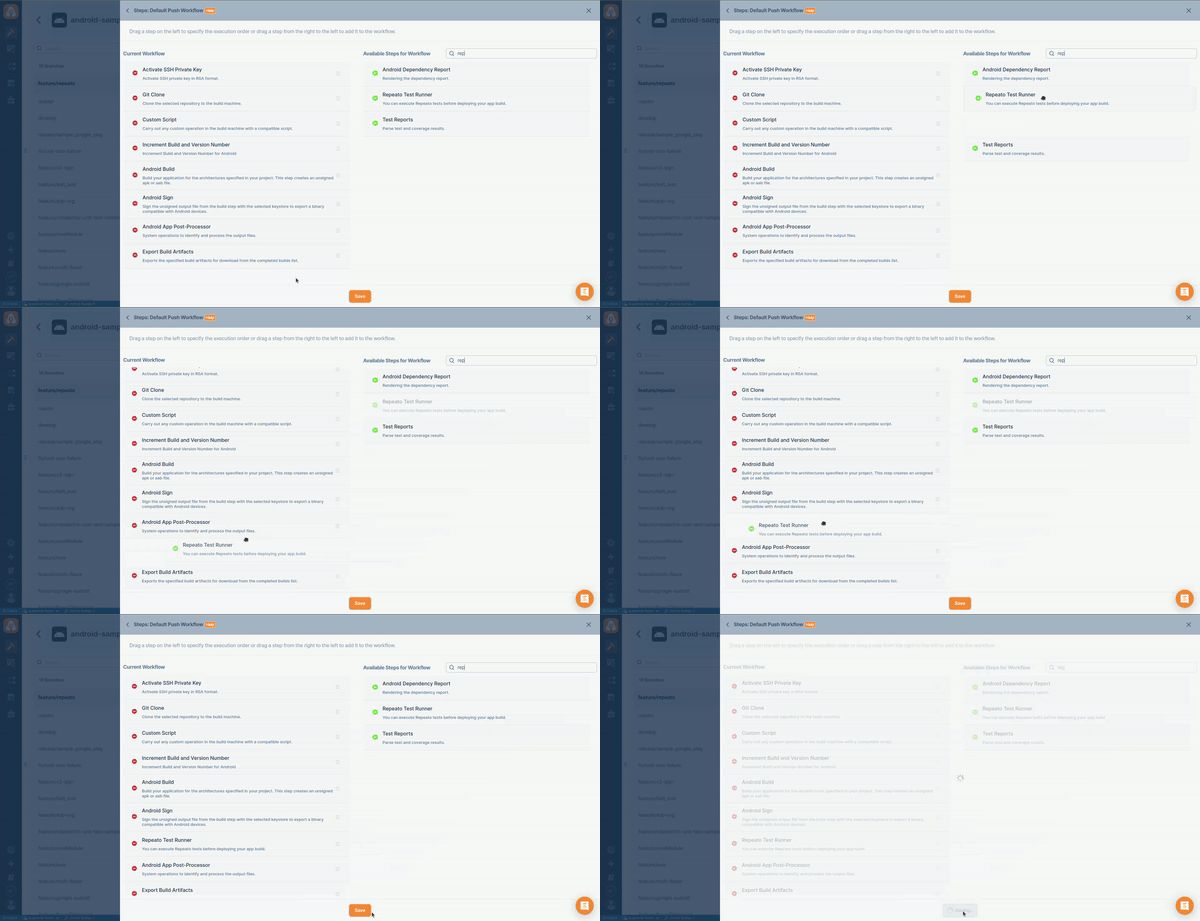
⚠️ To view test reports, it is necessary to include the
Test Reportsstep in the workflow. This step must come after the test step:
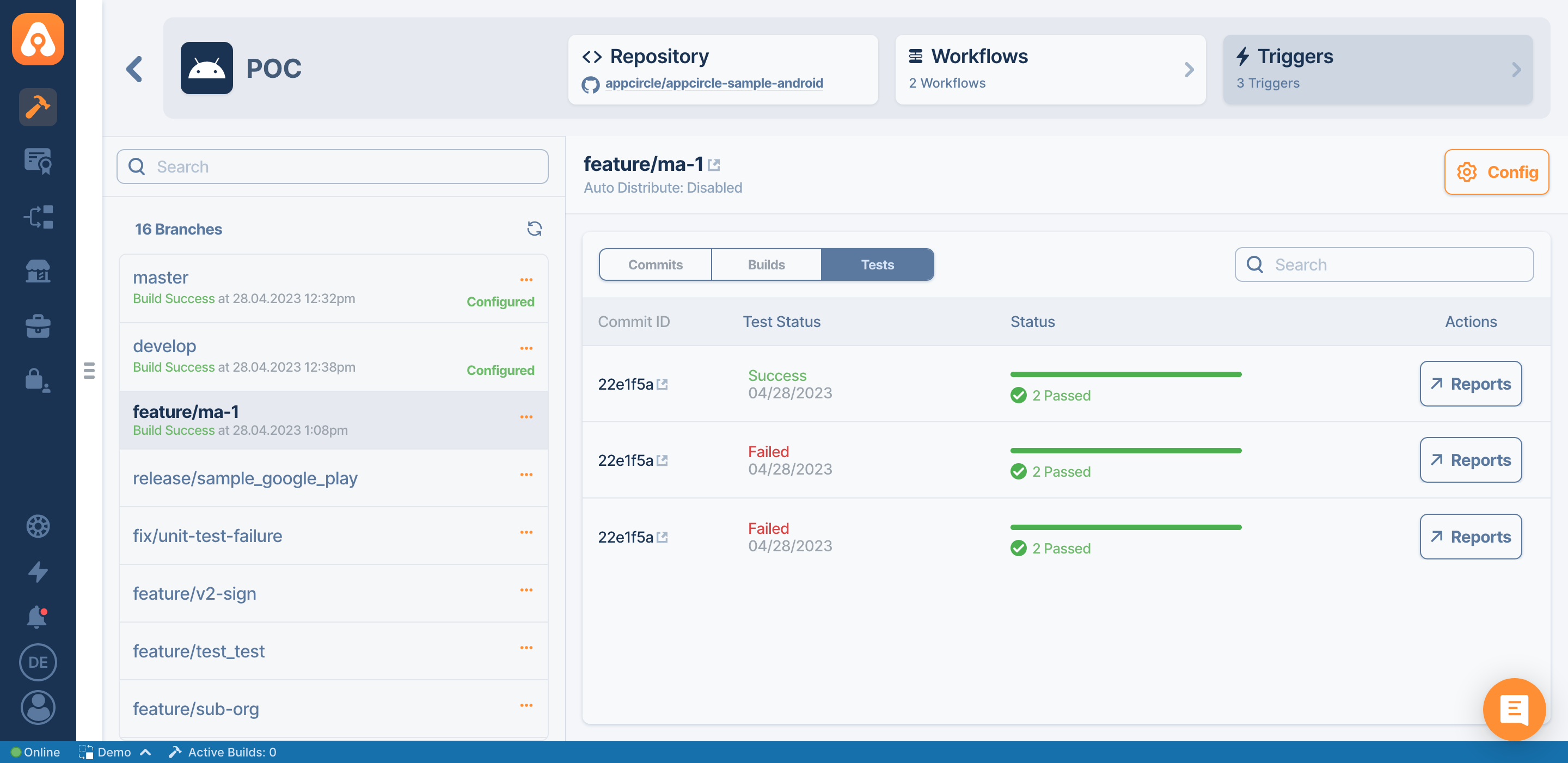
⚠️ Once the tests are completed, you can view the test results by navigating to the
Teststab:
Conclusion:
Integrating Repeato into your project offers significant advantages in terms of streamlined project management and automation. Repeato and Appcircle form a powerful combination for streamlining project integration and test automation. By integrating Repeato into your project, you can benefit from enhanced efficiency, customizable workflows, and real-time notifications.
With Repeato and Appcircle, you can elevate your software development process, ensuring faster delivery, improved quality, and better project outcomes. Check out Appcircle with the new featured Repeato integration now!

