
Guide to Automated Mobile CI/CD for Native iOS with Appcircle
Appcircle is a mobile CI/CD platform that provides a fully automated environment to manage mobile app lifecycle end-to-end, transforming DevOps to NoOps with the best practices. Appcircle supports the full lifecycle of Native iOS apps for all CI/CD needs. In this article, we will be building and deploying a Native iOS app with Appcircle with no need for a Mac or any third-party tools.
The first step is getting started with Appcircle. Just go to https://my.appcircle.io/ and register. (Regardless of the login provider you select, you can connect any other provider for the repository connections.)
Creating a Build Profile for a Native iOS Project
In Appcircle, a build profile contains the build workflows and the configuration of a Native iOS app target.
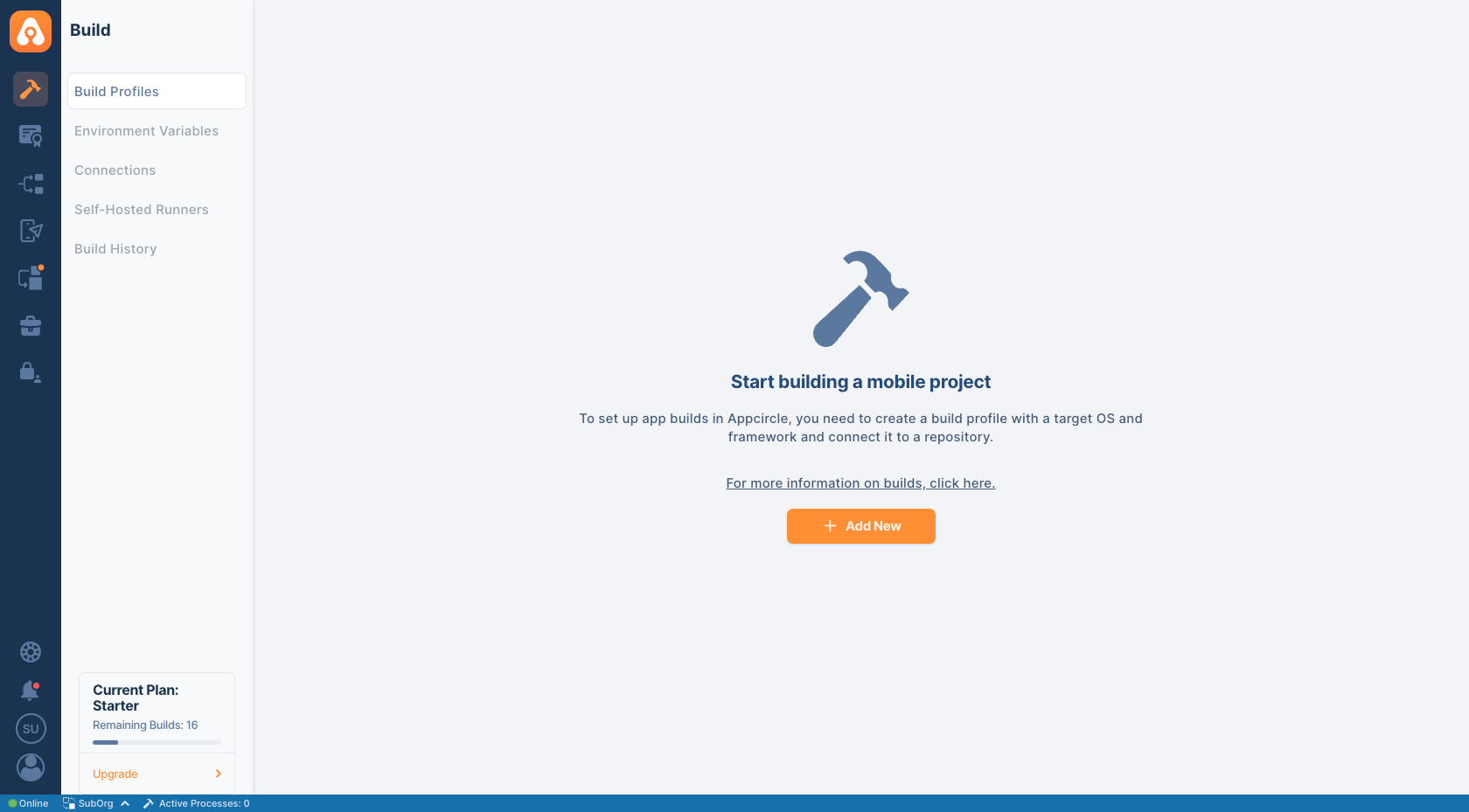
To create your first build profile, click on the orange “Add New” button on the middle of the screen.
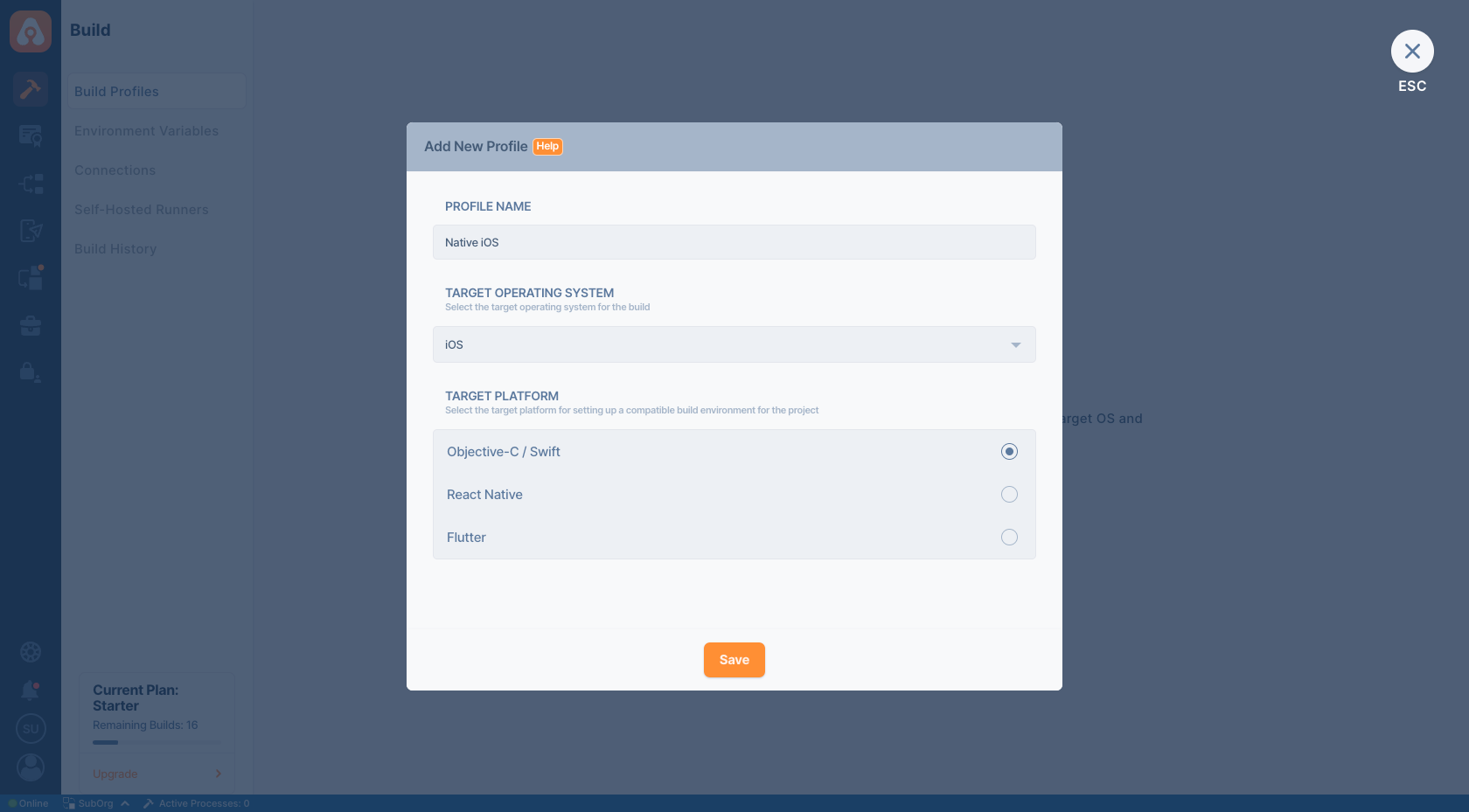
Enter a name for your build profile and select the target operating system (iOS) and the target platform as Objective-C/Swift.
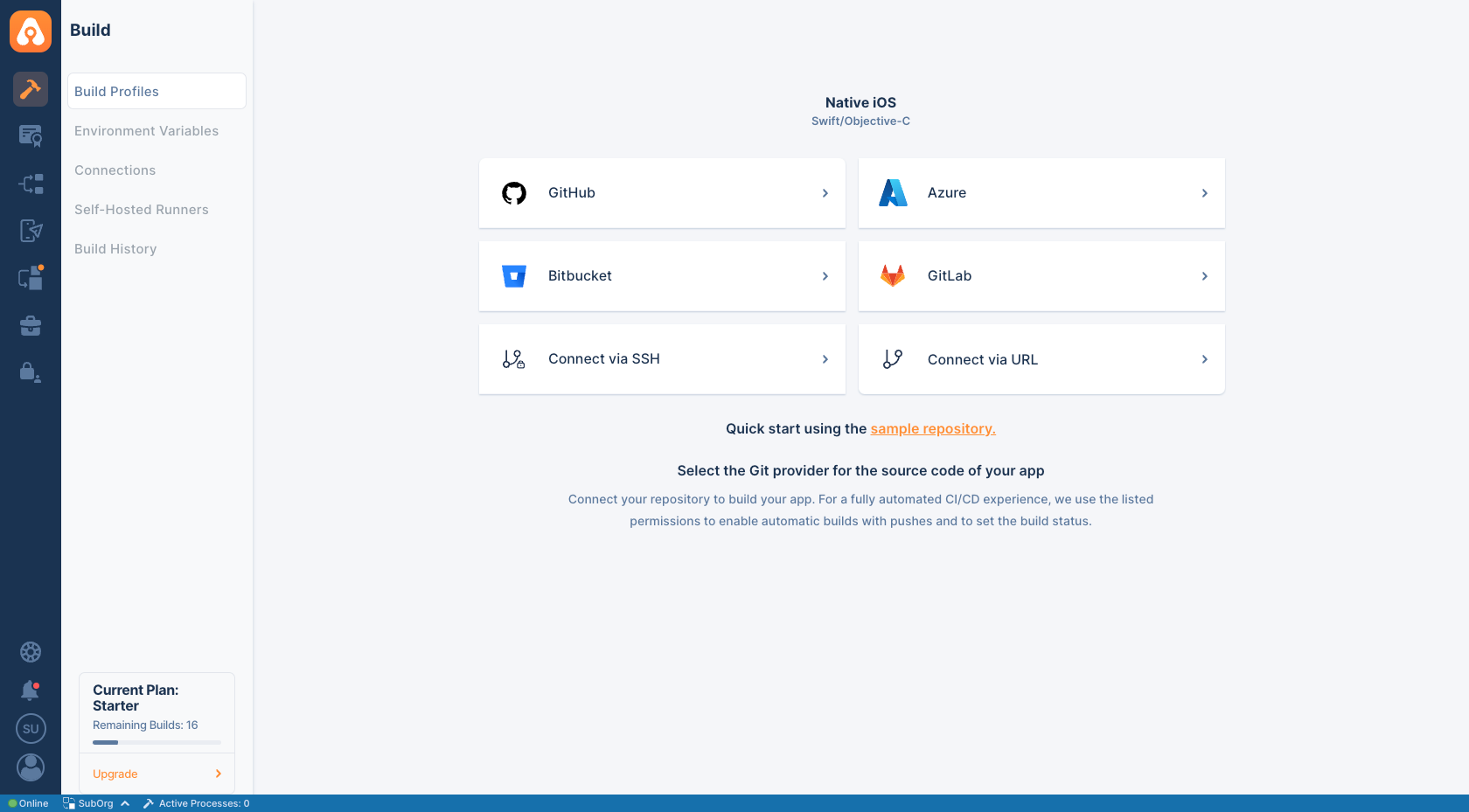
You will see your build profile once it has been created. Click on the build profile to connect to a repository that contains a valid Native iOS app.
You can connect GitHub, Bitbucket, Azure, and GitLab repositories to your build profile through oAuth apps. Alternatively, You can connect private repositories through SSH and public repositories directly on GitHub, Bitbucket, GitLab, Azure, and other compatible Git providers.
You can authorize Appcircle to connect to your cloud repository provider account. This will allow you to use auto-build your project with hooks. If you authorize Appcircle to access your repositories, you can select the repository that you want to connect. If you use a private repository using an SSH Key, you need to have an SSH key pair ready and enter your private key to Appcircle so Appcircle can access your repository.
Appcircle will then pull your branches, commits, and other information from your repository.
To test drive the Appcircle platform for Native iOS app builds, you can also use our sample iOS App by forking it or adding it as a public repository: https://github.com/appcircleio/appcircle-sample-ios
Native iOS Application Build Configuration
The build configuration has different flows for iOS and Android and the projects are configured on a branch basis. You can have different configurations for different branches and you can build any of your commits (assuming that they are compatible with the current configuration).
iOS Build Configuration
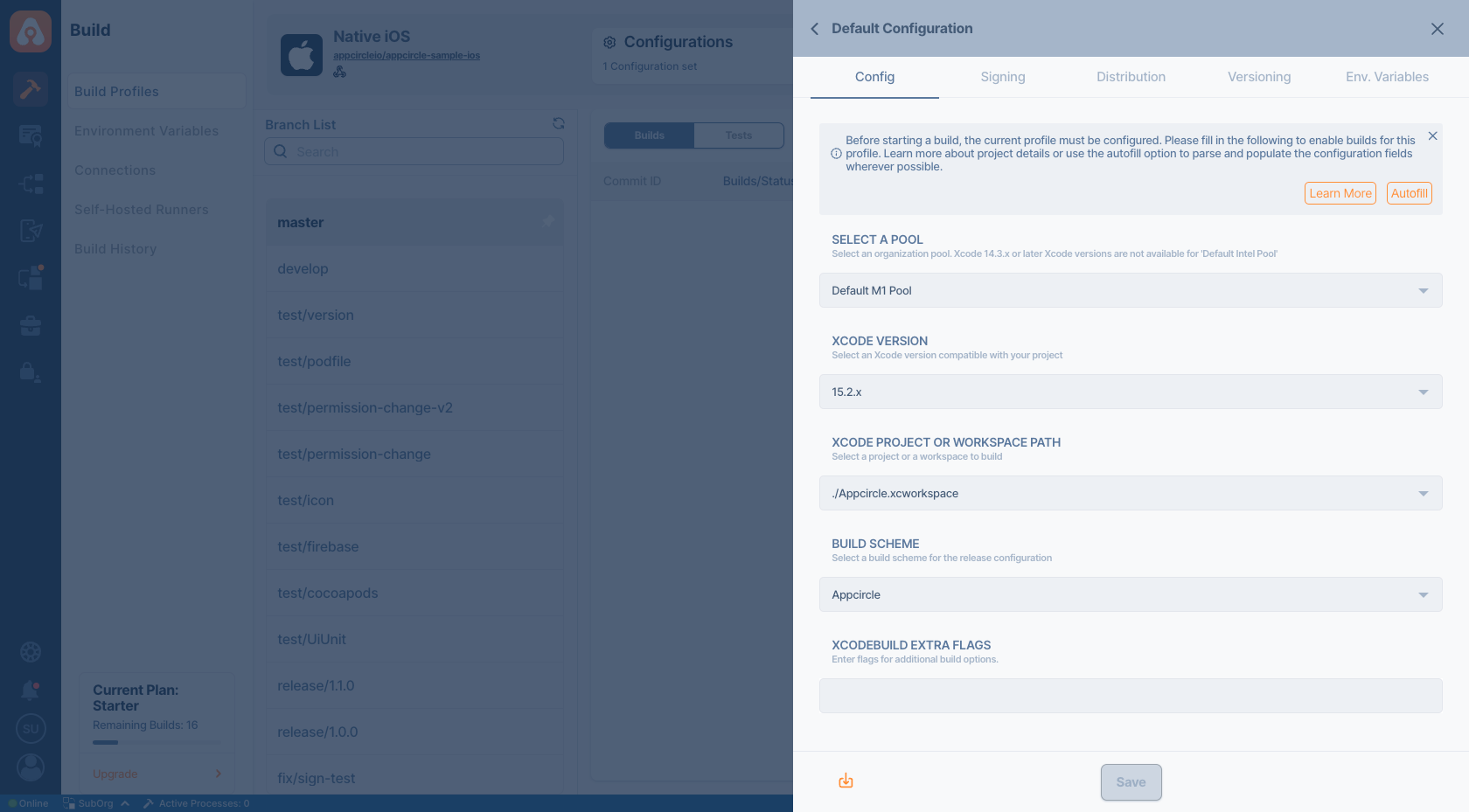
Click on the gear icon on the top middle to access the build configuration. The first step will be entering the project details. You can enter these details manually or click on the Autofill button to retrieve them from your project to detect the correct path for the Xcode project automatically.
Your iOS project needs to have an Xcode project or an Xcode workspace and a shared scheme to complete the build configuration successfully. Appcircle can fetch these workspaces and shared schemes from your branch automatically.
You can also select a specific Xcode version if you have certain dependencies or if you want to test your build on a specific version.
Build Triggers for Auto Builds
The next section, Triggers, is common for iOS.
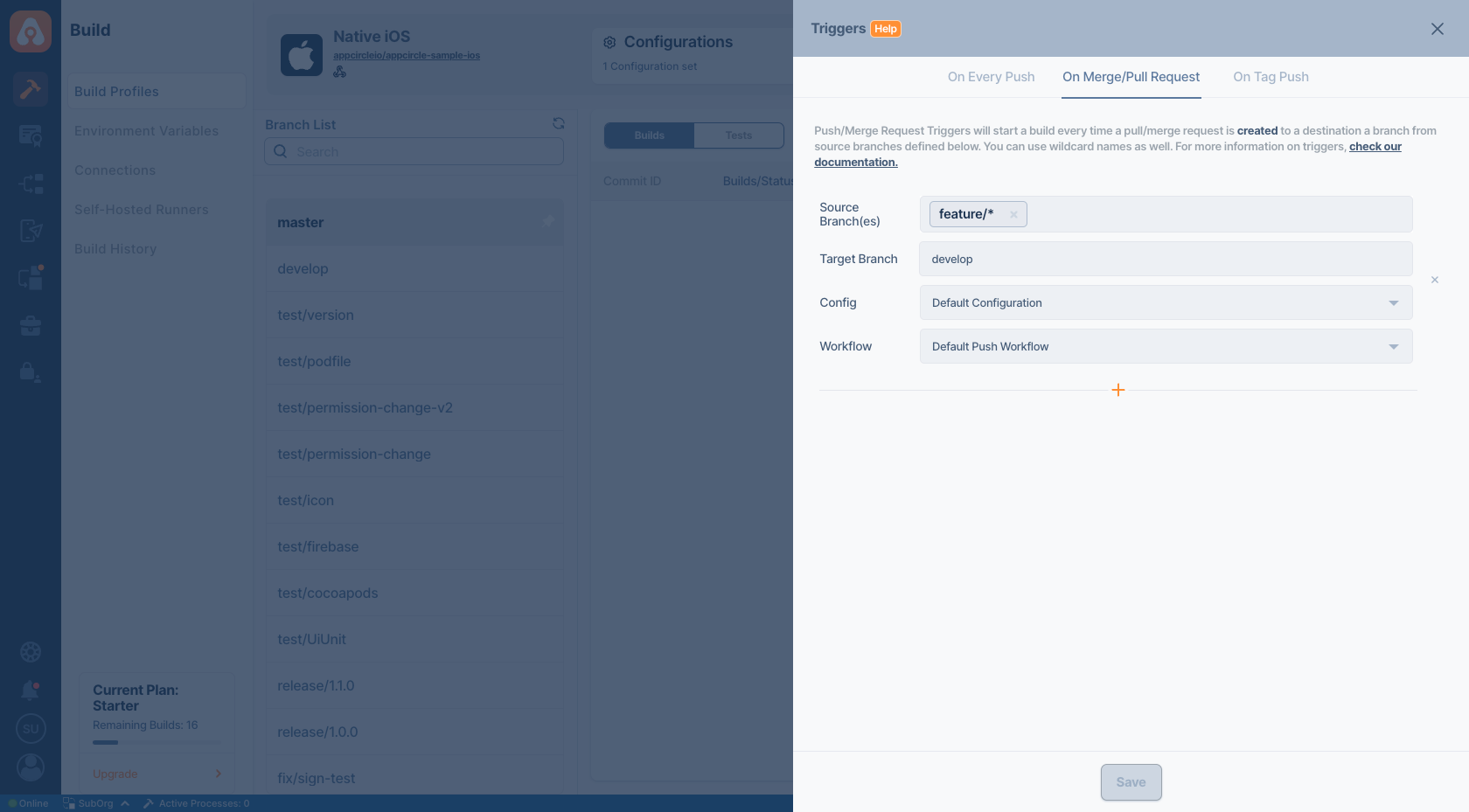
Appcircle allows you to trigger builds manually or automatically using build triggers.
- On Every Push: Whenever code is pushed to a configured branch, the build is triggered.
- On Merge/Pull Request: When a PR is opened, the last commit of the PR is automatically triggered.
- On Tag Push: Whenever a tagged commit is pushed, the build is triggered for that commit. Commits without any tags are ignored.
Signing Configuration
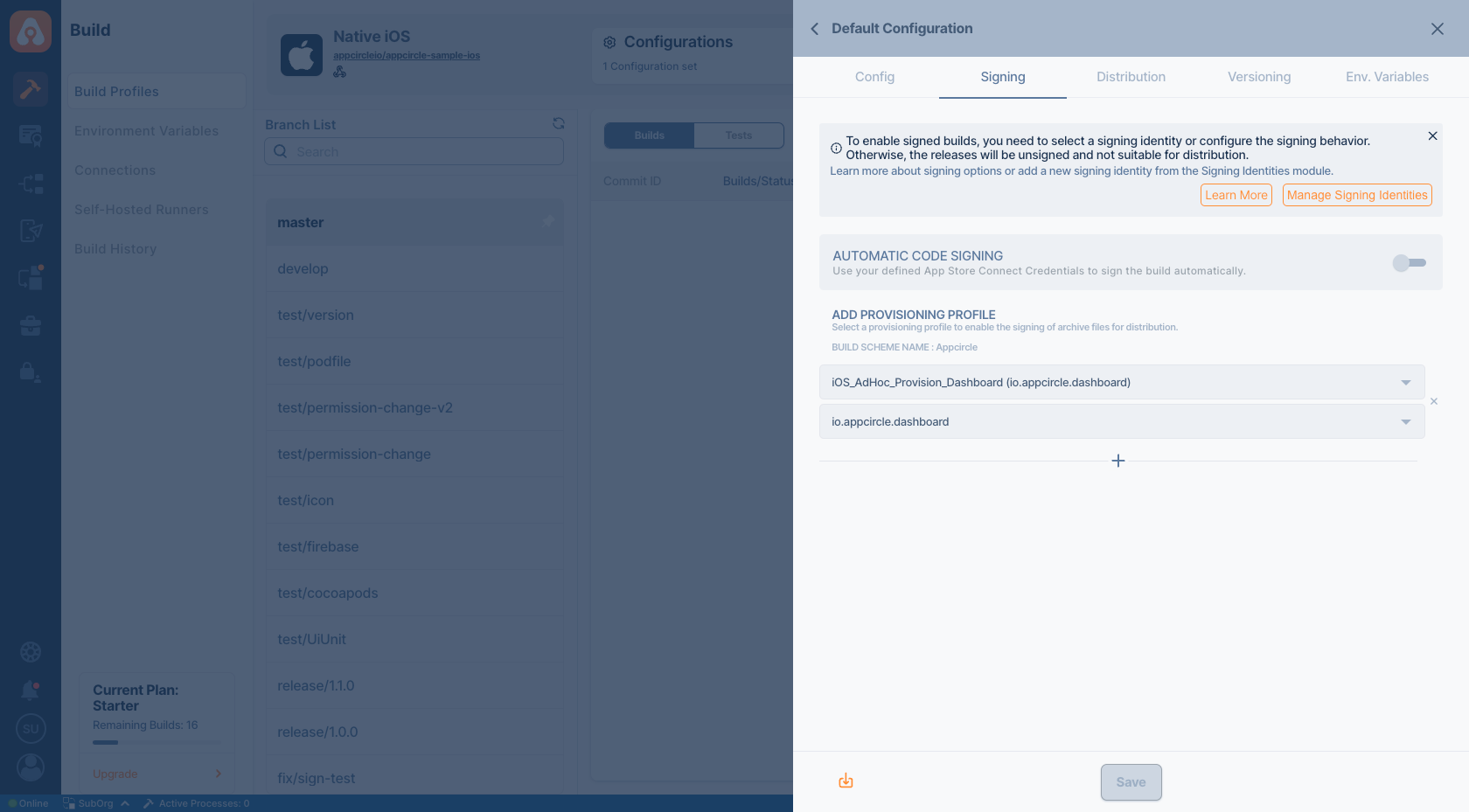
Appcircle allows you to sign your app for deployment.
Appcircle is unique that it doesn’t require you to generate signing identities with a third-party tool. You can simply create your iOS certificates/profiles within the platform and use them in any project in a centralized manner.
If you have readily available signing identities, you can also upload them once to the Appcircle Signing Identities module and use them centrally in any project. (No need for separate uploads of the same certificate for separate projects.)
- For more information on iOS certificate and provisioning profile management, please refer to the following document: https://docs.appcircle.io/signing-identities/ios-certificates-and-provisioning-profiles
For signing Native iOS app, press add, select the bundle ID from the first dropdown and then select a compatible provisioning profile (added from the signing identities module) from the second dropdown.
Distribution (Deployment) Configuration
Appcircle is an end-to-end mobile CI/CD tool enables you to build and deploy your apps to mobile devices with full automation.
Distribution is a critical step when it comes to testing your application on real devices. You may need multiple testers and test groups to download, install, and test your application and make sure it works on different devices and operating system versions.
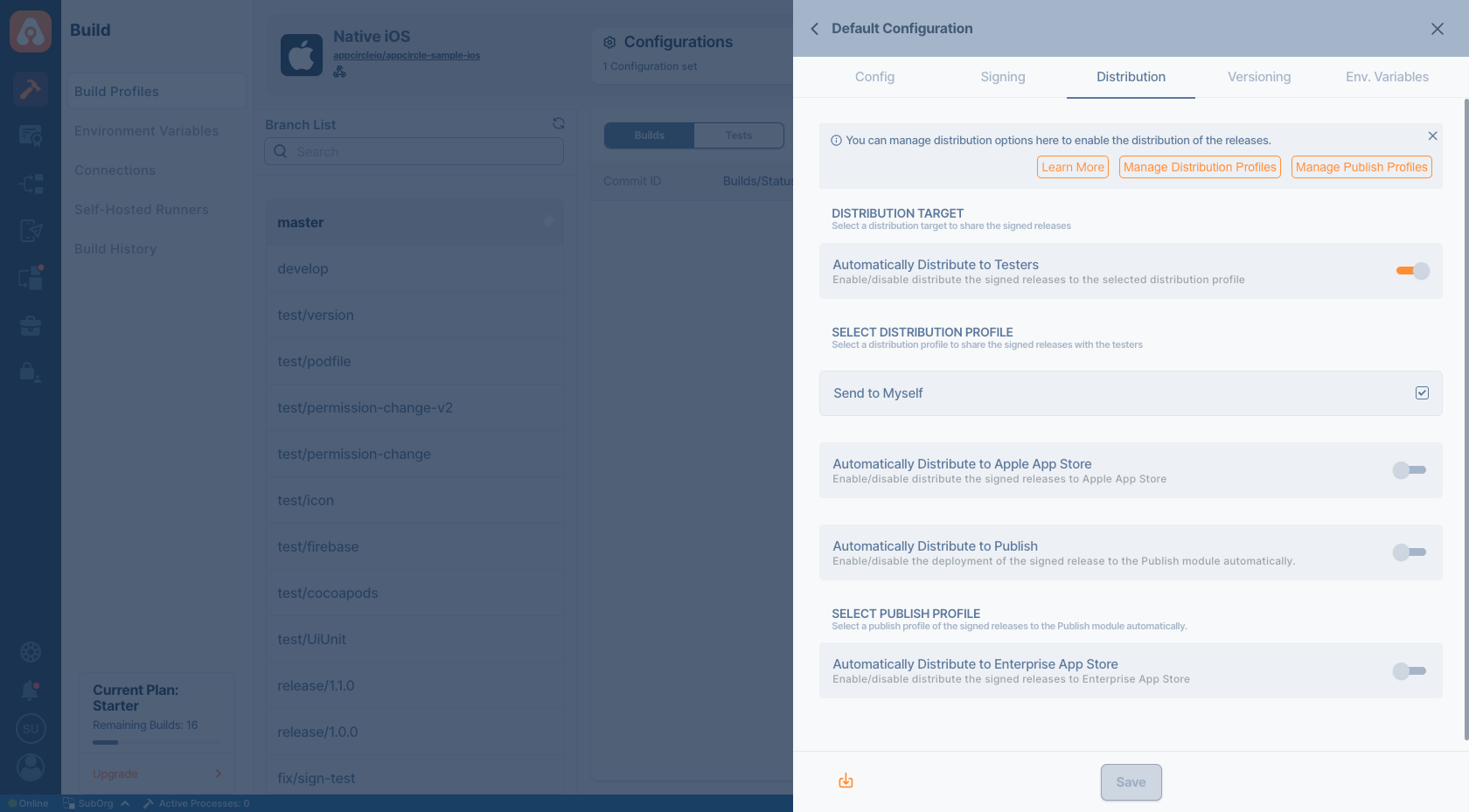
Distribution configuration allows you to set up which testing groups will receive your application after the build is complete. You can manually send your binary file to testers or Appcircle can do this for you.
For more information on how to set up testing groups and deploy your app after the build, please refer to the following document: https://docs.appcircle.io/distribute/create-or-select-a-distribution-profile.
You can select a previously created distribution profiles. Use the toggle that you want to distribute your own app automatically, and select the related distribution profile. You can enable other distribution methods such as Publish Module or Enterprise App Store.
If the target profile has auto-send configured, your testers will receive the latest version automatically.
Environment Variables Configuration
The final tab is to add environment variables to the build. For advanced use cases, you can define variables and secrets to be incorporated during the build in the Environment Variables submodule so that you don’t need to store certain keys and configurations within the repository.
Workflows for Advanced Build Configuration
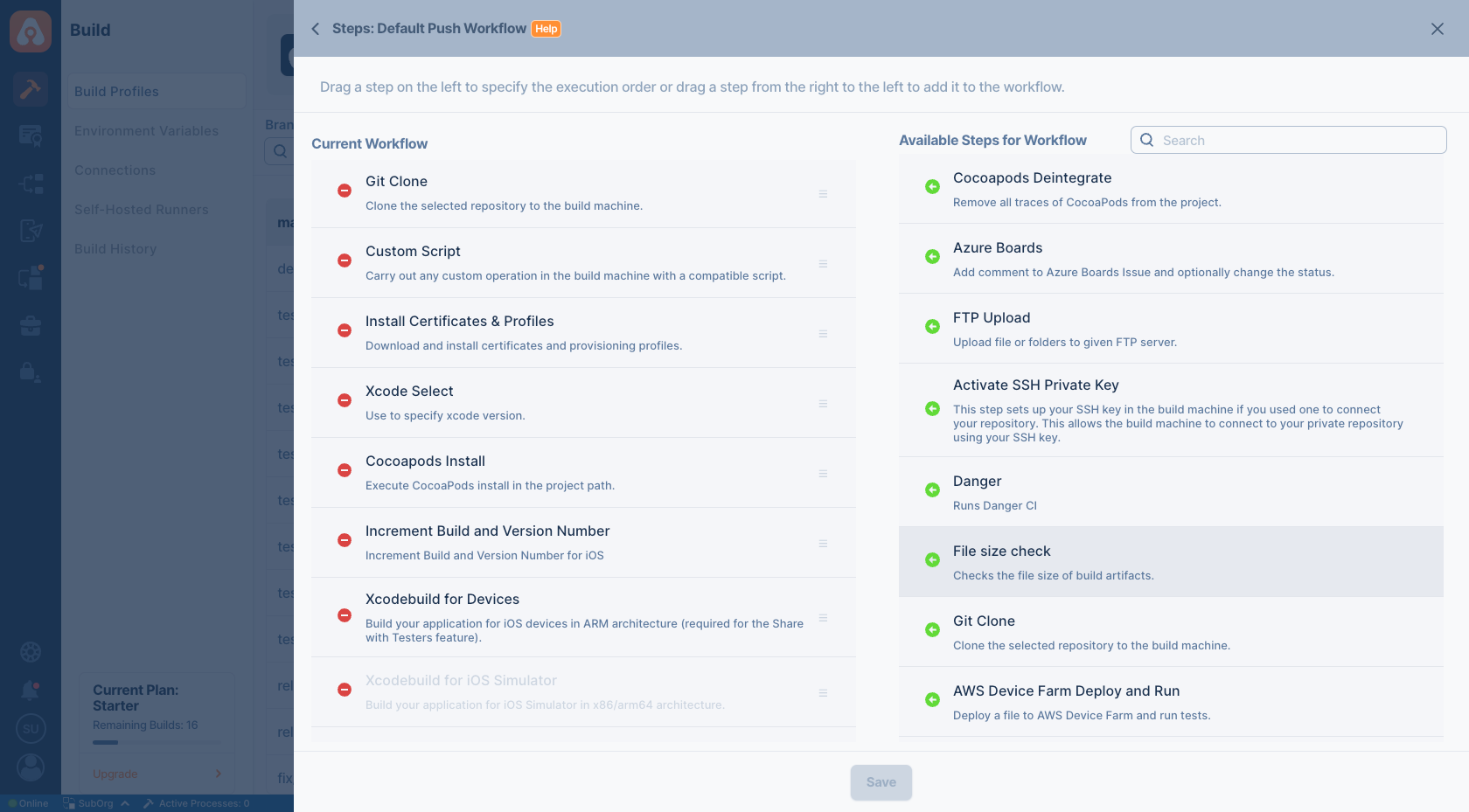
Appcircle is a simple, but flexible platform. You can make basic changes in a simple user interface with the build configuration and use the workflows for advanced use cases. A workflow is a ladder of steps taken to build your applications. Each step has a different purpose and the workflow can be customized by modifying step parameters and inputs, running custom scripts, or re-ordering steps. Workflows allow you to have complete control on your build process and enhance it with third-party services and features.
Also, note that the workflows are set up by default, so you don’t need to set them up for builds.
For more information on the workflows, you can refer to the following document: https://docs.appcircle.io/workflows/why-to-use-workflows
You have a wide variety of options with workflows. For instance, if you want to run a specific command before or after the build, you can add a custom script step at any point in the workflow. If you want to deploy your app with a third-party service instead of Appcircle, you can configure it with the workflows.
Starting a Build and After a Build
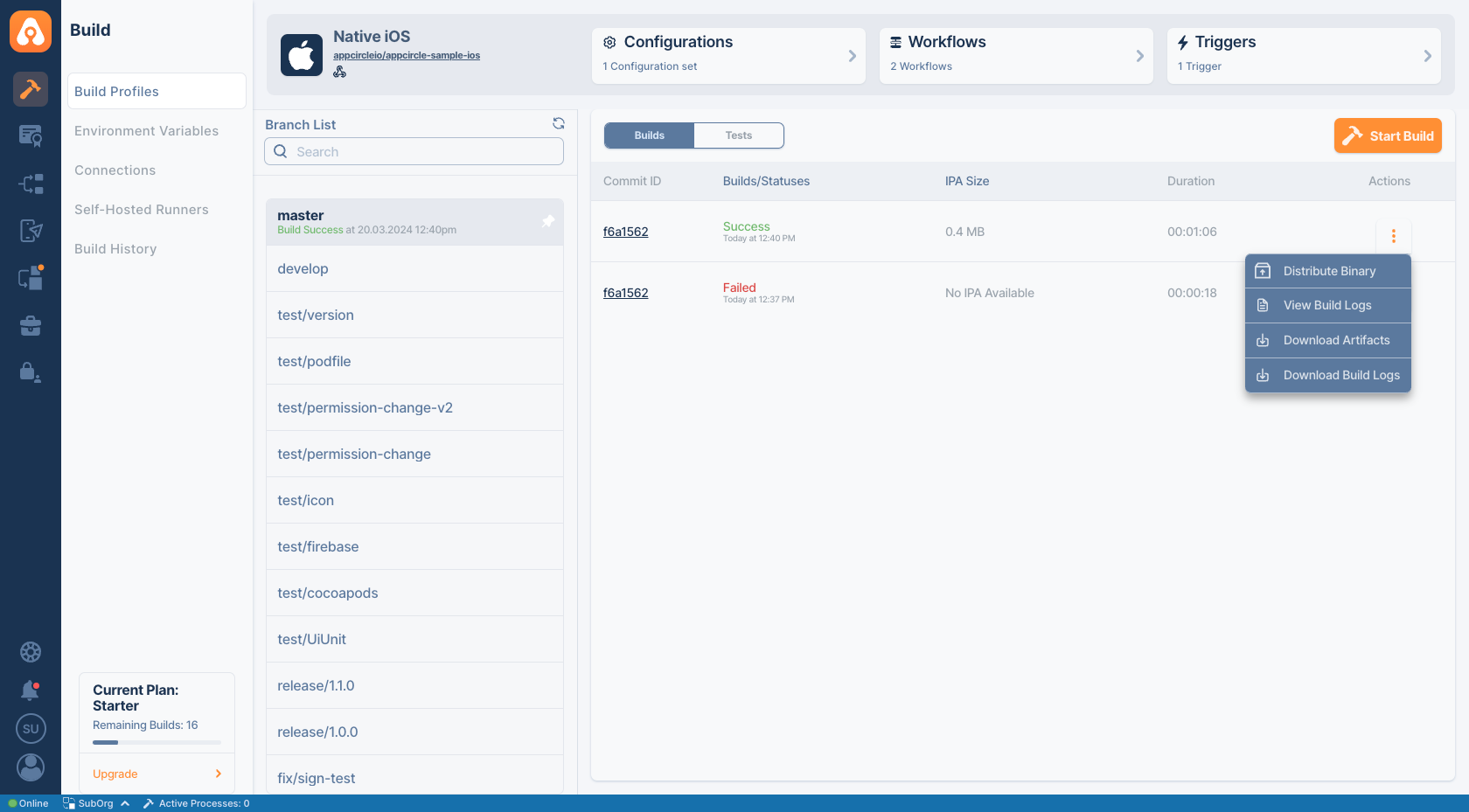
To start your first build, just press the start build button – the play button above the actions columns (or push some code to your repo if auto-build is configured.)
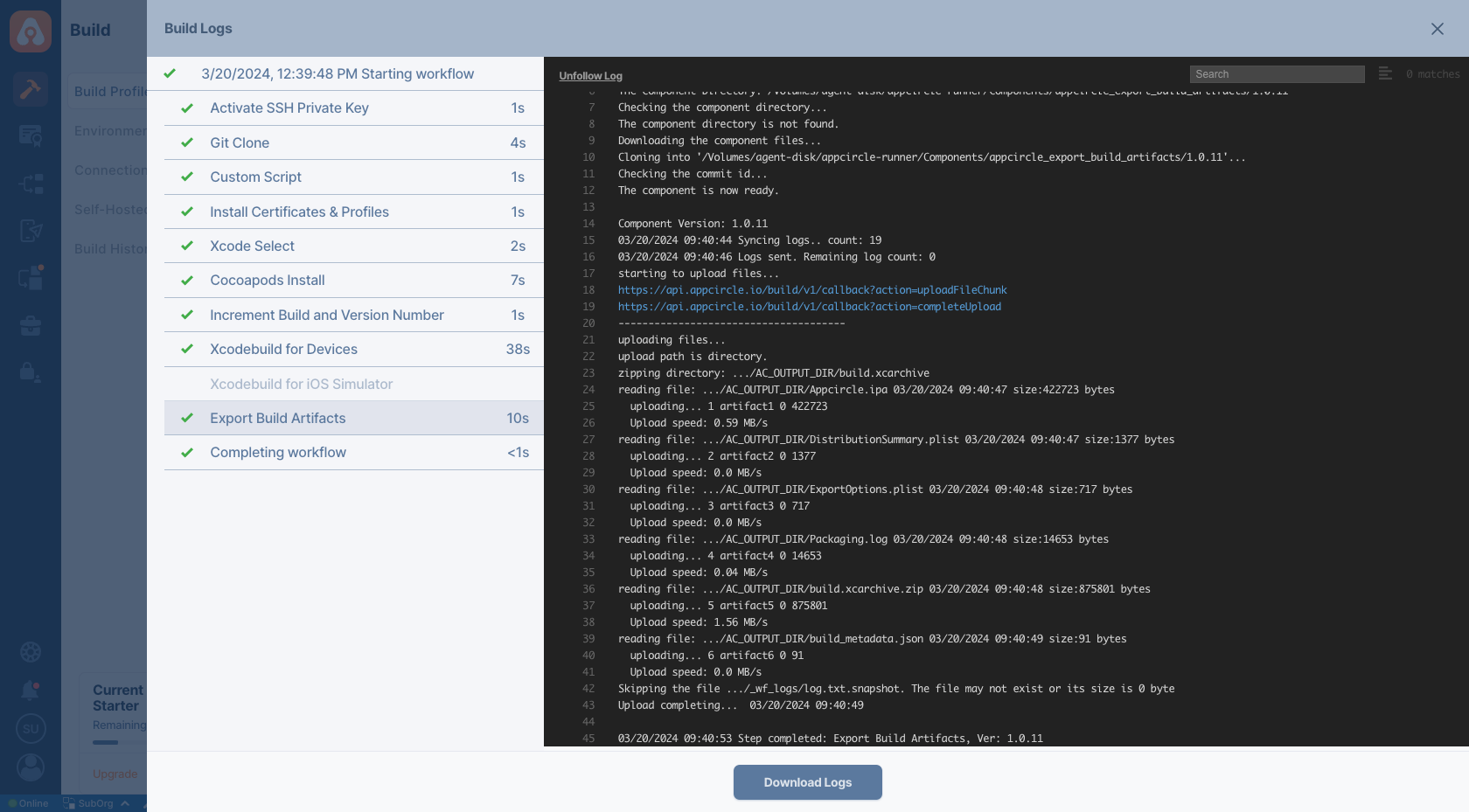
You will see the build progress and the log in real-time.
Once your build is complete, you can now download the binary file or deploy it to distribute module manually (if autodistribute is enabled, it will be sent automatically after a successful build).
You can also view or download your build logs anytime.
Testing the Native iOS App
With Appcircle, you can use the standard unit testing workflows by adding the related iOS test steps or by running custom scripts.

