
How to Install/Update/Upgrade/Downgrade npm, Yarn and Node.js Versions
If you are working in the field of mobile app development, it’s highly likely that you used a Node.Js-based module through a package manager regardless of the framework and language such as Java/Kotlin, Objective-C/Swift, Flutter or React Native. Especially for React Native development, Node.js is indispensable.
In this article, we will explain what Node.JS and package managers are and outline the steps to upgrade or downgrade them. (There are also other stacks such as Ruby, which uses “gems”, but this article focuses on the Node.js ecosystem.)
What is Node.js and what are the package managers?
What is Node.js
Node.js is an open-source and cross-platform JavaScript runtime. Node.js executes JavaScript code externally without a web browser. The cross-platform nature of Node.js makes it highly popular as you can use it like Node.js on Windows or Node.js on Mac. For this reason, Node packages can also be used in mobile app development tooling. So you can use Node.js for iOS development or for Android development in certain use cases.
What is npm?
npm is a package manager for JavaScript (includes packages developed with the language) and it is used as the default package manager for Node.js. It has command-line tool, which is also called npm, and an online package database named as the npm registry.
What is Yarn?
Yarn is an enhanced and multi-platform package manager. It can replace the workflow of npm or other package managers while being compatible with the npm registry.
Node.js Installation Guides
How to install Node.js?
To setup Node.js, you can download the Node.js installer from https://nodejs.org/en/download/ for your operating system such as Windows, macOS or Linux. You can even download the source code and compile it yourself if you have a very specific deployment target.
Alternatively, for macOS or Linux, you can also use “Node Version Manager (nvm)” to install Node.js (and npm) from the command line. nvm can be installed with the install script or manually as outlined here.
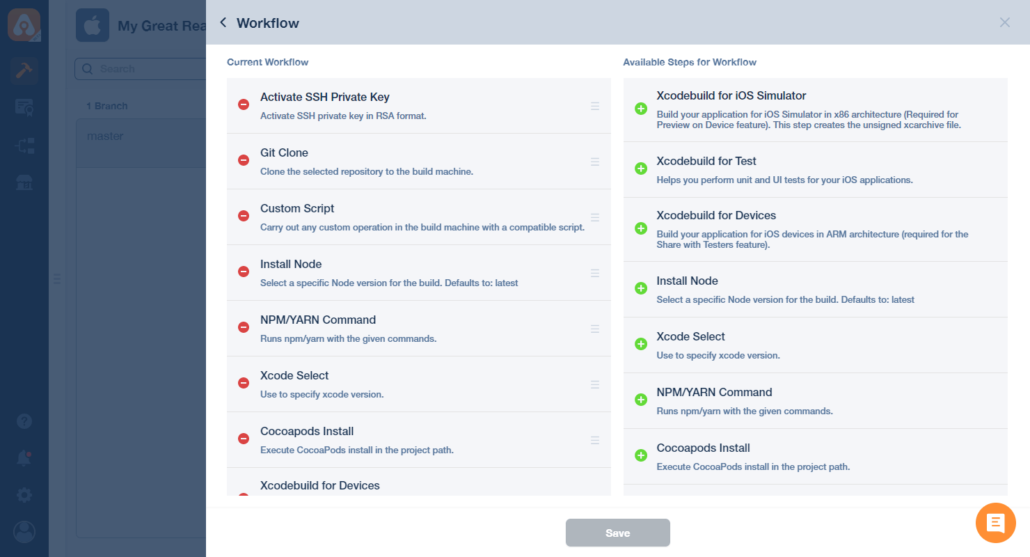
If you need Node.js for building mobile apps, the easiest way would to utilize Node.js is to use Appcircle which handles all the installation and maintenance steps automatically.
How to update Node.js or downgrade Node.js?
Before any operation, you can check the node version by using the node -v command in the terminal. Then, you can use one of the following methods to upgrade Node version. You can also downgrade node or select a specific node version. You can downgrade the node version by specifying a version in the related commands.
1. Updating Node using the installers (or downgrading)
Just visit the Node installers page at https://nodejs.org/en/download/ and download and install the latest node version.
From the “previous releases” section at the bottom of the page, you can select a specific version to install.
2. Updating Node using npm (or selecting a specific version)
To update Node with npm, you first need to install the n module.
- Clear the npm cache:
npm cache clean -f - Install the n module:
npm install -g n - Then you can install the latest Node version:
n stableor Select a version to install:n [version.number]– the version number can be like4.9.1or8orv6.1
3. Updating Node using nvm (or selecting a specific version)
You can use the nvm install command to install a specifc version: nvm install[version.number] and then switch between the versions with nvm use [version.number]
npm Installation Guides
How to install npm?
For installing npm, please refer to the Node.js installation guide above since npm comes packed with Node.js so that when you install Node.js, npm will also be installed alongside.
If you need npm for building mobile apps, the easiest way to run npm commands in the app build workflows is to use Appcircle which handles all the installation and maintenance steps automatically.
How to update npm or downgrade npm?
Even though npm comes with Node.js, it is a separate project with a separate update cycle. For this reason, upgrading npm is an independent task. (e.g. There may be cases where you only update npm, but keep Node.js in the same version.)
Also note that npm-upgrade and npm-update are related with npm packages, so they are not directly related with upgrading the npm itself.
Before any operation, you can check the npm version by using the npm -v command in the terminal. Then, you can use one of the following methods to upgrade npm version. You can also downgrade npm or select a specific npm version. You can downgrade the npm version by specifying a version in the related commands.
To upgrade npm to the latest version on macOS or Linux, you can use the following command: npm install -g npm@latest
To upgrade npm to the latest version on Windows, you can refer to the following tool provided by Microsoft as it is a complex process with multiple steps: https://github.com/felixrieseberg/npm-windows-upgrade#upgrade-npm-on-windows – this is due to the specific requirements of running npm on Windows CMD or PowerShell
If you want to downgrade npm to a specific version, you can use the following command: npm install -g npm@[version.number] where the number can be like 4.9.1 or 8 or v6.1.
Yarn Installation Guides
How to install Yarn?
Yarn requires the presence of Node.js in the system, so please make sure that you follow the steps from the previous sections to install Node before installing Yarn. Every operating system has different ways to install Yarn.
If you need Yarn for building mobile apps, the easiest way to run Yarn commands in the app build workflows is to use Appcircle which handles all the installation and maintenance steps automatically.
Otherwise, you follow the following steps to install Yarn to different operating systems:
To install Yarn on Windows, you can download the latest setup from https://classic.yarnpkg.com/en/docs/install#windows-stable
To install Yarn on Debian/Ubuntu, first run the following commands to configure the Yarn repository:
curl -sS https://dl.yarnpkg.com/debian/pubkey.gpg | sudo apt-key add -
echo "deb https://dl.yarnpkg.com/debian/ stable main" | sudo tee /etc/apt/sources.list.d/yarn.list
Then run sudo apt update && sudo apt install yarn for installation.
To install Yarn on macOS, you can use the Homebrew package manager with the command brew install yarn or you can run the following official install script:
curl -o- -L https://yarnpkg.com/install.sh | bash
How to update yarn or downgrade Yarn?
Before any operation, you can check the Yarn version by using the yarn --version command in the terminal. Then, you can use one of the following methods to upgrade yarn version. You can also downgrade yarn or select a specific yarn version. You can downgrade the yarn version by specifying a version in the related commands. Also note that yarn upgrade command is related with the Yarn packages, so they are not directly related with upgrading the Yarn itself.
Again, there are different ways of upgrading Yarn. The common way is to use the and yarn set version command.
You can download the latest release with yarn set version latest or you can use yarn set version [version.number] to download a specific version such as 1.13.0.
For upgrading Yarn on macOS with Homebrew, you can also use the following command: brew upgrade yarn
All in all, it’s a complex world with Node.js, npm, Yarn, and the packages and if you are developing mobile apps, the things may even more complex with the different tools and dependencies for the build pipelines.
Appcircle simplifies and automates all of these processes so that you can build, deploy, and test your mobile apps easily and quickly. Appcircle supports using npm or Yarn commands within your React Native or Flutter pipelines.

