

Managing Android App Signing
In today’s world of software development, some processes have become easier, but mobile app signing processes can still present challenges. This blog post will cover the most common issues developers face with Android app signing and provide solutions to these problems.
What is the Android keystore?
Keystore is a general concept in cryptography, not specific to Android. It is used in Java and other platforms to store multiple private keys or certificates. It is defined in the Android documentation as follows:
Java Keystores (.jks or .keystore) are binary files that serve as repositories of certificates and private keys.
The keystores are essential for securely storing the cryptographic keys that sign APKs or app bundles. In terms of structure, here is how these components relate:
- Keystore contains:
- Public key certificates (
.deror.pemfiles): Also known as a digital certificate or an identity certificate, lets anyone verify who signed the app bundle or APK, and you can share it with anyone because it doesn’t include your private key. - Private keys (app signing key, upload key): Used for signing apps and ensuring secure updates. Check the What is the difference between App Signing Key and Upload Key? chapter for more information.
- Public key certificates (
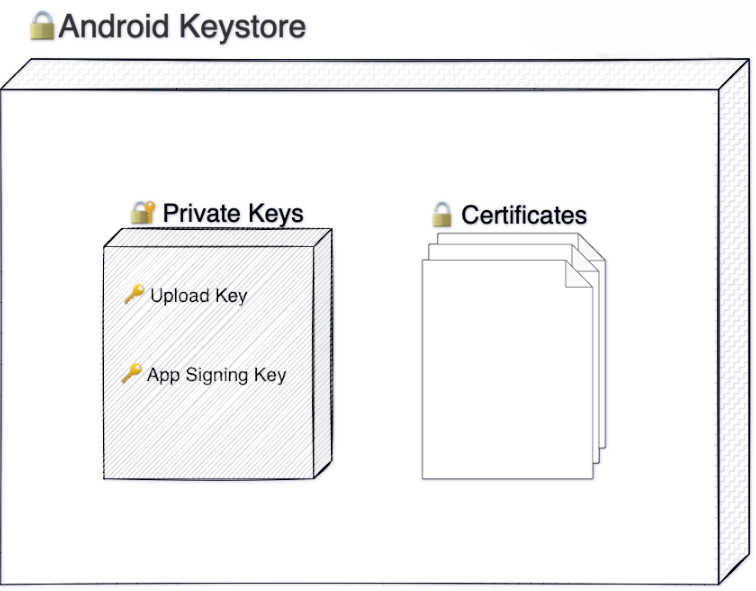
For more description please follow the document below:
What is the difference between .jks and .keystore files?
The difference between .jks and .keystore files may seem confusing, but the simple explanation is as follows:
A keystore is like a container that stores certificates, private keys, and other security data. There are different ways this container can be structured, and the most common one is PKCS#12.
JKS (Java KeyStore) is Java’s specific keystore format. While there are other keystore formats, JKS is the one used by Java applications.
So, what’s the difference between .keystore and .jks files? There’s no real difference. Both are keystore files, but the file extension .jks specifically refers to Java’s keystore format. The actual difference lies in the keystore type.
In summary, .keystore and .jks files are often the same, but JKS is just one type of keystore format among others like PKCS#12.
What is the difference between App Signing Key and Upload Key?
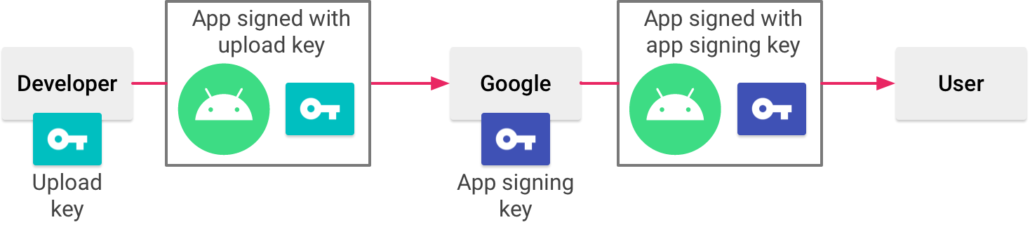
The difference between the App Signing Key and Upload Key is summarized as follows:
App Signing Key: This key is used to sign your APKs so it can be installed on users’ devices. Once set, this key stays the same for the entire life of the app. You must keep this key private, but you can share the certificate that is created from it.
Upload Key: This key is used to sign your app before you upload it to Google Play Console or other stores. It must also be kept secret, but you can share the certificate from it. Here is how you can get or manage your upload key:
- Google creates it: If you let Google create the app signing key for you, the key you use to sign your app before uploading is your upload key.
- Generate a new one: If you provide your own app signing key to stores, you have the option to create a new upload key for extra security.
If you do not generate a new upload key, you will continue to use your app signing key for both signing and uploading. To keep your keys secure, it’s a good idea to make sure your app signing key and upload key are different.
In short, the app signing key is used for the final step of app installation, while the upload key is used for preparing your app for stores.
Why use Android keystore?
The Android keystore is crucial for app security, authentication, and updates. It securely stores cryptographic keys and certificates, which are used to sign your apps, proving the app’s authenticity and ensuring secure updates. Using the keystore helps protect your app from tampering and builds trust with your users by guaranteeing that updates come from a verified source.
If you lose access to your keystore, you lose the ability to update your app, which can negatively impact your brand’s reputation. Therefore, it is critical to keep your keystore backed up, secure, and protected with strong passwords to maintain control over your app’s security.
Where is the default location of the keystore file in Android?
When you are running or debugging your project using Android Studio, the IDE automatically signs your app with a debug certificate created by the Android SDK tools. The first time you do this, Android Studio generates a debug keystore and certificate located in $HOME/.android/debug.keystore. The IDE also sets the keystore and key passwords for you.
For more details on building and running apps for debugging, see Build and run your app or Sign your debug build.
What does an Android keystore file look like?
Think of an Android keystore file as a super secure storage box for your app’s digital certificates, and private keys. You don’t usually interact with this file directly, but here’s a simple breakdown of what it’s like:
- File Extension: Keystore files typically end in
.keystoreor.jks(Java KeyStore). For differences, please check the What is Different.jksvs.keystore? section. - Binary Format: If you open a keystore file with a text editor, it’ll look like a bunch of random characters. That’s because it’s stored in a special format that makes it hard to tamper with, keeping everything inside extra safe.
- Password-Protected: This file is locked with a password you set when you create it. You’ll need this password anytime you want to use the keys inside. It’s an extra layer of security to make sure only the right people can access these keys.
In short, the keystore file is a secure, organized way to keep all the important keys your app needs to stay safe and verified.
How to generate a new Android keystore?
To create an Android keystore, you can use one of the following methods:
- Generate a keystore via Appcircle
- Generate a keystore via Android Studio
- Generate a keystore via the command line


While methods 1 and 2 are detailed in the linked guides, here we will focus on method 3:
How to generate a keystore via the command line?
To generate a keystore from the command line, you can use the Java Keytool utility, included with any standard JDK. It is usually located in the %JAVA_HOME%\\bin directory (e.g., C:\\Program Files\\Java\\jdk\\bin on Windows).
Steps:
- Open a command prompt (Windows) or terminal (Linux/macOS).
- Navigate to the JDK’s bin directory or ensure it is in your system path.
- Run the following command:
keytool -genkey -v -keystore my-release-key.keystore -alias alias_name -keyalg RSA -keysize 2048 -validity 10000
- genkey will generate a key.
- keystore is used to specify the location of the keystore file. If no keystore file is present in the path provided, a keystore file will be created.
- alias is used to identify the public and private key pair created. It must be unique and will be used later to reference this key when signing your app.
- keyalg is the key algorithm used to generate the public and private key pair. The RSA key algorithm is recommended
- keysize is the size of the public and private key pairs generated. A key size of 1024 or more is recommended.
- validity is the number of days for which the certificate is to be considered valid.
The command will prompt for the following attributes of the certificate and keystore:
appcircle@Appcircle ~ % keytool -genkey -v -keystore my-release-key.keystore
-alias alias_name -keyalg RSA -keysize 2048 -validity 10000
Enter keystore password: <keystorePass>
What is your first and last name? <firstLastName>
What is the name of your organizational unit? <orgUnit>
What is the name of your organization? <orgName>
What is the name of your City or Locality? <locality>
What is the name of your State or Province? <stateProvince>
What is the two-letter country code for this unit? <countryCode>
Is CN=<firstLastName>, OU=<orgUnit>, O=<orgName>, L=<locality>,
ST=<stateProvince>, C=<countryCode> correct? [no]: yes
- First and Last Name (CN): Enter the domain name, for instance,
www.example.com - Name of your Organizational Unit: The name of the department or unit making the request, for example,
Purchasing - Name of your Organization: The name of the organization making the certificate request, for example,
Appcircle - Name of your City or Locality: The city in which your organization is physically located, for example,
Istanbul. - Name of your State or Province: The state/province in which your organization is physically located, for example,
Türkiye. - Two-letter Country Code for this Unit: The country in which your organization is physically located, for example,
US,UK,TR, etc.
The command creates a my-release-key.keystore file in the current directory, containing a single key, valid for 10,000 days. This keystore is protected by the passwords you provide.
For more please check the following documentation:
How to update or upgrade your Android keystore in Google Play or Huawei AppGallery?
Updating keystore in Google Play Store
In some case, you might need to change your app’s signing key. Key for various reasons, such as:
- You need a cryptographically stronger key.
- Your app signing key has been compromised.
If you publish your app to Google Play, you can upgrade the signing key for your published app through the Play Console. Your new key is used to sign installs and app updates on Android 13 and higher, while your older app signing key is used to sign updates for users on earlier versions of Android.
Key upgrades are only supported for apps that use app bundles.
Before requesting a key upgrade, it is important to know the changes that may need to be made once the upgrade is complete:
- If you use the same app signing key for multiple apps to share data or code between them, you need to update your apps to recognise both your new and legacy app signing key certificates. On devices running Android S (API level 32) or below, only the legacy app signing key certificate will be recognised by the Android platform for the purpose of data or code sharing.
- If your app uses APIs, ensure you register the certificates for both your new and legacy app signing keys with the API providers before publishing an update. This step is important to keep your APIs functioning properly after the update.
- If any of your users install updates via peer-to-peer sharing, they will only be able to install updates signed with the same key as the version already on their device. If the update is signed with a different key, they will not be able to install it. In that case, they should uninstall the app and then reinstall it to get the latest version with the new signing key.
Each app can have its app signing key upgraded for all installs on Android N (API level 24) and above once annually.
To learn more, read Upgrade your app signing key.
Here’s the steps:
- Open Play Console and go to the Play App Signing page (Release > Setup > App signing).
- In the
Upgrade your app signing keycard, select Request key upgrade.If you do not have the permissions, the Request key upgrade button will be deactivated and the following message will appear instead: “? You need permission”
Contact the account owner for the required permissions. - Select an option to upgrade your app signing key to all installs on Android N and above.
- Select an option to upgrade your app signing key to all installs on Android N and above.
- Have Google generate a new app signing key (recommended) or upload one. After upgrading your app signing key, if you were using the same key for your app signing and upload key, you can continue using your legacy app signing key as your upload key or generate a new upload key.
- Select a reason for requesting app signing key upgrade.
- If necessary, register your new app signing key with API providers.
Note:
You can also access this page via the App integrity page (Release > App integrity), which contains integrity and signing services that help you ensure that users experience your apps and games in the way you intend.
Tip:
If you distribute your app on multiple distribution channels and you want to maximise app update compatibility for your users, you should upgrade your key on each distribution channel. To be compatible with Google Play’s key upgrade, use the ApkSigner tool, bundled with Android SDK Build Tools (revision 33.0.1+):
$ apksigner sign --in ${INPUT_APK}--out ${OUTPUT_APK}--ks ${ORIGINAL_KEYSTORE}--ks-key-alias
${ORIGINAL_KEY_ALIAS}--next-signer --ks ${UPGRADED_KEYSTORE}--ks-key-alias ${UPGRADED_KEY_ALIAS}
--lineage ${LINEAGE}
Note:
If you successfully request this key upgrade, your new key is used to sign all installs and app updates. On devices running Android T (API level 33) and above, the Android platform enforces the usage of the upgraded key. On devices running Android S (API level 32) or below, the Android platform does not enforce the usage of this upgraded key and still recognises the legacy signing key as the app’s signing key. This also includes any Android platform features (for example, custom permission sharing) that rely on the app’s signing key. On devices running Android N (API level 24) to Android S (API level 32), Google Play Protect will check that app updates are signed with your upgraded key, unless turned off by the user. This provides an additional validation since the Android platform does not enforce the usage of the upgraded key on devices running Android S (API level 32) or below.
Updating keystore in Huawei AppGallery
Based on the AppGallery’s FAQ document updated on 2023-04-21, there is currently no way to update keystore in AppGallery:
For security purposes, the signature key or upload key cannot be changed after being uploaded. You need to create an app again.
For more information, check:
What to do if I lost my Android keystore?
Losing your app’s keystore can feel like a major setback, but there are steps you can take to recover or reset it, especially on platforms like Google Play and Huawei AppGallery. The keystore is essential because it proves app ownership and enables you to provide updates to users.
How to reset keystore in Google Play?
If you’ve lost your keystore, Google Play Console cannot restore it. However, you can request a reset. Here’s how:
- Log into your Google Play Console.
- Select the app for which you lost the keystore.
- In the menu, go to
⚙️ Setup>App signing. - Scroll down and find the
Request upload key resetbutton. - Choose the option
I lost my upload key. - Generate a new upload key using tools like Appcircle or this guide.
- Export the upload key as a PEM file.
- Upload the PEM file to Google Play.
- Click
Request, and within a few days, Google will process your reset request.
Keep in mind, that only the account owner can initiate this process. If approved, you’ll receive an email from Google Play with further instructions.
Resetting your upload key won’t affect the app signing key Google Play uses to re-sign your APKs before distributing them to users. You can always cancel the reset request by selecting Cancel Request.
For more information, check Google Play’s documentation: Lost or compromised upload key?.
How to recover keystore in Huawei AppGallery?
On Huawei AppGallery, what happens after losing your keystore depends on whether you’ve used Huawei App Signing Service:
- Without App Signing Service: If you are not using Huawei’s signing service, you cannot update your app without the keystore. You would need to create a new app with a different package name, requiring users to reinstall the app.
- With App Signing Service: If you’re using Huawei’s signing service, your app’s key is stored securely on the server. In this case, you only need to manage your upload key. Even if it’s lost, you can still update your app without affecting users.
To learn more, refer to Huawei’s App Signing FAQ.

