

Directing Users to a Specific Screen via Firebase Dynamic Links in Swift
As your iOS App grows and becomes professional, it will bring different requirements. One of the most important features that almost every large-scale iOS Application uses for different purposes today is Deeplinks.
The most popular and effective deep links are as follows:
– Redirecting users to download the app to the App Store.
– Directing users to certain screens and modules within the application.
Moreover, we can collect analytical data while constructing this entire flow. For example, from which channel did the user reach this link (Firebase Dynamic Links)? How many users completed the flow entirely using Dynamic Link?
So What is This Deep Link Technically?
Since we will be using Firebase Dynamic Links in this article, let’s look at Google’s definition together.
Dynamic Links are smart URLs that allow you to send existing and potential users to any location within your iOS or Android app. They survive the app install process, so even new users see the content they’re looking for when they open the app for the first time.
Yes, they are smart. Dynamic Links are contains data that users can’t see. But, as iOS developers, we can parse and process this data easily.
Today, we will look at how to direct our users to a specific screen or module in our iOS Applications.
Adding Firebase Dynamic Links to Our Xcode Project
We won’t dive into the step-by-step Firebase setup process. Before using Firebase Dynamic Links you must set up your project with Firebase SDK. You can follow the steps from here.
For using Dynamic Links you just add Dynamic Links SDK via cocoapods or SPM. It’s similar to Firebase SDK.
Creating Dynamic Links on Firebase Console
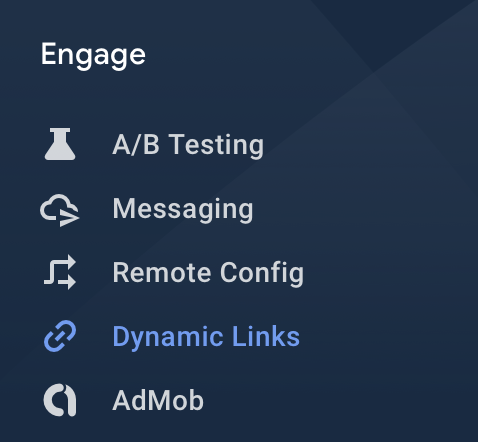
Open Firebase Console, select your newly added project and on the left-hand side menu choose Dynamic Links from Engage section.
You will see an empty list of Dynamic Links with selected domain URI Prefix like below.
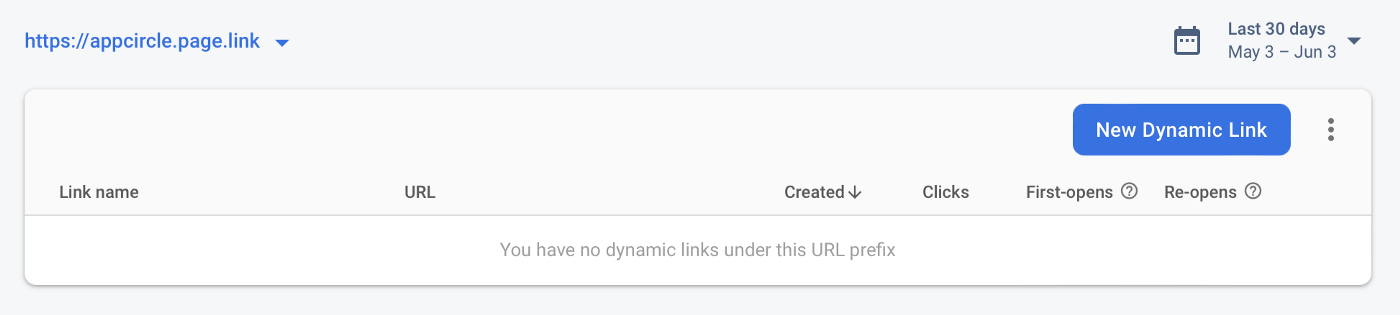
Click the “New Dynamic Link” button and create your first dynamic link on the console. See the below steps for creating a Dynamic Link.
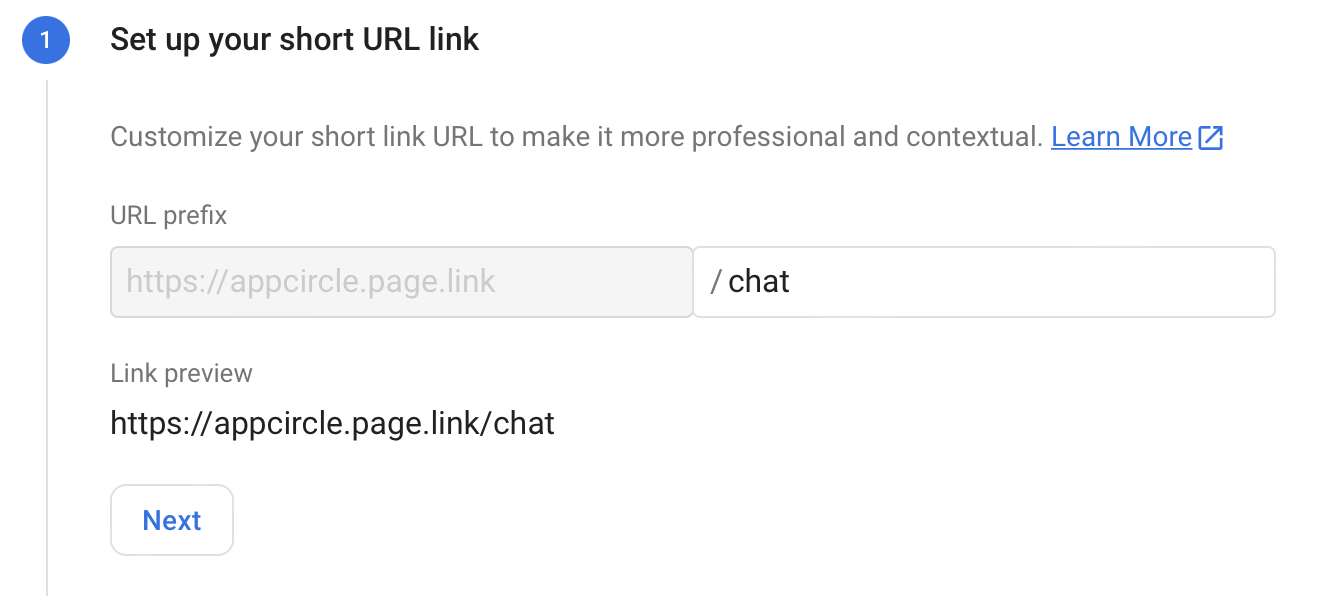
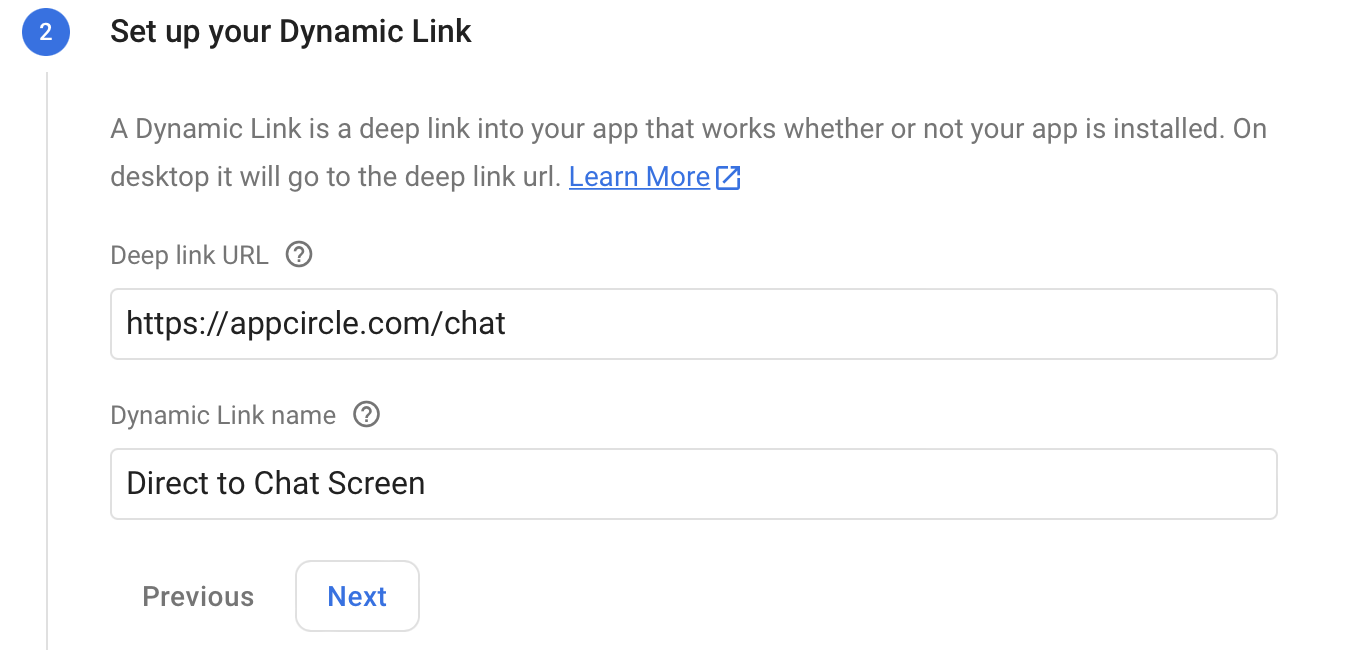
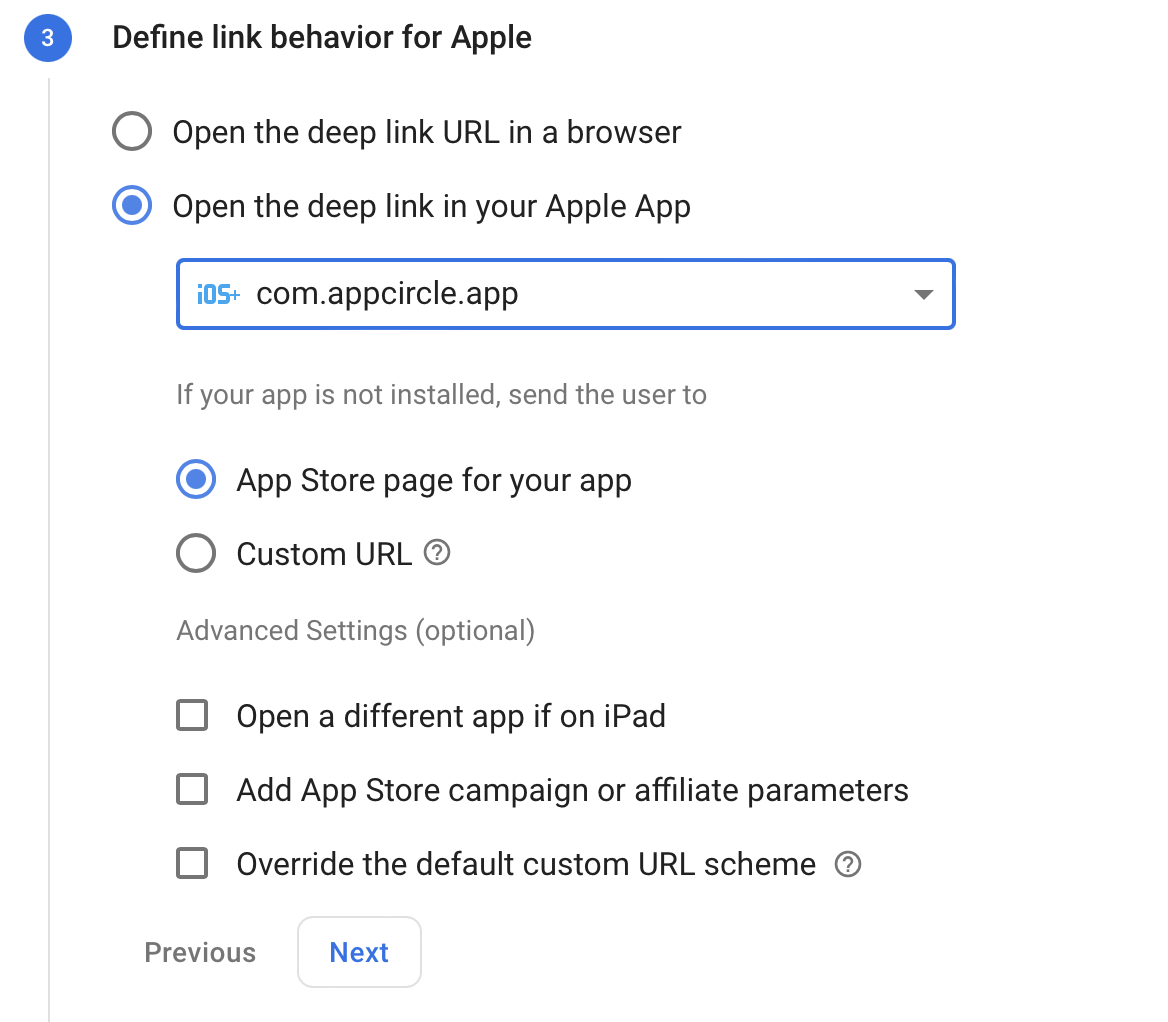
After completing the steps above successfully you will get your first Dynamic Link.
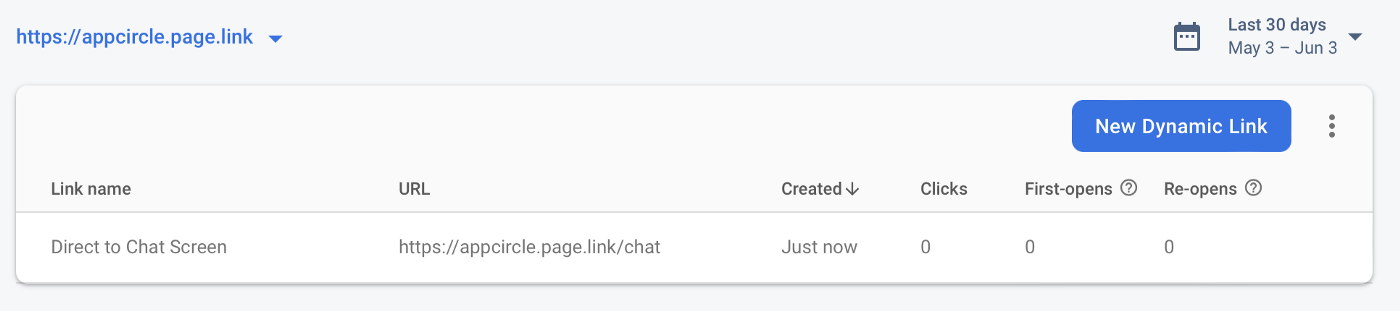
Dynamic Link we created
Let’s assume that we somehow deliver the deep link we created to the user. These can be channels such as push notifications, marketing SMS and social media direction. When the user clicks on this deep link, we will capture this action in our iOS Application and take the necessary steps.
Capturing Dynamic Link in iOS App
In our AppDelegate.swift file we have a function provided by Apple called application(_ app: UIApplication, open url: URL, options: [UIApplication.OpenURLOptionsKey: Any] = [:]) -> Bool
Using this function we will detect Dynamic Link actions. See below code snippet for a detailed explanation.
[gist id=”b103b8b1667f5c9e80f91cd7f4138332″ /]
We created also a function called handle(_ dynamicLink: DynamicLink?) -> Bool
This function detects the parameters in the captured dynamic link and enables us to take the actions we want.
As you can see, it is that simple to capture Dynamic Links and take action with just a few lines of code.
Conclusion
We learned how to create Firebase Dynamic Links via Firebase Console and how to process these Dynamic Links we created in our iOS Applications. You can also take various actions in your iOS Apps by using different parameters. Moreover, the most important advantage of all this structure is that you can apply them even to users who have not downloaded your application. The user downloads your app and the stream continues where it left off. I guess that’s why Google uses its definition of smart for Dynamic Links.

