On any mobile app, sending push notifications is an important way to communicate with the users. Setting up a push notification system and distributing notification is a tedious process. Services like Google’s Firebase aims to make this process easy. Let’s look at how we can integrate Firebase into a React Native app.
First, let’s create a project and run it:
npx react-native init SampleRNPushNotifications --template react-native-template-typescript
cd SampleRNPushNotifications
yarn ios
Then, download the necessary libraries:
yarn add react-native-push-notification
@react-native-firebase/[email protected]
@react-native-firebase/[email protected]
@react-native-community/push-notification-ios
@types/react-native-push-notification
To clarify what each library does:
- React-native-push-notification: Necessary to send local notifications
- @react-native-firebase/app@11.2.0: Main library required to use Firebase services
- @react-native-firebase/messaging@11.2.0: Required to use Firebase Cloud Messaging (FCM)
- @react-native-community/push-notification-ios: Required to get notification permissions in iOS
- @types/react-native-push-notification: Contains type definitions for Push Notifications
Next step is to download and install Cocoapods for iOS dependencies:
npx pod-install
Now it’s time to create a new Firebase project:
Creating a Firebase Project
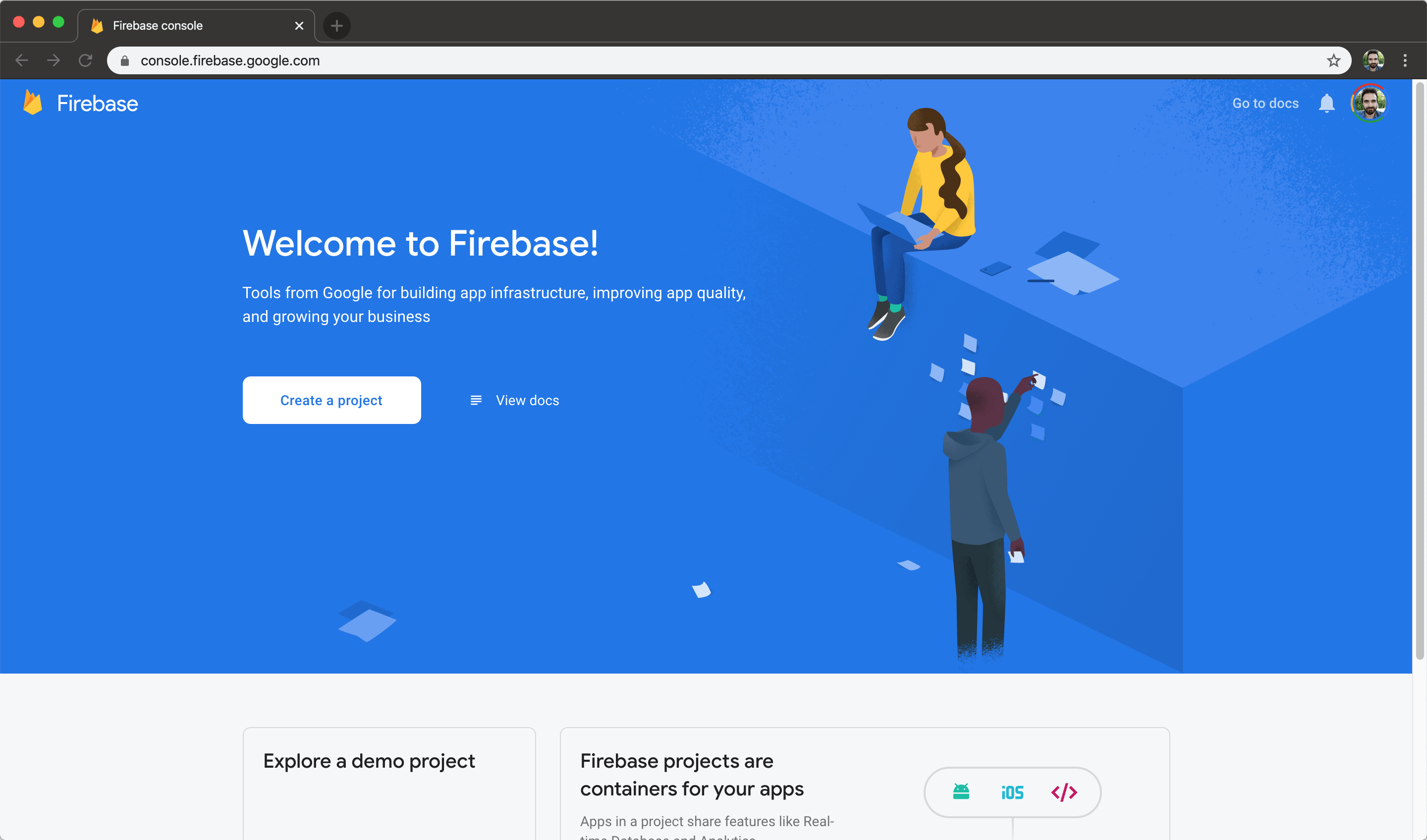
Go to console.firebase.google.com, and create a project:

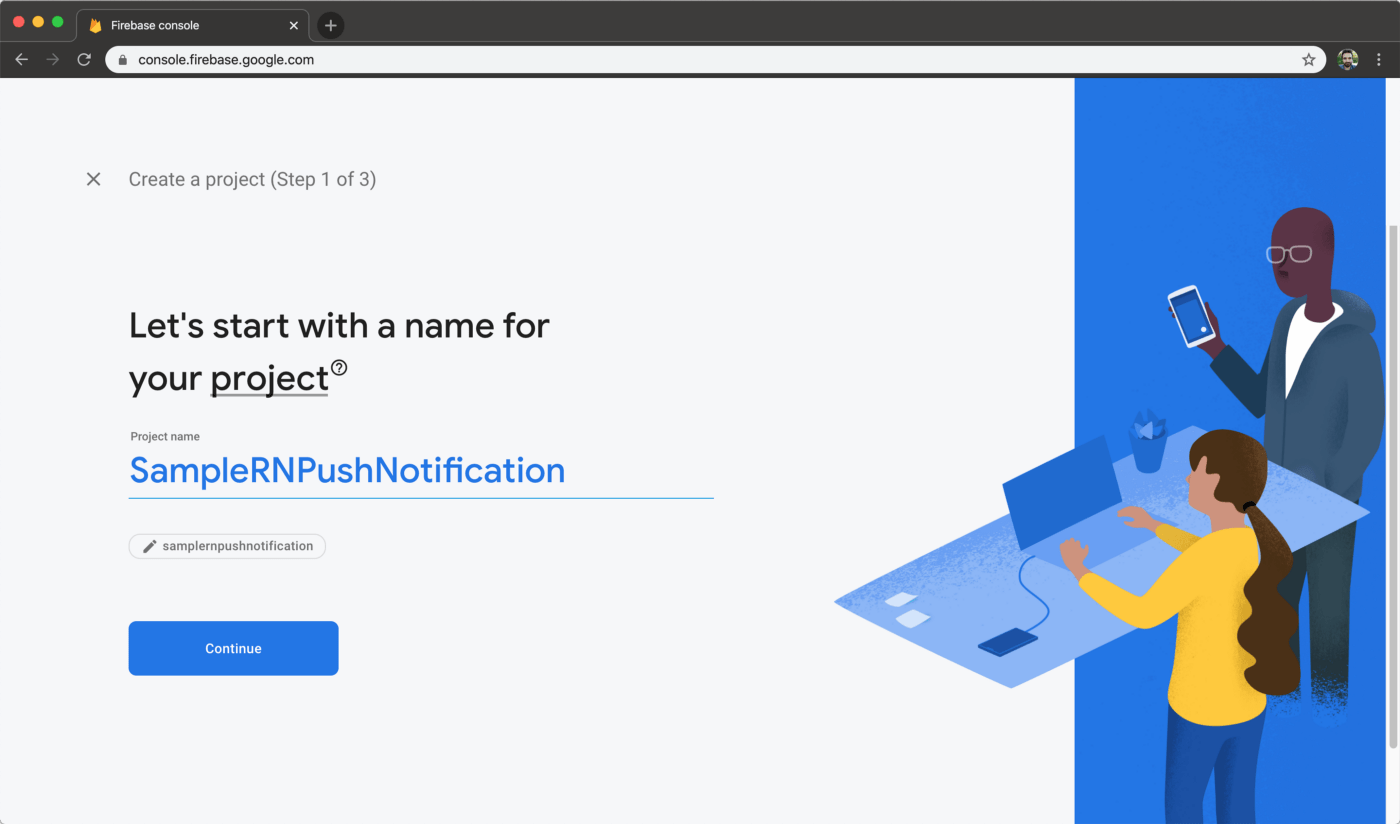
Choose a name for your project. I chose SampleRNPushNotification:

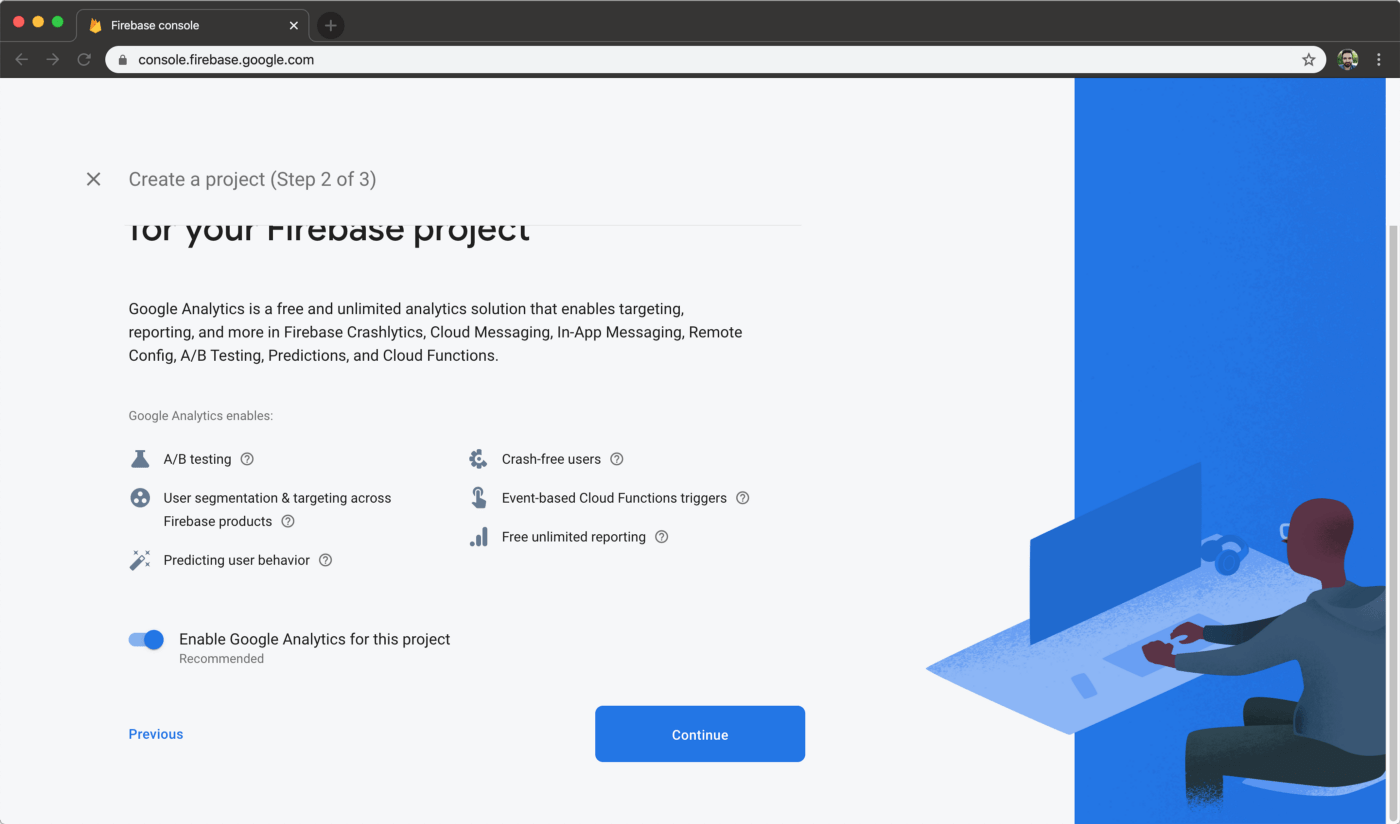
There will be an option to choose whether you’ll use Firebase analytics tools. Select enable and continue:
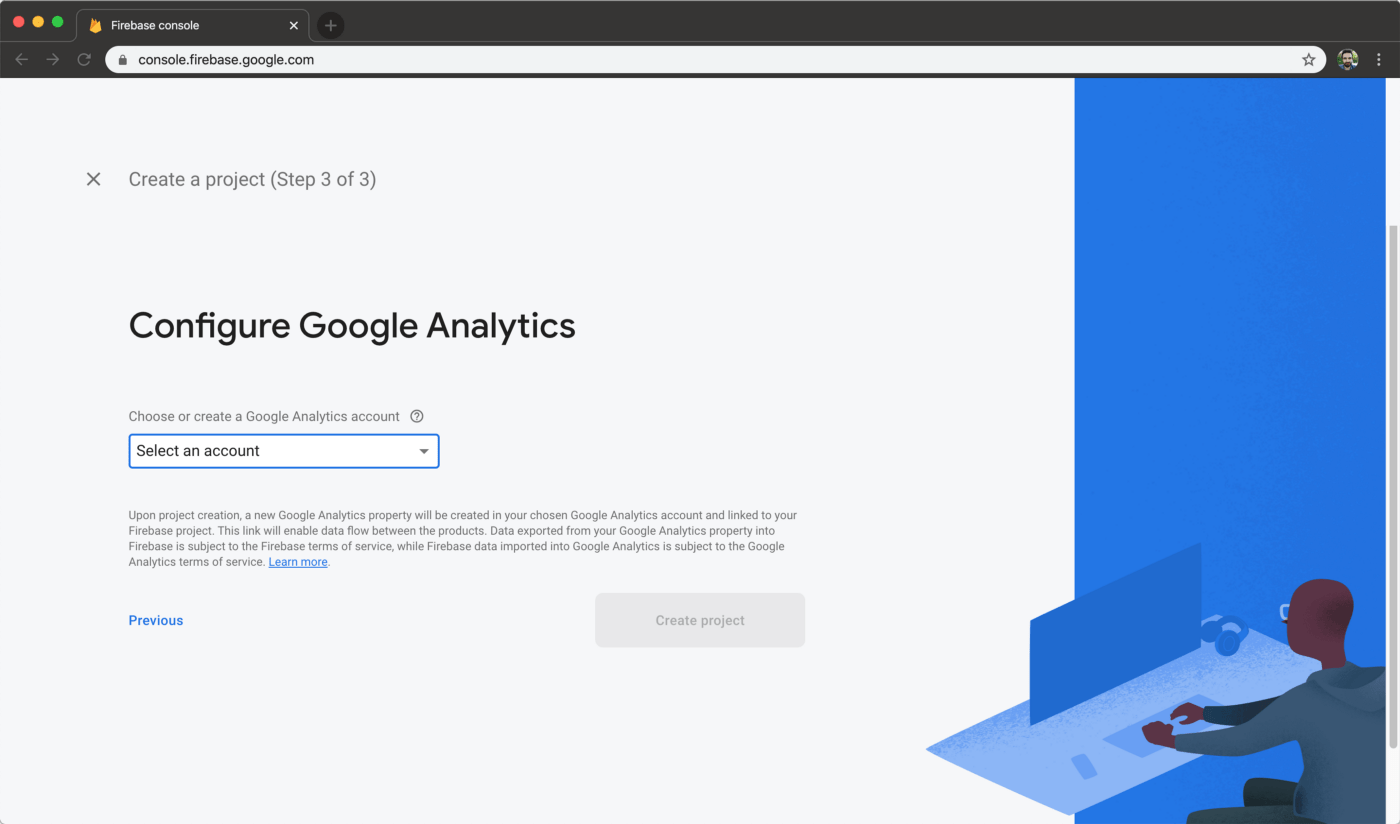
Now select a Google Analytics account:
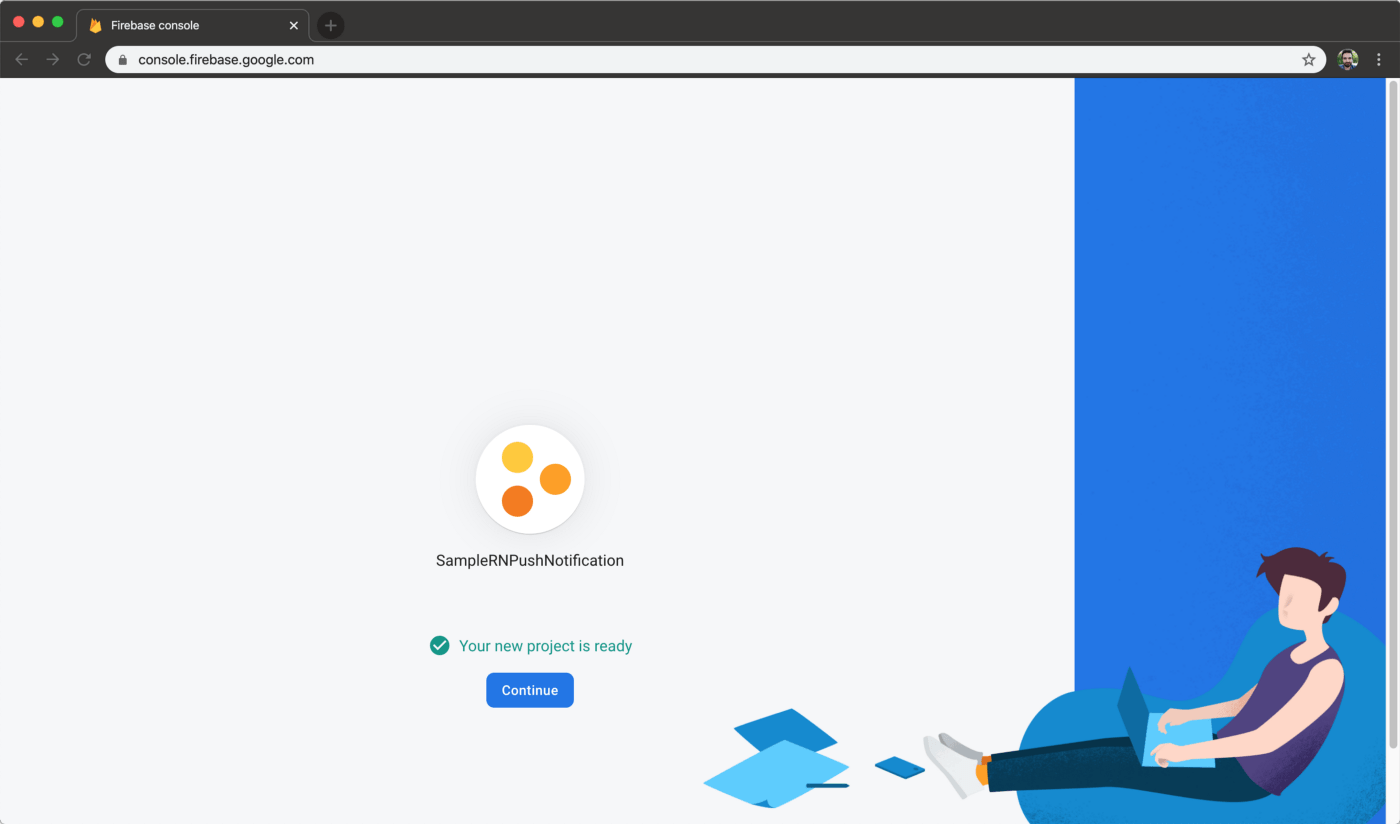
When your project is created, you will be informed with the message ‘’Your project is ready’’:
Creating Push Notifications for Android
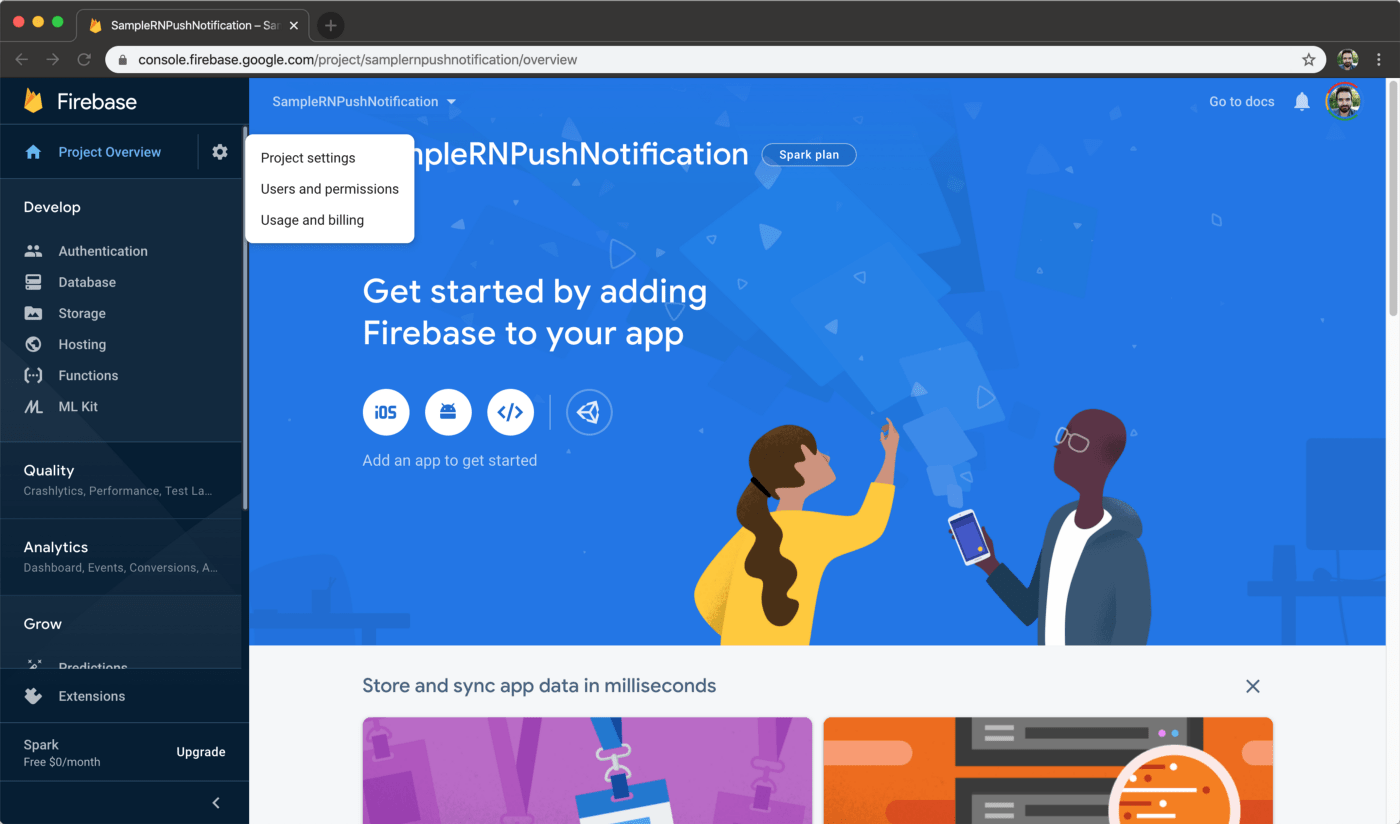
From the left sidebar, select the gear icon next to Project Overview and then select Project Settings:
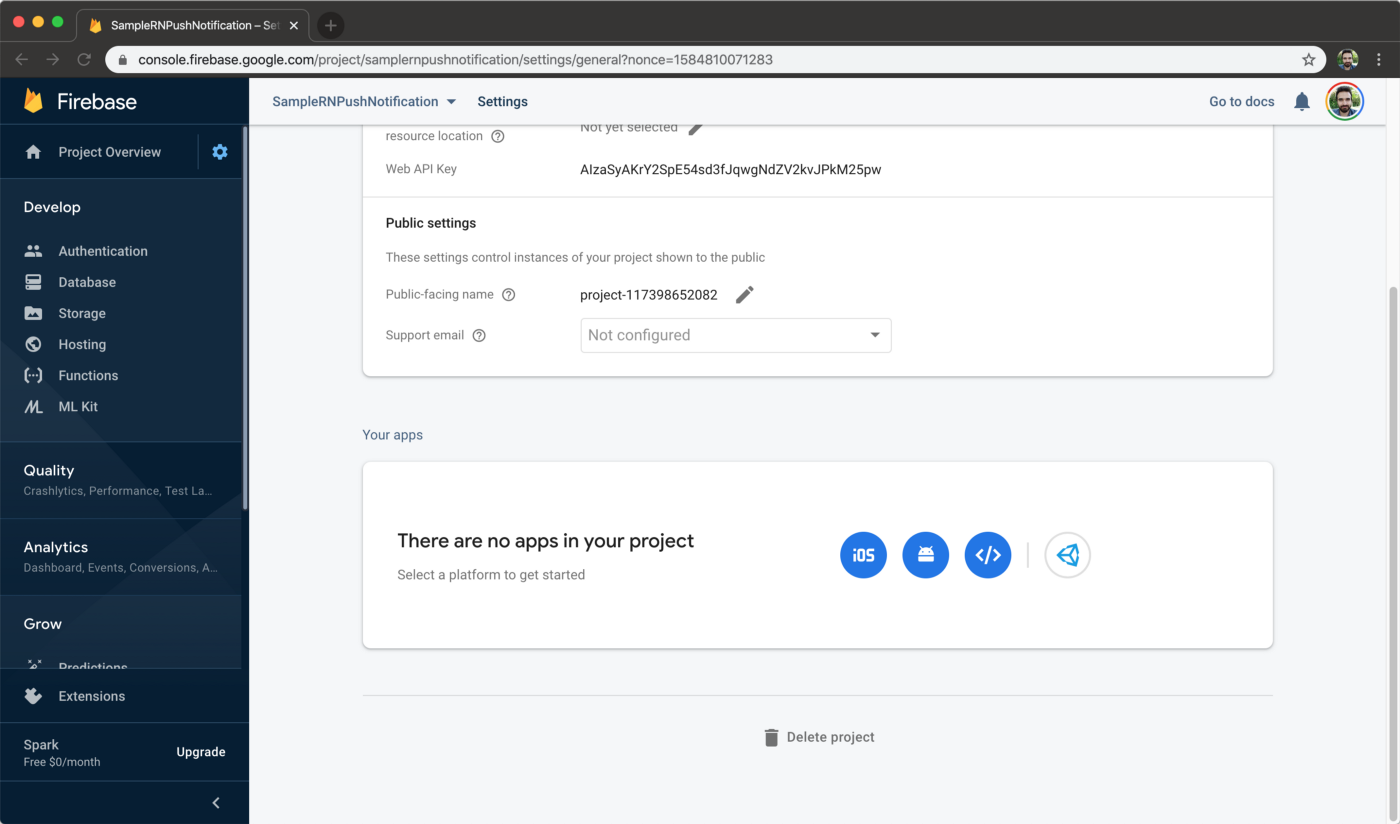
Scroll down to Your apps section and select the Android button:
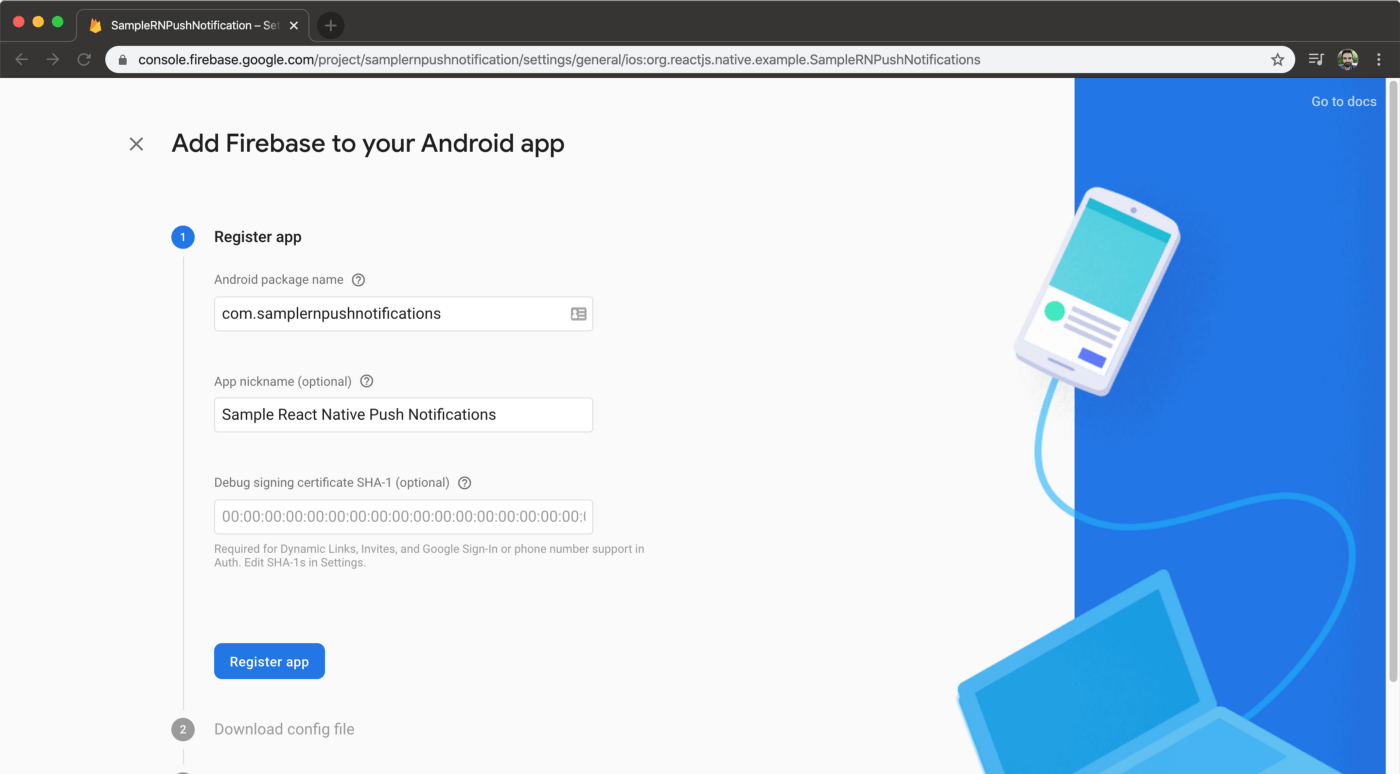
Step 1. On the Register App section, enter the package name of your Android app. Find the package name by opening Android Studio, navigating to build.gradle (Module: app) file. It’s under the defaultConfig section, with the applicationId key:
cat android/app/build.gradle |pcregrep -o1 "applicationId \"(.+)\""
App nickname field is a given name for your app on Firebase console.
For Debug signing certificate field, you can get the SHA1 code by entering following command to the command line:
keytool -list -v -keystore ./android/app/debug.keystore -storepass android |pcregrep -o1 "SHA1: (.+)"

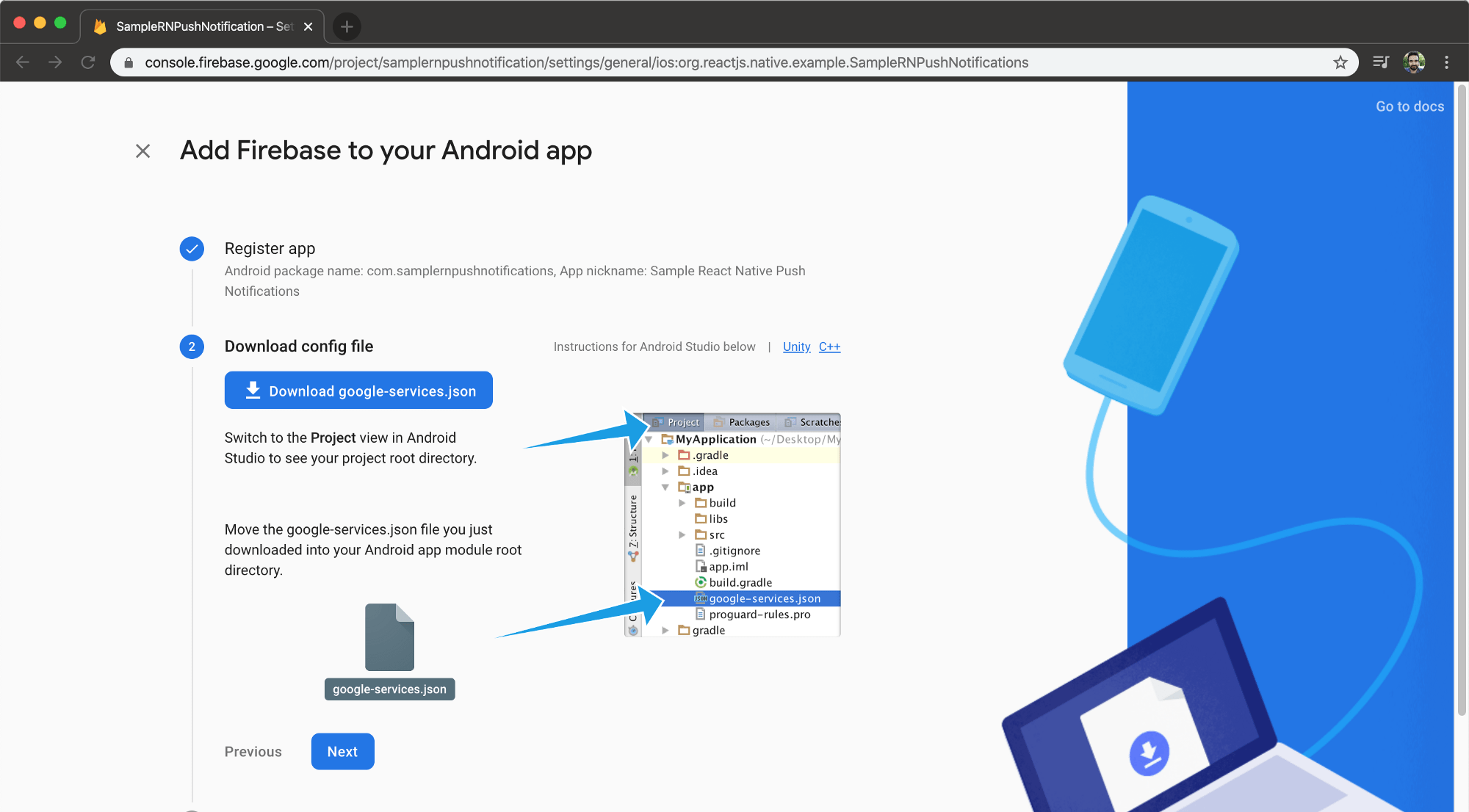
Step 2. Download config file will give you a Firebase configuration file. Drag the file on top of app folder on Android Studio. To open your project in Android Studio, enter the following command on your command line (Mac):
open -a /Applications/Android\ Studio.app ./android

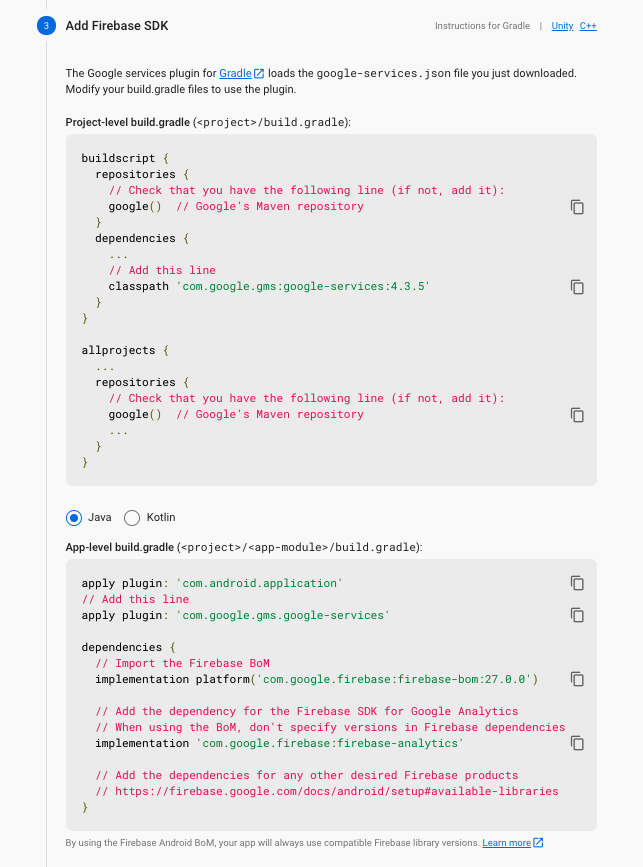
Step 3. Add Firebase SDK step is where we need to add Google Analytics dependency to our Android app. Here’s how you can do it:
Navigate to android/build.gradle file. Inside, under dependencies, add google-services library:
dependencies {
  classpath("com.android.tools.build:gradle:4.1.0")
  classpath 'com.google.gms:google-services:4.3.5'
  // NOTE: Do not place your application dependencies here,
  // they belong in the individual module build.gradle files
}
At the very bottom of the app/build.gradle file, add google services plugin:
apply plugin: "com.google.gms.google-services"
Afterwards, on the same file, under dependencies there will be lines that start with implementation. Add firebase analytics libraries under the last implementation statement there:
implementation platform('com.google.firebase:firebase-bom:27.0.0')
implementation 'com.google.firebase:firebase-analytics'

After all is complete, you’ll see a Sync Now button on Android Studio. Click it and synchronize the project with gradle.
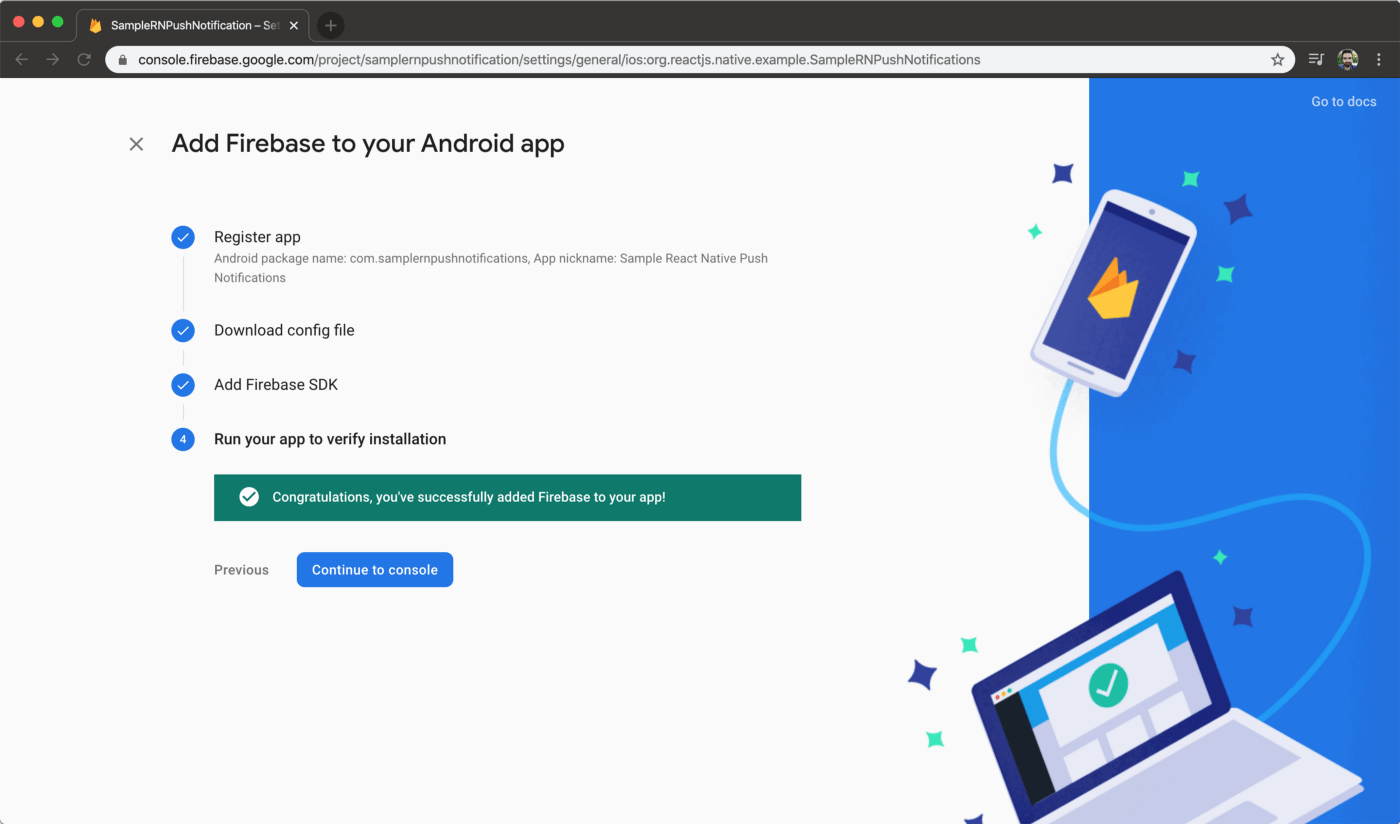
Step 4. Run your app to verify installation so that Firebase Analytics is set up properly. Run it using the command and make the “Congratulations” part active on Firebase Console:
yarn run android
Configuring Firebase on React Native App
To get the device’s token, let’s open the App.tsx file and make the following changes:
import React, {useEffect} from 'react';
import firebase from '@react-native-firebase/app';
import messaging from '@react-native-firebase/messaging';
const App = () => {
    useEffect(() => {
        messaging().getToken(firebase.app().options.messagingSenderId)
        .then(x => console.log(x))
        .catch(e => console.log(e));
    }, []);
    return <></>;
};

export default App;
Then, run the project:
yarn android
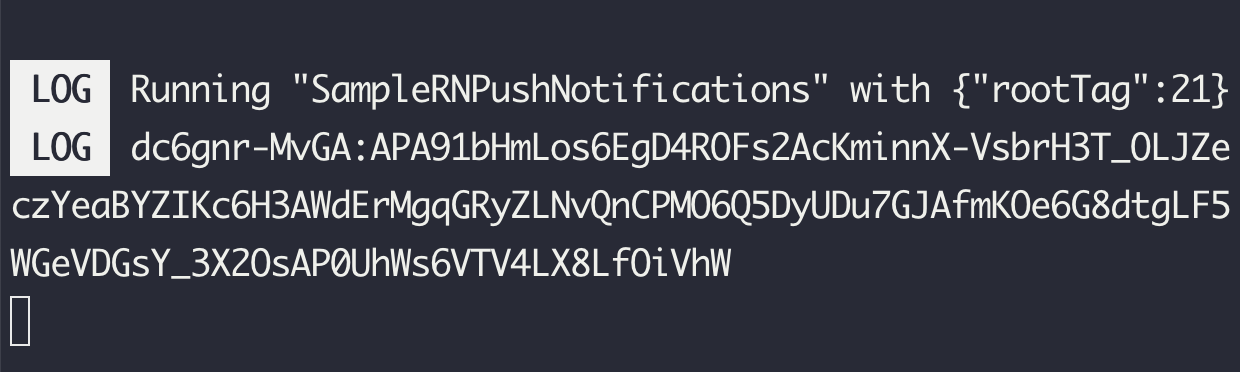
When the project starts running, you’ll see the device’s token on the Metro Bundler terminal:
Note: We’ll use this token to send test notifications to our device.

To display the notification on screen while the app is open, update App.tsx file as follows:
import React, {useEffect} from 'react';
import firebase from '@react-native-firebase/app';
import '@react-native-firebase/messaging';
import PushNotification from 'react-native-push-notification';
import {Platform} from 'react-native';
import PushNotificationIOS from '@react-native-community/push-notification-ios';
import {FirebaseMessagingTypes} from '@react-native-firebase/messaging';

const App = () => {
    useEffect(() => {
        firebase.messaging().onMessage(response => {
            console.log(JSON.stringify(response));
            if (Platform.OS !== 'ios') {
                showNotification(response.notification!);
                return;
            }
            PushNotificationIOS.requestPermissions().then(() =>
                showNotification(response.notification!),
            );
        });
    },
    []
    );
    const showNotification = ( notification: FirebaseMessagingTypes.Notification, ) => {
        PushNotification.localNotification({ title: notification.title, message: notification.body!, });
    };
    return <></>;
};

export default App;
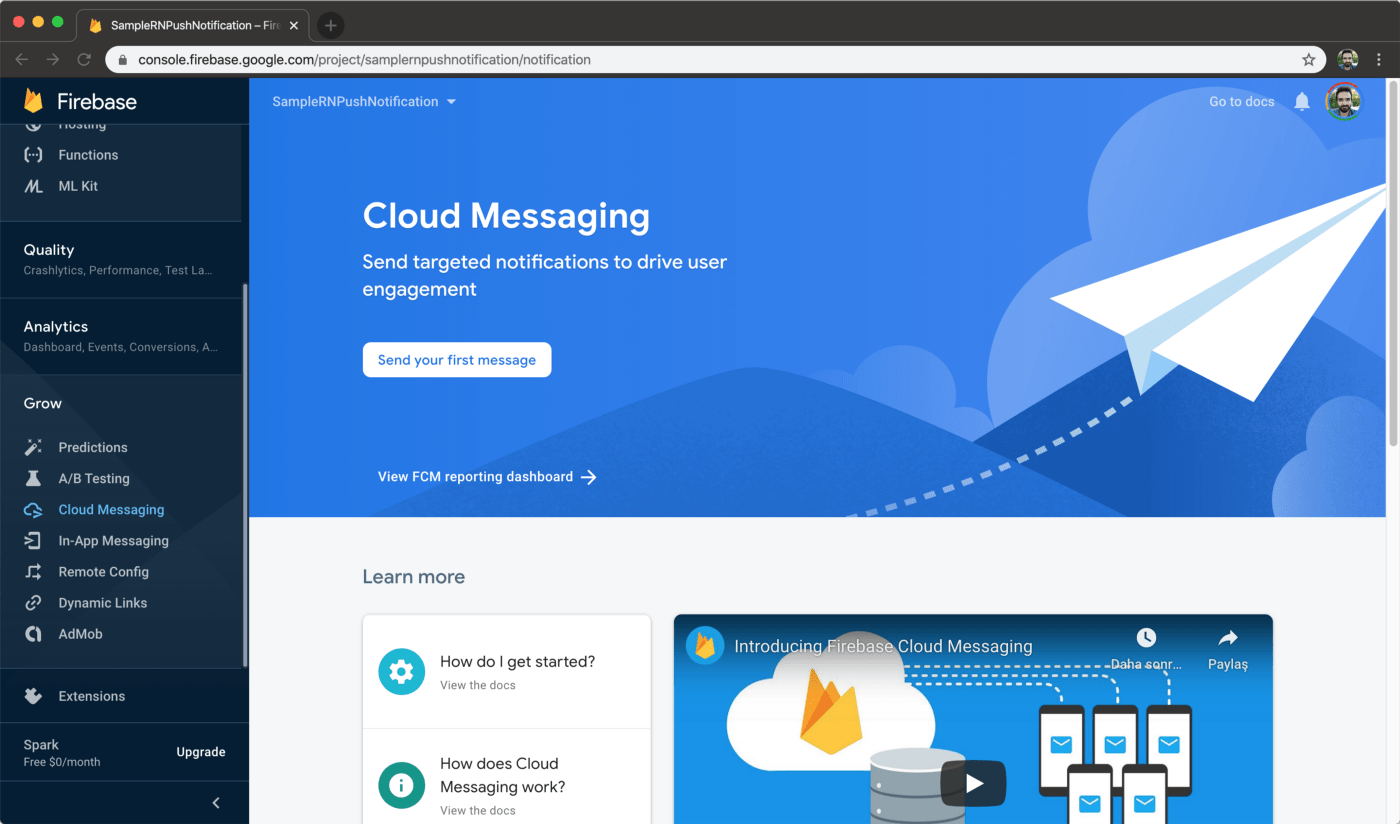
All done! Now let’s navigate to Firebase console to test whether sending notifications work. Select Cloud Messaging under Grow section on the left. Then, select Send your first message button.
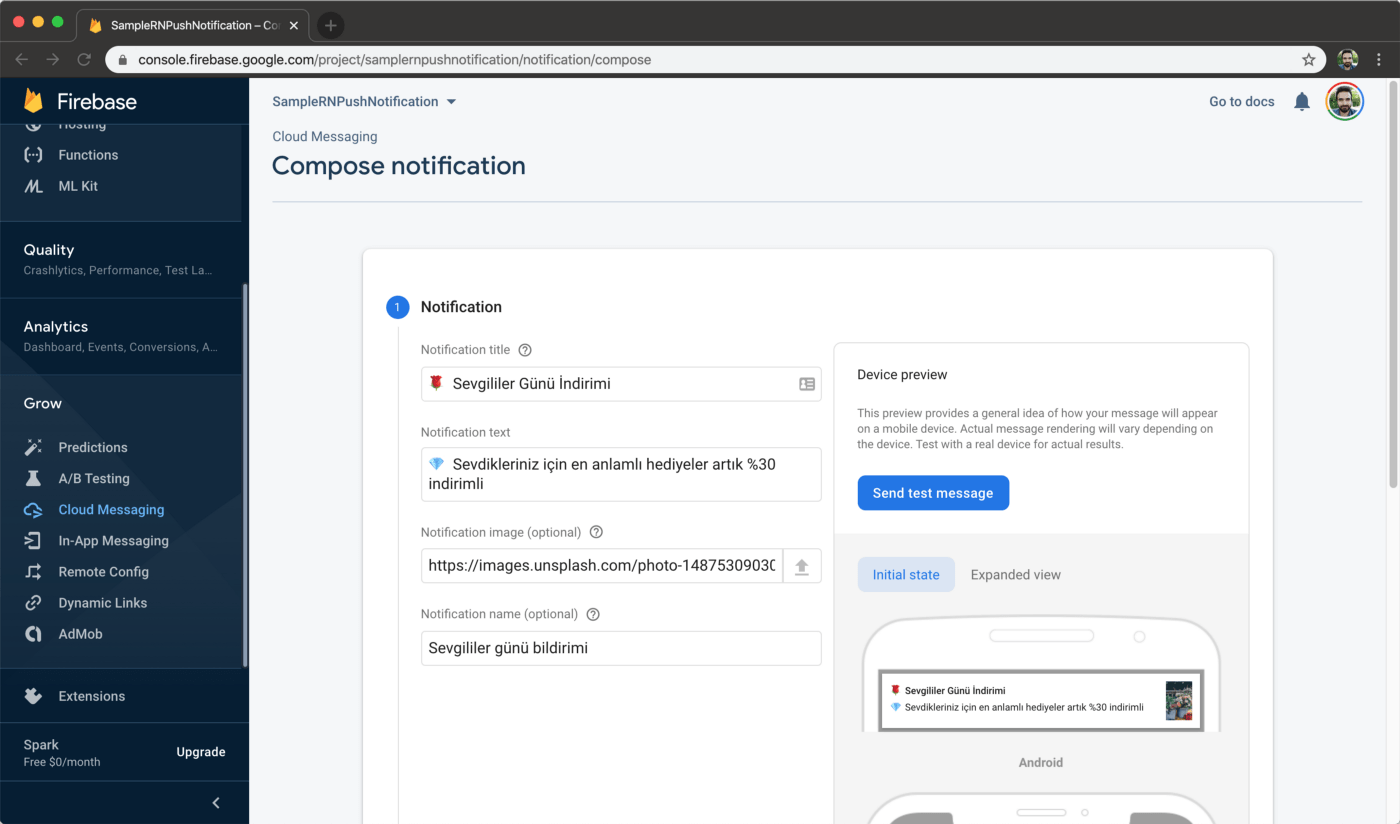
1. Under Notification section, fill in the content for your notification. To add images to your notification, you must be on a paid plan on Firebase. You can get the test image from unsplash.
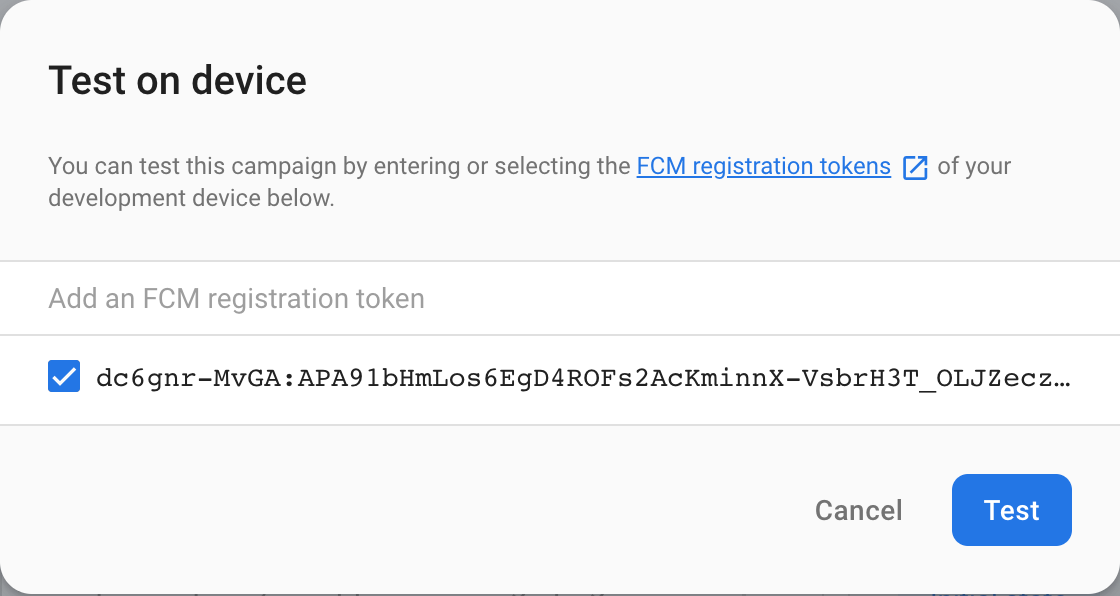
2. Select Send test message. Then on the next field, you can enter the device token you got from the last section to send a test notification:

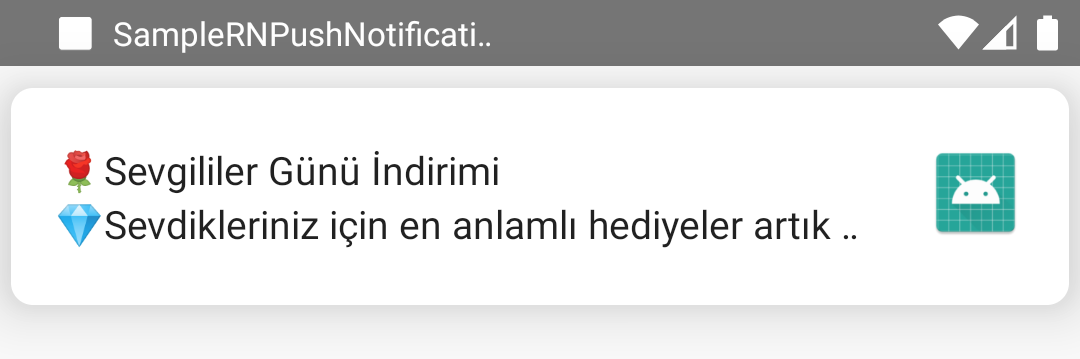
Make sure the app ran at least once on your device before sending. Do all the adjustments and tap Review. Verify the content and tap Publish. After sending, you’ll see the notification like this:

Creating Firebase Push Notifications on iOS
Open the iOS project in Xcode:
open ios/SampleRNPushNotifications.xcworkspace
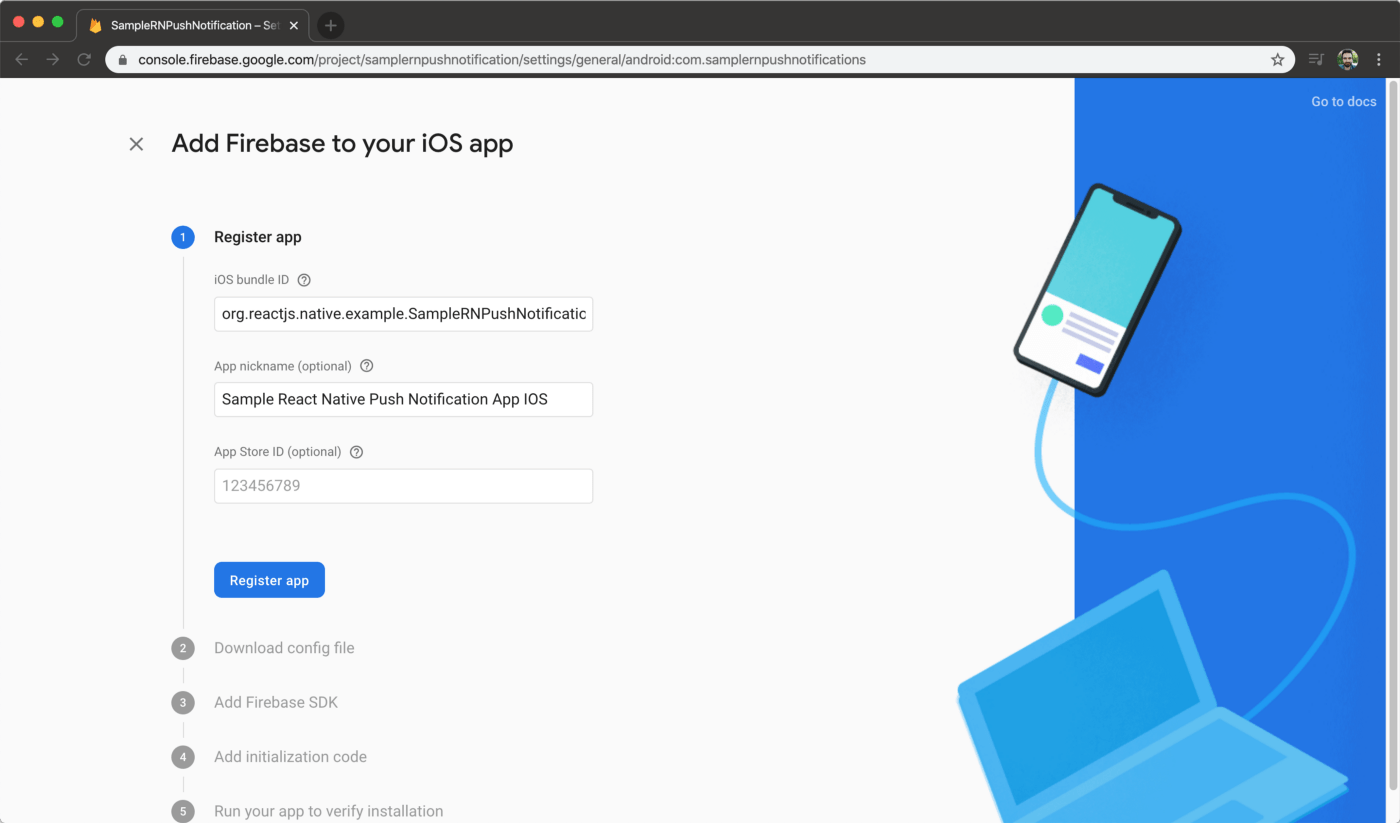
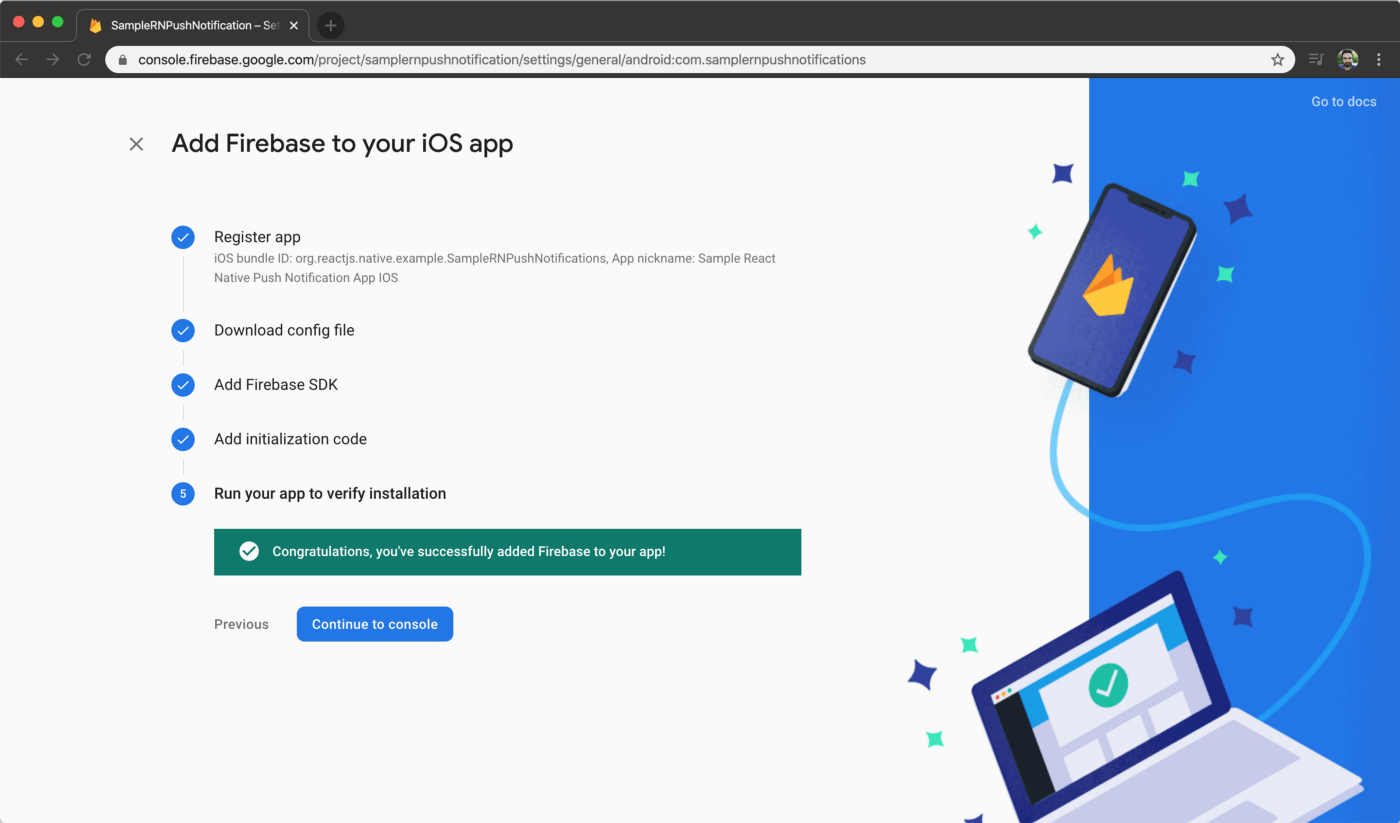
Navigate to Firebase console, and add an iOS app:
Follow the steps there afterwards.
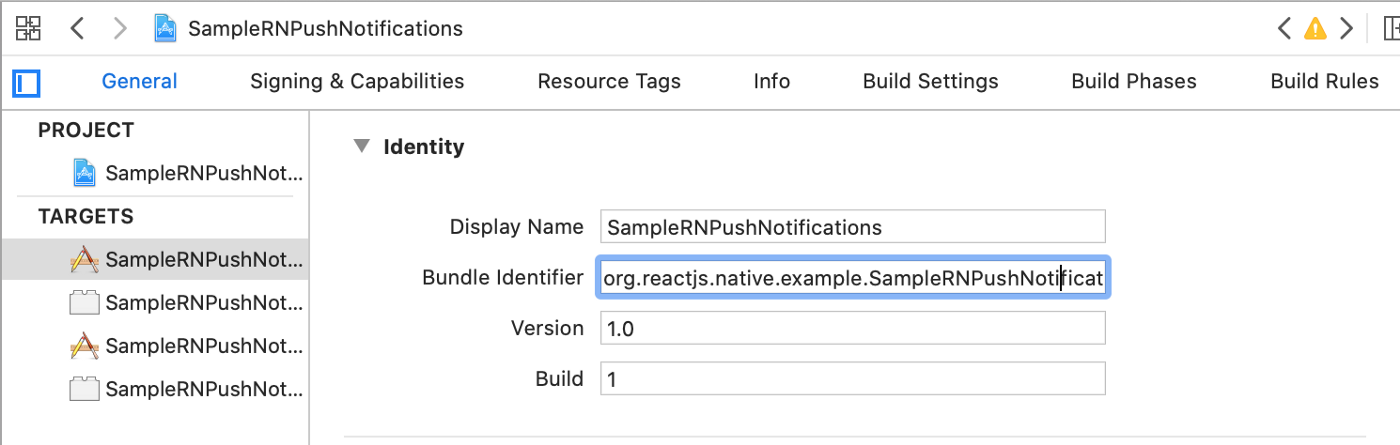
Step 1. Register app: First, you need to find your app’s bundle identifier. It can be found from Xcode:


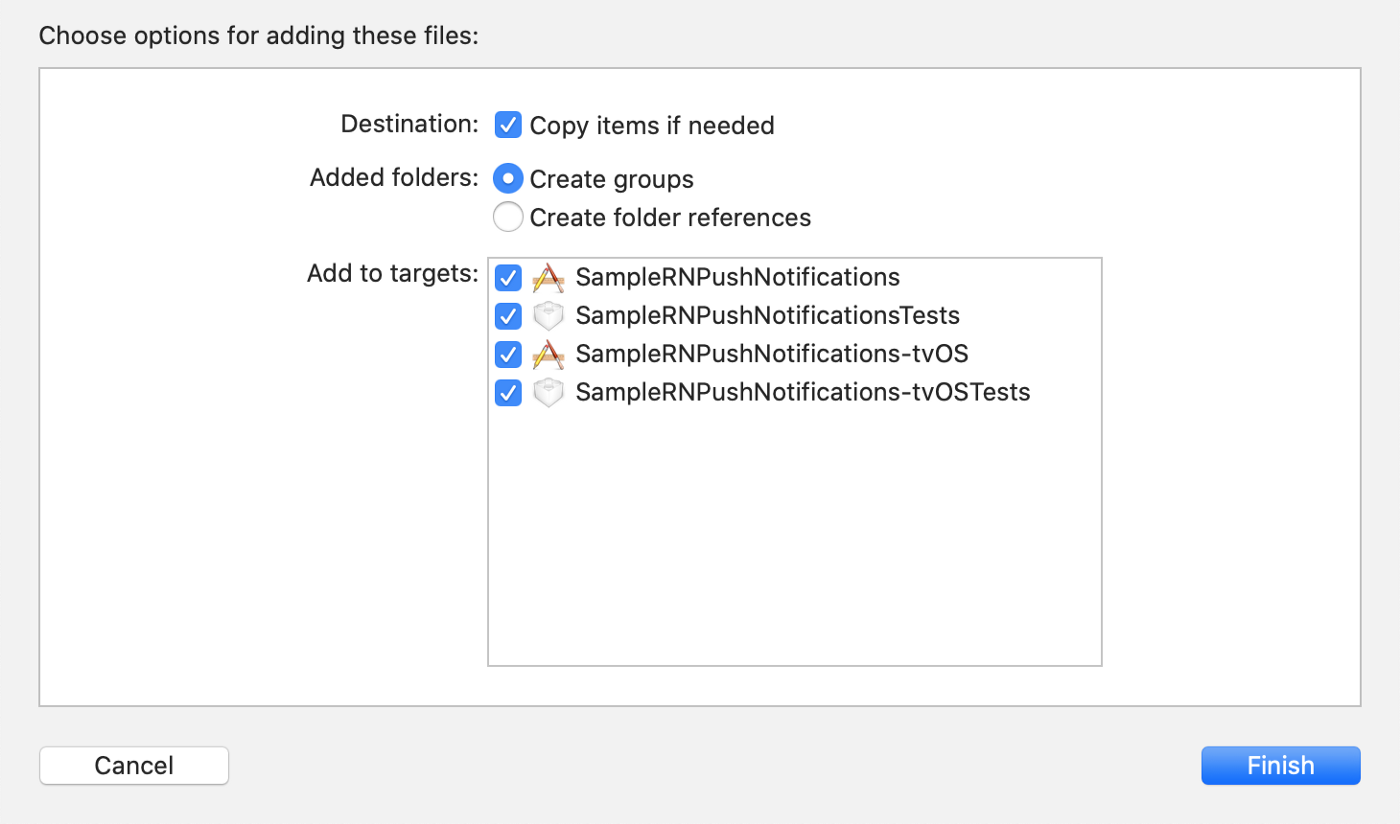
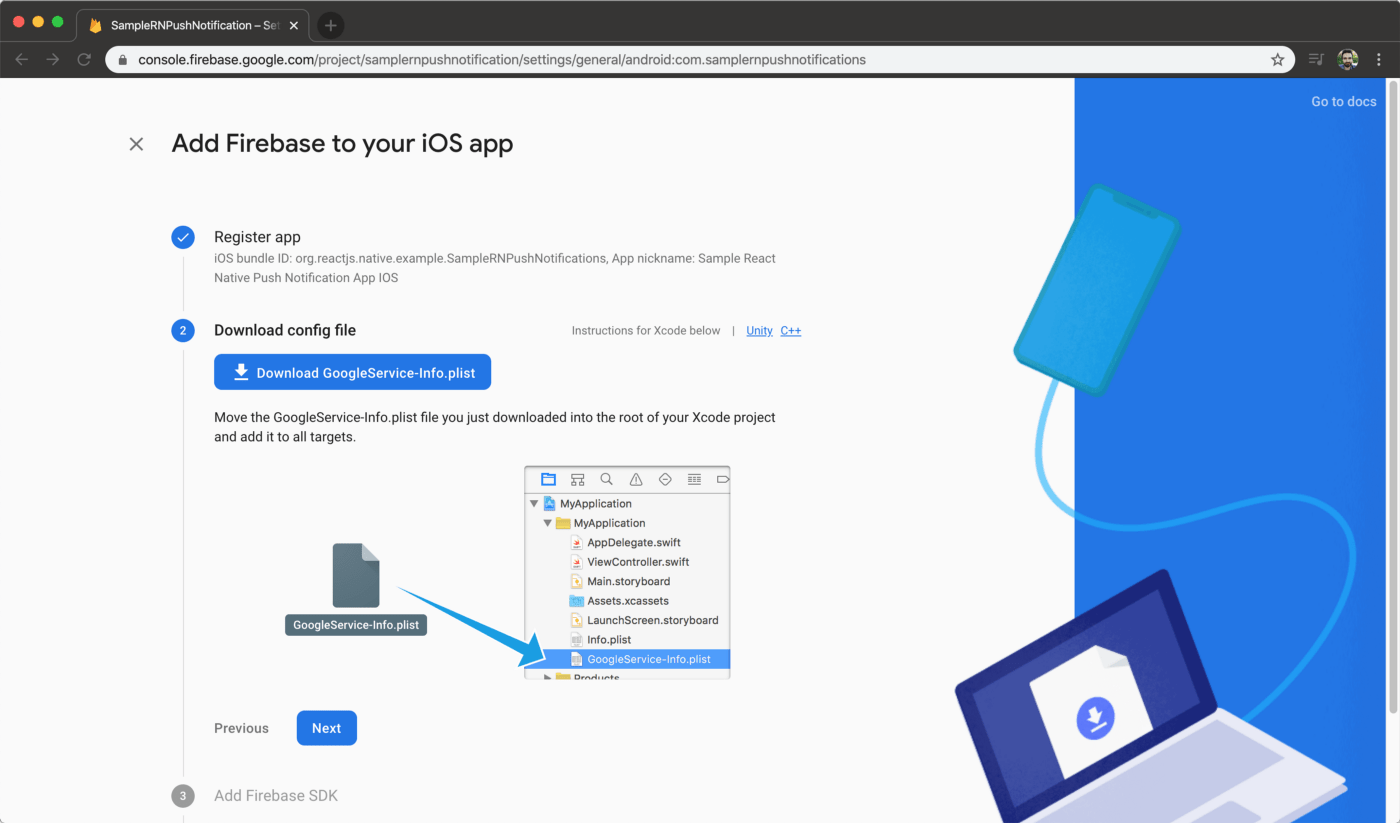
Step 2. Download config file: Download the plist file and drag it into SampleRNPushNotifications folder. Pick all 4 targets on the panel that follows:
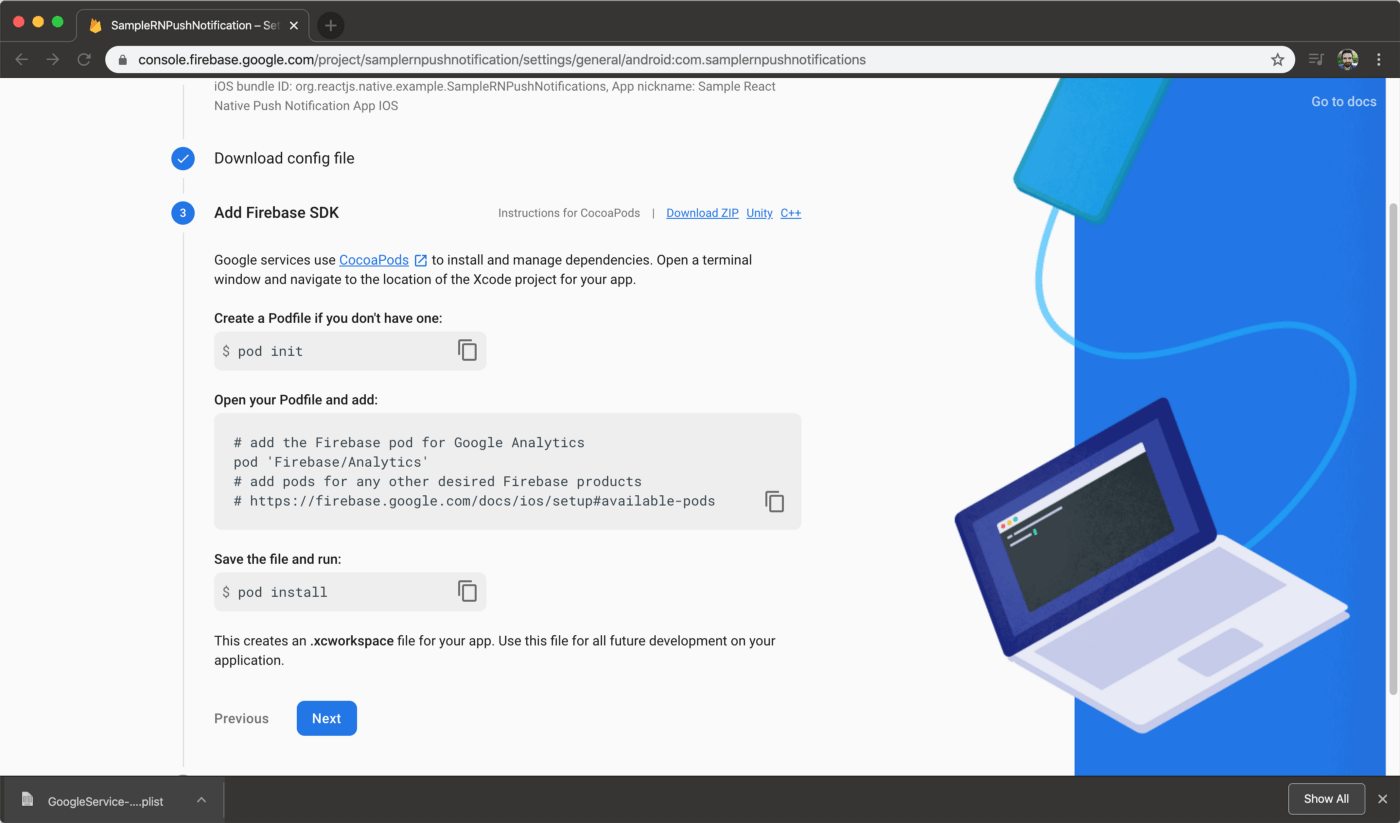
Step 3. Add firebase SDK: All you need to do is to add the following line to your Podfile file (not Podfile.lock):
pod 'Firebase/Analytics'
then run Cocoapods:
pod install --project-directory=ios/
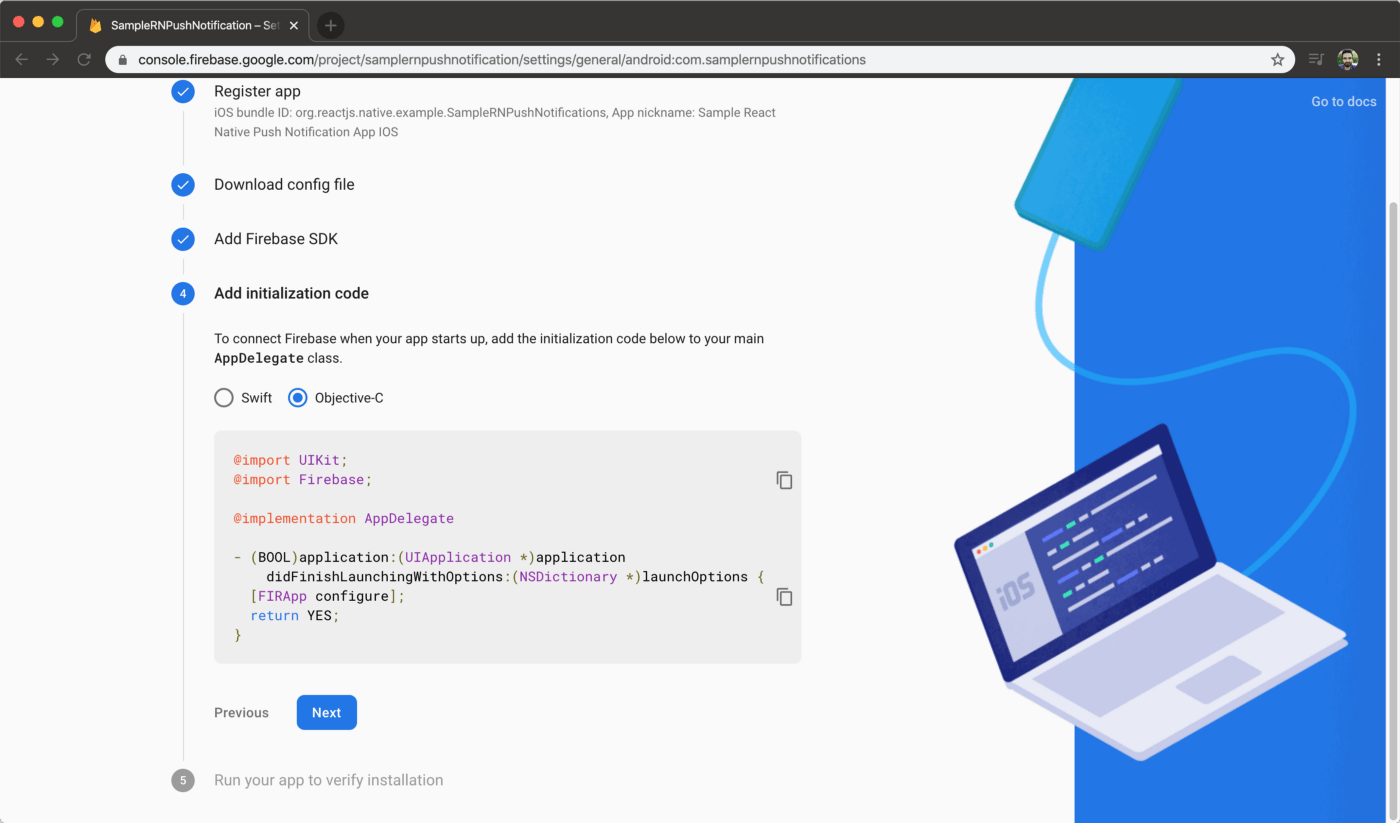
Step 4. Add initialization code: Go to AppDelegate.m file and import Firebase to the bottom of the imports:
@import Firebase;
then find the didFinishLaunchingWithOptions method and inside call initialize on Firebase:
[FIRApp configure];
Step 5. Run your app to verify installation: Run the app and see whether everything works:
npx react-native run-ios
Making changes to React Native App
If you’re using the iOS simulator to test, you might see a warning like the one below.

Apple now allows to test push notifications on the iOS simulators. For a detailed guide, check out SwiftLee’s article.
Make modifications to App.tsx file to make it work on iOS. This is the final file:
import React, {useEffect} from 'react';
import firebase from '@react-native-firebase/app';
import '@react-native-firebase/messaging';
import PushNotification from 'react-native-push-notification';
import {Platform} from 'react-native';
import {FirebaseMessagingTypes} from '@react-native-firebase/messaging';
import PushNotificationIOS from '@react-native-community/push-notification-ios';

const App = () => {
    const getToken = () => {
        firebase .messaging()
        .getToken(firebase.app().options.messagingSenderId)
        .then(x => console.log(x))
        .catch(e => console.log(e));
    };
    const registerForRemoteMessages = () => {
        firebase
        .messaging()
        .registerDeviceForRemoteMessages()
        .then(() => {
            console.log('Registered');
            requestPermissions();
        })
        .catch(e => console.log(e));
    };
    const requestPermissions = () => {
        firebase
        .messaging()
        .requestPermission()
        .then((status: FirebaseMessagingTypes.AuthorizationStatus) => {
            if (status === 1) {
                console.log('Authorized');
                onMessage();
            } else {
                console.log('Not authorized');
            }
        })
        .catch(e => console.log(e));
    };
    const onMessage = () => {
        firebase.messaging()
        .onMessage(response => {
            showNotification(response.data!.notification);
        });
    };
    const showNotification = (notification: any) => {
        console.log('Showing notification');
        console.log(JSON.stringify(notification));
        PushNotification.localNotification({
            title: notification.title, message: notification.body!,
        });
    };
    getToken();
    if (Platform.OS === 'ios') {
        registerForRemoteMessages();
    } else {
        onMessage();
    }
    return <></>;
};

export default App;
Where to Go From Here?
Sending push notifications gets easy with rnfirebase plugin. With a few minutes of configuration and little code, we’ve implemented the ability to send push notifications to our React Native app via Firebase.
You can check https://github.com/mikehardy/rnfbdemo project to create boilerplate React Native apps with Firebase. All you need to do is to create a new app on Firebase for ‘com.rnfbdemo’ and add GoogleServices-Info.plist and json files into the project. The rest is handled by make-demo.sh file.
You can find the final project we’ve built here at react-native-push-notification-firebase repo.
Use Appcircle to build, test and distribute your React Native apps. From creating an account to starting your first build takes less than 30 seconds. Start for free.
Happy coding!