
TipKit
One of the tough challenges for developers is teaching how to use the app to the user. It is so important because it relates to the purchase rate. Only the users who know how to use the app purchases a subscription. We call onboarding this teaching process.
Onboarding includes two steps most of the time. The first step is the classic sliding pages between 2-5 that introduce the app roughly. The second step is introducing how UX elements (button, label, switch, etc.) work on specific screens. TipKit is one of the new features which is announced at WWDC23 is about the second step.
It helps to teach the user how to use the app by introducing the view components. The main job of TipKit is to highlight a particular view to show what the user should focus on.
Excluding TipKit, developers use third-party alternatives such as Instructions. TipKit will be the native solution with iOS 17 now.
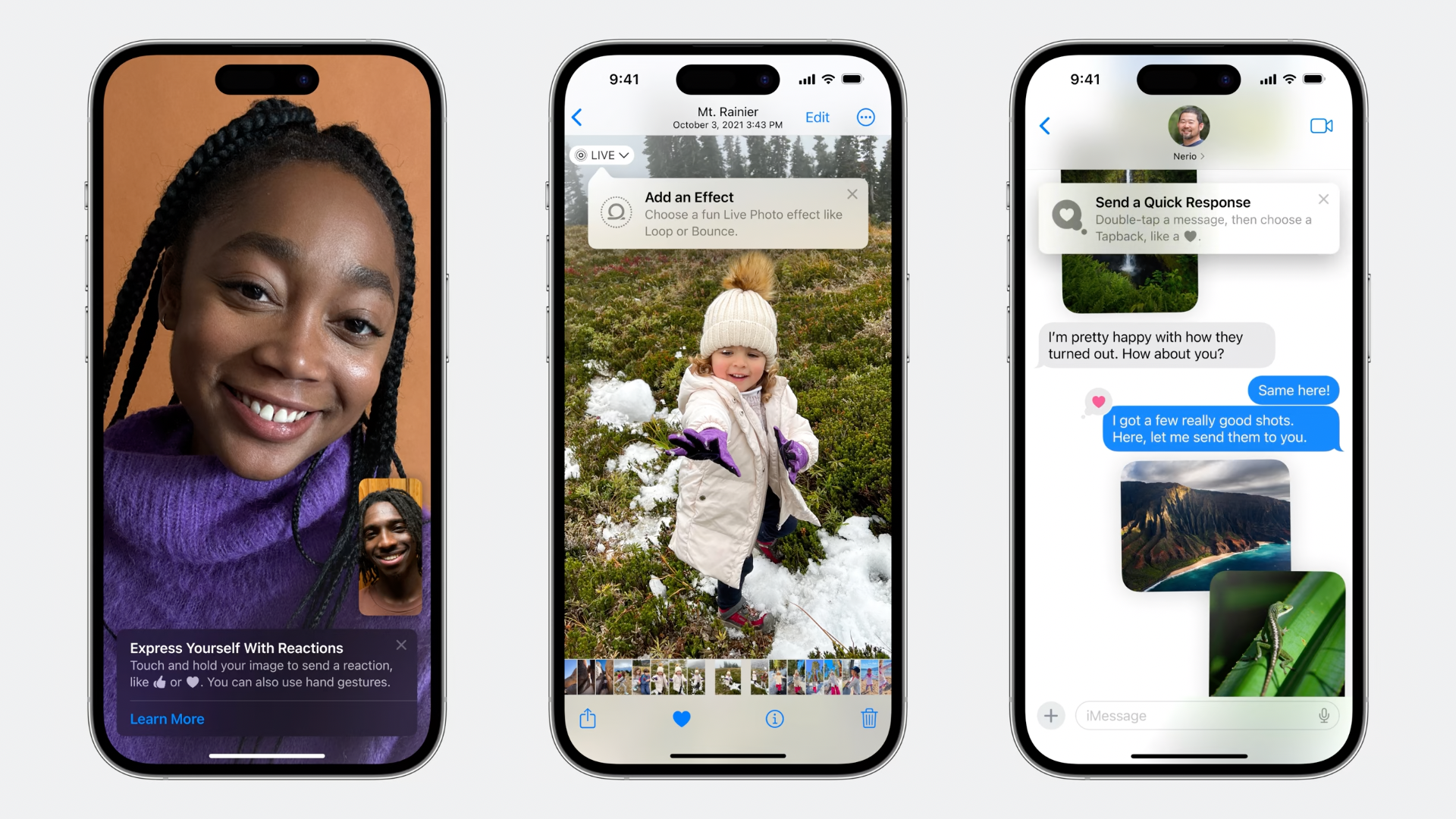
One of the best uses of TipKit is increasing feature discoverability. Imagine that the new version of the app has a new feature triggered by a button. All the developer needs to do is highlight the button with a short feature description through TipKit. The user easily notices the button and new feature.
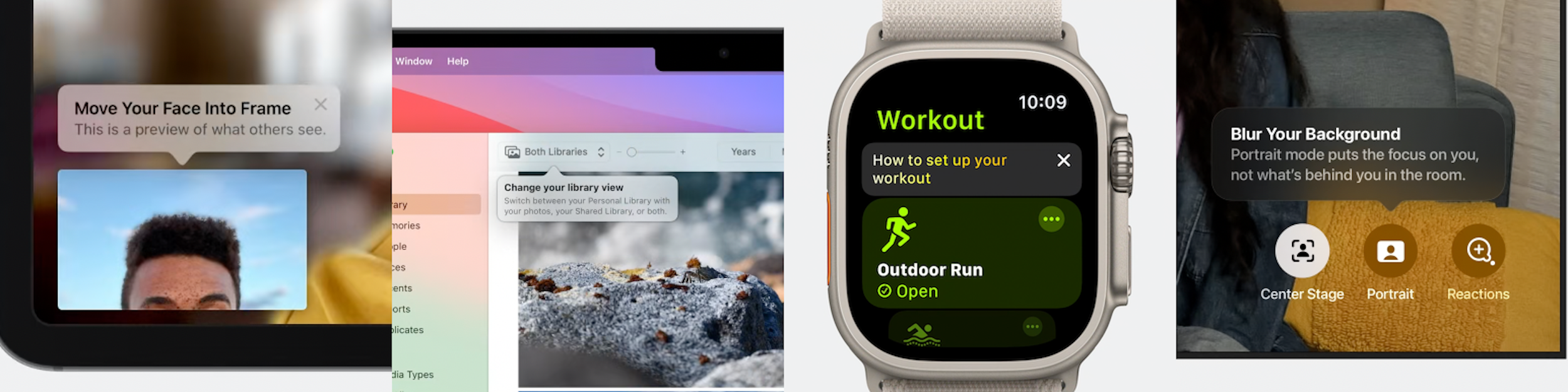
It is also available on iPadOS, macOS, watchOS, and tvOS.
Make It Live
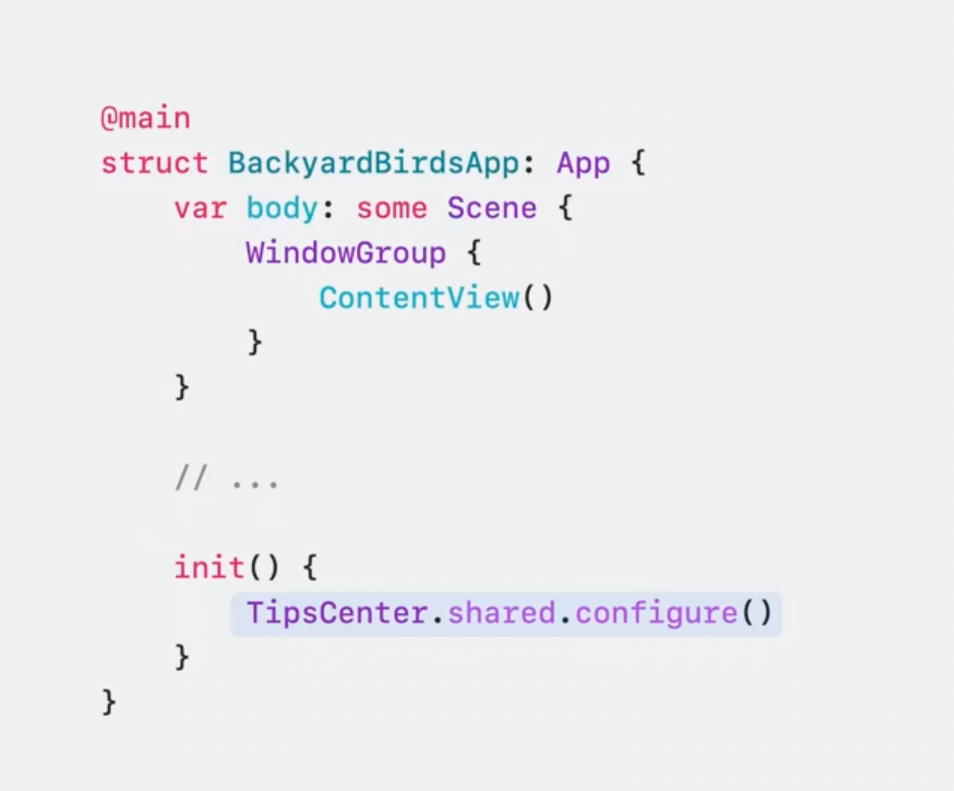
The start point is calling the configure method of TipsCenter at the app launch.
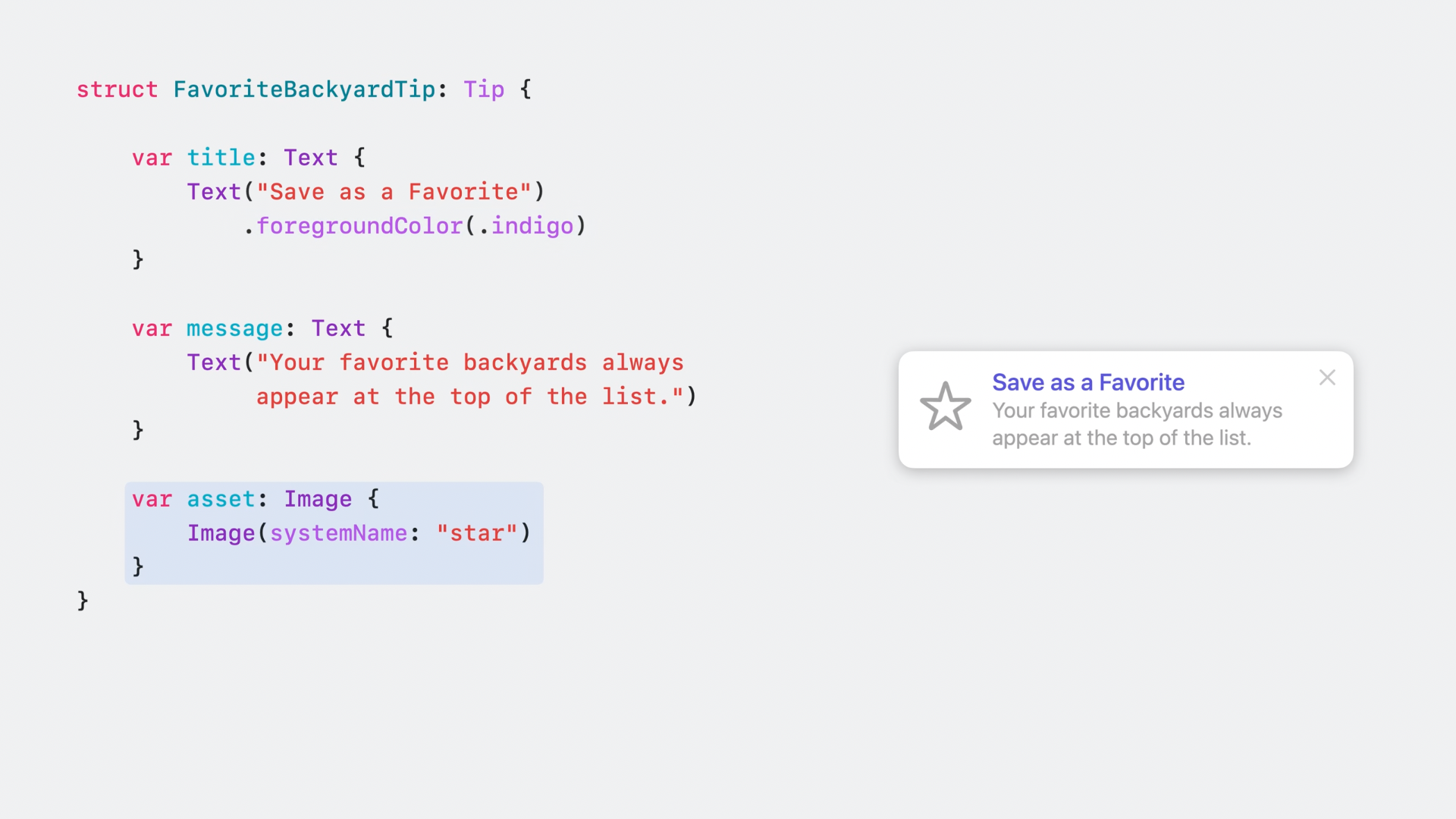
All you need to do is to create a struct and conform to Tip protocol. It brings title, message, and asset properties to configure the view.
Title: the first biggest text
Message: the second detailed text
Asset: the helper image of the tip
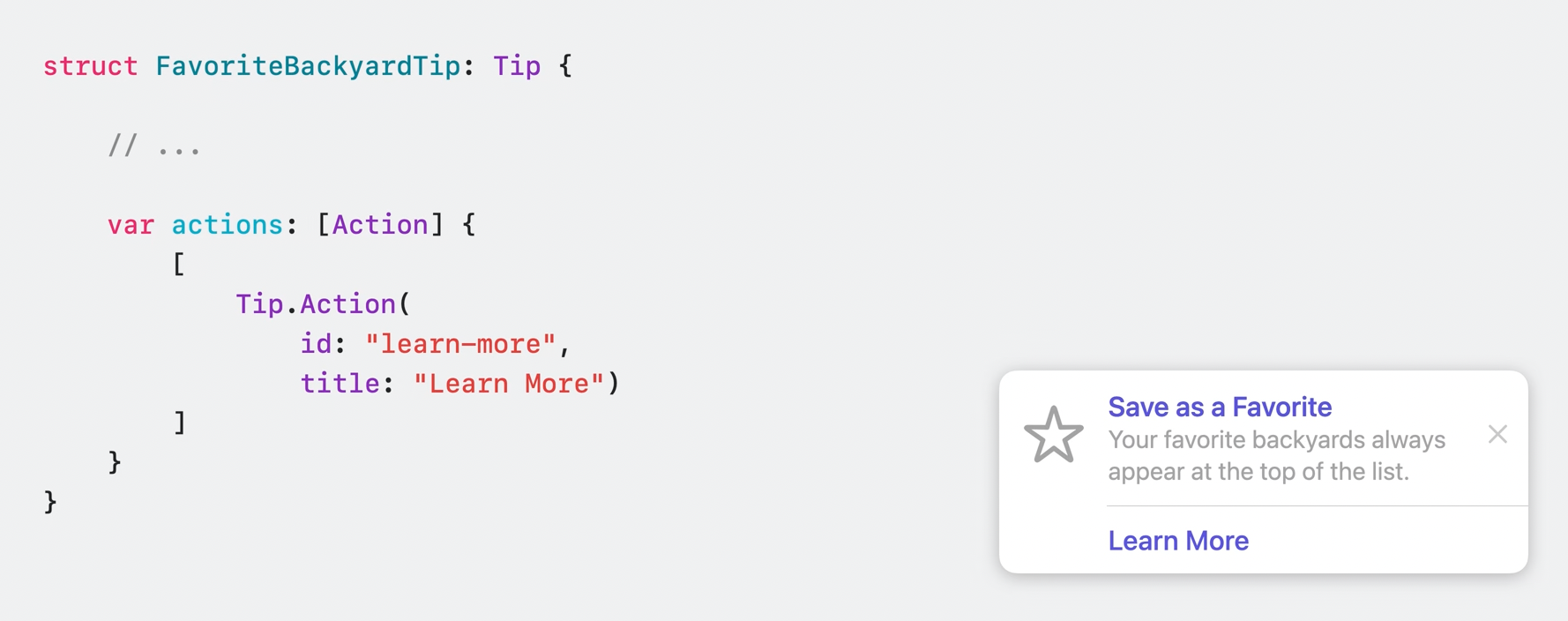
You also can add actions and listen them by the id property.
Afterward, you are supposed to call popoverMiniTip to show the tip view.
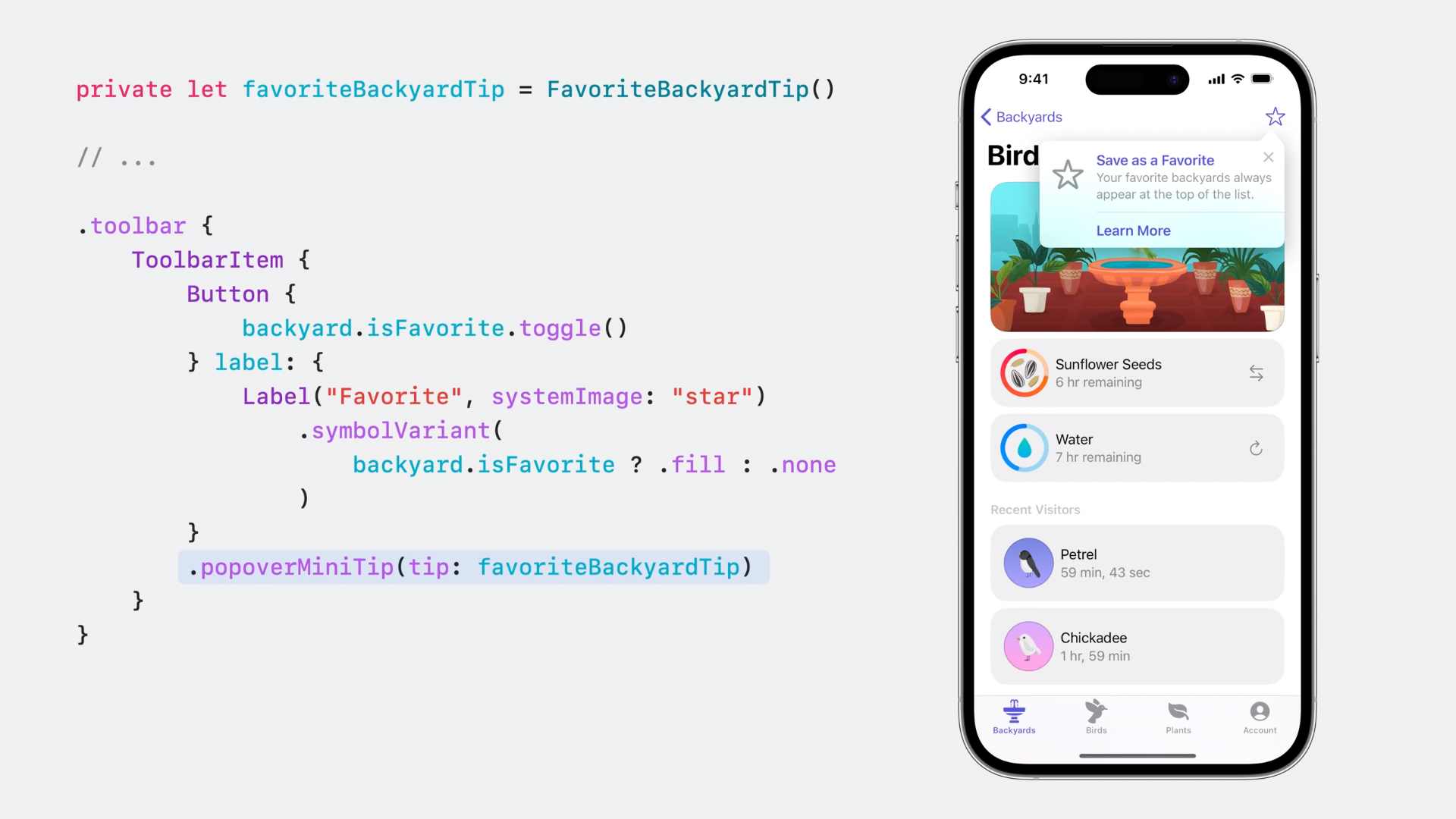
The tip view will be shown when the star button is tapped.
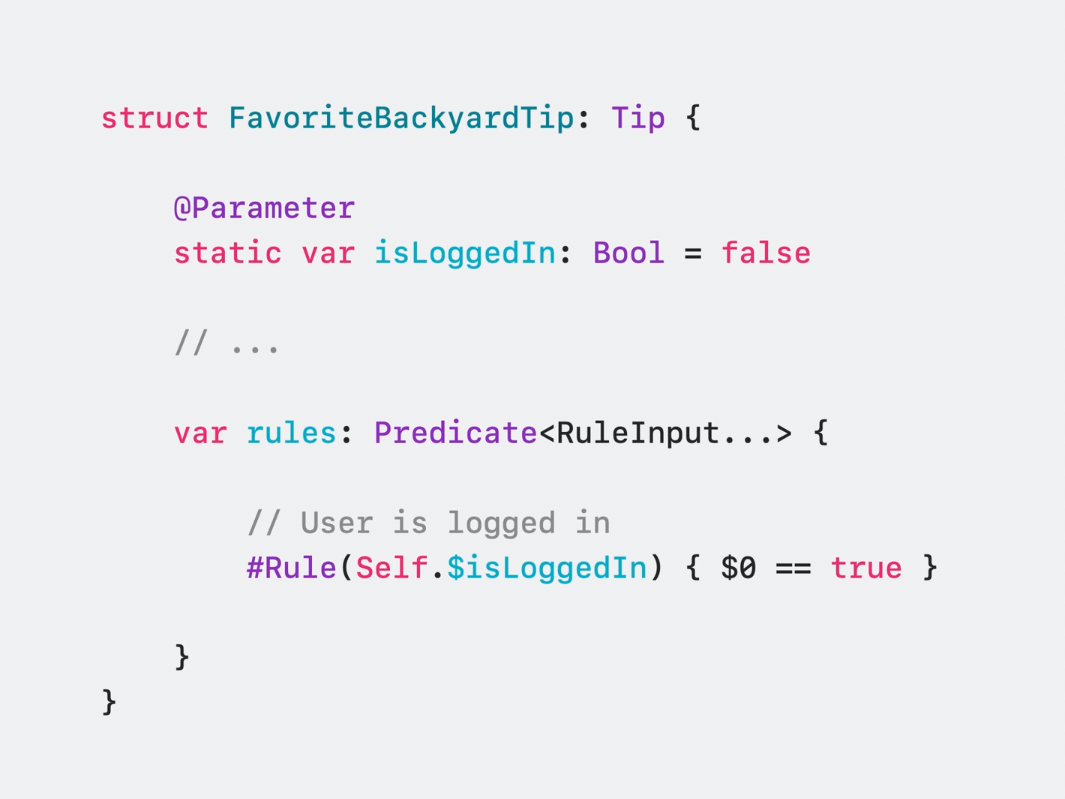
You can also set some rules, such as show the tip only if the user is logged in.
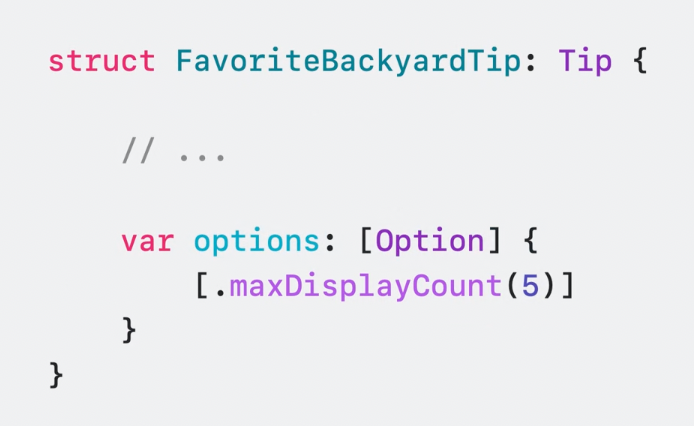
Tip options can be set by calling options property. You can set max display count easily.
TipsCenter
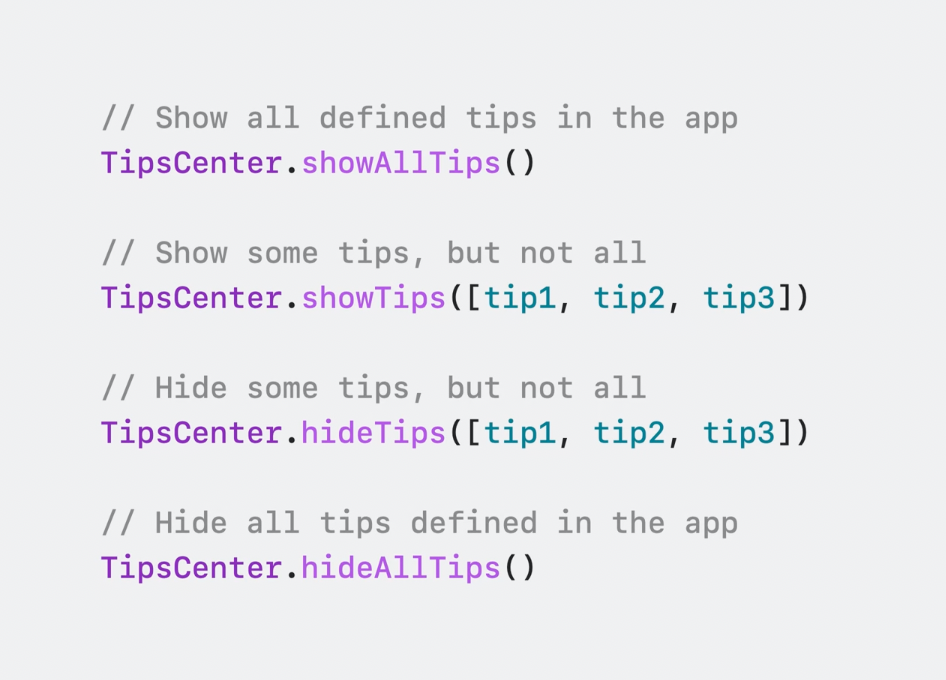
It is the singleton object to manage all tips. You can show all or some specific tips by calling the related functions in TipsCenter.
Recommended Uses
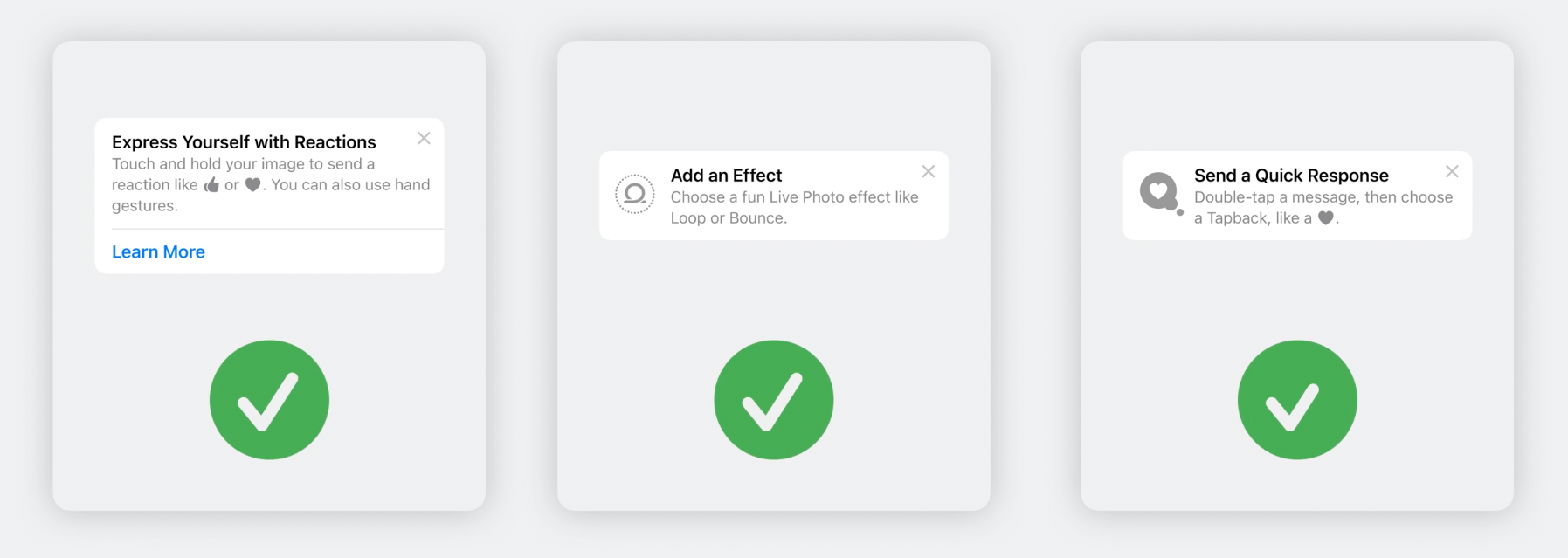
These are the recommended usage examples by Apple. They are supposed to be easy to read and remember. Long sentences are not recommended.
Non-Recommended Uses
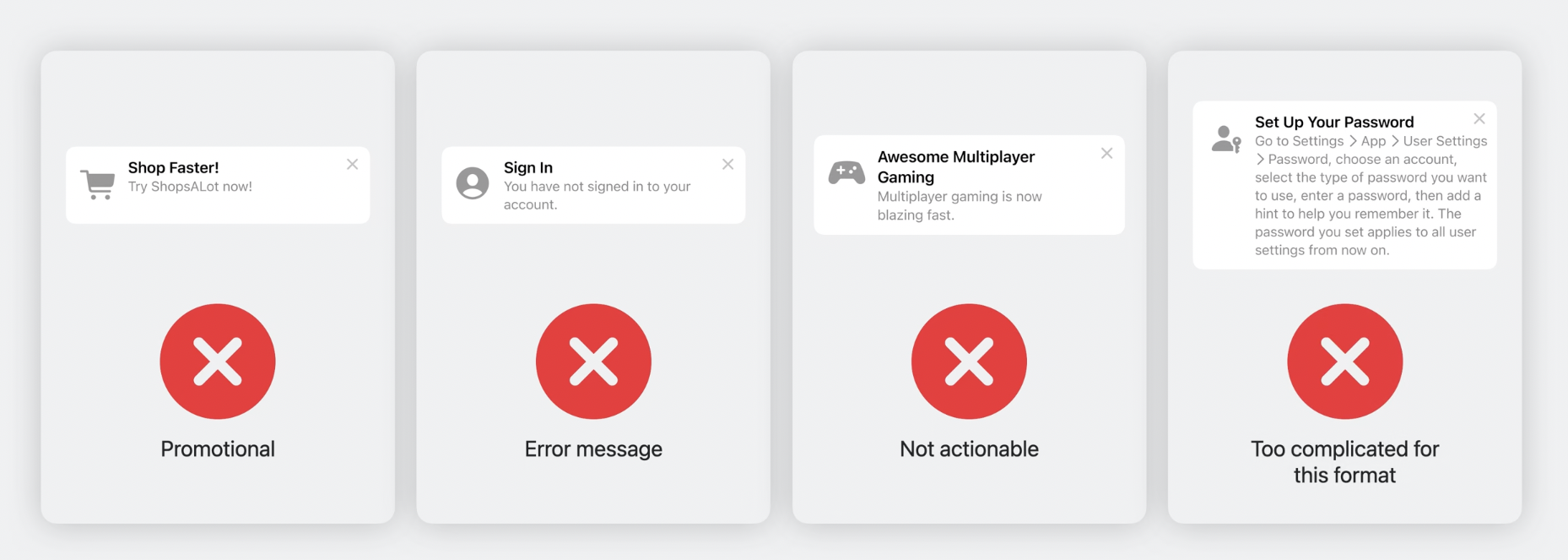
These are the non-recommended ones. Tips should be used to educate users. They are not toast messages.
Summary
We, as developers, always struggle to tell the users some of the app’s primary functions. Before TipKit, our choice would be third-party libraries. By TipKit, we would be happy to use the native solution and teach the primary features/actions to the users quickly.
You can watch the WWDC session of TipKit here.
To stay updated with upcoming posts about Apple sessions, be sure to subscribe to our newsletter below.
See you in our next article!

