
WWDC25: What’s New in UIKit
UIKit was among the most talked about after the radical changes in WWDC25. This article covers the latest enhancements Apple brought to UIKit at WWDC25.
| Feature | Description |
|---|---|
| New Liquid Glass Design System | Translucent, dynamic, “alive” visuals—modern look for bars, popovers, sidebars via UIGlassEffect, UIScrollEdgeEffect, glass(), etc. |
| Scene Updates: SwiftUI + UIKit | Seamless embedding of SwiftUI scenes in UIKit via UIHostingSceneDelegate, including support for immersive visionOS spaces. |
| Improvements to Animations: Automatic UI Updates with .flushUpdates | .flushUpdates option in UIView.animate automatically applies both layout and observable changes without needing layoutIfNeeded(). |
| Swift Notifications | Typed notifications via NotificationCenter.default.addObserver(of:for:), enabling safer, strongly-typed message handling. |
| SF Symbols 7 - Magic Replace Animations | New symbolContentTransition for animated symbol swaps in buttons (e.g. draw-on/off, magic replace transitions). |
| Scene Lifecycle Migration | UIApplicationDelegate lifecycle deprecated; all apps now require UIScene for multi-window and modern scene handling. |
| HDR Color Support | UIColor now supports HDR with linearExposure, alongside HDR-capable color pickers; use UITraitHDRHeadroomUsage to monitor fallback to SDR. |
| The Menu Bar | macOS‑style menu bar on iPad, configurable via UIMainMenuSystem.Configuration and UIDeferredMenuElement, showing items without keyboard shortcuts and disabled items. |
| Automatic Observation Tracking | UIKit auto‑observes @Observable models in lifecycle methods (layoutSubviews, updateConfiguration(using:), updateProperties()), eliminating the need for manual setNeedsLayout(). |
| updateProperties() Support | Ideal for updating UI properties outside of layout; works with @Observable models to automatically reflect changes with improved performance. |
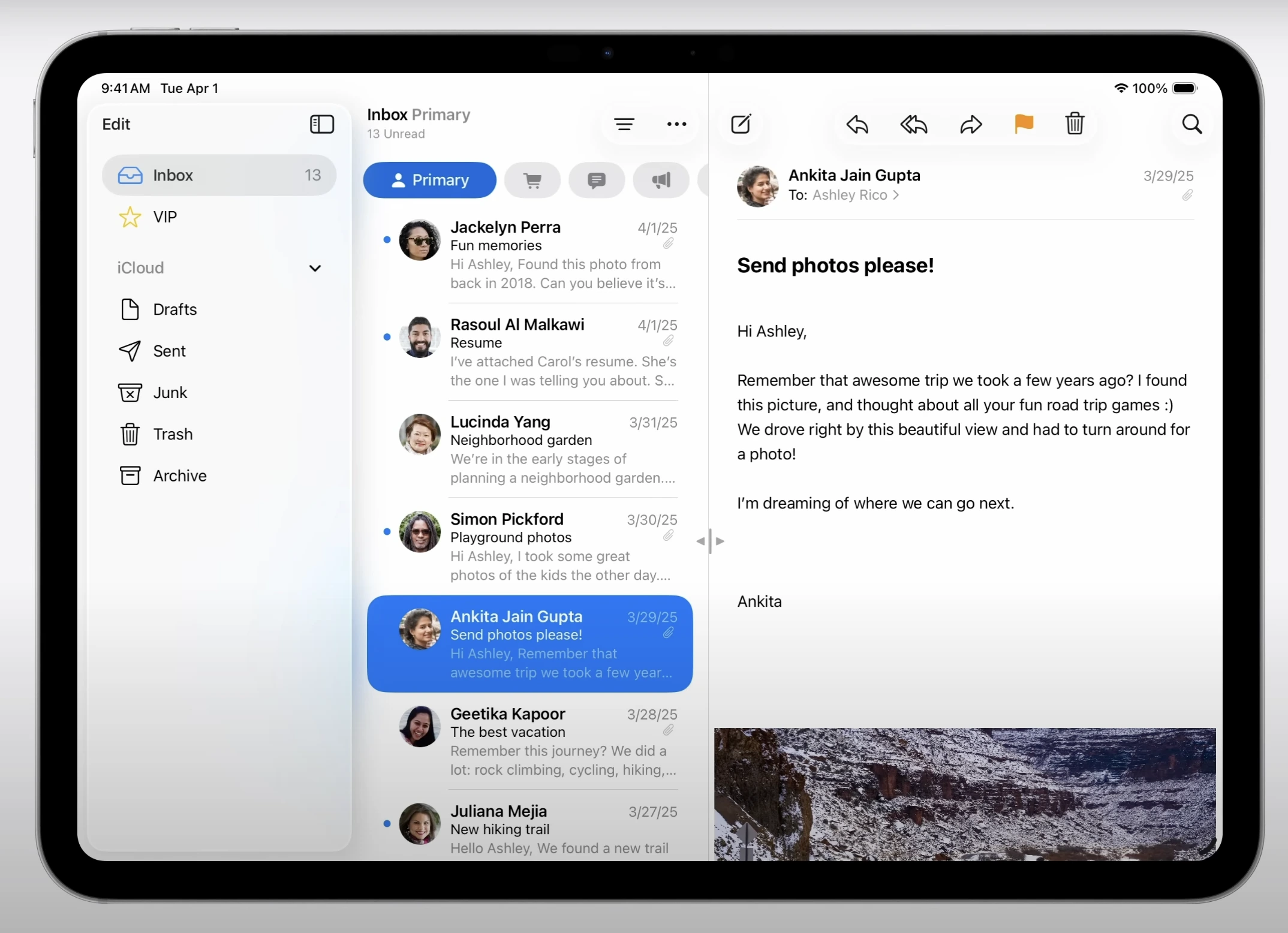
| Containers and Adaptivity | Resizable columns and inspector support in UISplitViewController, enabling more flexible layouts across Apple platforms. |
New Liquid Glass Design System
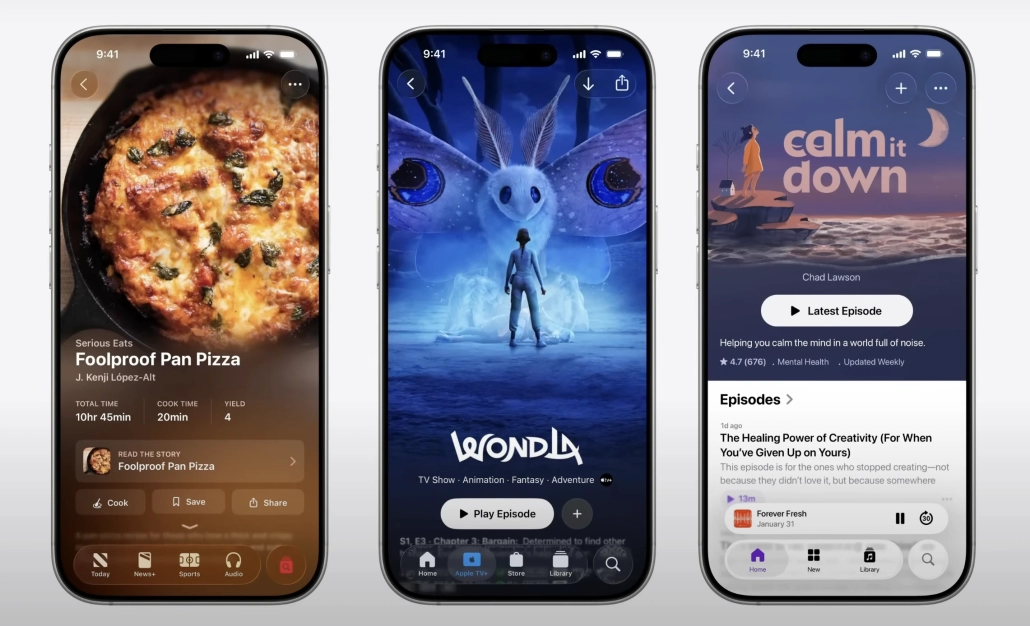
UIKit is now compatible with Liquid Glass, Apple’s new design language. This new system provides a translucent, dynamic and alive structure, giving basic UIKit components such as the bar, search field and popover a modern look. The result is a more fluid and responsive experience.
UIKit is fully compatible with Apple’s new Liquid Glass design language. With this new system; UIBackgroundExtensionView to maintain the visibility of the content under components such as sidebar, UIScrollEdgeEffect for alive experience and dynamic effects, UIGlassEffect that adds a glass effect layer, glass() and prominentGlass() button extensions that add a modern, semi-count and responsive feel to the design, and UIGlassContainerEffect for integrity and visual continuity in transition animations.
For guidance on bringing the Liquid Glass design into your UIKit projects, take a look at this article: [WWDC25: Build a UIKit App with the New Liquid Glass Design]
Scene Updates: SwiftUI + UIKit
You can incorporate SwiftUI-based scenes into your UIKit applications. Thanks to the UIHostingSceneDelegate protocol, you can include SwiftUI scenes in UIKit applications and offer special experiences for different platforms. It’s now much more straightforward to create Immersive Spaces, particularly for visionOS.
// 1. Scene delegate definition
final class MeditationSceneDelegate: UIResponder, UIHostingSceneDelegate {
    static var rootScene: some Scene {
        WindowGroup(id: "meditation") {
            MeditationMainView()
        }

        #if os(visionOS)
        ImmersiveSpace(id: "meditationSpace") {
            MeditationImmersiveView()
        }
        .immersionStyle(selection: .constant(.full), in: [.mixed, .progressive, .full])
        #endif
    }
}

// 2. Defining the delegate via UISceneConfiguration
func application(
  _ application: UIApplication,
  configurationForConnecting connectingSceneSession: UISceneSession,
  options: UIScene.ConnectionOptions
) -> UISceneConfiguration {
    let config = UISceneConfiguration(
      name: "Meditation Scene",
      sessionRole: connectingSceneSession.role
    )
    config.delegateClass = MeditationSceneDelegate.self
    return config
}

// 3. Trigger to launch the specific scene
func presentImmersiveSpace() {
    let request = UISceneSessionActivationRequest(
        hostingDelegateClass: MeditationSceneDelegate.self,
        id: "meditationSpace"
    )!
    UIApplication.shared.activateSceneSession(for: request)
}
Improvements to Animations: Automatic UI Updates with .flushUpdates
With iOS 26, animations have become even smarter. With the new .flushUpdates option, changes made in the UIView.animate block and AutoLayout updates are automatically applied. The system now handles layout updates automatically, removing the requirement to call layoutIfNeeded() manually.
This capability supports both @Observable objects and layout constraint modifications.
UIView.animate(options: .flushUpdates) {
    self.userAvatarModel.borderColor = .systemBlue
    self.avatarImageViewTopConstraint.constant = 16
    self.leadingConstraint.isActive = false
    self.trailingConstraint.isActive = true
}
In this example, the observable object and layout constraints are both updated automatically and applied as part of the animation.
Swift Notifications
With the new Swift-based notification structure, NotificationCenter now returns strongly-typed messages. This makes it easier to handle animated layout updates securely, such as when responding to the keyboard appearing via the keyboardWillShow notification.
NotificationCenter.default.addObserver(
    of: UIScreen.self,
    for: .keyboardWillShow
) { message in
    UIView.animate(withDuration: message.animationDuration) {
        let overlap = view.bounds.maxY - message.endFrame.minY
        bottomConstraint.constant = overlap
    }
}
SF Symbols 7 — Magic Replace Animations

With SF Symbols 7, symbols now support animated transitions such as Draw On and Draw Off. These animations work seamlessly in components like UIButton, where symbol changes can be animated automatically. You can use symbolContentTransition for this.
var config = UIButton.Configuration.plain()
config.symbolContentTransition = .init(.replace)
myButton.configuration = config
Scene Lifecycle Migration
UIKit now mandates the use of a UIScene-based lifecycle, fully replacing the old UIApplication-centric model starting with iOS 26. This shift enables more flexible interfaces, particularly for apps that support multiple windows. Additionally, UIRequiresFullScreen has been deprecated, and apps can now open file URLs using UIScene.openURL, either in compatible system apps or through a QLPreviewController.
scene.openURL(fileURL) { accepted in
    print("Handled file: \(accepted)")
}
HDR Color Support
Starting with iOS 26, UIKit extends its HDR support to include not just images but also colors. With this feature, brighter, dynamic and high-contrast colors can be used in user interfaces. The UIColor class now enables HDR color rendering using the linearExposure parameter. HDR color selection is also possible with the UIColorPickerViewController and UIColorWell components. To determine when HDR content should revert to SDR, you can leverage the UITraitHDRHeadroomUsage trait.
let vibrantRed = UIColor(
    red: 1.0,
    green: 0.0,
    blue: 0.0,
    alpha: 1.0,
    linearExposure: 2.0
)
The Menu Bar
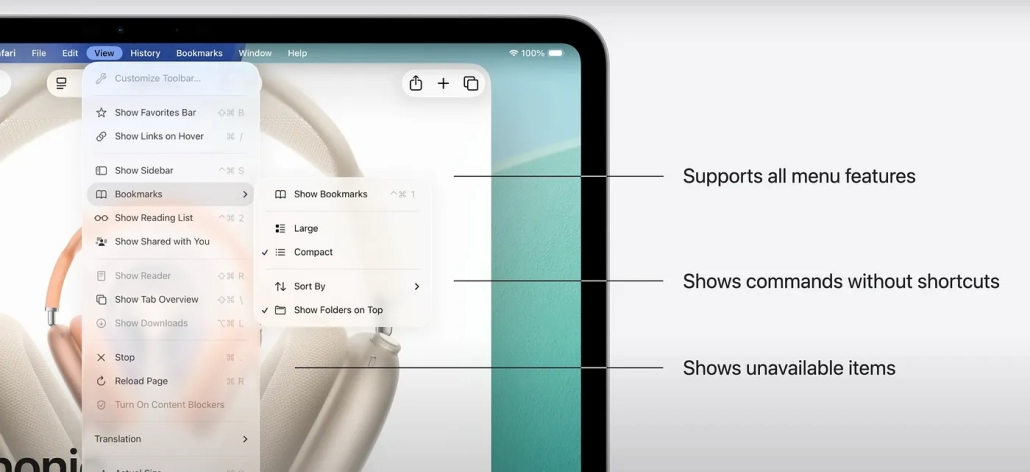
With iOS 26, the menu bar we know from macOS is now coming to iPadOS. This structure, which can be accessed without the need for a keyboard, improves the user experience by presenting application commands in a more accessible and organized interface.
- Supports all menu features: The menu bar supports all macOS menu features such as images, submenus, checkmarks and inline groupings.
- Shows commands without shortcuts: Commands without shortcuts are also displayed in the menu, so that all functions are available to the user.
- Shows unavailable items: Unavailable (disabled) commands are still listed in gray, so the user can continue to explore what the application can do.
UIKit provides new APIs for this menu bar; this is the first of its kind;
Main Menu Configuration API
The new UIMainMenuSystem.Configuration API in UIKit allows for more controlled and application-oriented main menu styling.
- Can specify the system commands to be displayed at startup.
- Can disable default commands (for example: Inspector).
- Can assign styles to existing commands.
- Allows customization with
UIMenuBuilder. - Provides common structure for share extensions.
var config = UIMainMenuSystem.Configuration()

// Include the Print command
config.printingPreference = .included

// Exclude the Inspector command
config.inspectorPreference = .removed

// Consolidate "Find" commands under the label "Search"
config.findingConfiguration.style = .search

// Apply the configuration and add custom elements
UIMainMenuSystem.shared.setBuildConfiguration(config) { builder in
    builder.insertElements(
      ["custom items in here"],
      afterCommand: #selector(copy(_:)
      )
    )

    let deleteKeyCommand = UIKeyCommand(...) // Custom command
    builder.replace(command: #selector(delete(_:)), withElements: [deleteKeyCommand])
}
Focus-based Deferred Menu Elements
UIDeferredMenuElement.usingFocus() can now be used for dynamic content display based on the object you focus on:
- Starts with
UIDeferredMenuElement.usingFocus(...). - Adds dynamic, contextual content (e.g. history by user profile, recently used documents) to the menu.
- fetches data from the responder chain with the
provider(for:)function. - It is used in
UIMenuBuilderbut is an independent mechanism.
// Defines a focus-triggered UIDeferredMenuElement
let deferred = UIDeferredMenuElement.usingFocus(
    identifier: .browserHistory, // Identifies this deferred element
    shouldCacheItems: false      // If false, the menu refreshes each time it's focused
)

builder.insertElements([deferred], atEndOfMenu: .history)
// Adds the element to the History menu, but content is loaded dynamically
Defines a deferred menu element that dynamically loads its content when the History menu is focused, allowing for real-time updates without caching.
/*
UIKit checks the deferredElement.identifier.
The appropriate Provider is returned.
The completion closure defines which menu items should be added.
*/

override func provider(for deferredElement: UIDeferredMenuElement) -> UIDeferredMenuElement.Provider? {
    if deferredElement.identifier == .browserHistory {
        return { completion in
            let items = profile.browserHistoryElements()
            completion(items)
        }
    }
    return nil
}
Provides dynamic content for a deferred menu element based on its identifier, allowing UIKit to populate the menu using the given completion handler.
- Menu items are displayed according to what the user is currently focused on.
- If the menu system is very large, it does not create a heavy data load on startup.
- Content can be updated when the focus changes.
In this section we talked about the menu bar in UIKit. Last but not least, the menu bar defined in Storyboard is no longer supported in UIKit. Also, the menu may not always be visible; all functions of the application should be accessible outside the menu.
Automatic Observation Tracking
With iOS 26, UIKit now automatically keeps track of @Observable objects in update methods such as layoutSubviews. This eliminates the need for manual calls like setNeedsLayout(). UIKit tracks changes in the model and automatically recalculates and updates the view.
@Observable
class NotificationModel {
    var isVisible: Bool = false
    var message: String = ""
}

final class NotificationViewController: UIViewController {

    var model = NotificationModel()
    private let messageLabel = UILabel()

    // This method is incorrect: UIViewController does not have layoutSubviews()
    // You likely meant to use `viewDidLayoutSubviews` or bind model to update UI reactively
    override func layoutSubviews() {
        super.layoutSubviews()

        messageLabel.alpha = model.isVisible ? 1.0 : 0.0
        messageLabel.text = model.message
    }
}
In this code, when isVisible or message in the model changes, UIKit layoutSubviews() is automatically called again so that the ui synchronizes without writing code.
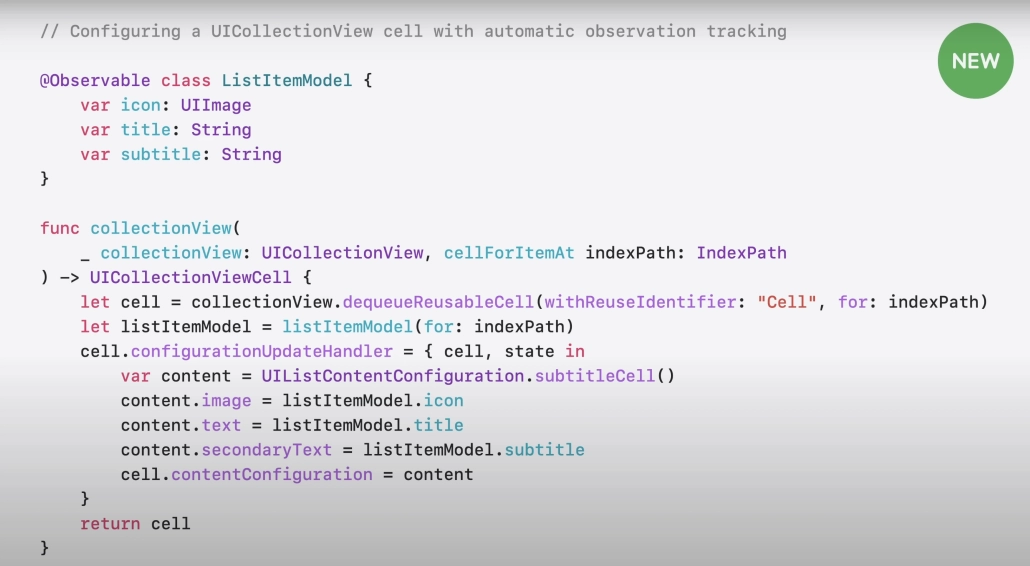
We can use the same approach in UITableViewCell. UIKit’s automatic tracking system does not depend on the view type as long as it works in supported lifecycle methods.
@Observable class UserProfile {
    var avatar: UIImage
    var username: String
    var bio: String
}

final class ProfileCell: UITableViewCell {

    var profile: UserProfile?

    override func updateConfiguration(using state: UICellConfigurationState) {
        super.updateConfiguration(using: state)

        guard let profile else { return }

        var content = UIListContentConfiguration.subtitleCell()
        content.image = profile.avatar
        content.text = profile.username
        content.secondaryText = profile.bio
        contentConfiguration = content
    }
}
This code sets up a table view cell that shows a user’s avatar, name, and bio using UIListContentConfiguration, driven by a bound UserProfile model.
When properties like username, bio, or avatar change in the observable model, the updateConfiguration(using:) method is triggered automatically, updating the cell without needing to call setNeedsLayout() manually.
info.plist
<key>UIObservationTrackingEnabled</key>
<true/>
This feature is enabled by default in iOS 26 but can be back-deployed until iOS 18. Just add the UIObservationTrackingEnabled = true switch to your info.plist file.
updateProperties() Support
The new updateProperties() method enables property updates in UIView and UIViewController subclasses without depending on layout. It runs before layoutSubviews() and offers improved performance. It can also be triggered manually with the setNeedsUpdateProperties() method and offers automatic tracking support when working with @Observable objects.
import UIKit

@Observable
class CartModel {
    var itemCount: Int?
}

class CartViewController: UIViewController {

    var cartModel: CartModel
    let cartButton: UIBarButtonItem

    init(cartModel: CartModel) {
        self.cartModel = cartModel
        self.cartButton = UIBarButtonItem(
          image: UIImage(systemName: "cart"),
          style: .plain,
          target: nil,
          action: nil
        )
        super.init(nibName: nil, bundle: nil)
    }

    required init?(coder: NSCoder) { fatalError("init(coder:) has not been implemented") }

    override func updateProperties() {
        super.updateProperties()

        if let count = cartModel.itemCount, count > 0 {
            cartButton.badge = .count(count)
        } else {
            cartButton.badge = nil
        }
    }
}
This code defines a view controller that updates a cart button’s badge based on the item count in an observable CartModel.
Containers and Adaptivity
UIKit’s new container and adaptive layout architecture provides a consistent look across all Apple platforms (iOS, iPadOS, watchOS, etc.) without the need for separate development for each device. With iOS 26, the UISplitViewController now supports inspector components, so that information about the selected content is displayed in a second column as in Preview.
Users can customize the size of the columns by dragging the SplitView separators. This update allows app content to adapt more flexibly and adaptively across different device sizes. The consistent look across all Apple platforms reduces the need to create separate designs.
Summary
To summarize in general, with iOS26, UIKit has undergone a comprehensive transformation ranging from the visual identity to the basic performance of the applications as well as the usual Apple designs.
One of the most radical changes this year is the Liquid Glass design, which replaces the standard UIKit components we’re used to with a more modern and aesthetic approach to apps, with transparency, dynamism and user-interactive effects. Navigation transitions are now more fluid, providing a more user-responsive experience.
In addition to visual innovations, the Menu Bar support in iPadOS makes all commands in your apps easily accessible even without a keyboard, similar to macOS.
At WWDC25, Apple developers were also introduced to changes to the underlying architecture in UIKit. Among these changes, the direct integration of Swift Observable objects and the new performance-oriented updateProperties method stand out; these improvements increase code efficiency and improve the responsiveness of applications.
Another issue is that the UIScene lifecycle is now mandatory for post-iOS 26 SDKs and important steps have been taken for smoother integration of SwiftUI scenes for UIKit applications. The UIKit experience has been enriched with general improvements such as new animations and features coming to UISplitViewController.
In this article, we have examined all these and exciting innovations that WWDC25 brought to UIKit in detail.
For more information: What’s new in UIKit – Apple Developer
FAQ
1. How does the Liquid Glass design impact my app?
Liquid Glass introduces a fresh, translucent visual style to UIKit elements like bars, sidebars, and popovers. With new visual layers such as UIGlassEffect and UIGlassContainerEffect, you can build more immersive and dynamic transitions. UIKit provides dedicated APIs to help you adopt this design language and give your app a modern, responsive feel.
2. Is Menu Bar now available on iPadOS ?
Yes. With iOS 26, the Menu Bar we know from macOS is coming to iPadOS. Keyboardless use is supported. Menu specific configurations are provided by UIMainMenuSystem.Configuration and dynamic content display is provided by UIDeferredMenuElement.usingFocus APIs. It is configured completely programmatically, not with a storyboard.
3. What exactly does the @Observable property do in UIKit?
@Observable models. changes in @Observable objects used in lifecycle methods such as layoutSubviews, updateConfiguration(using:) and updateProperties() automatically update the UI. manual operations such as setNeedsLayout() are now unnecessary in most scenarios.updateProperties() ?updateProperties() is a new proposed method for updating layout independent properties. It is ideal for non-visual situations, such as updating the number of badges in a view. It is more performance efficient and provides support for automatic tracking in combination with @Observablemodels.5. Is Scene Lifecycle mandatory in UIKit?
Yes. With iOS 26, the old UIApplicationDelegate based lifecycle is being removed. Now all apps have to use UIScene structure. This is an important step especially for multi-window support and cross-platform scene transitions.

