Posts

SwiftUI NavigationStack: How to Use the New Navigation View

SwiftUI NavigationStack: How to Use the New Navigation View

SwiftUI has a new NavigationStack view, introduced by Apple at WWDC 2022. It will be available in iOS 16. It allows developers to manage navigation processes more easily by closing the deficiencies of the previously used NavigationView. Apple defines NavigationStack as:

Use a navigation stack to present a stack of views over a root view. People can add views to the top of the stack by clicking or tapping a NavigationLink, and remove views using built-in, platform-appropriate controls, like a back button or a swipe gesture. The stack always displays the most recently added view that hasn’t been removed and doesn’t allow the root view to be removed.

Before starting the details, I would like to remind you that you must use Xcode 14 and above to use all the features of NavigationStack. You can access Xcode 14 from this link.

Left Icon

Seamlessly switch between Xcode versions for iOS Projects!

Right Icon Learn More

Let’s start with an example.

A Simple SwiftUI NavigationStack Usage

NavigationStack {
            NavigationLink("Navigate", value: "AppCircle")
                .navigationDestination(for: String.self) { value in
                    Text("Second screen")
                    Text("Value is \(value)")
            }
}
navigaton

We gave a string to our destination screen. Let’s convert it to a model object. The point here is that whatever the type of value we give in navigationLink is, we need to write that value type in the destination part.

Let’s improve our application by creating a model and add a method to generate some placeholder data.

struct Appcircle: Identifiable, Hashable {
    let id = UUID()
    let brand : String
    let price : Int
    let image : String
}

extension Appcircle {
    static var dummyData: [Appcircle] {
        return [
            .init(brand: "iPhone 13", price: 799, image: "iphone13"),
            .init(brand: "iPhone 4", price: 399, image: "iphone4"),
            .init(brand: "iPhone 8", price: 599, image: "iphone8")
        ]
    }
}

The image values here correspond to image names I’ve imported to my project. Now let’s display these values in our interface:

NavigationStack {
            List(Appcircle.dummyData) { item in
                NavigationLink(item.brand, value: item)
            }
                .listStyle(.plain)
                .navigationDestination(for: Appcircle.self) { item in
                Text(item.brand)
                    .font(.largeTitle)
                    .bold()
                Text("\(item.price)$")
                Image(item.image)
                    .resizable()
                    .scaledToFit()
                    .frame(width: 300)
            }
                .navigationTitle("NavigationStack")
        }
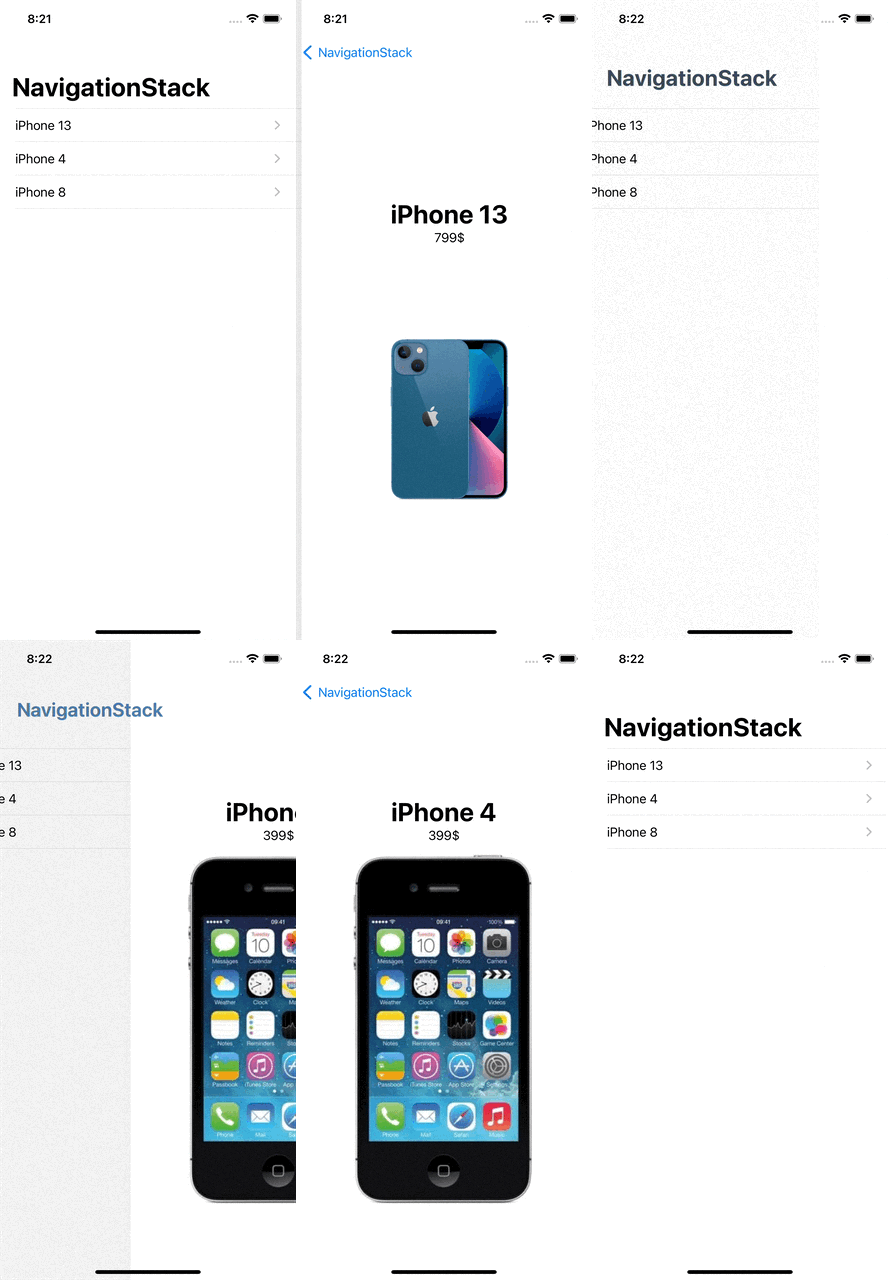
navigationLink

This is the most basic form of using NavigationStack. Let’s take a look at how to manage programmatic navigation via NavigationPath.

NavigationStack can take a parameter named path. (NavigationStack(path: $path))

Let’s create a path and give it as a parameter to NavigationStack. Then, we’ll add a button to our detail screen so that it can reach different screens randomly. We’ll also print the path.count value on the screen to follow its depth easier.

After all these changes, our view code will look like:

struct ContentView: View {
    @State private var path = [Appcircle]()
    var body: some View {
        VStack {
            NavigationStack(path: $path) {
                List(Appcircle.dummyData) { item in
                    NavigationLink(item.brand, value: item)
                }
                    .listStyle(.plain)
                    .navigationDestination(for: Appcircle.self) { item in
                    Text(item.brand)
                        .font(.largeTitle)
                        .bold()
                    Text("\(item.price)$")
                    Image(item.image)
                        .resizable()
                        .scaledToFit()
                        .frame(width: 300)
                    Button("Navigate another page") {
                        path.append(Appcircle.dummyData.randomElement()!)
                    }
                }
                    .navigationTitle("NavigationStack")
            }
            Text("Screen count: \(path.count)")
                .bold()
        }
    }
}

At the moment, we can easily manage our navigation operations programmatically.

Let’s add another button that will return users to the root view. We can give path.removeAll() or path = .init() as an action to the button. Alternatively we can use path.removeLast(2) to go back a certain number of times on the path. This is the final version of our application!

NavigationPath is very effective on pop and push on different data types from the stack as well.

SwiftUI NavigationStack - Full result

PS: NavigationView is deprecated with iOS 16. With this change, you can directly replace existing NavigationViews with NavigationStack. Still, don’t forget to review the init values. The NavigationLink(isActive:destination:label:) we currently use is now deprecated.

Conclusion

Building navigations in our SwiftUI apps was extremely easy with NavigationView. Now with SwiftUI 4.0’s NavigationStack we get more granular controls and the ability to navigate directly to a view that’s deeper in the hierarchy.
To to read our other posts about WWDC22, I highly recommend the Developing with Live Activities API article here.

Developing with Live Activities API in iOS 16

In #WWDC22, Apple announced so many new improvements and features from Xcode, Swift, SwiftUI and many more. There were some updates which took my attention directly on them with the power of helping users more and make their life easier than ever. One of those features is Live Activities API in iOS 16.

First things first: Lock Screen Widgets!

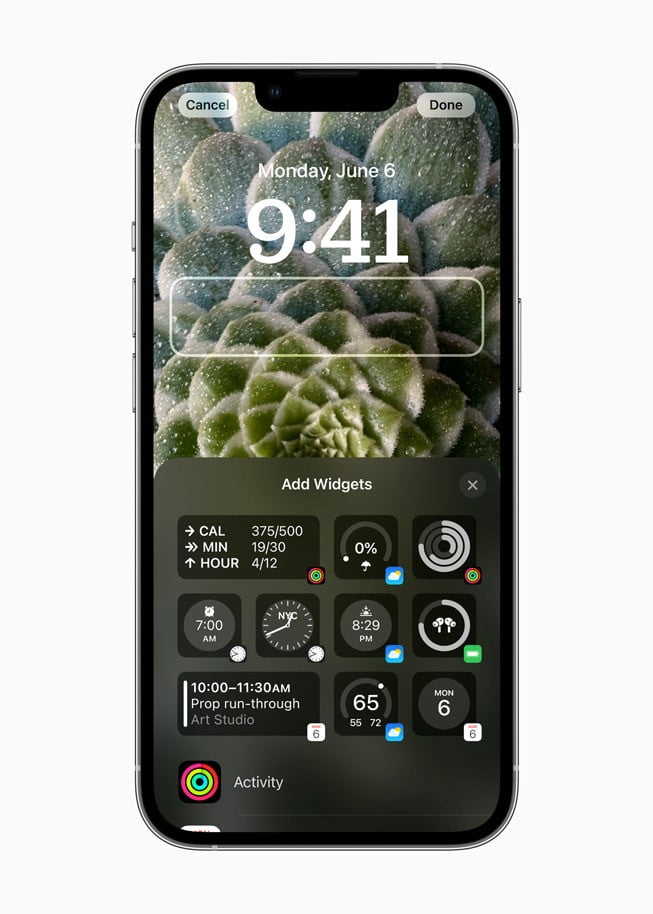
Starting from iOS 16, users will be able to customize their lock screens. There will be new faces like we have in Apple Watch for a long time. Also we will be able to develop new widgets for lock screen to create small and sharp beneficial stuff for our users.

iPhone Lock Screen

Live Activities API in iOS 16

I really like “Live Activities”. Because instead of pushing users with tons of push notifications, we will be able to show them the real status for continues processes.

Apple says:

“Live Activities is a new feature that helps users stay on top of things that are happening in real time, such as a sports game, workout, ride-share, or food delivery order, right from the Lock Screen.”

As developers, we can create this new cool feature for;

  • Food Delivery Process
  • Online Match Results
  • Music/Stream previews
  • Status of any ongoing process that takes longer than 30 seconds

With Live Activities, you can expand Now Playing controls to a full-screen view that celebrates album art while you listen along.

We will be able to use Live Activities with App Clips, too.

How to use Live Activities API in iOS 16?

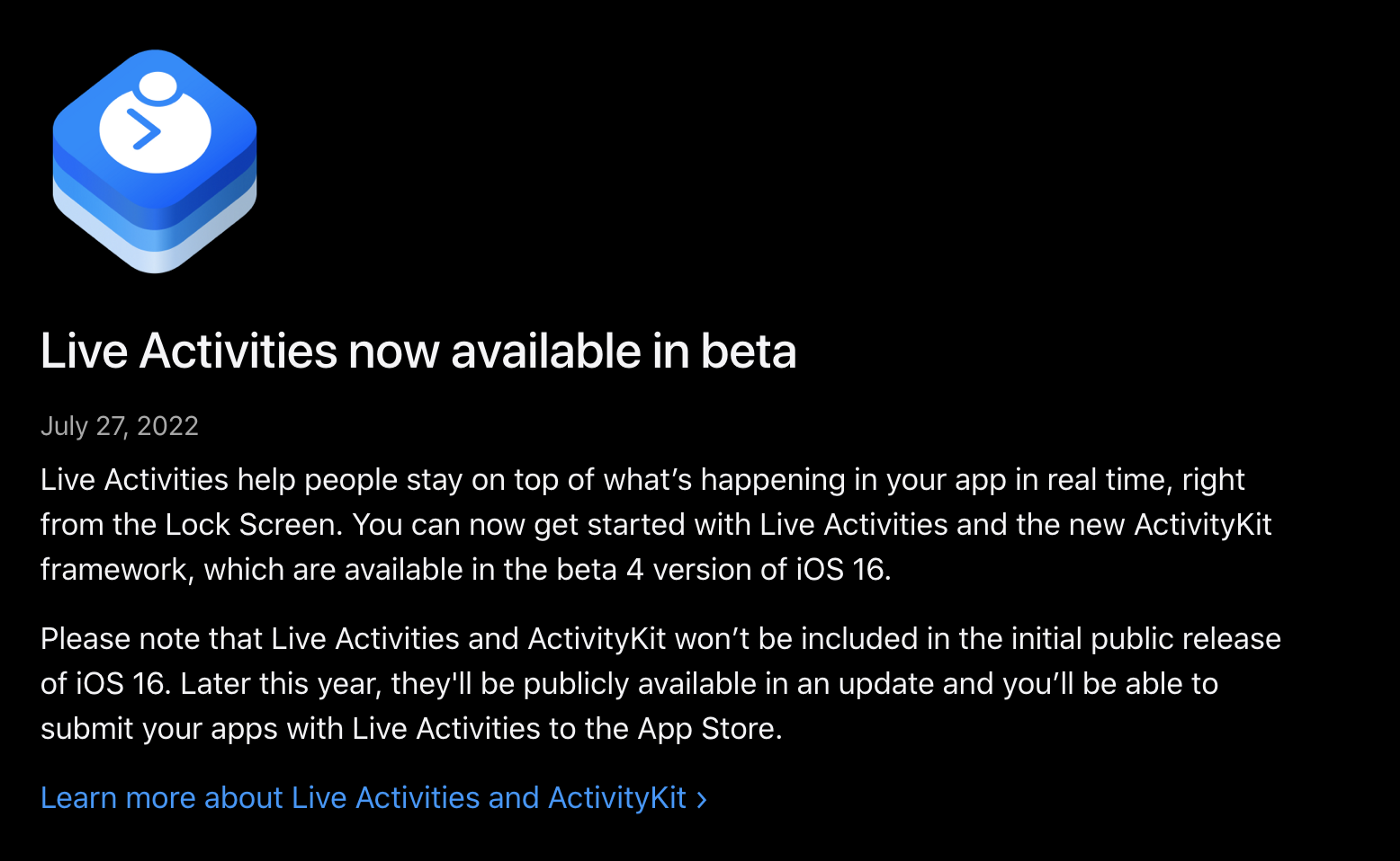
Apple released Live Activities API as beta on July 28th, 2022. Let’s look at how we can use this API and display Live Notifications, right on the iOS 16 Lock Screen.

We’ll develop an app that displays the status of our builds that are currently running at our CI/CD platform. I will put whole project link at github at the end of the article.

Live activities Beta announcement

Prerequisites

Let’s create an app

I prepared this process for you starting with figma. I designed a new view for the Live Activity that we will use. Example project will be about the CI CD pipelines that we have on AppCircle. Appcircle is an easy-to-setup mobile CI/CD platform with testing and store deployment which I like most. So, instead of doing same food delivery application, having another perspective for this feature will be better, I think.

Think about the processes of ours on the AppCircle. When a state of a pipeline was changed, we want to let user know about it with giving build id.

You can check the design freely here. And a sneak peak from the design which is about the states that we will display.

Interfaces we designed for our Live Activities

Step 1:

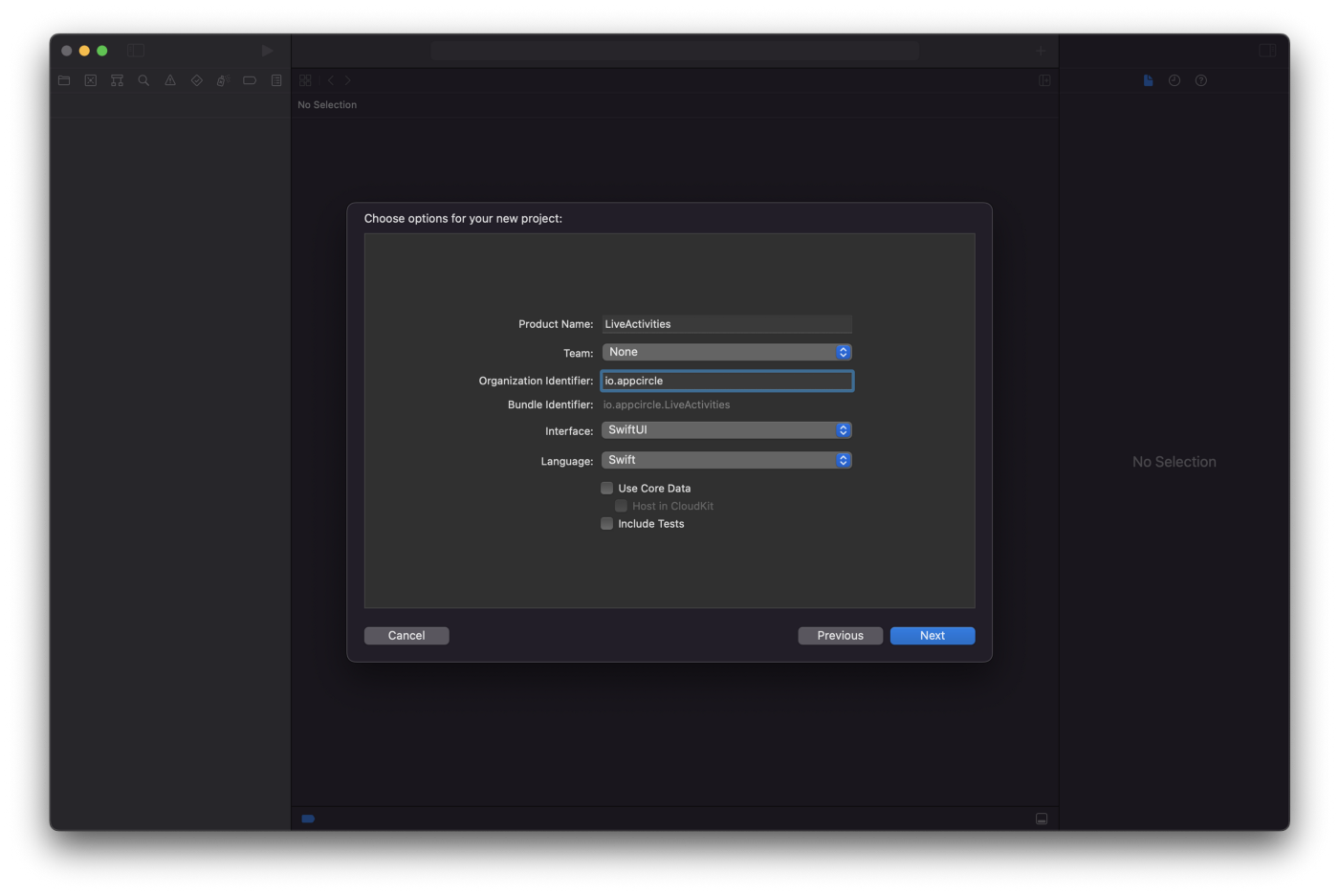
Create a new project with SwiftUI.

Create a new Xcode Project

Create a new Xcode Project

Step 2:

Add a new widget extension into your project.
– As I mentioned above, we will also use widget to display the ui.

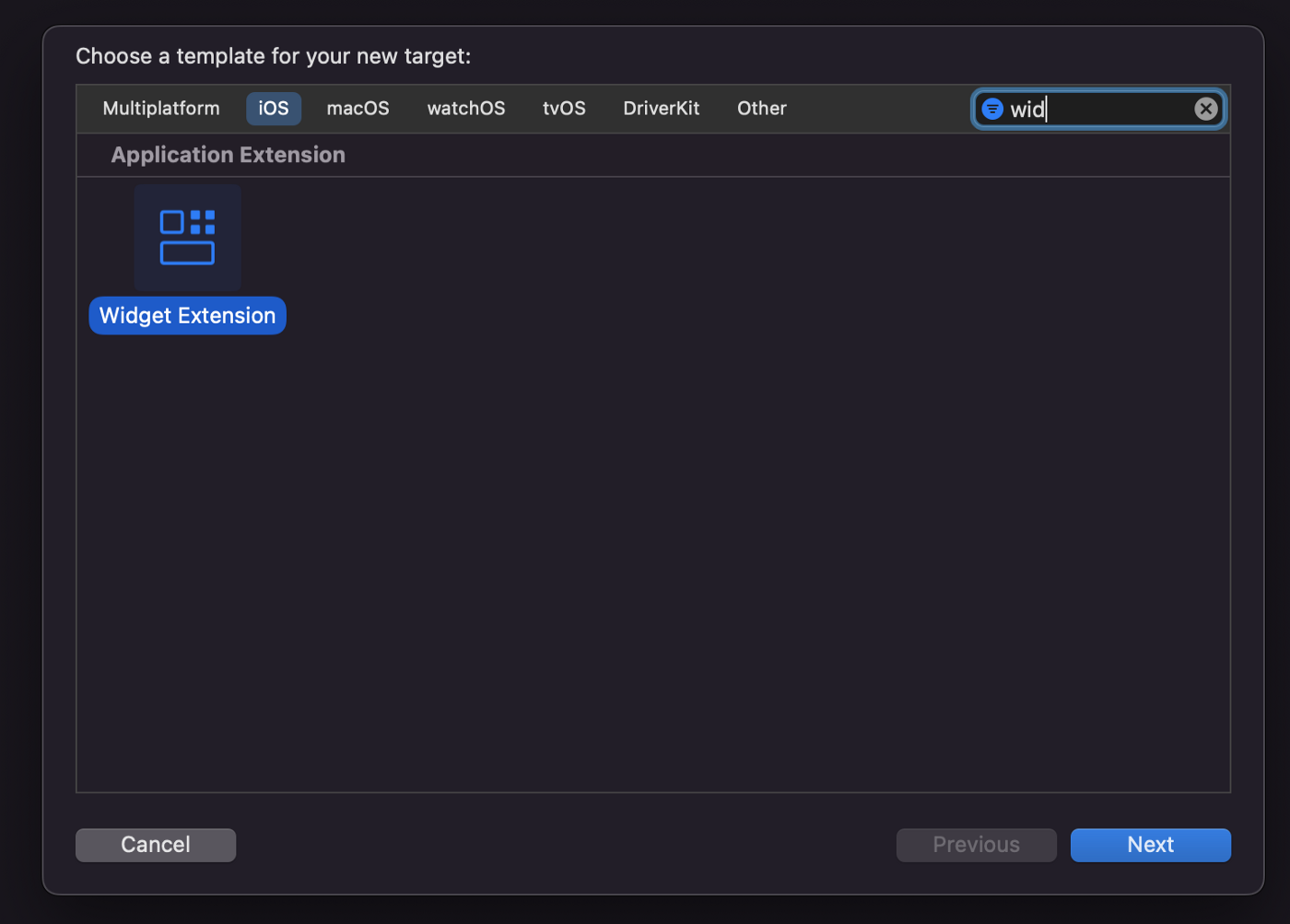
File -> New -> Target -> Widget Extension and give it a name.

Add a new Widget Extension target

Add a new Widget Extension target

Step 3:

Add NSSupportsLiveActivities as Boolean with the value as YES in your Info.plist file.

NSSupportsLiveActivities in Info.plist file

NSSupportsLiveActivities

Step 4:

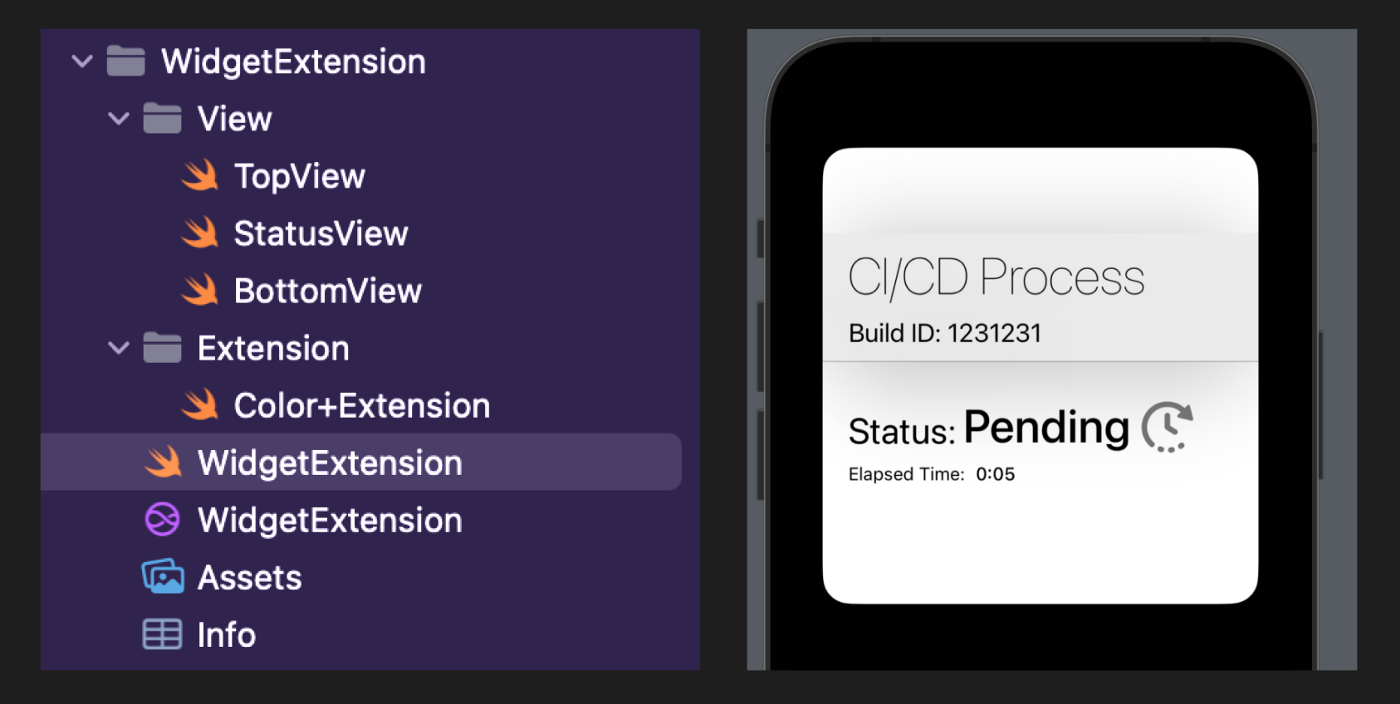
I prefer to start building the UI first. So create your UI at your WidgetExtension (The one when Xcode adds by default right after adding Widget Extension). You can find the file structure below.

Widget Extension FIle Structure and UI previews

Widget Extension File Structure

// BottomView.swift
// LiveActivity
//
// Created by Ali Can Batur on 29.07.2022.

import SwiftUI

struct BottomView: View {
    @State var state: StatusAttribute.ContentState

    var body: some View {
        VStack {
            HStack(spacing: 0) {
                Text("Status:")
                    .font(.system(size: 28, weight: .regular))
                    .padding(.top, 36)
                Text(state.status.title)
                    .font(.system(size: 36, weight: .medium))
                    .padding(.top, 28)
                    .padding(.leading, 5)
                Image(state.status.icon)
                    .frame(width: 40, height: 40)
                    .padding(.top, 30)
                    .padding(.leading, 8)
            }
            .frame(maxWidth: .infinity, alignment: .leading)
            .padding(.horizontal, 20)

            HStack(spacing: 8) {
                if state.status.isDone {
                    Text("Process finished.")
                        .font(.system(size: 14, weight: .regular))
                } else {
                    Text("Elapsed Time:")
                        .font(.system(size: 14, weight: .regular))
                    Text(state.estimatedCompletionTime, style: .timer)
                        .font(.system(size: 14, weight: .medium))
                }
            }
            .frame(maxWidth: .infinity, alignment: .leading)
            .padding(.horizontal, 20)
            .padding(.bottom, 26)
        }
    }
}

// StatusView.swift
// LiveActivity
//
// Created by Ali Can Batur on 29.07.2022.

import SwiftUI

struct StatusView: View {
    @State var attribute: StatusAttribute
    @State var state: StatusAttribute.ContentState

    var body: some View {
        ZStack {
            Color.white
            VStack(spacing: 0) {
                TopView(attribute: attribute)
                BottomView(state: state)
            }
            .activitySystemActionForegroundColor(Color.cyan)
        }
    }
}

// TopView.swift
// LiveActivity
//
// Created by Ali Can Batur on 29.07.2022.

import SwiftUI

struct TopView: View {
    @State var attribute: StatusAttribute

    var body: some View {
        ZStack {
            Color(hex: "EBEBEB")
            VStack(alignment: .leading, spacing: 8) {
                Text("CI/CD Process")
                    .font(.system(size: 40, weight: .ultraLight))
                Text("Build ID: \(attribute.buildId)")
                    .font(.system(size: 20, weight: .regular))
            }
            .frame(maxWidth: .infinity, maxHeight: .infinity, alignment: .leading)
            .padding(.horizontal, 20)
        }
        .frame(maxWidth: .infinity, alignment: .leading)
        .frame(height: 99)
        .shadow(color: .black.opacity(0.25), radius: 40, x: 0, y: 10)
        Rectangle()
            .fill(Color.gray.opacity(0.5))
            .frame(height: 1)
    }
}

// WidgetExtension.swift
// WidgetExtension
//
// Created by Ali Can Batur on 28.07.2022.

import WidgetKit
import SwiftUI
import Intents

@main
struct WidgetExtension: Widget {
    let kind: String = "WidgetExtension"

    var body: some WidgetConfiguration {
        ActivityConfiguration(attributesType: StatusAttribute.self) { context in
            StatusView(attribute: context.attributes, state: context.state)
        }
    }
}

struct WidgetExtension_Previews: PreviewProvider {
    static var previews: some View {
        let testAttribute = StatusAttribute(buildId: "1231231")
        let testState = StatusAttribute.ContentState(
            status: .pending,
            estimatedCompletionTime: Date()
        )
        StatusView(attribute: testAttribute, state: testState)
            .previewContext(WidgetPreviewContext(family: .systemLarge))
    }
}

Step 5:

Now we have the UI for the WidgetExtension. Let’s focus on the core part.

First I want to create an enum for the statuses that we will use. In the Live Activity, I will use this statuses to show user the latest status of our CI/CD pipeline.

// Status.swift
// LiveActivity
//
// Created by Ali Can Batur on 29.07.2022.

import Foundation

enum Status: Codable {
    case pending
    case inProgress
    case succeed
    case failed

    var isDone: Bool {
        return self == .failed || self == .succeed
    }

    var title: String {
        switch self {
        case .pending:
            return "Pending"
        case .inProgress:
            return "In Progress"
        case .succeed:
            return "Succeed"
        case .failed:
            return "Failed"
        }
    }

    var icon: String {
        switch self {
        case .pending:
            return "pending"
        case .inProgress:
            return "in-progress"
        case .succeed:
            return "succeed"
        case .failed:
            return "failed"
        }
    }
}

Next, I will create the most important file. In this file, notice the ActivityAttributes. We will start, update or end our Activity using this file. You can take it as Payload for the running state of the app.

For our example, I need buildId for the activity and it is not the data that will be updated continuously. For the part that we will update, we will use ContentState part. The data of ContentState will be the one which is being updated. We can use Remote Push Notifications using that part. I will give you an example later on this article.

// Attribute.swift
// LiveActivity
//
// Created by Ali Can Batur on 28.07.2022.

import SwiftUI
import WidgetKit
import ActivityKit

struct StatusAttribute: ActivityAttributes {

    public typealias ProcessStatus = ContentState

    public struct ContentState: Codable, Hashable {
        var status: Status
        var estimatedCompletionTime: Date
    }

    var buildId: String
}

I created another helper class to manage this process programatically. I will tell you about it step by step.

// LiveActivityHelper.swift
// LiveActivity
//
// Created by Ali Can Batur on 29.07.2022.

import Foundation
import ActivityKit

class LiveActivityHelper {

    var statusActivity: Activity<StatusAttribute>?

    func start() {
        // We can check if activity is enabled.
        guard ActivityAuthorizationInfo().areActivitiesEnabled else {
            print("Activities are not enabled!")
            return
        }

        // Initializing the models.
        let statusAttribute = StatusAttribute(buildId: "123456789")
        let initialStatus = StatusAttribute.ProcessStatus(status: .pending, estimatedCompletionTime: Date().addingTimeInterval(60))

        // Key point here!
        // Now we tell iOS that there is a new activity started!
        do {
            statusActivity = try Activity<StatusAttribute>.request(
                attributes: statusAttribute,
                contentState: initialStatus,
                pushType: nil
            )
            guard let statusActivity else {
                print("Error: Could not initialize activity.")
                return
            }
            print("Build with ID: \(statusActivity.id) is now pending.")
        } catch {
            print("Error: \(error.localizedDescription)")
        }
    }

    // Now I will update the current activity.
    func update() {
        Task {
            let updatedCICDStatus = StatusAttribute.ProcessStatus(status: .inProgress, estimatedCompletionTime: Date().addingTimeInterval(30))
            guard let statusActivity else { return }
            await statusActivity.update(using: updatedCICDStatus)
        }
    }

    func end(with status: Status) {
        Task {
            let updatedCICDStatus = StatusAttribute.ProcessStatus(status: status, estimatedCompletionTime: Date())
            guard let statusActivity else { return }
            await statusActivity.end(using: updatedCICDStatus, dismissalPolicy: .default)
        }
    }
}

var statusActivity: Activity<StatusAttribute>?
This creates an activity. This instance is the main data which is our activity that we display on lock screen.

<span style="color: #993366;">guard ActivityAuthorizationInfo().areActivitiesEnabled else {

print("Activities are not enabled!")

return

}</span>

We can check if LiveActivities are enabled.

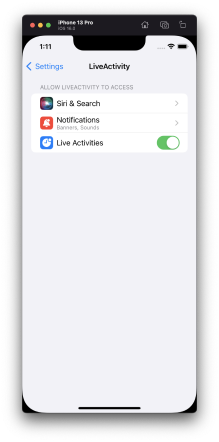
For the above one, I should tell you that users can disable Live Activities from Settings.

Live Activities in iOS Settings

Live Activities in iOS Settings


let statusAttribute = StatusAttribute(buildId: "123456789")
let initialStatus = StatusAttribute.ProcessStatus(status: .pending, estimatedCompletionTime: Date().addingTimeInterval(60))

do {
    statusActivity = try Activity<StatusAttribute>.request(
        attributes: statusAttribute,
        contentState: initialStatus,
        pushType: nil
    )
    guard let statusActivity else {
        print("Error: Could not initialize activity.")
        return
    }
    print("Build with ID: \(statusActivity.id) is now pending.")
} catch {
    print("Error: \(error.localizedDescription)")
}

We create data for our activity here. When you set statusActivity the activity will start on your Lock Screen.

Update function will create a new instance for the status and when we call
await statusActivity.update(using: updatedCICDStatus) the activity data will be updated with the one that we send.

End function ends the activity. Hitting await statusActivity.end(using: updatedCICDStatus, dismissalPolicy: .default) will do the trick for you here. DismissalPolicy describes how and when to dismiss the UI associated with the live activity and I preferred .default. You can make it dismiss immediate or after a delay, too.

Step 6:

Do you want to see it in action? This is the time my friends.

I will create a dummy screen for my app with 4 buttons. Button 1 will start this process, Button 2 will update the data, Button 3 will end process with success and Button 4 will end with failure. Ending an activity has no success of failure states, in our example, our own CICD process will end with a state of the CI process, so please notice the difference here.

// ContentView.swift
// LiveActivity
//
// Created by Ali Can Batur on 28.07.2022.

import SwiftUI
import ActivityKit

struct ContentView: View {

    let helper: LiveActivityHelper = LiveActivityHelper()

    var body: some View {
        VStack(spacing: 16) {

            Button {
                DispatchQueue.main.asyncAfter(deadline: .now() + 2) {
                    helper.start()
                }
            } label: {
                Text("Start")
                    .font(.system(size: 18, weight: .medium))
            }

            Button {
                DispatchQueue.main.asyncAfter(deadline: .now() + 2) {
                    helper.update()
                }
            } label: {
                Text("Update with in progress")
                    .font(.system(size: 18, weight: .medium))
            }

            Button {
                DispatchQueue.main.asyncAfter(deadline: .now() + 2) {
                    helper.end(with: .succeed)
                }
            } label: {
                Text("End with succeed")
                    .font(.system(size: 18, weight: .medium))
            }

            Button {
                DispatchQueue.main.asyncAfter(deadline: .now() + 2) {
                    helper.end(with: .failed)
                }
            } label: {
                Text("End with failed")
                    .font(.system(size: 18, weight: .medium))
            }

        }
    }
}

struct ContentView_Previews: PreviewProvider {
    static var previews: some View {
        ContentView()
    }
}

I put asyncAfter in the calls. The reason is to see the updated status of my Live Activity properly because if I make those changes immediately, I won’t be able to see the animation of the updated status. That’s here only to show you its working properly.

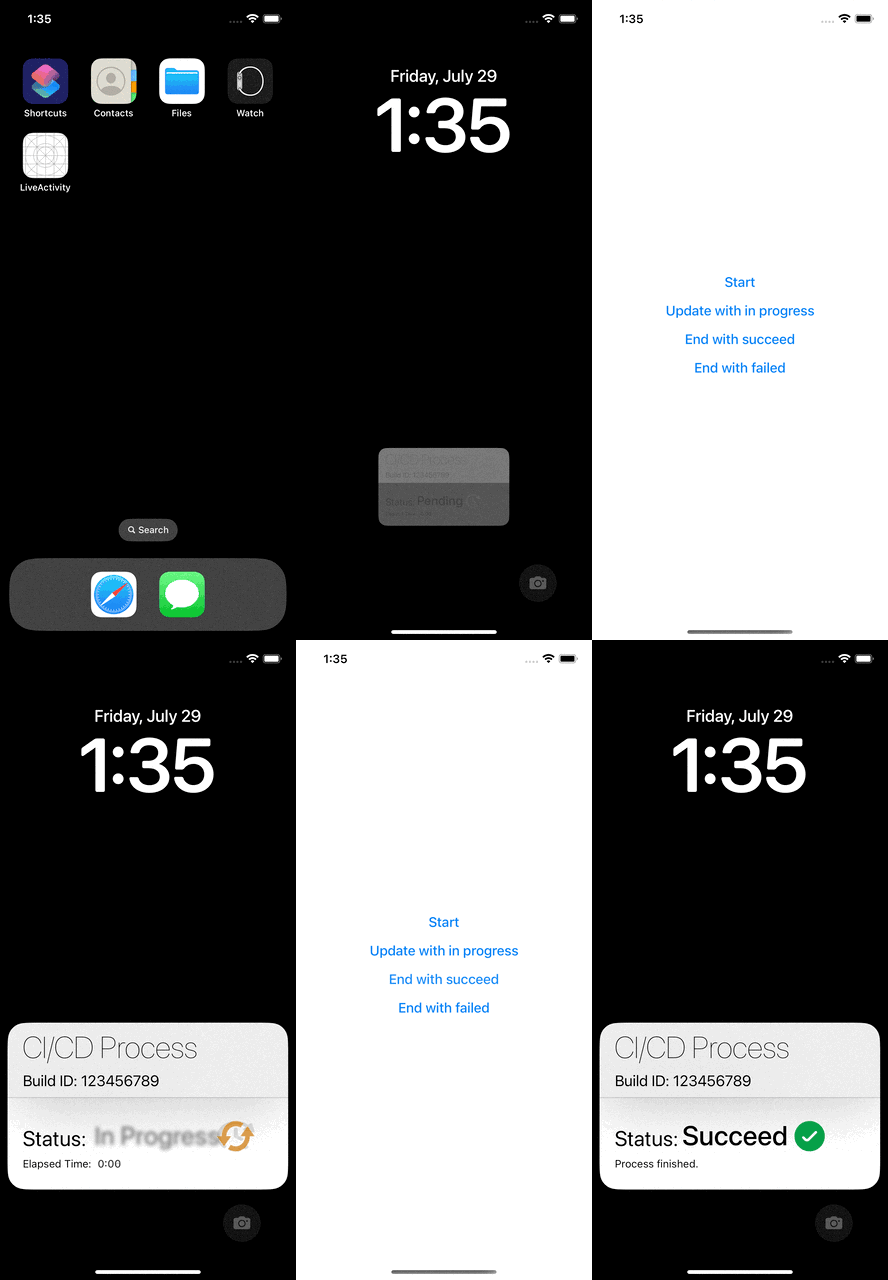
So, let’s watch it.

Our Live Activities API Demo In Action

Remote Push Notifications

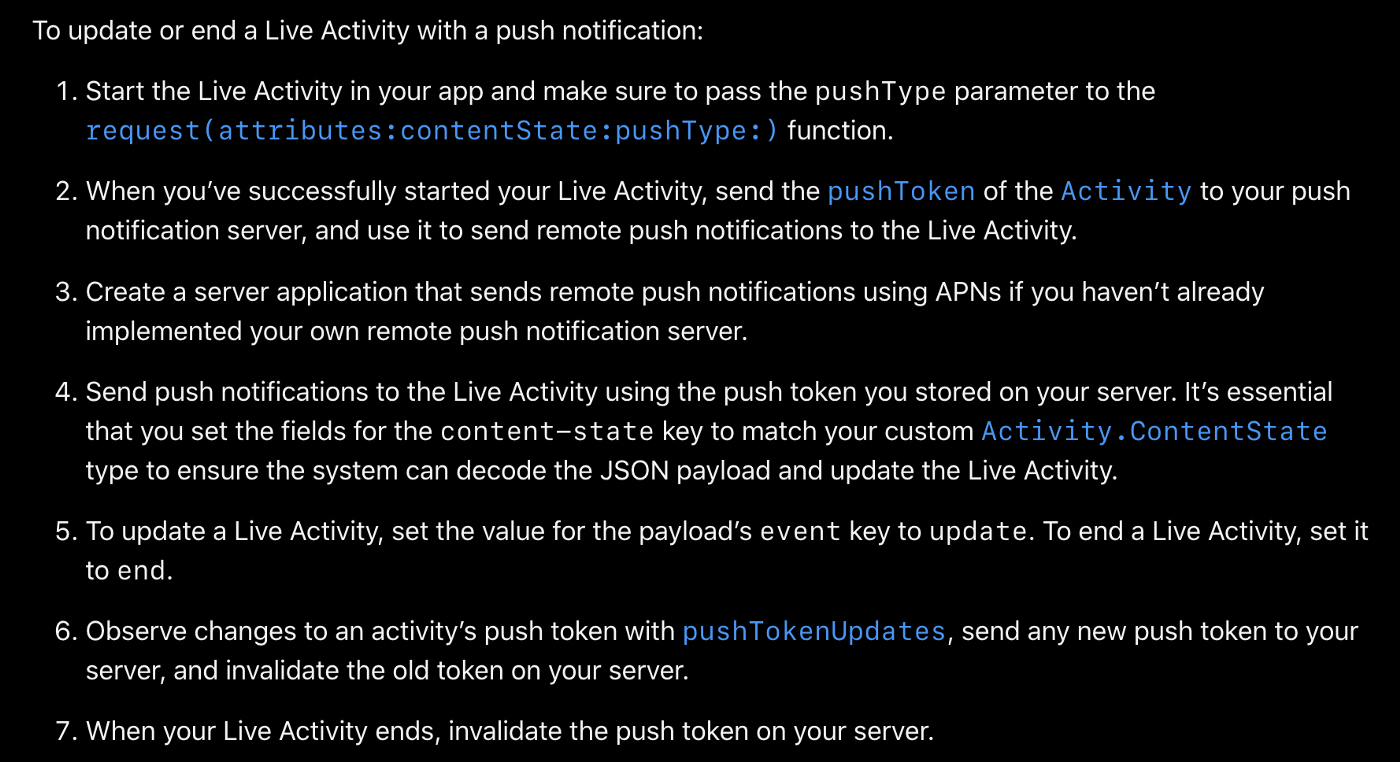
We can update our activity in 2 ways. One of them is doing programmatically while our app is alive and the other way is to do it via Remote Push Notifications.

Step 1:

If you’re new to remote push notifications, review the documentation for the User Notifications framework. Make sure you read Registering Your App with APNs and Asking Permission to Use Notifications, and plan time to implement your remote notification server as described in the user notification documentation.

  • We do not have to register for remote push notifications with registerForRemoteNotifications() for our Live Activity. Instead, use ActivityKit to get a push token.
  • We cannot start an activity using push notifications (I may be wrong but Apple says we can update or end an activity using push notifications.)
  • We need to have an APNS flow to use this. To see more:
  • When we have proper push notification flow, all we need to do is adding a custom json object in the push notification payload like below.
{
    "aps": {
        "timestamp": 1650998941,
        "event": "end", // OR it can be update
        "content-state": {
            "status": "succeed",
            "estimatedCompletionTime": 1659416400
        }
    }
}

Technical Notes

  • Live Activities and ActivityKit won’t be included in the initial publicly released version of iOS 16 but will be publicly available in an update later this year. Once they’re publicly available, you can submit your apps with Live Activities to the App Store.
  • Live Activities are only available on iPhone.
  • You will need a widget extension to use this feature. But, consider offering both a widget and Live Activities to allow people to add glanceable information and a personal touch to their Home Screen and Lock Screen.
  • Live Activities use SwiftUI for their user interface on the Lock Screen.
  • You can have a Live Activity active for up to 8 hours unless your app or the user explicitly ends it. After 8 hours the system automatically ends a Live Activity. In this ended state, the Live Activity remains on the Lock Screen for up to 4 additional hours before the system removes it. The user can also choose to remove it. As a result, a Live Activity remains on the Lock Screen for a maximum of 12 hours.
  • You cannot access network or location updates in Live Activities. We use WidgetKit to make this feature run but unfortunately they aren’t widgets. So, to update a Live Activity you can use ActivityKit while the app is running or Remote Push Notifications.
  • You can update data of a Live Activity using ActivityKit or Remote Push Notifications. The size of the updated dynamic data can’t exceed 4KB, both for ActivityKit and Remote Pushes.
  • ActivityKit’s role is to handle the life cycle of each Live Activity: You use its API to request, update, and end a Live Activity.
  • The system may truncate a Live Activity UI if its height exceeds 220 pixels.
  • A device can run Live Activities from multiple apps and each app can run multiple Live Activities. So We need to handle any errors while running, starting or ending a Live Activity. Because device can reach to LA limits.

https://www.apple.com/ios/ios-16-preview/features/

https://www.apple.com/newsroom/2022/06/apple-unveils-new-ways-to-share-and-communicate-in-ios-16/


Using SwiftUI inside UICollectionView and UITableView

At WWDC22, Apple introduced UIHostingConfiguration class, which enabled using SwiftUI inside UICollectionView and UITableView. In this article we will use it with the Self-resizing also announced this year feature.

Before using UIHostingConfiguration we need to know what it is actually doing in the background. The SwiftUI view we created via UIHostingConfiguration provides us a contentView at the end of the day. It allows us to replace the default contentView objects by giving this hosting configuration to the contentConfiguration parameter in our cells.

In addition with UIHostingConfiguration we can interfere background color, margins around content and minimum size of configuration. It can also be added in swipe actions.

For the self-resizing there is a point you need to know. In order to use the UICollectionView self-resizing feature you need to use UICollectionLayoutListConfiguration. There is no restriction for UITableView.

Let’s start our development now. In our example project, we will list the episodes and characters of the Rick and Morty series. We will use the UICollectionView for the list of characters and the UITableView for the list of sections.

Project Details

In the sample project we will have a home page, character list and episode list. We will get the Rick and Morty data that will be displayed in our application from https://rickandmortyapi.com.

I will examine the SwiftUI view and self-resizing parts and the rest will be as we use in our usual projects. The entire project will be included at the end of the article.

Left Icon

Empower Your iOS Projects Now!

Right Icon Learn More

Self-Resizing SwiftUI Cells inside UICollectionView (Characters)

While our first job is initialize UICollectionView and inject collectionViewLayout via UICollectionLayoutListConfiguration.

“selfSizingInvalidation” parameter allows us to activate the Self-resizing feature. By default it is enable but by selecting this parameter “enabledIncludingConstraints”. We ensure that it automatically resizes in any auto layout change.

final class CharactersController: UIViewController { 
    
    private lazy var collectionView: UICollectionView = { [weak self] in
    var config = UICollectionLayoutListConfiguration(appearance: .plain)
    config.backgroundColor = .white
    config.showsSeparators = false
    let layout = UICollectionViewCompositionalLayout.list(using: config)
    let collectionView = UICollectionView(
        frame: .zero,
        collectionViewLayout: layout
    )
    collectionView.translatesAutoresizingMaskIntoConstraints = false
    collectionView.dataSource = self
    collectionView.register(
        CharacterCollectionViewCell.self,
        forCellWithReuseIdentifier: CharacterCollectionViewCell.description()
    )
    collectionView.selfSizingInvalidation = .enabledIncludingConstraints
    return collectionView
 }()
    
 func collectionView(_ collectionView: UICollectionView, cellForItemAt indexPath: IndexPath) -> UICollectionViewCell {
     guard let cell = collectionView.dequeueReusableCell(
         withReuseIdentifier: CharacterCollectionViewCell.description(),
         for: indexPath
     ) as? CharacterCollectionViewCell else {
         return UICollectionViewCell()
     }
     cell.output = self
     cell.configure(with: viewModel.datas[indexPath.item])
     return cell
 }
}

Now the UICollectionView is ready for Self-resizing. Now it’s time to use the SwiftUI view in our UICollectionViewCell.

With the CharacterCollectionViewCell configure function we replace the cell’s own contentView with the new SwiftUI view. We update the UIHostingConfiguration with the modifiers, the background color and the default margins and spaces as we want. Now our current contentView is the view we created with SwiftUI.

import UIKit
import SwiftUI

protocol CharacterCollectionViewCellOutput: CharacterViewOutput {}

final class CharacterCollectionViewCell: UICollectionViewCell {

    weak var output: CharacterCollectionViewCellOutput?

    override func prepareForReuse() {
        super.prepareForReuse()

        contentConfiguration = nil
    }

    func configure(with viewModel: CharacterCollectionViewCellViewModel) {
        self.contentConfiguration = UIHostingConfiguration {
            var view = CharacterView(isExpanded: viewModel.isExpanded, viewModel: viewModel)
            view.output = self
            return view
        }
        .background(.white)
        .margins(.all, 20)
    }
}

extension CharacterCollectionViewCell: CharacterViewOutput {
    func didTapButton(with viewModel: CharacterCollectionViewCellViewModel, isExpanded: Bool) {
        output?.didTapButton(with: viewModel, isExpanded: isExpanded)
        //UIView.performWithoutAnimation {
         //   self.invalidateIntrinsicContentSize()
        //}
    }
}

When the view we have created needs to be resized, the size will change automatically. If size does not change, you can call invalidateIntrinsicContentSize() in cell’ to trigger it manually. if you use the part I commented you can see the size changes without animation.

import Kingfisher
import SwiftUI

protocol CharacterViewOutput: AnyObject {
    func didTapButton(with viewModel: CharacterCollectionViewCellViewModel, isExpanded: Bool)
}

struct CharacterView: View {

    weak var output: CharacterViewOutput?

    @State var isExpanded = false

    var viewModel: CharacterCollectionViewCellViewModel

    var body: some View {
        VStack {
            HStack(spacing: 8) {
                KFImage(viewModel.imageUrl)
                    .resizable()
                    .loadDiskFileSynchronously()
                    .cacheMemoryOnly()
                    .placeholder {
                        ProgressView()
                            .tint(.white)
                    }
                .frame(width: 100, height: 100)
                .cornerRadius(8)
                VStack {
                    CharacterTitleView(name: viewModel.name, species: viewModel.species)
                    Spacer()
                    HStack {
                        Spacer()
                        Button {
                            isExpanded = !isExpanded
                            output?.didTapButton(with: viewModel, isExpanded: isExpanded)
                        } label: {
                            Text(isExpanded ? "Show Less" : "Show More")
                                .padding(10)
                                .bold()
                        }
                        .tint(Color.white)
                        .background(Color.orange)
                        .cornerRadius(8)
                    }
                    .padding([.trailing], 8)
                }
                .padding([.top, .bottom], 8)
            }
            if isExpanded {
                CharacterDetailsView(
                    lastKnown: viewModel.location,
                    firstSeen: viewModel.origin,
                    gender: viewModel.gender,
                    status: viewModel.status
                )
                .transition(.slide)
            }
        }
        .padding(8)
        .background(Color.customDarkGray)
        .cornerRadius(8)
        .shadow(radius: 4, x: 2, y: 2)
    }
}

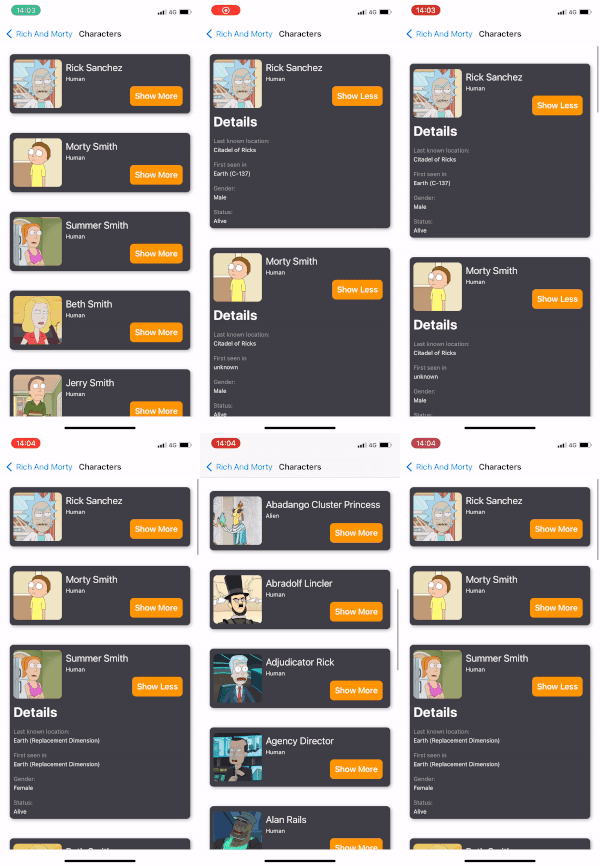
Our result for the Characters screen will be as shown.

Characters screen

Self-Resizing SwiftUI Cells inside UITableView (Episodes)

Now it’s time for UITableView. We will use SwiftUI view with cell swipe support, which you can resize as well.

Using UITableView is much easier than UICollectionView. You just have to set “selfSizingInvalidation” to “enabledIncludingConstraints”. As we said on the UICollectionView side selfSizingInvalidation is enabled by default but we set it to “enabledIncludingConstraints” so that it can be resized in all auto layout changes. Even ready for self-resize.

final class EpisodesController: UIViewController {

    private lazy var tableView: UITableView = { [weak self] in
        let tableView = UITableView()
        tableView.separatorStyle = .none
        tableView.allowsSelection = false
        tableView.translatesAutoresizingMaskIntoConstraints = false
        tableView.register(EpisodeTableViewCell.self, forCellReuseIdentifier: EpisodeTableViewCell.description())
        tableView.delegate = self
        tableView.dataSource = self
        tableView.selfSizingInvalidation = .enabledIncludingConstraints
        return tableView
    }()
}

We place our own SwiftUI view instead of the cell’s own contentView via UIHostingConfiguration. In order to add swipe action, we add the feature of SwiftUI view by adding a modifier. In “.swipeAction”‘s they get SwiftUI views into their content. The rest is traditionally deleting the cell via the UITableView with output delegation.

If you want to trigger our cell’s resize manually, you can trigger invalidateIntrinsicContentSize(). Also it’ll provide the ability to resize without animation in the part I put in the comment line.

import UIKit
import SwiftUI

protocol EpisodeTableViewCellOutput: EpisodeViewOutput {
    func didTapDelete(_ cell: EpisodeTableViewCell)
}

final class EpisodeTableViewCell: UITableViewCell {

    weak var output: EpisodeTableViewCellOutput?

    override func prepareForReuse() {
        super.prepareForReuse()

        contentConfiguration = nil
    }

    func configure(with viewModel: EpisodeTableViewCellViewModel) {
        self.contentConfiguration = UIHostingConfiguration {
            EpisodeView(output: self, isExpanded: viewModel.isExpanded, viewModel: viewModel)
            .swipeActions(allowsFullSwipe: true) {
                Button("Delete") { [weak self] in
                    guard let self else {
                        return
                    }
                    self.output?.didTapDelete(self)
                }
            }
            .tint(Color.red)
        }
        .background(.white)
        .margins(.all, 20)
    }
}

extension EpisodeTableViewCell: EpisodeViewOutput {
    func didTapButton(with viewModel: EpisodeTableViewCellViewModel, isExpanded: Bool) {
        output?.didTapButton(with: viewModel, isExpanded: isExpanded)
        //UIView.performWithoutAnimation {
         //   self.invalidateIntrinsicContentSize()
        //}
    }
}

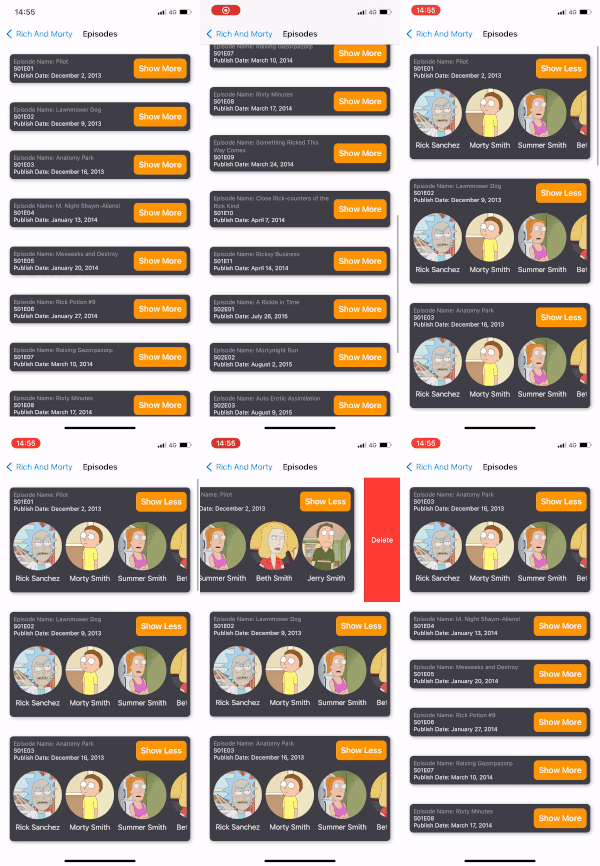
Our UITableView example is complete:

UITableView example

Conclusion

With iOS 16, UITableView and UICollectionView now have a much more flexible structure. Now we can use the views developed with UIKit and SwiftUI together. With your knowledge on the UIKit side and the innovations on the SwiftUI side, there is a lot to discover. You can find the sample project below. Stay tuned.

https://github.com/ferhanakkan/SwiftUIInUICollectionViewAndUITableView

Where to Go From Here?

Check Apple’s Documentation for more detailed description on how we can use SwiftUI inside UICollectionView and UITableView.

Apple Docs — Content Configuration

Apple Docs — Self-resizing

Apple Docs — UIHostingConfiguration

What’s New in UIKit at iOS 16, WWDC22

At WWDC 22, UIKit got a many improvements with iOS 16. These additions are new components, shortcuts for easier development, using SwiftUI in UIKit, self-sizing cells and more…

In this article, we will talk about these features added to UIKit with iOS 16 and provide code samples for each. Let’s start exploring…

UIPageControl

Apple Documentation

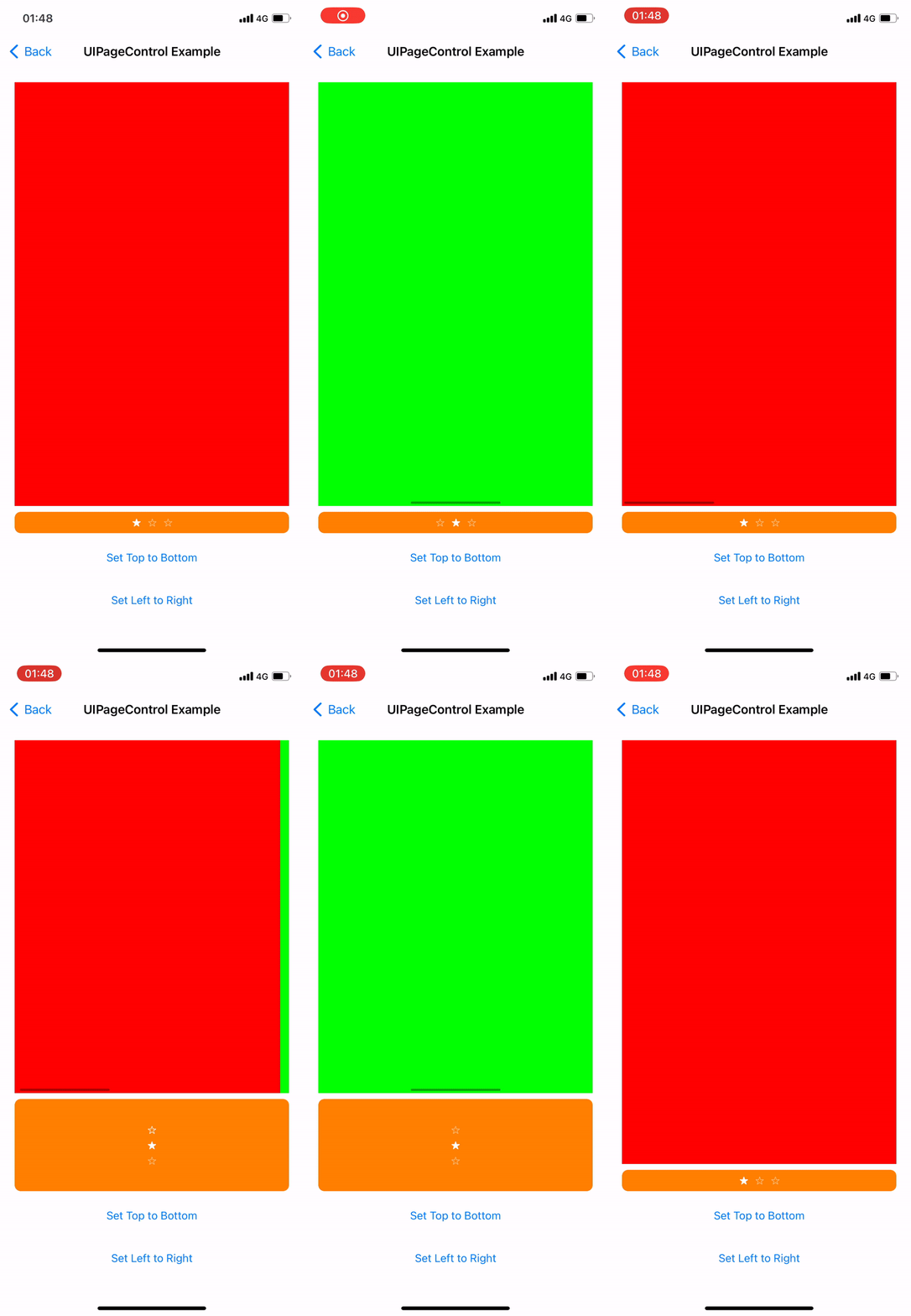
Which we enjoy using and makes our work easier UIPageControl now can control layout direction as horizontal and vertical. In addition, custom image features have been added based on each state.

private lazy var pageControl: UIPageControl = {
    let pageControl = UIPageControl()
    pageControl.currentPage = .zero
    pageControl.numberOfPages = 3
    pageControl.direction = .leftToRight // In example we used also topToBottom
    pageControl.preferredIndicatorImage = UIImage(systemName: "star")
    pageControl.preferredCurrentPageIndicatorImage = UIImage(systemName: "star.fill")
    return pageControl
}()

UIPageControl Example

Self-resizing Cells

Apple Documentation

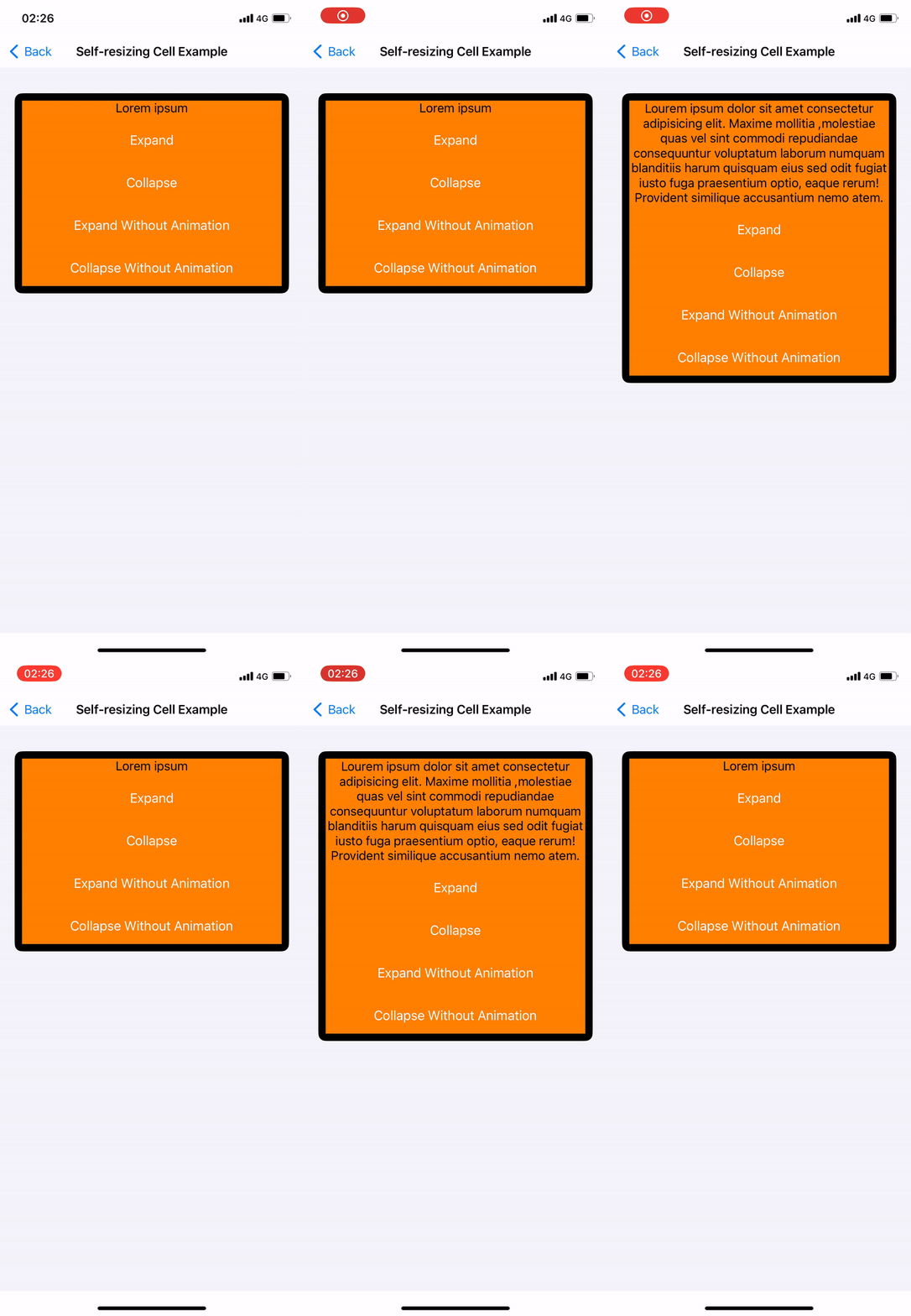
UICollectionView and UITableView now have self-resizing cells. The “selfSizingInvalidation” parameter is enabled by default. In our example we will perform it on the UICollectionView. This is because you need to use UICollectionLayoutListConfiguration and UICollectionViewCompositionalLayout as collectionViewLayout in UICollectionView. Also need to add the subviews inside the contentView in your cells. You can call self.invalidateIntrinsicContentSize() from inside the cell to trigger the resize operation manually.

private lazy var collectionView: UICollectionView = { [weak self] in
    var config = UICollectionLayoutListConfiguration(appearance: .insetGrouped)
    let layout = UICollectionViewCompositionalLayout.list(using: config)
    let collectionView = UICollectionView(
        frame: .zero,
        collectionViewLayout: layout
    )
    collectionView.translatesAutoresizingMaskIntoConstraints = false
    collectionView.dataSource = self
    collectionView.register(
        SelfResizingCollectionViewCell.self,
        forCellWithReuseIdentifier: SelfResizingCollectionViewCell.description()
    )

    //Enable by default
    collectionView.selfSizingInvalidation = .enabledIncludingConstraints
    return collectionView
}()

Self-resizing cell example

SwiftUI View In UITableView & UICollectionView (UIHostingConfiguration)

Apple Documentation

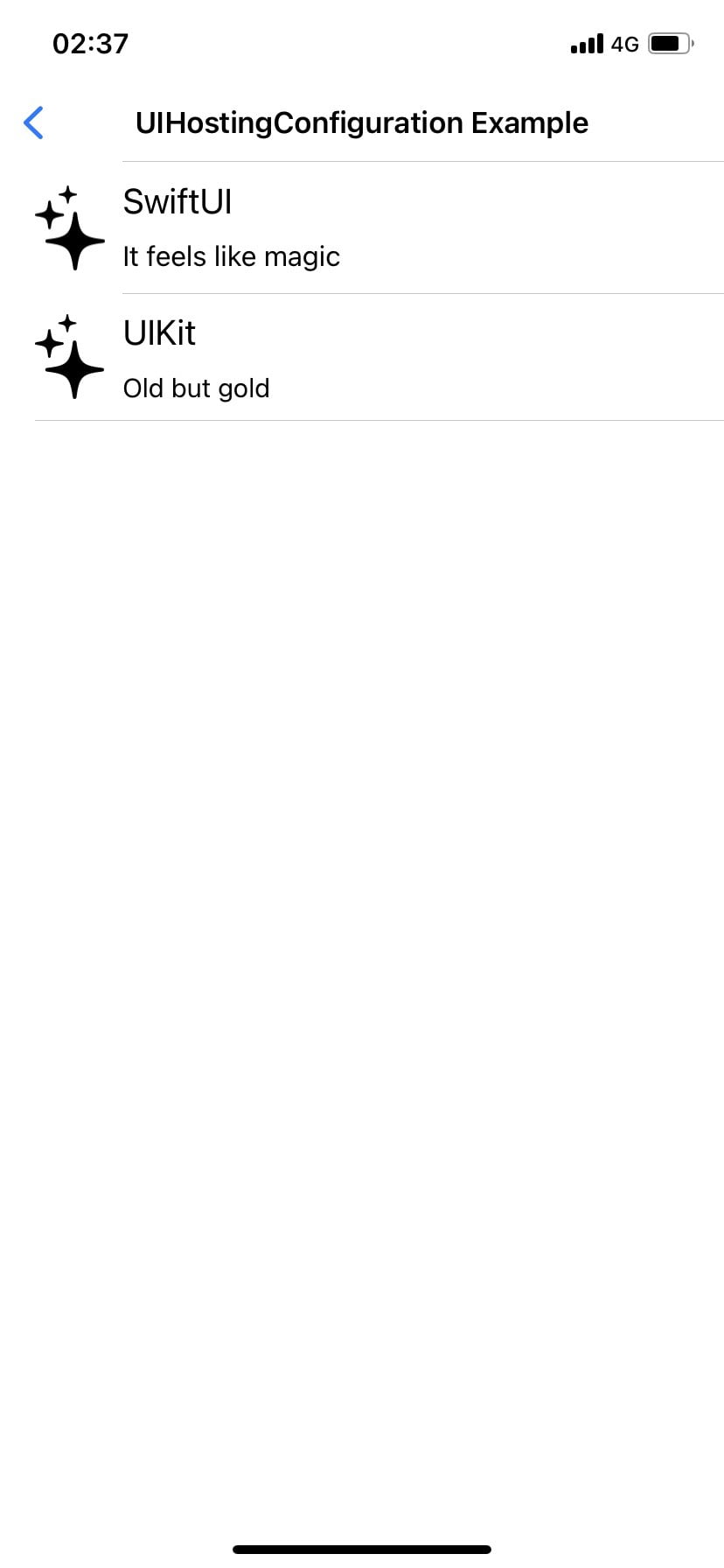
Now you can use your SwiftUI views with UIHostingConfiguration in UITableView and UICollectionView. The best part is that you can use the cells you have created with both UIKit and SwiftUI together.

extension UIHostingConfigurationExample: UITableViewDataSource {
    func tableView(_ tableView: UITableView, numberOfRowsInSection section: Int) -> Int {
        return contentDatas.count
    }

    func tableView(_ tableView: UITableView, cellForRowAt indexPath: IndexPath) -> UITableViewCell {
        let contentData = contentDatas[indexPath.row]
        let cell = indexPath.row == 0 ? createSwiftUICell(with: contentData) : createUIKitCell(with: contentData)
        return cell
    }
}

private extension UIHostingConfigurationExample {
    func createSwiftUICell(with contentData: ContentData) -> UITableViewCell {
        let cell = UITableViewCell()
        cell.contentConfiguration = UIHostingConfiguration {
            CustomSwiftUICell(contentData: contentData)
        }
        return cell
    }

    func createUIKitCell(with contentData: ContentData) -> UITableViewCell {
        let cell = CustomUIKitCell()
        cell.configure(with: contentData)
        return cell
    }
}

UIHostingConfiguration Example

UIDevice Deprecations

Apple Documentation

 // Synonym for model. Prior to iOS 16, user-assigned device name (e.g. @"My iPhone").
 // In iOS 16 => iPhone 13 Pro Max
 // Now it reports device name
 UIDevice().name

 //Now UIDevice().orientation now supported 
 //use preferredInterfaceOrientationForPresentation
 UIDevice().orientation
 UIViewController().preferredInterfaceOrientationForPresentation

Customizing Sheets

Apple Documentation

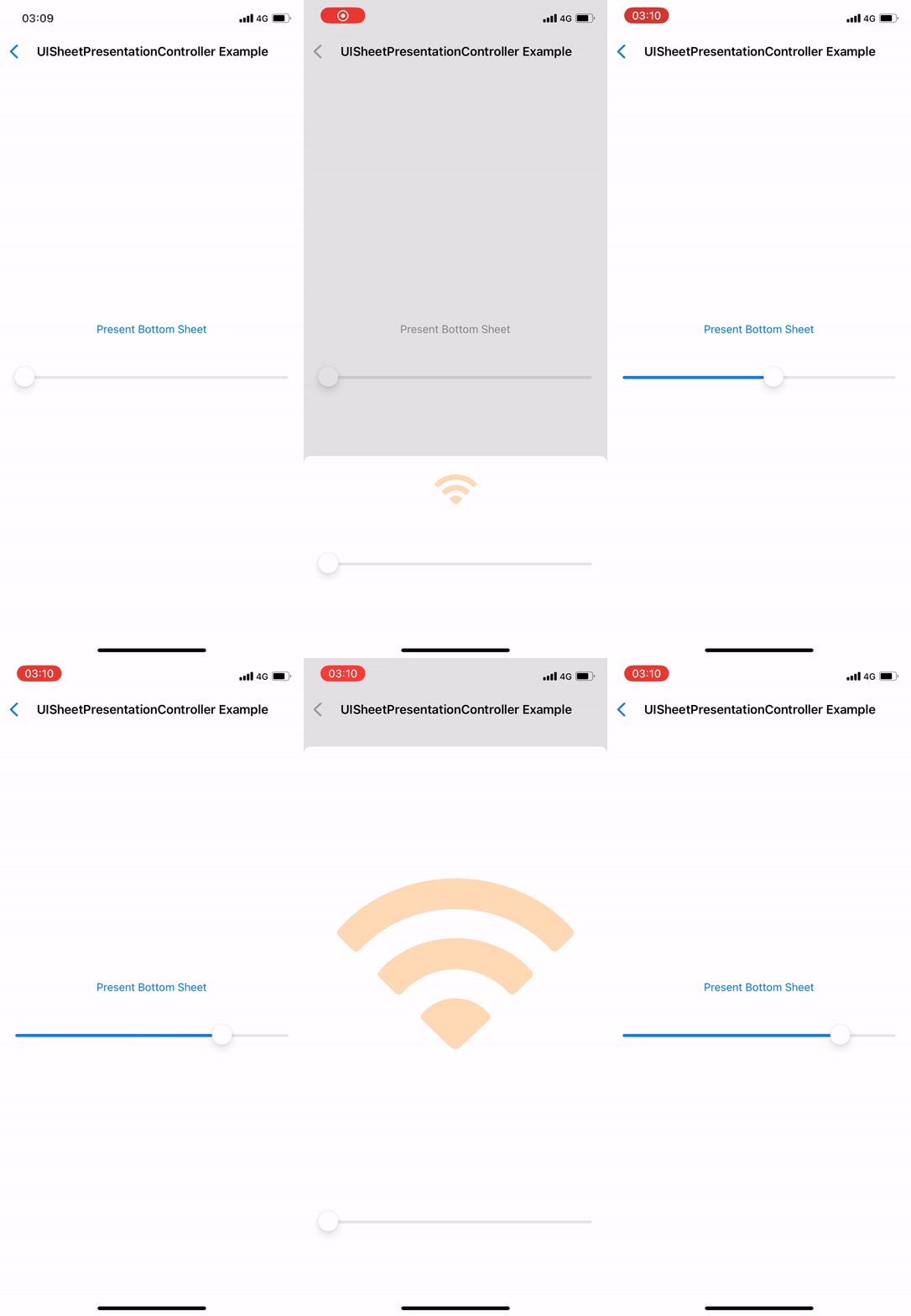
Sheets entered our lives with iOS 15. Now receive detents in custom sizes with iOS 16 apart from the predefined detents. Calculated detents shouldn’t account safe area.

extension UISheetPresentationController.Detent.Identifier {
    static let developerDefiened = UISheetPresentationController.Detent.Identifier("developerDefiened")
}

final class UISheetPresentationControllerExample: UIViewController {

    private func presentBottomSheet() {
        let vc = SFSymbolsExample()
        vc.view.backgroundColor = .white
        guard let sheet = vc.sheetPresentationController else {
            return
        }

       //  sheet.largestUndimmedDetentIdentifier = .developerDefiened - You can add if clear background.

        sheet.detents = [
            .custom(identifier: .developerDefiened) { context in
                context.maximumDetentValue * self.multiplier
            }
        ]
        self.present(vc, animated: true)
    }
}

UISheetPresentationController Example

SF Symbols

Apple Documentation

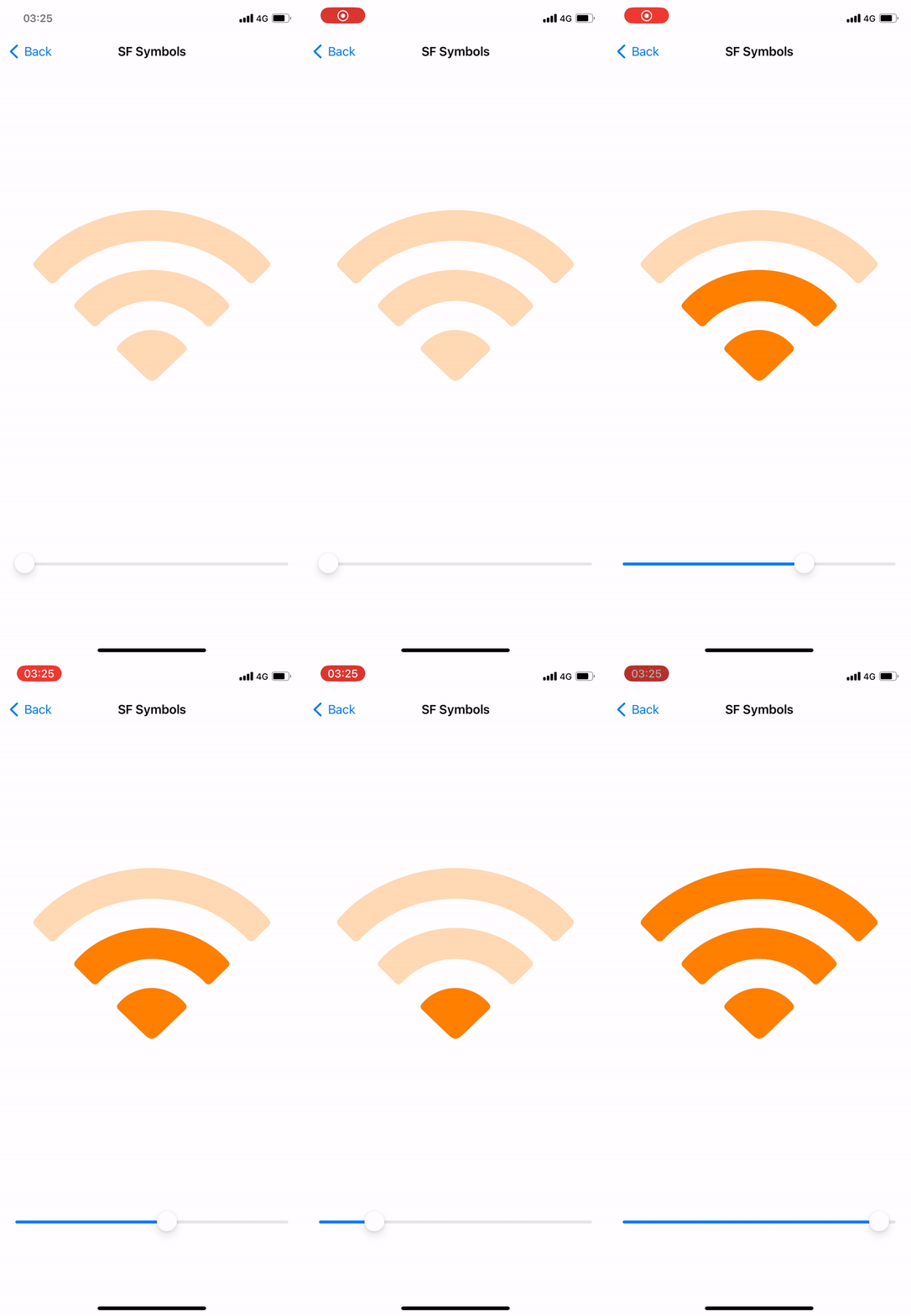
In iOS 15 and earlier monochrome rendering was used by default but in iOS 16 hierarchical rendering is used. If you want to use monochrome in your application you can continue using monochrome by triggering UIImage.SymbolConfiguration.preferringMonochrome().

Also with iOS 16, Variable Symbols has entered our lives. Now we can create our symbols according to the value of the variable. You can even use with other rendering modes such as palette configuration.

@objc private func sliderDidValueChange(_ sender: UISlider) {
    imageView.image = UIImage(
        systemName: "wifi",
        variableValue: Double(sender.value),
        configuration: UIImage.SymbolConfiguration(paletteColors: [.orange])
    )
}

SF Symbols

UICalendarView

Apple Documentation

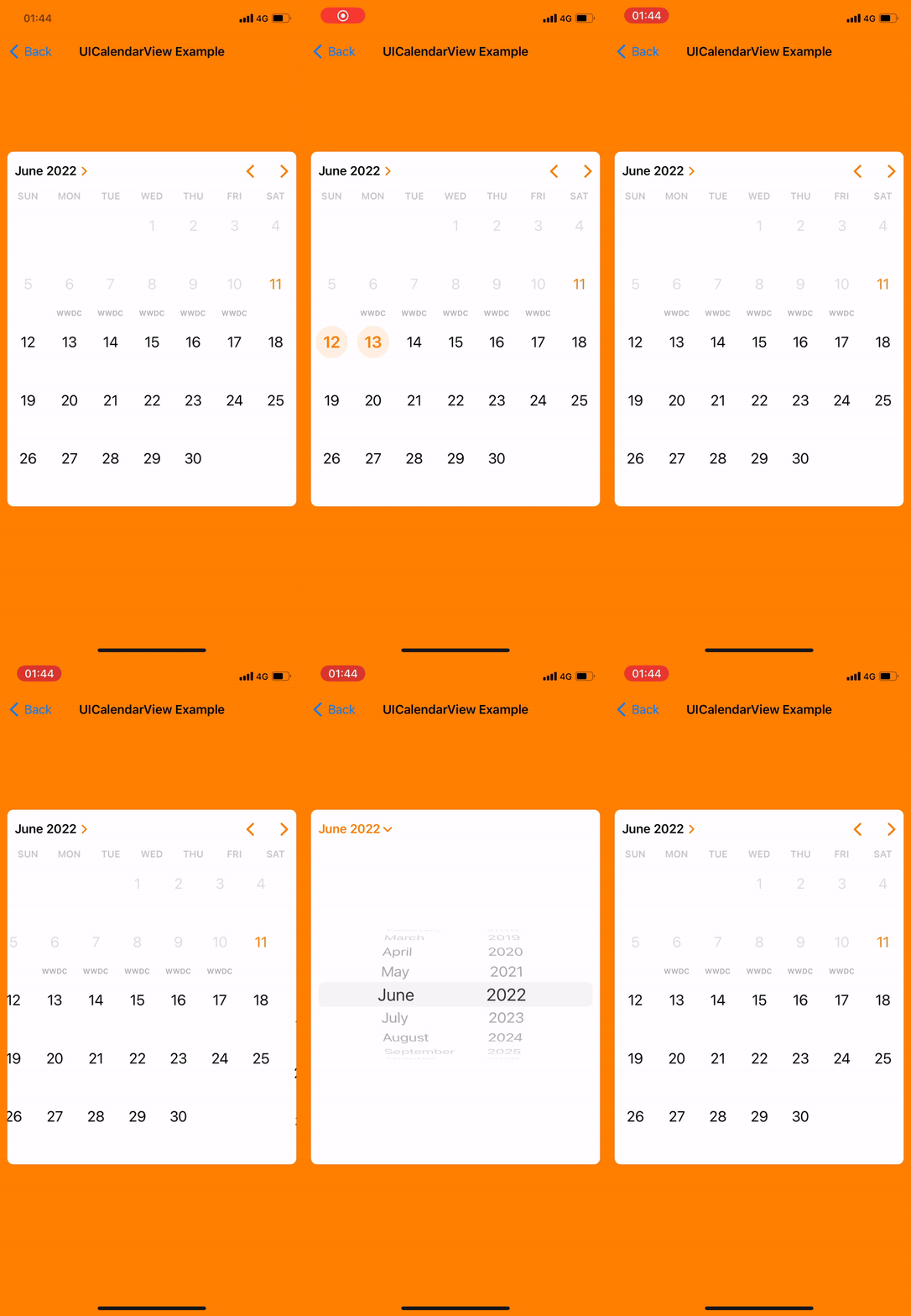
When you need to use a calendar in your projects, you can now do it standalone with UICalendarView. The prominent features and the conveniences it provides to you are as follows:

  • Different types of selection behaviors such as Single or Multiple selection
  • Setting your desired dates as selectable or non-selectable
  • To be able to give a custom view as well as various default decorations
  • UICalendarView represent NSDateComponenets instead of NSDate and gives us more correct date value

Let’s take a look at the code side. UICalendarView has all the customizations you need. I have adjusted the configurations that need to be done while initializing as I want but the important thing to mention here is that the selectionBehaviordetermines whether the calendar will be multiselection or single selection. We need to add UICalendarSelectionMultiDateDelegate for multi selection, UICalendarSelectionSingleDateDelegate for single selection.

    private lazy var calendarView: UICalendarView = {
        let calendarView = UICalendarView()
        calendarView.calendar = Calendar(identifier: .gregorian)
        calendarView.timeZone = .autoupdatingCurrent
        calendarView.locale = .current
        calendarView.fontDesign = .default
        calendarView.delegate = self
        calendarView.visibleDateComponents = DateComponents(calendar: Calendar(identifier: .gregorian), year: 2022, month: 6, day: 1)

        // Set singleDateSelection if you want to set for Single Selection
        calendarView.selectionBehavior = multiDateSelection
        calendarView.selectionBehavior = singleDateSelection
        return calendarView
    }()

    private lazy var multiDateSelection: UICalendarSelectionMultiDate = {
        let multiDateSelection = UICalendarSelectionMultiDate(delegate: self)
        return multiDateSelection
    }()

    private lazy var singleDateSelection: UICalendarSelectionSingleDate = {
        let singleDateSelection = UICalendarSelectionSingleDate(delegate: self)
        return singleDateSelection
    }()

In our article, we will look at the part for multiselection, but you can examine the sample project in single selection. Our functions that come with UICalendarSelectionMultiDateDelegate allow us to select and determine whether the date of the presented DateComponents object is appropriate.

extension UICalendarViewExample: UICalendarSelectionMultiDateDelegate {
    func multiDateSelection(_ selection: UICalendarSelectionMultiDate, didDeselectDate dateComponents: DateComponents) {
        selectedDates.removeAll(where: { dateComponents == $0 })
    }

    func multiDateSelection(_ selection: UICalendarSelectionMultiDate, didSelectDate dateComponents: DateComponents) {
        selectedDates.append(dateComponents)
    }

    func multiDateSelection(_ selection: UICalendarSelectionMultiDate, canSelectDate dateComponents: DateComponents) -> Bool {
        dateComponents.isDatePassed()
    }

    func multiDateSelection(_ selection: UICalendarSelectionMultiDate, canDeselectDate dateComponents: DateComponents) -> Bool {
        dateComponents.isDatePassed()
    }
}

The feature that I personally like the most, which allows us to customize our calendars decorators. At this point, we need to add the UICalendarViewDelegate protocol to our Controller so that we can use the decorators. Afterwards, it allows us to use the default decorators in UIKit as well as add custom decorators.

extension UICalendarViewExample: UICalendarViewDelegate {
    func calendarView(_ calendarView: UICalendarView, decorationFor dateComponents: DateComponents) -> UICalendarView.Decoration? {
        guard let event = eventDays.filter({ $0.dateComponents.isSameDate(with: dateComponents) }).first else {
            return nil
        }

        switch event.decorationType {
        case .none:
            return nil
        case .defaultDecorator:
            return .default(color: .purple, size: .large)
        case .image:
            return .image(.init(systemName: "applelogo"), color: .red)
        case .customView:
            return .customView {
                let label = UILabel()
                label.text = "WWDC"
                label.textColor = event.titleColor
                label.font = .boldSystemFont(ofSize: 10)
                return label
            }
        }
    }
}

That’s it for now with UICalendarView. Tt’s time to review other innovations. You can get more detailed information about its use from the sample project link at the end of our article.

UICalendarView Example

Improved Navigation Bars

Apple Documentation

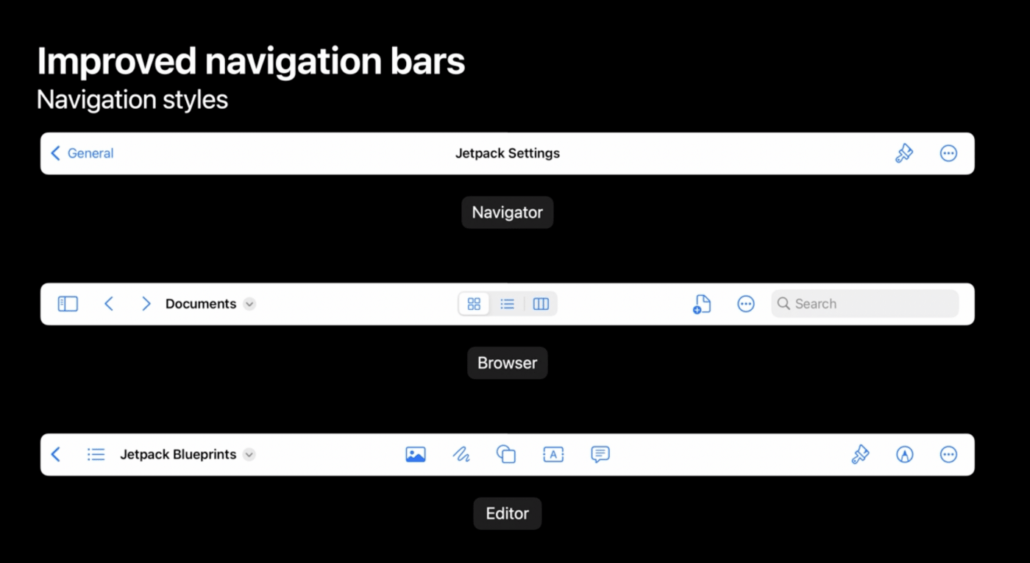
Now, with iOS 16, two different navigation styles have entered our lives, these are Browser and Editor. It enables us to make our browser-based applications more user-friendly with the Editor style interface and document based and Browser style. Center items instead of TitleView allow us to offer more options to our users, and when there are application windows side by side, they automatically move items that do not fit on the screen into the overflow menu. Additionally Mac Catalyst take advantage improve navigation Bar without code required.

Navigation bars

Find And Replace

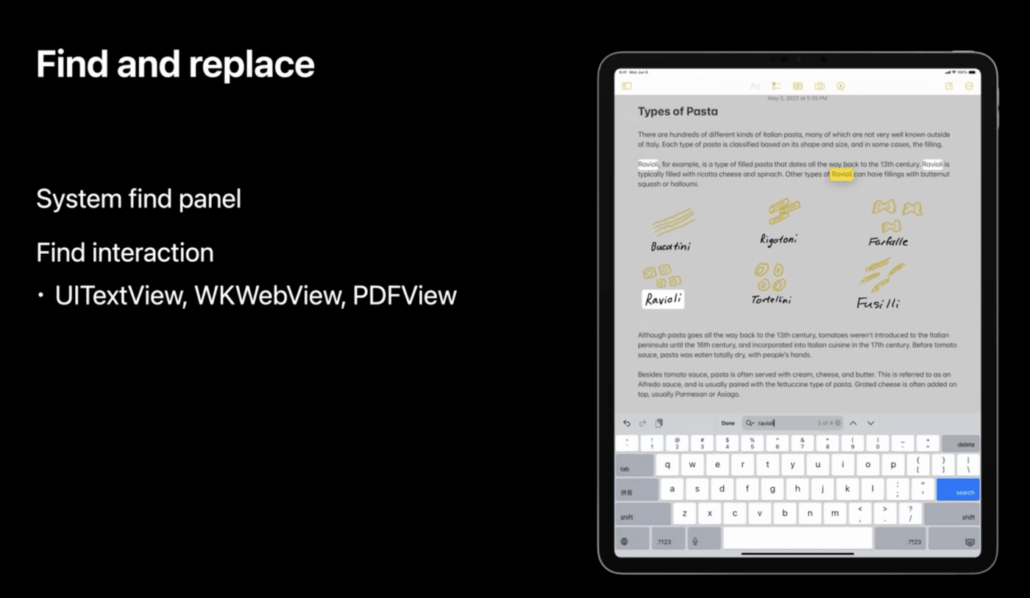
Another innovation that comes with iOS 16 is Find and replace. It’s designed to work on text, unlike higher-level in-app searches. It can be activated with only one flag for UIKit views such as UITextView and WKWebView.

Find and replace

Edit Menu

Apple Documentation

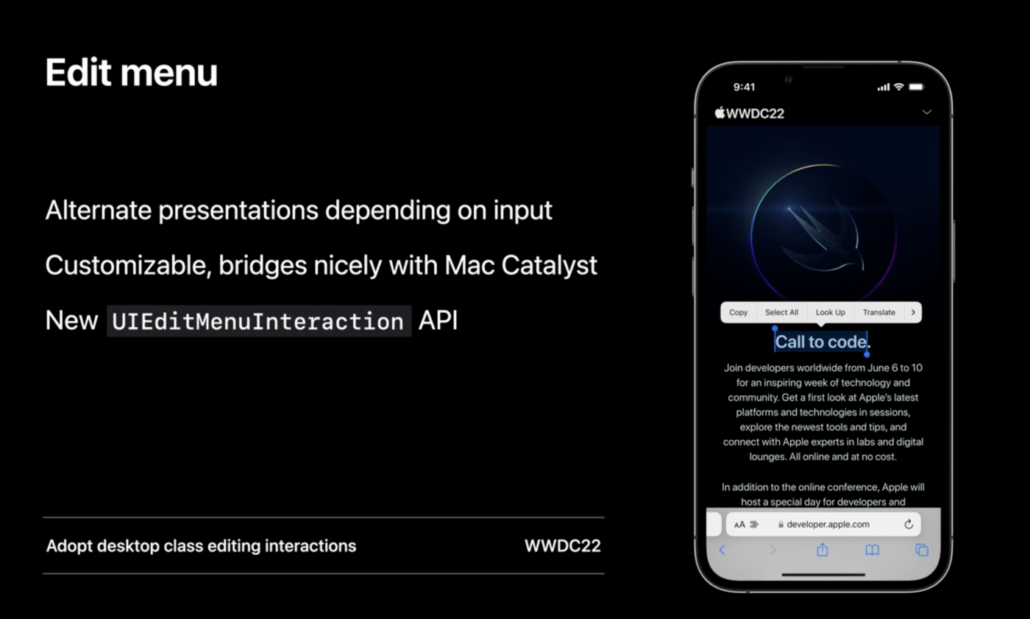
Now in iOS 16 edit menu has mature update. On touch intereaction you have new reddesign menu which is more interactive. Also we have more full featured context menu for pointers. To provide this new features you can use with UIEditMenuInteraction API as a full replacment of UIMenuController (Deprecated).

Edit menu

UIPasteControl

Apple Documentation

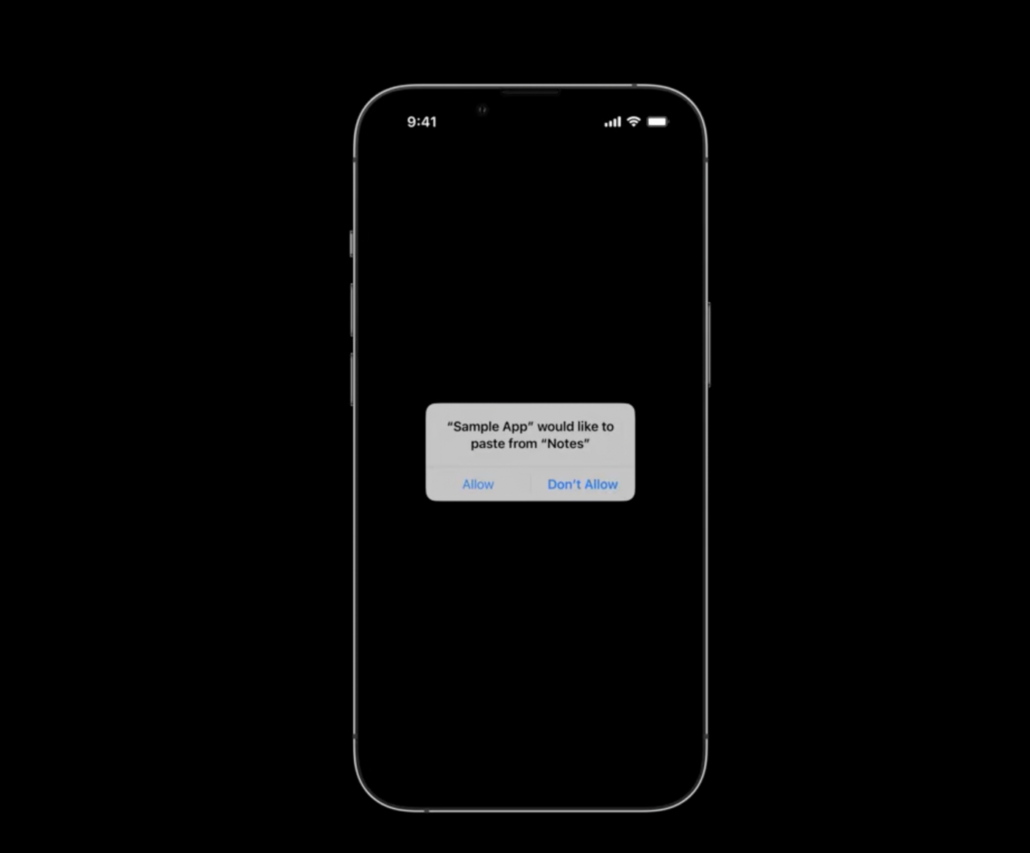
Before iOS 16 in copy-paste operations has banner displayed to user now it’s replaced by an alert. This permission alert is automatically prompted by the system and you can access the content according to the answer. If CustomPasteControl exists you need to replace them with UIPasteControl.

UI Paste control

That’s all for now what Apple has brought for UIKit with iOS 16 at WWDC. To have more ideas about the incoming innovations, you can check our sample project from the link below. Stay tuned.

GitHub => https://github.com/ferhanakkan/WhatsNewInUIKit

What is New in SwiftUI 4.0, WWDC 2022

WWDC 22 is passed so quick, isn’t it? SwiftUI is one of the most awaited subjects from developers in WWDC 22. Some of the developers are satisfied with the new features for SwiftUI, but some are not.

Here are the features that will be in SwiftUI 4.0, iOS 16.

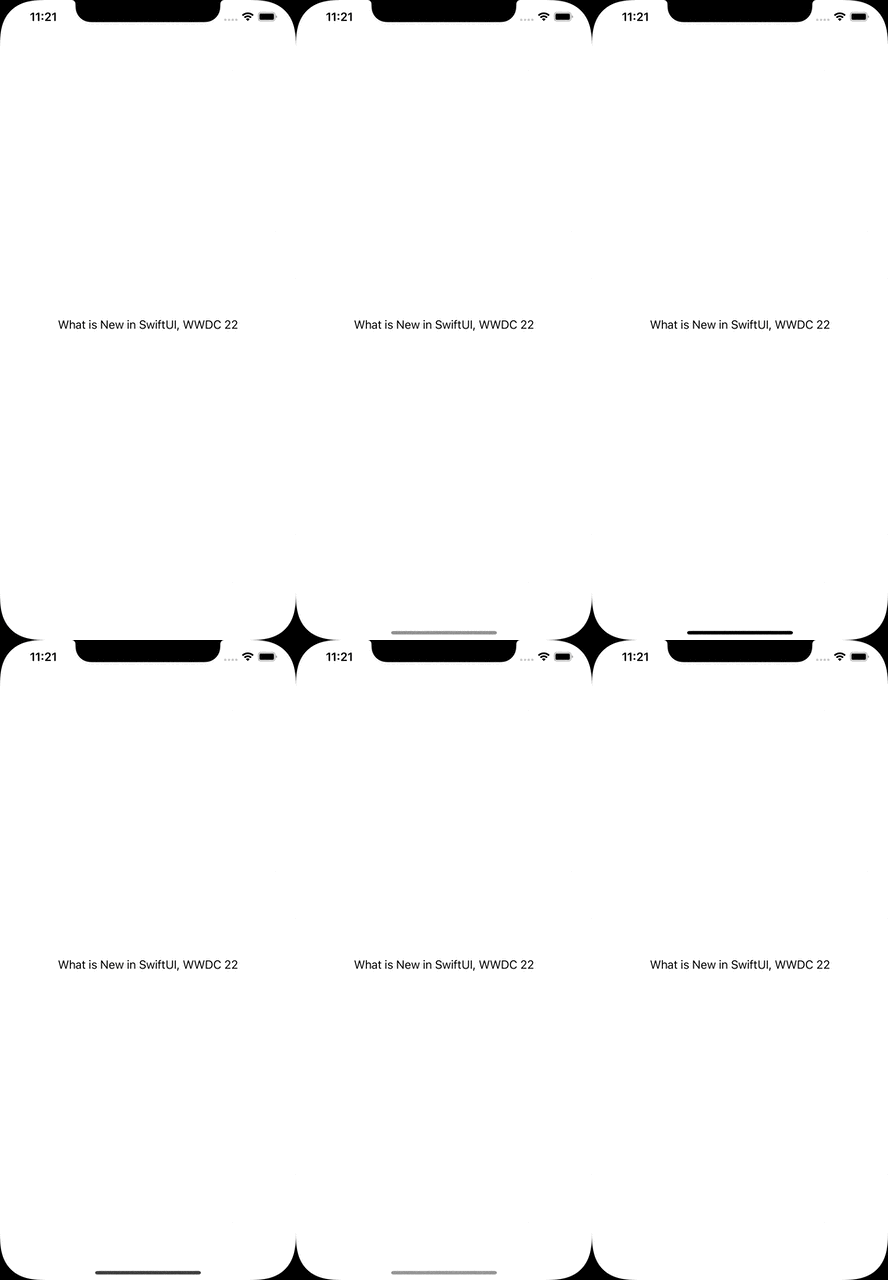
Hide Home Button(Indicator)

Apple’s Documentation

Some screens are required a lot of taps and focus from the user. To achieve this goal, we can hide the bottom native indicator in SwiftUI not.

var body: some View {
    EmptyView()
        .persistentSystemOverlays(.hidden)
}

Hide Home Button(Indicator)

Navigation Stack

Apple’s Documentation

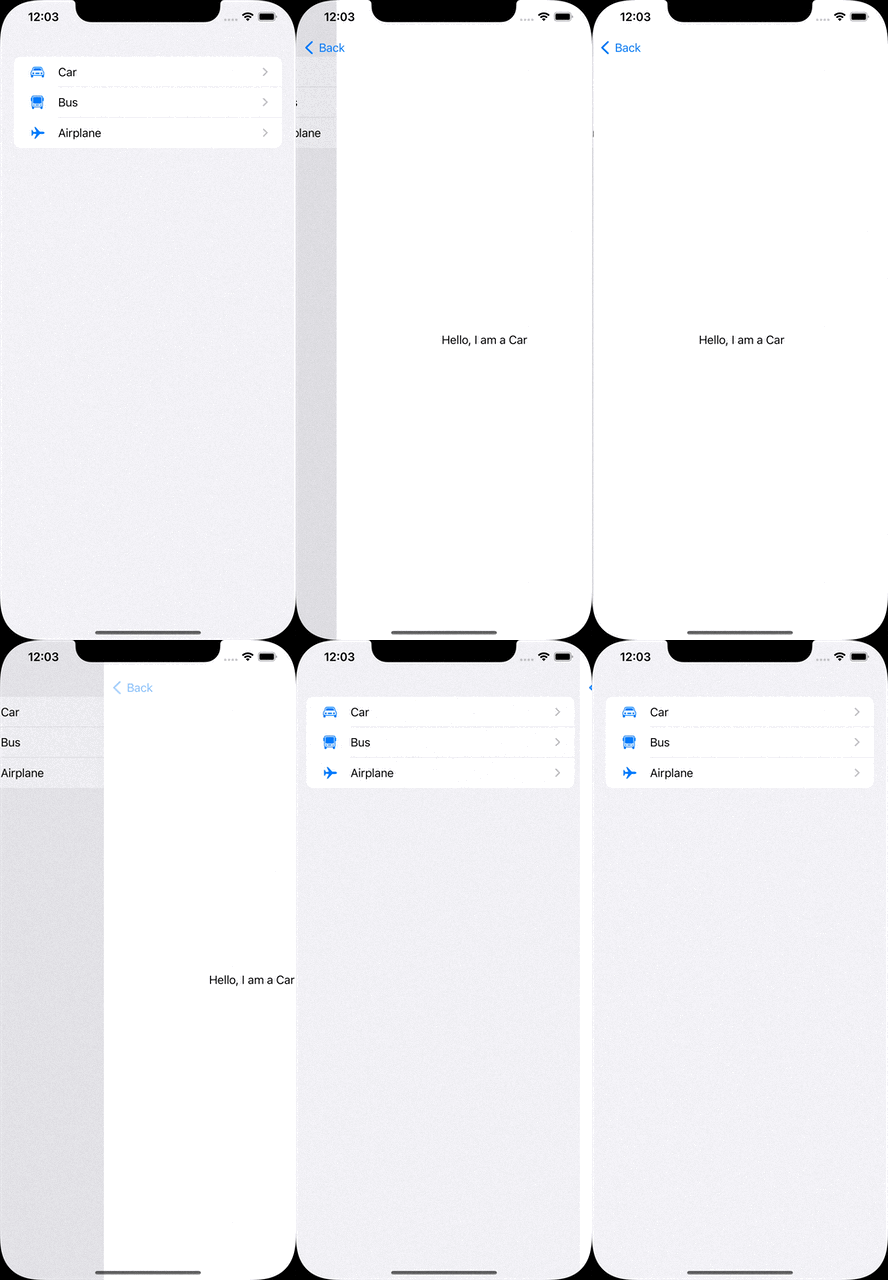
The new way to manage navigations instead of NavigationView.

With the new NavigationStack, we can define multiple destinations by the model.

let vehicles: [Vehicle] = [
    .init(name: "Car", iconName: "car"),
    .init(name: "Bus", iconName: "bus"),
    .init(name: "Airplane", iconName: "airplane")
]

var body: some View {
    NavigationStack {
        List(vehicles) { vehicle in
            NavigationLink(value: vehicle) {
                Label(vehicle.name, systemImage: vehicle.iconName)
            }
        }
        .navigationDestination(for: Vehicle.self) { vehicle in
            VehicleDetailView(vehicle: vehicle)
        }
    }
}

Navigation Stack

Half Sheet

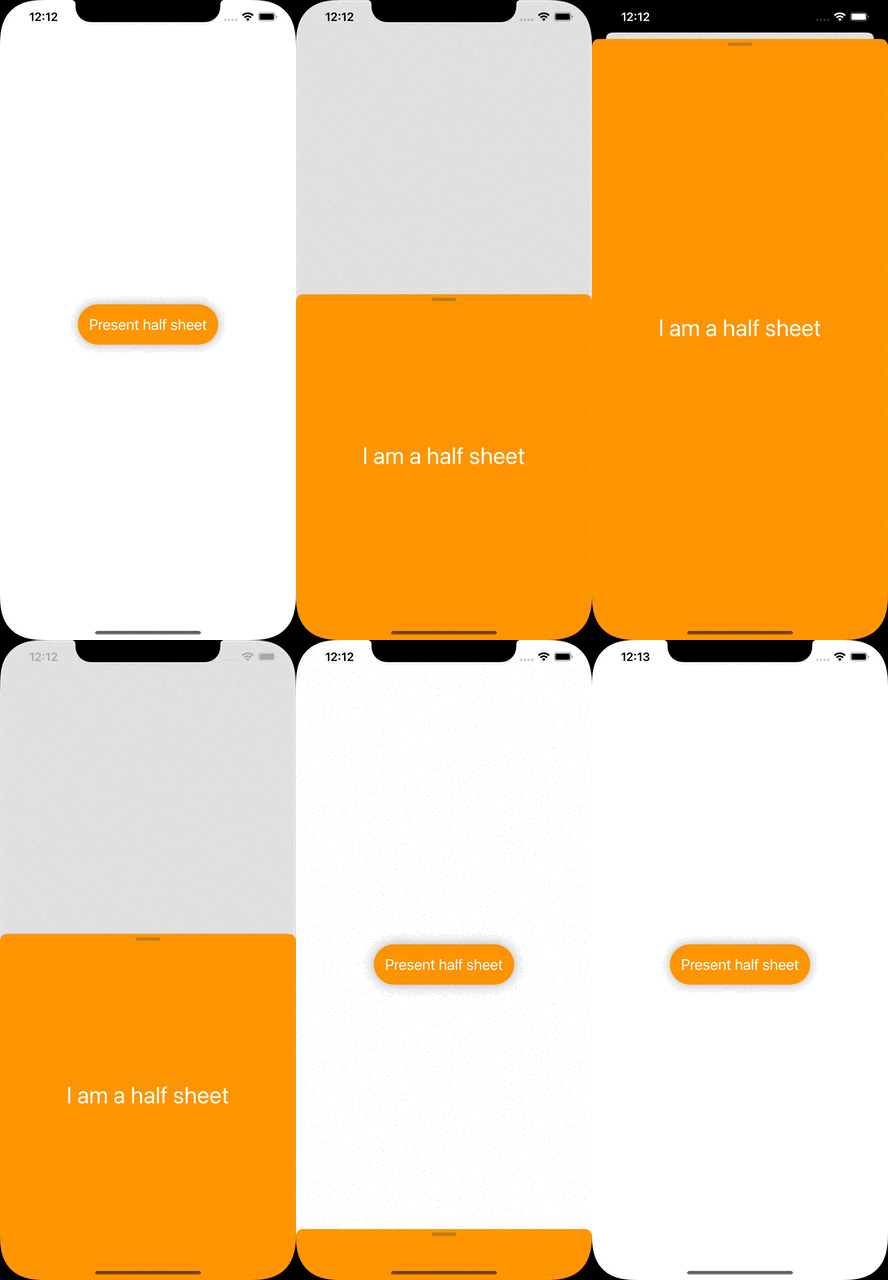
It is one of the features developers mostly demand. Finally, Apple is making it public for us!

All we need to do is call the presentationDetents function of the view we will show as the half sheet.

The function takes detents as the parameter to set the height of the sheet. We can also set a constant height by typing .height(200).

@State var isPresentedHalfSheet: Bool = false

var body: some View {
    Button {
        self.isPresentedHalfSheet.toggle()
    } label: {
        Text("Present half sheet")
    }
    .sheet(isPresented: $isPresentedHalfSheet) {
        HalfSheetView()
            .presentationDetents([.medium, .large])
    }
}

Half Sheet

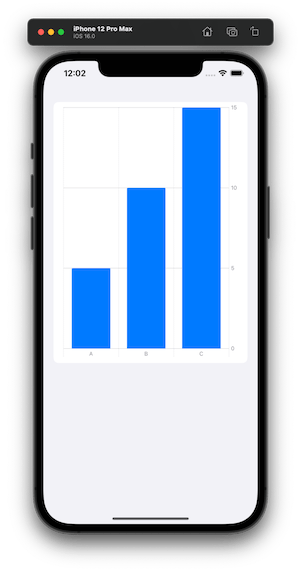
Swift Charts

Apple’s Documentation

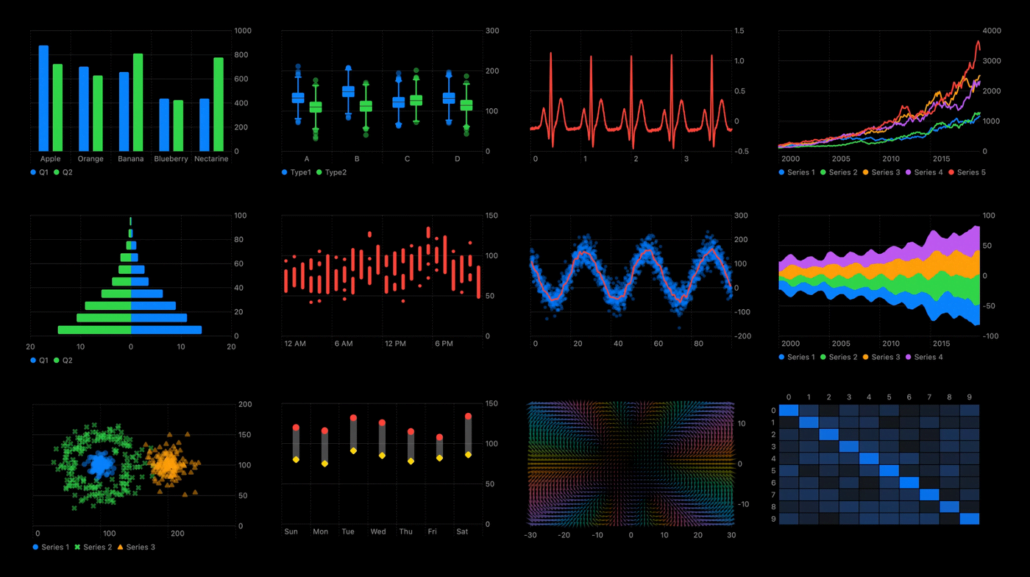
There are different chart styles we can use in the library.

BarMark, LineMark, AreaMark, PointMark, RectangleMark, RuleMark.

Swift Charts

Here is an example of the bar chart.

let chartData: [KeyValue] = [
    .init(key: "A", value: 5),
    .init(key: "B", value: 10),
    .init(key: "C", value: 15)
]

var body: some View {
    Chart(chartData) {
        BarMark(x: .value("Key", $0.key),
                y: .value("Value", $0.value))
    }
}

Swift Charts

Multi Date Picker

Apple’s Documentation

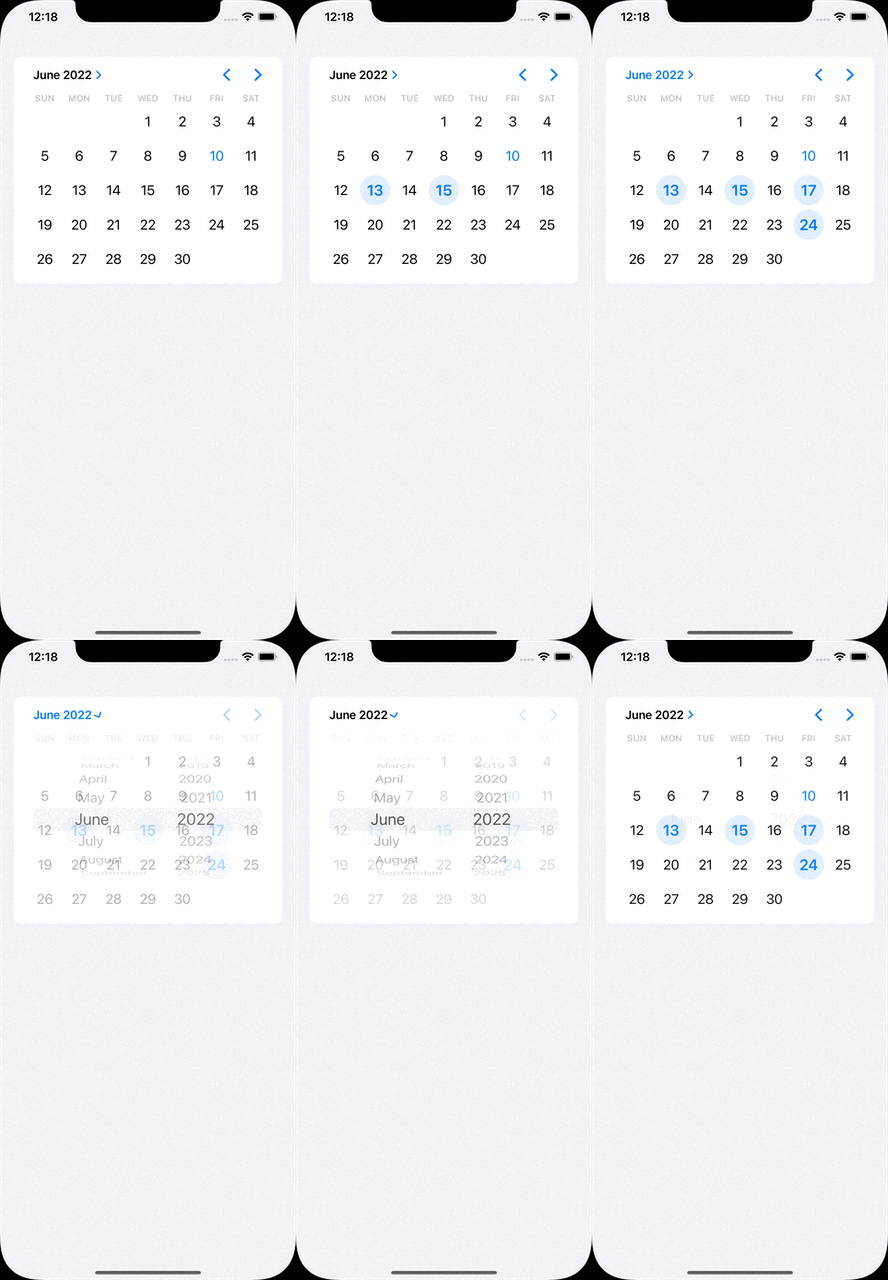
The component provides to choose multi dates through the native date picker.

@State var selectedDates: Set<DateComponents> = []

var body: some View {
    MultiDatePicker("Dates", selection: $selectedDates)
}

Multi Date Picker

Custom Layout

Apple’s Documentation

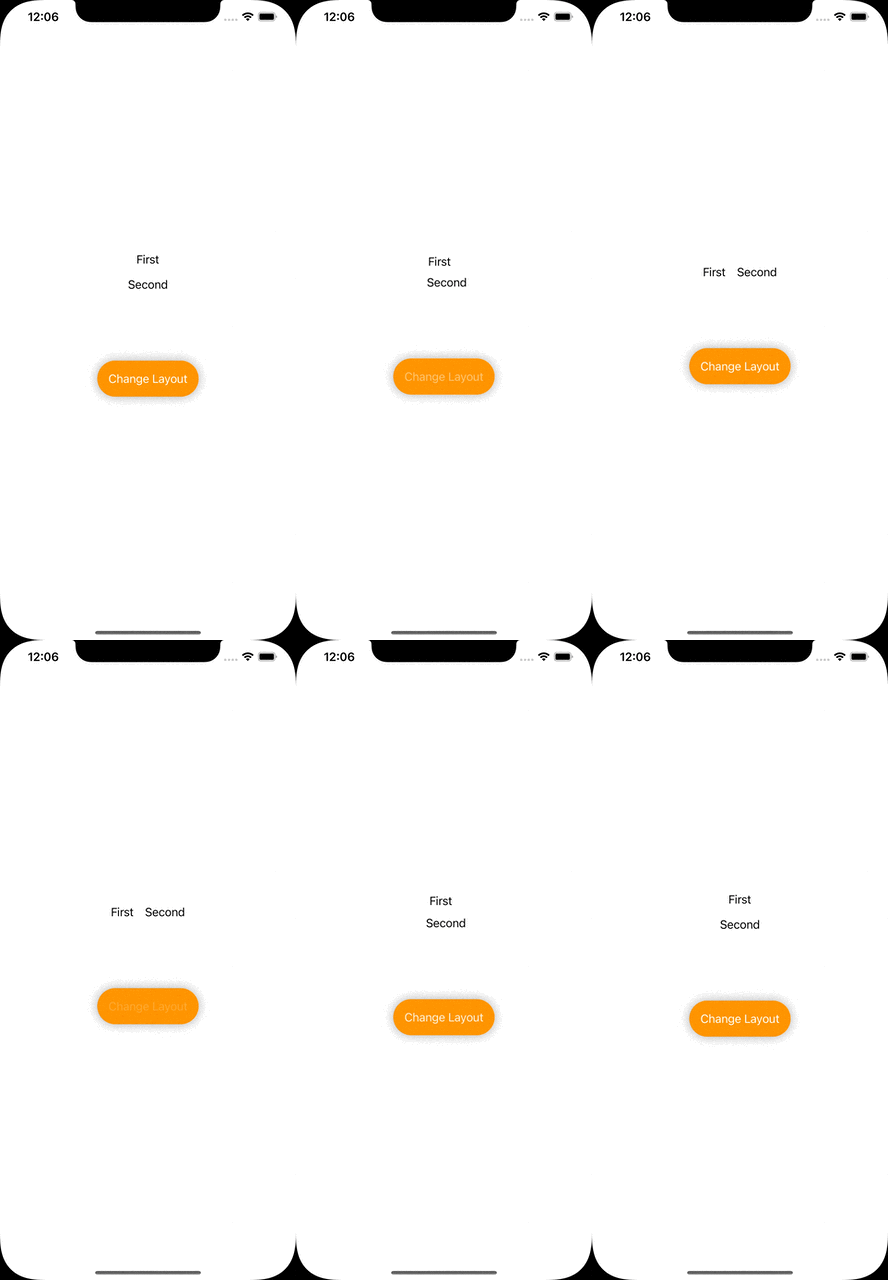
In case the layout style has to be changed by the user’s interaction, AnyLayoutprovides to achieve it.

@State var changeLayout: Bool = false

var body: some View {
    let layout = changeLayout ? AnyLayout(HStack()) : AnyLayout(VStack())

    VStack {
        layout {
            Text("First")
            Text("Second")
        }

        Button {
            self.changeLayout.toggle()
        } label: {
            Text("Change Layout")
        }
    }
}

Custom Layout

Photos Picker

Apple’s Documentation

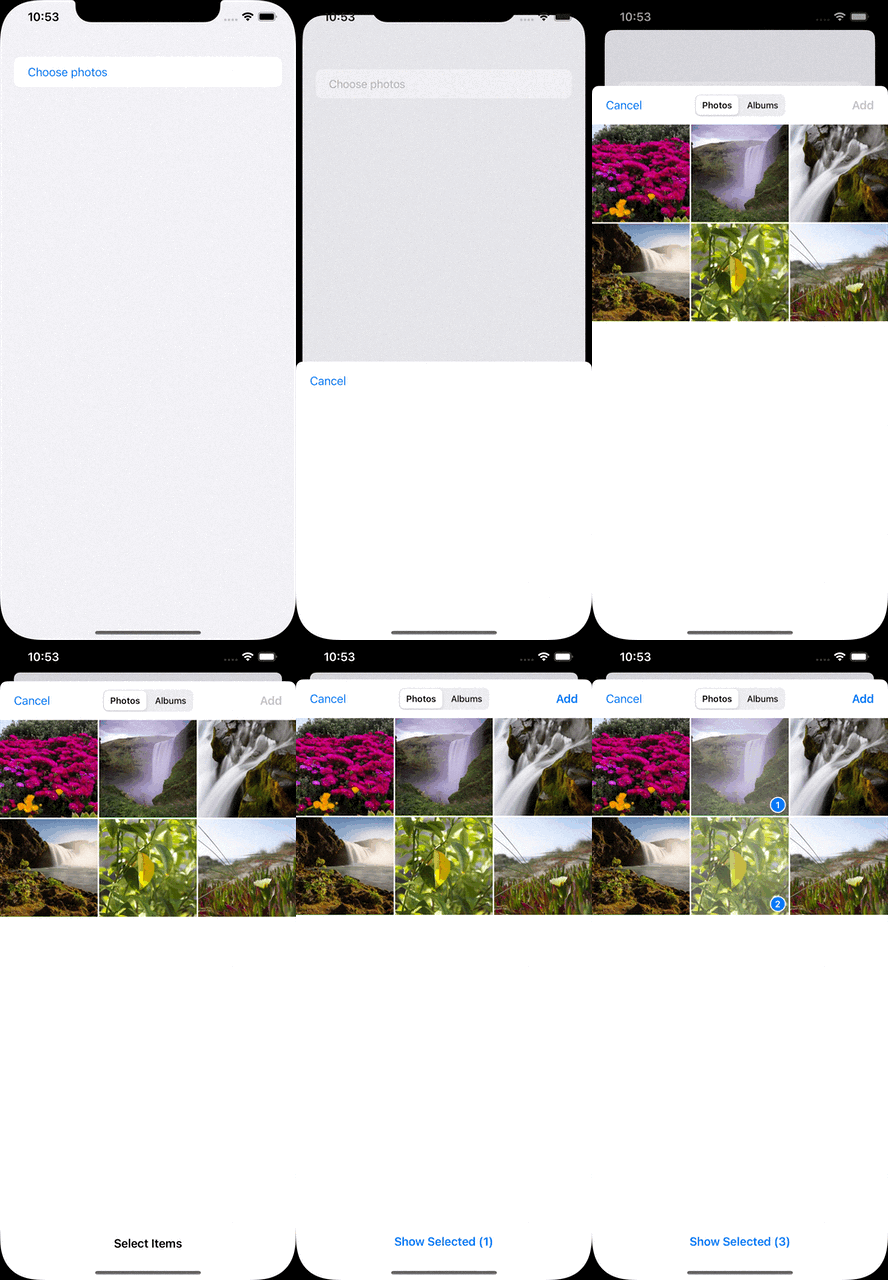
It is used to choose multiple photos in the album.

@State var selectedPhotos: [PhotosPickerItem] = []

var body: some View {
    PhotosPicker(selection: $selectedPhotos) {
        Text("Choose photos")
    }
}

Photos Picker

Shape Style Extensions

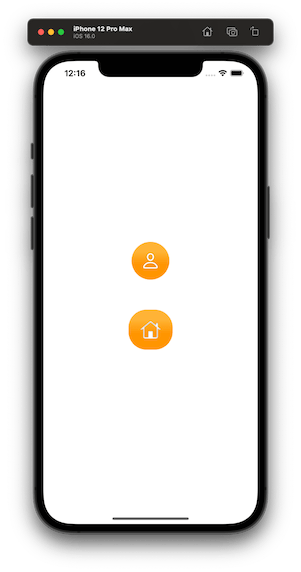
We can set foreground and background styles to views. These styles support set gradient colors and shadows.

var body: some View {
    VStack {
        VStack {
            Image(systemName: "person")
        }
        .background(in: Circle().inset(by: -20))
        .backgroundStyle(.orange.gradient)
        .foregroundStyle(.white.shadow(.drop(radius: 1)))

        VStack {
            Image(systemName: "house")
        }
        .background(in: RoundedRectangle(cornerRadius: 16).inset(by: -20))
        .backgroundStyle(.orange.gradient)
        .foregroundStyle(.white.shadow(.inner(radius: 1)))
    }
}

Shape Style Extensions

ViewThatFits

Apple’s Documentation

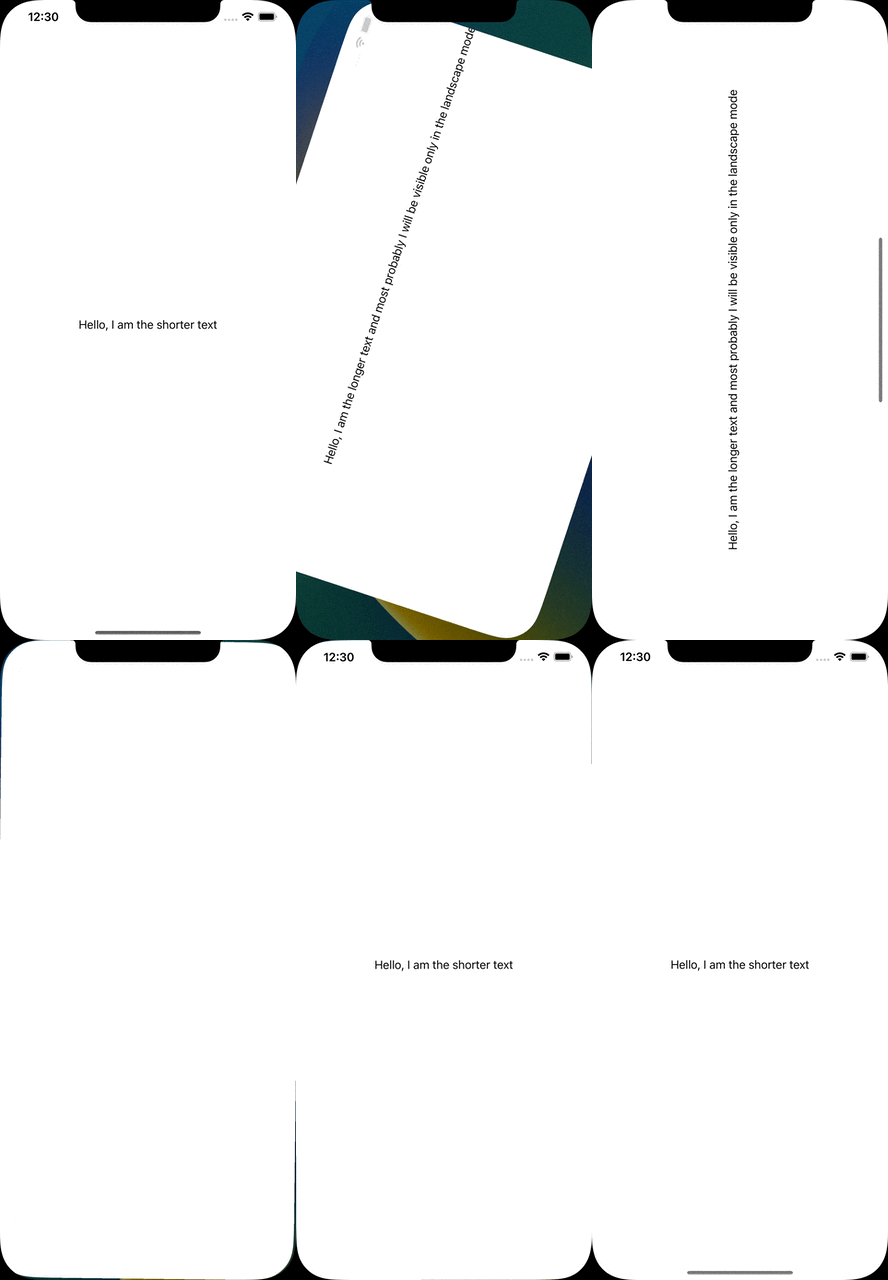
It decides which view will be fit to the screen and it will be the one only visible.

The longer text won’t fit in the portrait mode, therefore the shorter one will be visible. Since the longer one will be able to fit in the landscape mode, it will be visible.

var body: some View {
    ViewThatFits {
        Text("Hello, I am the longer text and most probably I will be visible only in the landscape mode")
            .frame(width: 700, height: 300)
        Text("Hello, I am the shorter text")
            .frame(width: 300, height: 100)
    }
}

ViewThatFits

Mixed-State Toggle

Apple’s Documentation

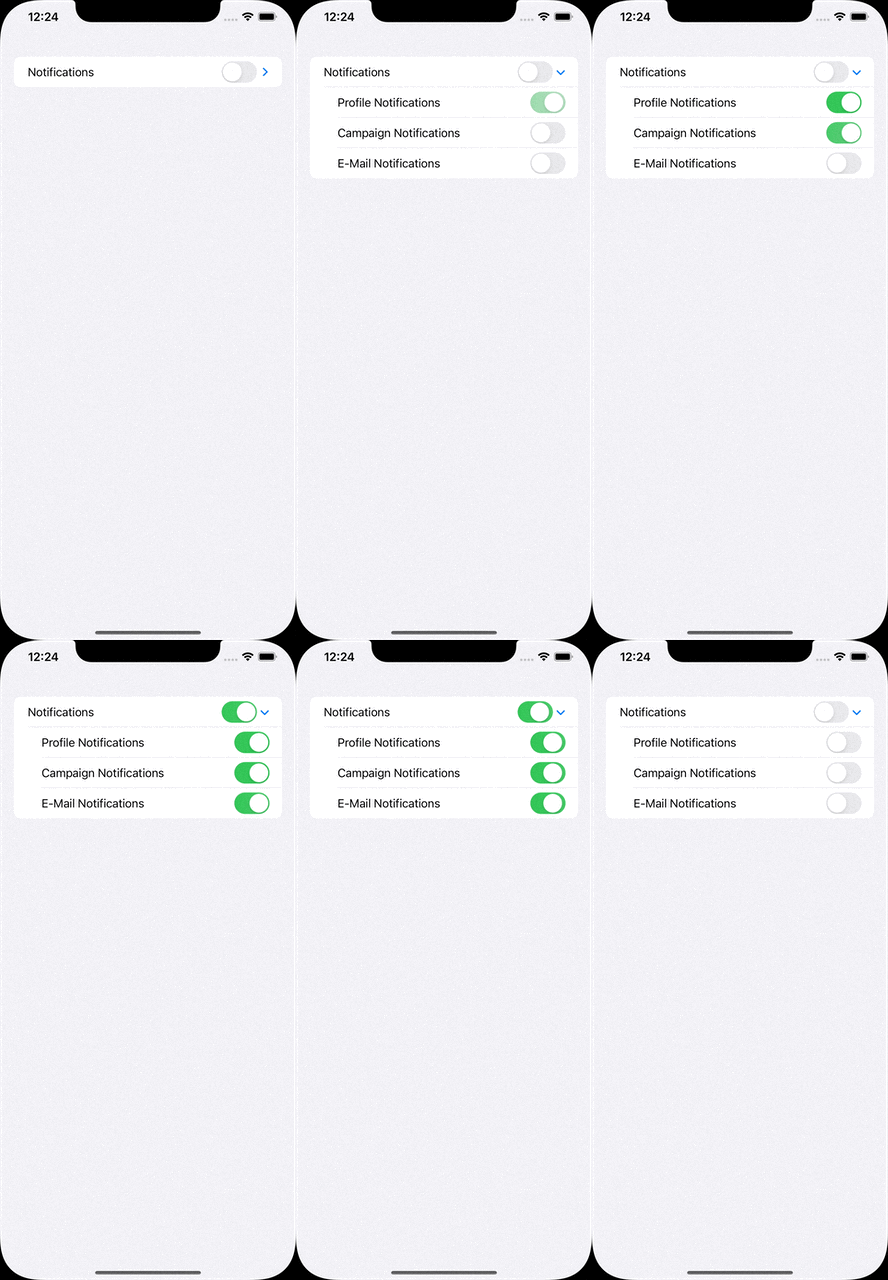
Sometimes we need a parent toggle states that are associated with its sub toggles. DisclosureGroup provides a structure for that.

@State var profileNotificationsIsOn: Bool = false
@State var campaignNotificationsIsOn: Bool = false
@State var emailNotificationsIsOn: Bool = false

var body: some View {
    DisclosureGroup {
        Toggle("Profile Notifications", isOn: $profileNotificationsIsOn)
        Toggle("Campaign Notifications", isOn: $campaignNotificationsIsOn)
        Toggle("E-Mail Notifications", isOn: $emailNotificationsIsOn)
    } label: {
        Toggle("Notifications", isOn: [
            $profileNotificationsIsOn,
            $campaignNotificationsIsOn,
            $emailNotificationsIsOn
        ])
    }
 }

Mixed-State Toggle

Multiline TextField

Apple’s Documentation

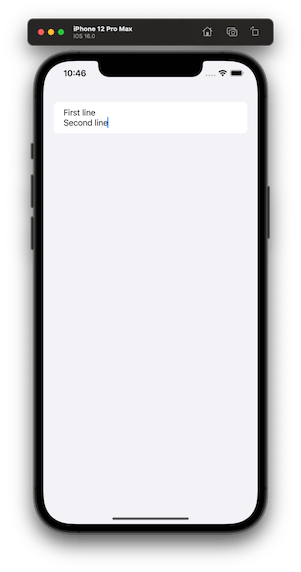
In SwiftUI 4, we are able to define specific ranges of a textfield’s line count. Something like, from 1 to 2, from 5 to endless.

@State var textFieldText: String = ""

var body: some View {
    TextField("I am just a text field", text: $textFieldText, axis: .vertical)
        .lineLimit(...2)
}

Multiline TextField

We’ve tried to list some of the major improvements announced for SwiftUI at WWDC 2022 this year. Of course that’s not all! We’re still digging through the documentation and will add more as we find new additions.

Stick around our blog to find more WWDC 2022 articles.