Posts

Jetpack Compose Navigation and Deeplinks

Navigating between screens in mobile apps is essential knowledge. We’ll look at Jetpack Compose Navigation patterns and how to integrate it with deeplinks.

Why Need Navigation?

Android applications usually have more than one screen since they have multiple features. In case of a messaging application we have a contact list screen, a message list screen, a message screen, a settings screen, so on. It’s difficult to cram all these features into one screen and ViewModel. Your code will turn into spaghetti. To separate our features we use multiple fragments/composable and navigation connects them.

Navigation In Android

Let’s look at Android applications that doesn’t use Jetpack Compose. In the early days of Android, having multiple activities and using intents were the trend. Then, single activity with multiple fragments and using jetpack navigation made more sense. We won’t dive into the details of jetpack navigation in this article. But here is the android documentation if you would like to learn more about it. Finally, with Jetpack Compose, jetpack navigation had a different way of usage.

Navigation In Android

Left Icon

Empower Your Android Projects Now!

Right Icon Learn More

Navigating Compose Via Fragments

Before diving into navigation in compose, we can use fragments for using Jetpack navigation with graphs. Fragments will just call compose screens:

<?xml version="1.0" encoding="utf-8"?>
<LinearLayout
    xmlns:android="http://schemas.android.com/apk/res/android"
    android:orientation="vertical"
    android:layout_width="match_parent"
    android:layout_height="match_parent">

    <androidx.compose.ui.platform.ComposeView
        android:id="@+id/compose_view"
        android:layout_width="match_parent"
        android:layout_height="match_parent" />

</LinearLayout>
class ExampleFragment : Fragment() {

    private var _binding: FragmentExampleBinding? = null

    // This property is only valid between onCreateView and onDestroyView.
    private val binding get() = _binding!!

    override fun onCreateView(
        inflater: LayoutInflater,
        container: ViewGroup?,
        savedInstanceState: Bundle?
    ): View {
        _binding = FragmentExampleBinding.inflate(inflater, container, false)
        val view = binding.root

        binding.composeView.apply {
            // Dispose of the Composition when the view's LifecycleOwner
            // is destroyed
            setViewCompositionStrategy(DisposeOnViewTreeLifecycleDestroyed)
            setContent {
                // In Compose world
                MaterialTheme {
                    Text("Hello Compose!")
                }
            }
        }

        return view
    }

    override fun onDestroyView() {
        super.onDestroyView()
        _binding = null
    }
}

However, this is not a good way of implementing it. Because using fragments just for navigation will create performance problems and affect the code structure. It is against Jetpack Compose’s fundamentals. We explained performance test results in this article.

Jetpack Compose Navigation Basics

Jetpack Compose navigation requires implementation in the app-module Gradle file:

implementation "androidx.navigation:navigation-compose:$las_version"

First, we create a NavController instance to keep the back stack of our screens with their state and to navigate among them. We can say NavController is our compass.

val navController = rememberNavController()

Note: navController instance should also follow the state hoisting principle.

After creating a NavController, We need to connect with only one NavHost. We can say NavHost is our map.

NavHost(navController = navController, startDestination = "profile") {

    composable("profile") { Profile(/*...*/) }

    composable("friendslist") { FriendsList(/*...*/) }

    /*...*/

}

As we can see NavHost gets a NavController and a String called as startDestination.
startDestination describes NavHost to show which screen first. The string “profile” is a concept called a route. Routes are like addresses for screens we use routes to reach up to the screen.

composable("profile") { Profile(/*...*/) }

Here we say the composable screen’s route name is profile.

To navigate to a screen, just call .navigate with the name of your destination:

navController.navigate("friendslist")

Arguments

We can also pass arguments to any screen:

composable(
    route = "profile/?userId={userId}",
    arguments = listOf(navArgument("userId") {
        type = NavType.StringType
        defaultValue = ""
    })
) { backStackEntry ->
    Profile(navController, backStackEntry.arguments?.getString("userId"))
}

Now our profile screen can receive an argument with userID name.

Note: By default, all arguments are parsed as strings.

To pass argument during navigating:

navController.navigate("profile/?userId=user1234")

It’s like using RestfulAPI.

Note: Passing a minimum amount of arguments is the right way because the navigation concept does not cover data-related logic.

Screen Class Usage

The previous example seems nice, but typing hard-coded strings for routes is not a good practice. Instead, we need to use sealed classes:

sealed class Screen(val route: String) {

    object Profile : Screen(route = "profile/?userId={userId}") {

        fun userId(userId: String) = "profile/?userId=$userId"
    }
}

Now we can refactor our navigation code:

composable(
    route = Screen.Profile.route,
    arguments = listOf(navArgument("userId") {
        type = NavType.StringType
        defaultValue = ""
    })
) { backStackEntry ->
    Profile(navController, backStackEntry.arguments?.getString("userId"))
}

// Bir yerde navigasyonu tetiklemek için
navController.navigate(Screen.Profile.userId("user1234"))

Nested Navigation

We might want to group and modularize routes. Let’s say we want to group onboarding, login, and register screen into a graph:

NavHost(navController, startDestination = "home") {

    // Navigating to the graph via its route ('login') automatically
    // navigates to the graph's start destination - 'username'
    // therefore encapsulating the graph's internal routing logic
    navigation(startDestination = "username", route = "login") {

        composable("username") { 
            // Username screen content
        }

        composable("password") { 
            // Password screen content
        }

        composable("registration") { 
            // Registration screen content
        }

    }

}

Extraction Of Graphs

Be aware that having a lot of graphs still can turn code into a huge mess. We can separate graphs into different files by using NavGraphBuilder:

fun NavGraphBuilder.loginGraph(navController: NavController) {

    navigation(startDestination = "username", route = "login") {

        composable("username") { 
            // Username screen content
        }

        composable("password") { 
            // Password screen content
        }

        composable("registration") { 
            // Registration screen content
        }

    }

}

Deeplink Routing In Compose

Compose navigation supports implicit deep links, here is how:

val uri = "https://www.example.com"

composable(
    "profile?id={id}",
    deepLinks = listOf(navDeepLink { uriPattern = "$uri/?id={id}" })
) { backStackEntry ->
    Profile(navController, backStackEntry.arguments?.getString("id"))
}

By default, deeplinks are not exposed to external apps. To expose them, we add an intent filter to the manifest file:

<activity ...>

    <intent-filter>
        <data android:scheme="https" android:host="www.example.com" />
    </intent-filter>

</activity>

Conclusion

In this article, we learned why we are using the navigation in android, how navigation changed throughout the years, how we can use compose in fragment navigations, and why we should not really use that way.

Then dived into jetpack compose navigation with arguments, nested graphs, and graph extraction.

Finally, we learned how to use deep links in jetpack compose navigation.

Where to Go From Here?

Since we learned a lot of information from this article it is better to put theory into practice.

For this android suggests:

References

  1. Navigation | Android Developers
  2. Jetpack Compose 101: The Basics – Appcircle Blog
  3. Interoperability APIs | Jetpack Compose | Android Developers
  4. Navigating with Compose | Jetpack Compose | Android Developers
  5. Navigating in Jetpack Compose
  6. Jetpack Compose Navigation | Android Developers
  7. Now In Android Repository

Jetpack Compose Side Effects – With Examples

Jetpack Compose Side Effects – With Examples

Recompositions and states are the main parts of Jetpack Compose. Here’s how to manage states without getting affected by recompositions. We’ll use Jetpack Compose Side Effects API’s and inspect each method one by one.

Why manage states outside composables?

In our Jetpack Compose State Management article we explained:

  1. What is state
  2. Manage state in Android
  3. Manage state in Compose

However, states can trigger in every recomposition and this might cause unexpected application behaviour such as:

  • Showing a snackbar more than once
  • Sending heavy load of network requests

Let’s give an example scenario:

In a login screen composable function implementation, a snackbar message is showing if network state is error and login request is making when boolean state is true.

If boolean state triggers true and request returns error application stucks in making a request and showing a snackbar.

To avoid such situations, we must manage states in Jetpack Compose’s side-effect APIs.

Jetpack Compose Side Effects APIs

As Developers Android states, Composables should be side-effect free(State shouldn’t get affected directly in composable function scope). Side-effect APIs are comes to our aid just right here. Here are the side effects with example usages:

Left Icon

Empower Your Android Projects Now!

Right Icon Meet Our Experts

LaunchedEffect:

Running suspend functions in composable lifecycle scope.
LaunchedEffect is one of the most used side effects. As the name suggests, it launches when composition starts for the first time and can call suspend functions. Moreover, we can relaunch it with giving a key parameter(It relaunches when given key changes).

Example:

LaunchedEffect(networkState) { //Relaunches if network state changes
  if(networkState.Success){
      //Navigate to Screen
  }
  if(networkState.Failure){
      //Show error message
  }
}

In the code above, composable screen only navigates or shows a message when networkState changes. Recompositions or changes on other states doesn’t affect it.

rememberCoroutineScope:

Coroutine scope to run functions outside of compose scope.
Since LaunchedEffect requires a composable scope to run, it can’t be used in cases such as onClick() of a button(onClick lambda function goes out of compose scope and doesn’t have coroutine scope). That is where rememberCoroutineScope comes into play. rememberCoroutineScope creates a coroutine scope to call our actions outside of compose. Moreover, this scope will be bound to composable’s lifecycle so that when composition leaves the screen(Navigating, app termination and etc.) scope will be canceled automatically.

Example:

 // Creates a CoroutineScope bound to the screen's lifecycle
    val scope = rememberCoroutineScope()

    Scaffold(scaffoldState = scaffoldState) {
        Column {
            /* ... */
            Button(
                onClick = {
                    // Create a new coroutine in the event handler 
                    scope.launch {
                    // getData is a suspend function and being called in coroutine
                        repository.getData()
                    }
                }
            ) {
                Text("Get data")
            }
        }
    }

In the code above, when “Get data” button is clicked repository’s getData() suspend function is called in a coroutine and since this coroutine is compose’s lifecycle aware, we make sure that coroutine won’t continue to run if screen’s lifecycle ends.

DisposableEffect:

Like LaunchedEffect but works while leaving the composition.
While working with fragments, onDestroy life cycle event was where we do our cleanup before leaving the fragment. In Compose we use DisposableEffect scope for the same purpose. DisposableEffect triggers while leaving the composition or if the given key is changes (like in LaunchedEffect).

Example:

DisposableEffect(key1 = startStop) {
      //Sending start event when screen starts or key changes
      firebaseEventSender.sendStartEvent()
      onDispose {
      //Sending stop event before leaving the screen or before starting
       the new effect due to key changes
        firebaseEventSender.sendStartEvent()
      }
}

SideEffect:

Running non-suspend functions in every recomposition.
SideEffect is basically, a kind of LaunchedEffect. It launches in every recomposition and saves us from creating a state for LaunchedEffect but it can’t run suspend functions directly.

Example:

var timer by remember { mutableStateOf(0) }

Box(modifier = Modifier.fillMaxSize(), 
  contentAlignment = Alignment.Center) {
  Text("Time $timer")
}

SideEffect {
  Thread.sleep(1000)
  timer++
}

In the code above, timer state is changing in every second. Since it’s a state recomposition and SideEffect triggers in each change. However, we couldn’t use any suspend delay functions such as delay() because SideEffect can’t run suspend functions.

produceState:

LaunchedEffect with its own key.
LaunchedEffect runs when the given key changes. So a key must be defined and has to change in composition. However, produceState comes with key, so it can run by itself.

Example:

val timer by produceState(initialValue = 0) {
  delay(1000)
  repository.sendSignal()
  value++
}

In the code above produceState sending a signal in every second without causing a recomposition to screen.

Conclusion

Firstly, we learned that side-effect APIs are here to help us connect our noncomposition aware code with our composable screens. Secondly, there are different type of side-effects to fit our cases. Finally, side-effects are not mandatory. For example, we can use viewmodels(init function) to have the same case that we have with LaunchedEffect.

Where to Go From Here

  1. Jetpack Compose: State Management
  2. Side-effects in compose
Jetpack Compose: State Management

Jetpack Compose: State Management

In this article we created a guideline that can help you understand the state concept in android, why do we need state and how do we manage state in compose.

State in Software Development

If you encounter with finite state machines before, you already have an idea about state.
But if you didn’t, don’t worry you will learn what is the meaning of the state for software development:

Finite State Machine Diagram

Finite State Machine

In given diagram “before, inside, after” are the states of the finite state machine and similarly in software development we have states of our application which changes according to user input, data, sensors and so on.

Is State Necessary For Android?

Having a state in android application is inevitable. If we take a look at android’s state definition:

State in an app is any value that can change over time. This is a very broad definition and encompasses everything from a Room database to a variable on a class.

Like android says, it almost covers everything about android application! For example:

  • If a button makes a color change when it clicked, it has to hold a state about whether it clicked or not.
  • If you want to show a toast message when network request returned success, you need to have a state about the network request status.

In the end, yes having a state is necessary for android and you have to manage it somehow.

State Management In Android

Before Jetpack Compose, Android developers where using viewModels and Saved Instance States as an option for managing and storing application’s user interface states.
To make it more clear we can give an example:

Let’s say user is in register screen and has to type the code that sent to given email address.
If we don’t store(manage) the data that user typed in a state:

When user opens gmail from recent apps to get last digit of the code and comes back to register screen, all digits will be gone from register screen.

But if we store the typed data into viewModel in onPause() and restore it in onResume() we will manage our state successfully.

State and Lifecycle

We talked about onPause() and onResume() methods which are related to activity/fragment lifecycle. That means there must be a set of rules for states and a relationship between the application lifecycles’ and the states:

Jetpack Compose State Management: The Activity Lifecycle Diagram

The Activity Lifecycle

  1. State must be reactive to lifecycle events. (ex. Clear state in onDestroy)
  2. State must not extend it’s scope. (Storing the state even if the corresponding screen is not alive)
  3. State must not cause memory leaks.

State management in Jetpack Compose

Android claims that: “Jetpack Compose helps you be explicit about where and how you store and use state in an Android app.” So let’s see how we do state management in jetpack compose:

In our previous article we mentioned that jetpack compose is declarative, so only way to update it is by calling again with new arguments. So when user enter characters into textfield we have to call our composable again with typed characters.

Let’s take a look at the android’s sample code:

@Composable
fun HelloContent() {
   Column(modifier = Modifier.padding(16.dp)) {
       Text(
           text = "Hello!",
           modifier = Modifier.padding(bottom = 8.dp),
           style = MaterialTheme.typography.h5
       )
       OutlinedTextField(
           value = "",
           onValueChange = { },
           label = { Text("Name") }
       )
   }
}

When this code runs, textfield doesn’t update itself. We need to update value parameter to observe changes in user interface.

Note: Key terms that defined by android:

  1. Composition: a description of the UI built by Jetpack Compose when it executes composables.
  2. Initial composition: creation of a Composition by running composables the first time.
  3. Recomposition: re-running composables to update the Composition when data changes.

If you want to get more detail about recomposition it is explained in this article.

So in order to fix textfield’s bug, we have to store our state and trigger recomposition each time when our state changes.

Remember Key Word

Jetpack compose can use remember api to store state(any object in particular) at initial composition and value will be available on recompositions. If we rewrite our code with remember:

@Composable
fun HelloContent() {
   Column(modifier = Modifier.padding(16.dp)) {
       var name by remember { mutableStateOf("") }
       if (name.isNotEmpty()) {
           Text(
               text = "Hello, $name!",
               modifier = Modifier.padding(bottom = 8.dp),
               style = MaterialTheme.typography.h5
           )
       }
       OutlinedTextField(
           value = name,
           onValueChange = { name = it },
           label = { Text("Name") }
       )
   }
}

Now each time user enters character, variable name will be updated. Name variable is a mutableStateOf String which used with remember API. Recomposition will trigger when state that used by composable function changes and since it covered with remember new value won’t be lost in recomposition.

Note: If we want to store our state in configuration changes as well (such as scren rotation), we must use rememberSaveable API.

Jetpack Compose supports common observable types for android:

  1. LiveData
  2. Flow
  3. RxJava2

Stateful and Stateless

Whenever a composable function stores state with remember it becomes stateful. This makes composable harder to test and reuse. However, if a composable follows state hoisting it will be open for testing and reusability. Both approaches are meaningful in their own context.

ViewModel as State Source of Truth

There are multiple source of truth approaches for jetpack compose states: Composables, State holders and ViewModels. In this article we talk about viewModels as state source of truth:
ViewModels are good for state source of truth because:

  1. They access to business logic and prepare data for user interface.
  2. ViewModels have longer lifetime than composables.

Conclusion

In this article, we explained what is state, why it is needed for android, how do we manage state in android and compose. We also talked about remember API, stateful and stateless concepts and finally, viewModel as state source of truth.

What’s Next?

There are:

  • Codelabs for using state in jetpack compose
  • Videos for compose and state

References

  1. Finite State Machine Diagram
  2. State and Jetpack Compose
  3. The Activity Lifecycle Explained – Android Studio Tutorial

Jetpack Compose 101: The Basics

Jetpack Compose is the latest declarative UI development toolkit announced by Android. With compose, many screens can be developed safer and faster with lesser code. Here are the basics of Jetpack Compose:

Jetpack Compose Basics

Jetpack Compose Basics

Android’s UI Development Journey

Let’s start our article by looking at how creating layouts in Android has evolved over time:

1- XML

In the beginning of the Android development, developers where using xml files for ui development and had to use “findViewByID” for connecting ui items with application logic.(Button click listeners, setText for TextView and so on.)

Android XML Example

Android XML Example

findViewById Usage

findViewById Usage

But it wasn’t enough. Developers came up with solutions to improve UI development process:

2- Butter Knife:

While developing UI with Butter Knife, annotate fields with `@BindView` and a view ID for Butter Knife to find and automatically cast the corresponding view in your layout:

class ExampleActivity extends Activity {
  @BindView(R.id.title) TextView title;
  @BindView(R.id.subtitle) TextView subtitle;
  @BindView(R.id.footer) TextView footer;

  @Override public void onCreate(Bundle savedInstanceState) {
    super.onCreate(savedInstanceState);
    setContentView(R.layout.simple_activity);
    ButterKnife.bind(this);
    // TODO Use fields...
  }
}

3- Kotlin Synthetic

With Kotlin Synhetic, we can directly access to xml item by it’s id:

class ExampleActivity extends Activity {

  @Override public void onCreate(Bundle savedInstanceState) {
    super.onCreate(savedInstanceState);
    setContentView(R.layout.simple_activity);
    itemText.text = "Hello Android!"
  }
}

4- Data Binding

With Data Binding you can write less boilerplate and repetitive code. It moves UI operations out of the activities and fragments to the XML layout. You assign the attribute to a variable, in the XML layout:

<layout xmlns:android="http://schemas.android.com/apk/res/android"
        xmlns:app="http://schemas.android.com/apk/res-auto">
    <data>
        <variable
            name="viewmodel"
            type="com.myapp.data.ViewModel" />
    </data>
    <LinearLayout
      <TextView
        android:layout_width="wrap_content"
        android:layout_height="wrap_content"
        android:text="@{viewmodel.userName}" />
    </LinearLayout>
</layout>

5- View Binding

View Binding is the last feature that made for ui development with xml. Once view binding is enabled in a module, it generates a *binding class* for each XML layout file present in that module. With these binding classes we get references to all views that are in xml:

private lateinit var binding: ResultProfileBinding

override fun onCreate(savedInstanceState: Bundle?) {
    super.onCreate(savedInstanceState)
    binding = ResultProfileBinding.inflate(layoutInflater)
    val view = binding.root
    setContentView(view)
    binding.itemText.text = "Hello Android!"
}

Here is a comparison table:

MethodReadabilityCompile Time SafetyBuild Speed Impact
findViewByIdFalseFalseTrue
Butter KnifeTrueFalseFalse
Kotlin SyntheticTrueFalseTrue
Data BindingTrueTrueFalse
View BindingTrueTrueTrue

Finally, to make development even faster and easier Jetpack Compose announced.

Note:
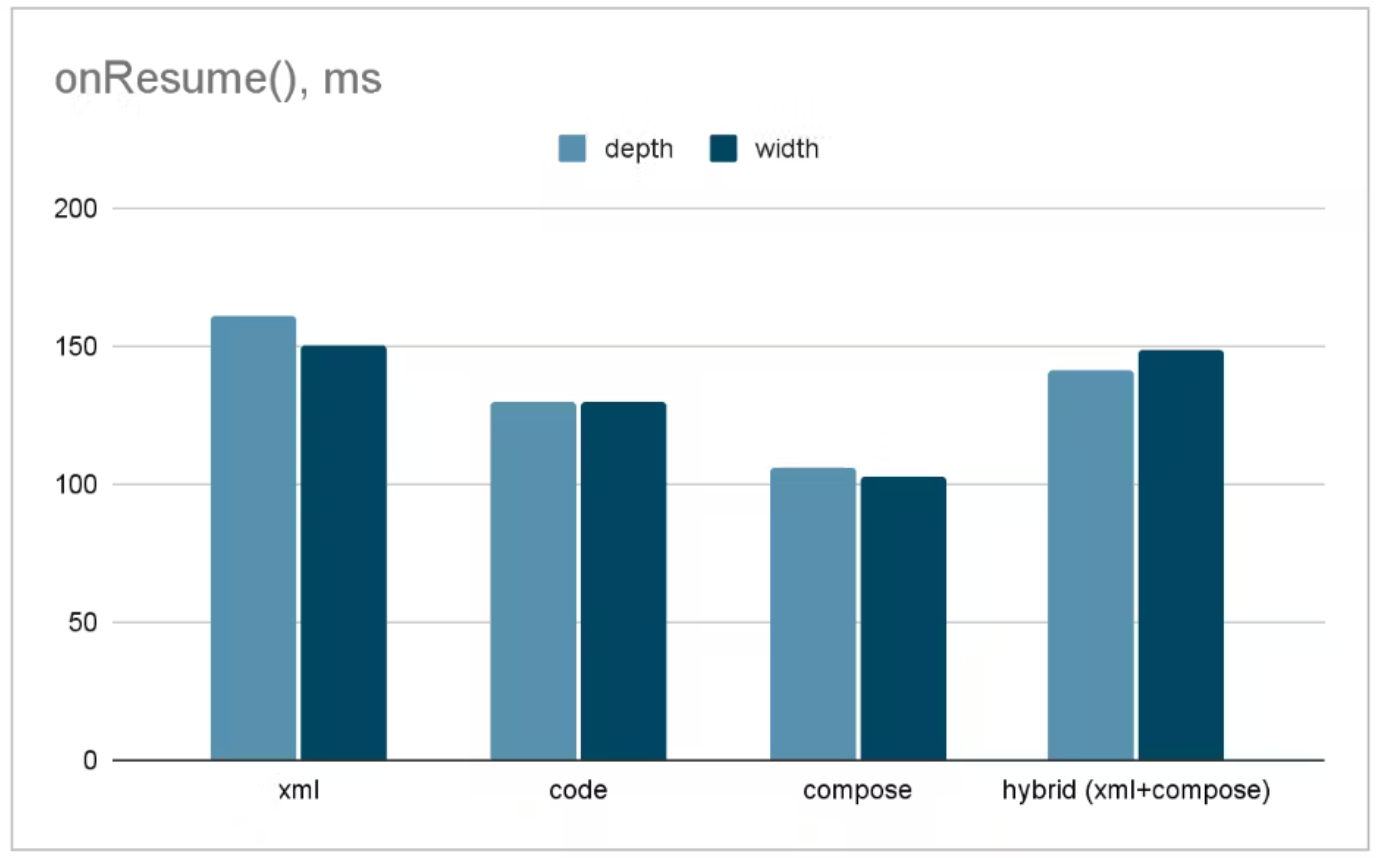
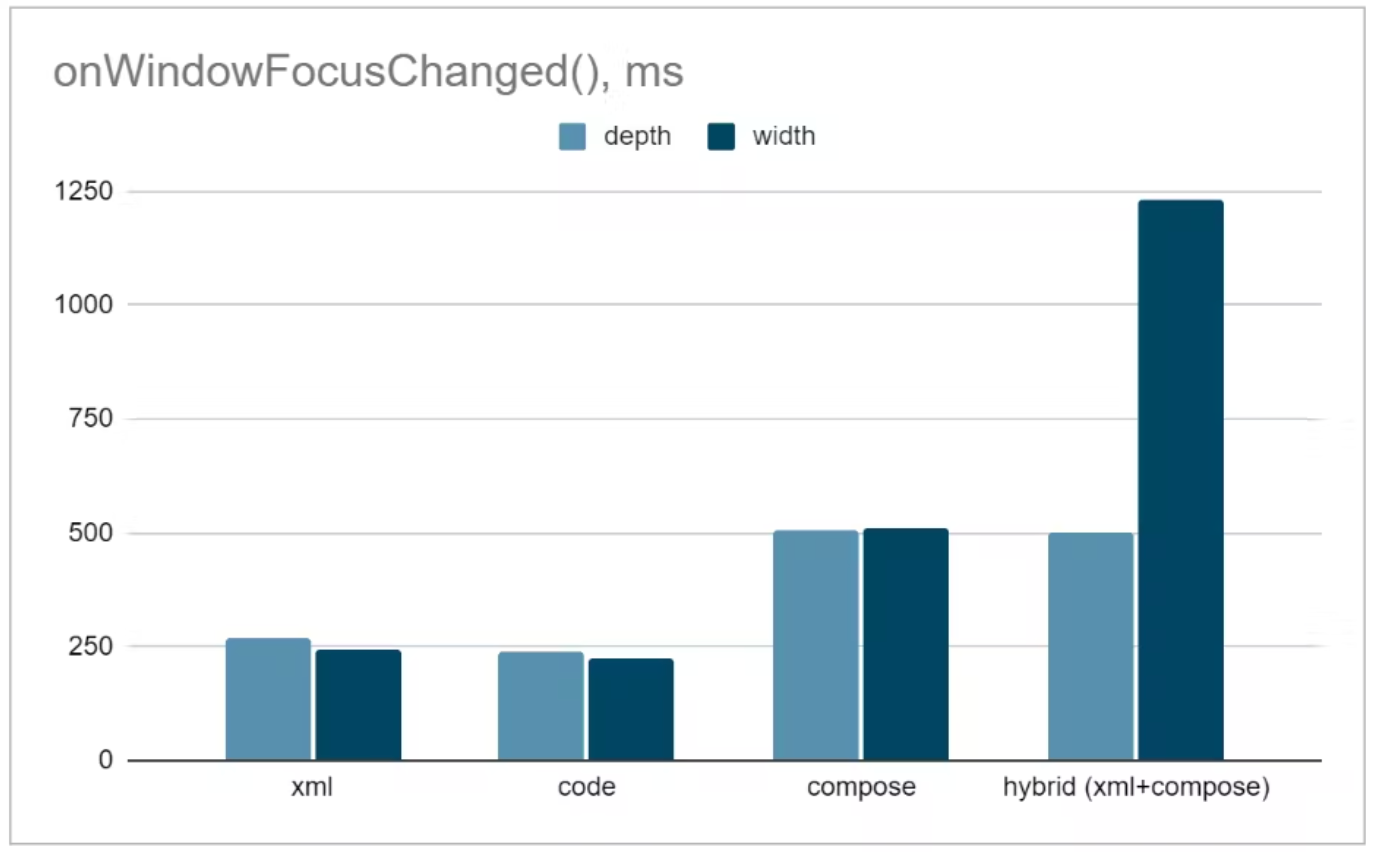
We are not suggesting that compose is better than xml in every aspect. For example when it comes to onWindowFocusChanged compose x2 times slower than xml.
Test results on xml vs compose rendering speed:


Xml vs Compose onResume render speed

Xml vs Compose onResume render speed

Xml vs Compose onWindowFocusChanged render speed

Xml vs Compose onWindowFocusChanged render speed

What is Jetpack Compose

Android introduced Jetpack Compose, a new declarative UI toolkit for building native user interfaces. It simplifies and accelerates UI development on Android since it requires less code, has great debugging tools and uses Kotlin APIs.

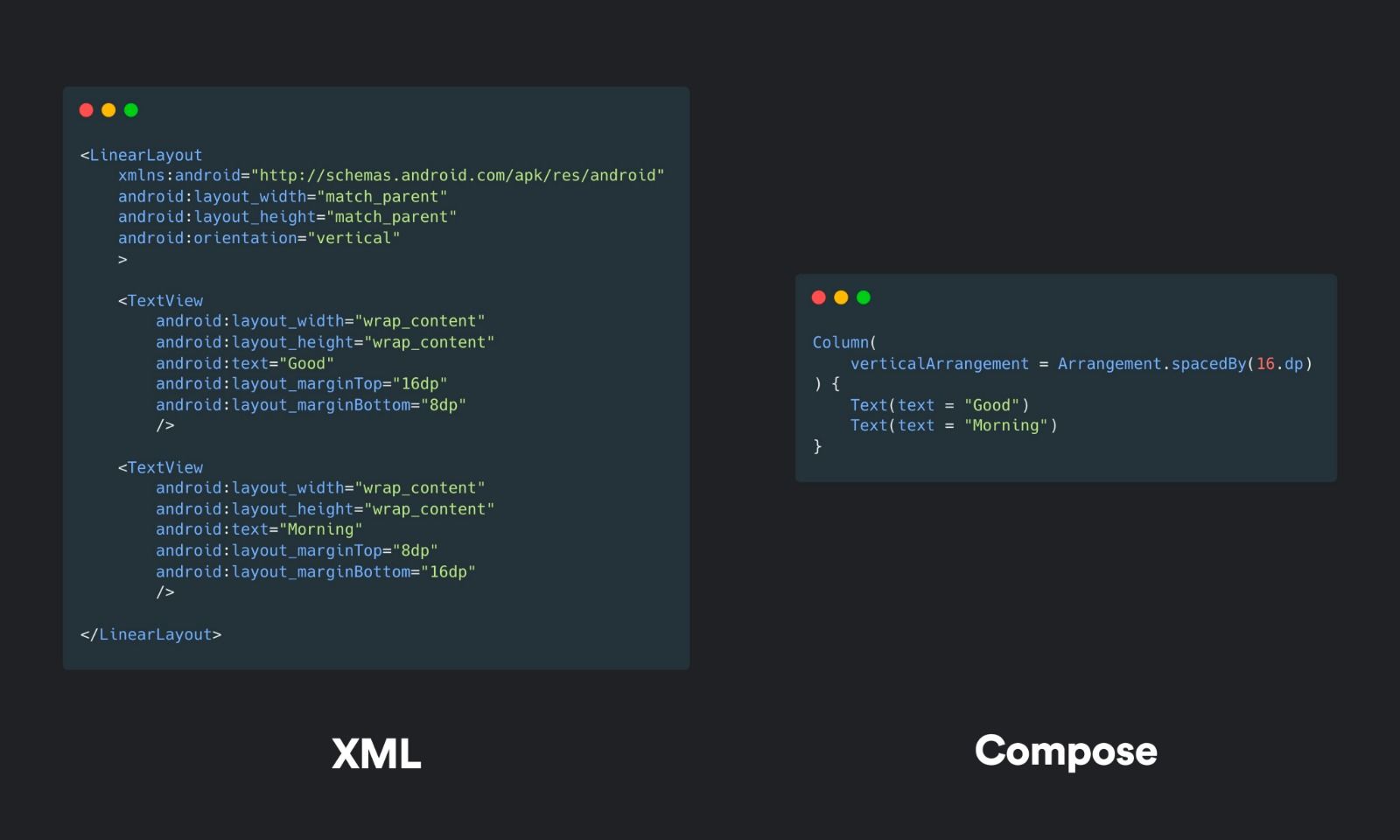
An XML interface can be rewritten with Compose with fewer lines of code:

Xml vs Compose

Xml vs Compose

If we managed to get your attention up to this point, let’s learn the basics of Compose.

Compose Basics

1- Composable Functions

With compose, we define our interfaces as functions. We’ll look at how our beloved “Hello Android” example is implemented with Compose.

First, we write our composable function(this step is not mandatory but getting a hang of it will make your development much easier):

@Composable // Annotation to say: "This is a composable function"
fun ShowText(name: String) {
    Text(text = "Hello $name!") //Composable Text function
}

Now let’s call this function in our MainActivity:

class MainActivity : ComponentActivity() {
    override fun onCreate(savedInstanceState: Bundle?) {
        super.onCreate(savedInstanceState)
        //Since Compose is not derived from Android views,
        //Instead of setContentView we use setContent 
        setContent {
            ShowText("Android")
            //As a Different Approach:
            //Text(text = "Hello Android!")
        }
    }
}
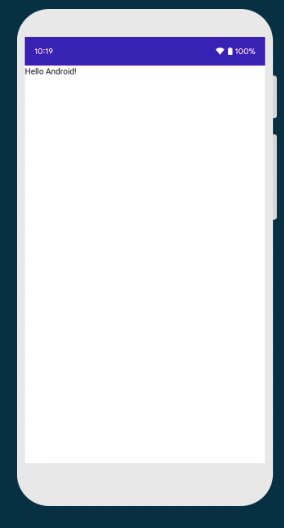
Run Output

Run Output

And that’s it! Wedidn’t had to create any xml file, didn’t use any binding and printed “Hello Android” on the emulator with less than 10 lines of code.

2- Layouts

Layouts are one of the essential components of the UI development.

Let’s take a look at how Compose lays out UI elements:

Most basic compose layout components are Column, Row and Box. But what are these?


Name of the ComponentHow it Works
ColumnInserts item from up to down
RowInserts item from left to right
BoxInserts item on top of each other

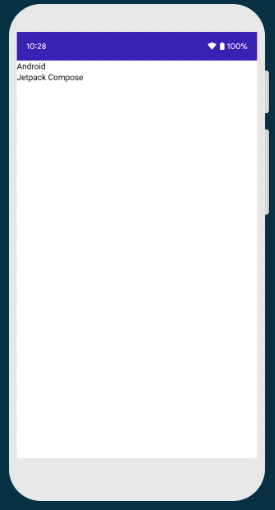
If we put two Text in a column:

@Composable
fun TwoText() {
    Column {
        Text(text = "Android")
        Text(text = "Jetpack Compose")
    }
}
Run Output

Run Output

You might say: “It is easy to show two texts 😄 . Show me how RecyclerView works in Compose.” Here’s how:

3- RecyclerView in Compose

Forget adapters, this is how you define a recyclerview in Compose:

@Composable
fun ComposeRecyclerView(messages: List<String>) {
    LazyColumn {
        items(messages) { message ->
            Text(message)
        }
    }
}

LazyColumn will take care of everything for us 😁

4- Theming in Compose

Material Design is announced as a design language by Google in 2014. We won’t get into details of it in this article. However, we would like to show some of the changes between the Material Design versions:

Material Design vs Material Design 2

Material Design vs Material Design 2

Icons for Material Design vs Material Design 2

Icons for Material Design vs Material Design 2

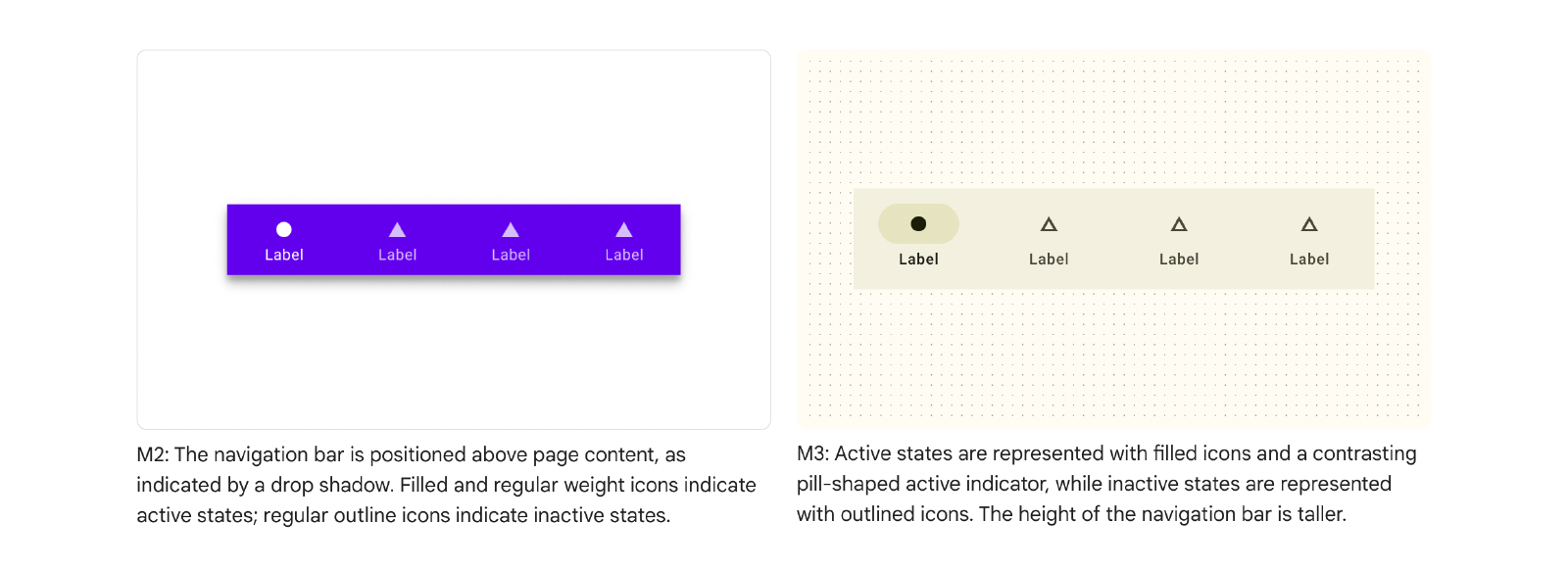
Navigation Bar for Material Design 2 vs Material Design 3

Navigation Bar for Material Design 2 vs Material Design 3

Buttons in Material Design 2 vs Material Design 3

Buttons in Material Design 2 vs Material Design 3

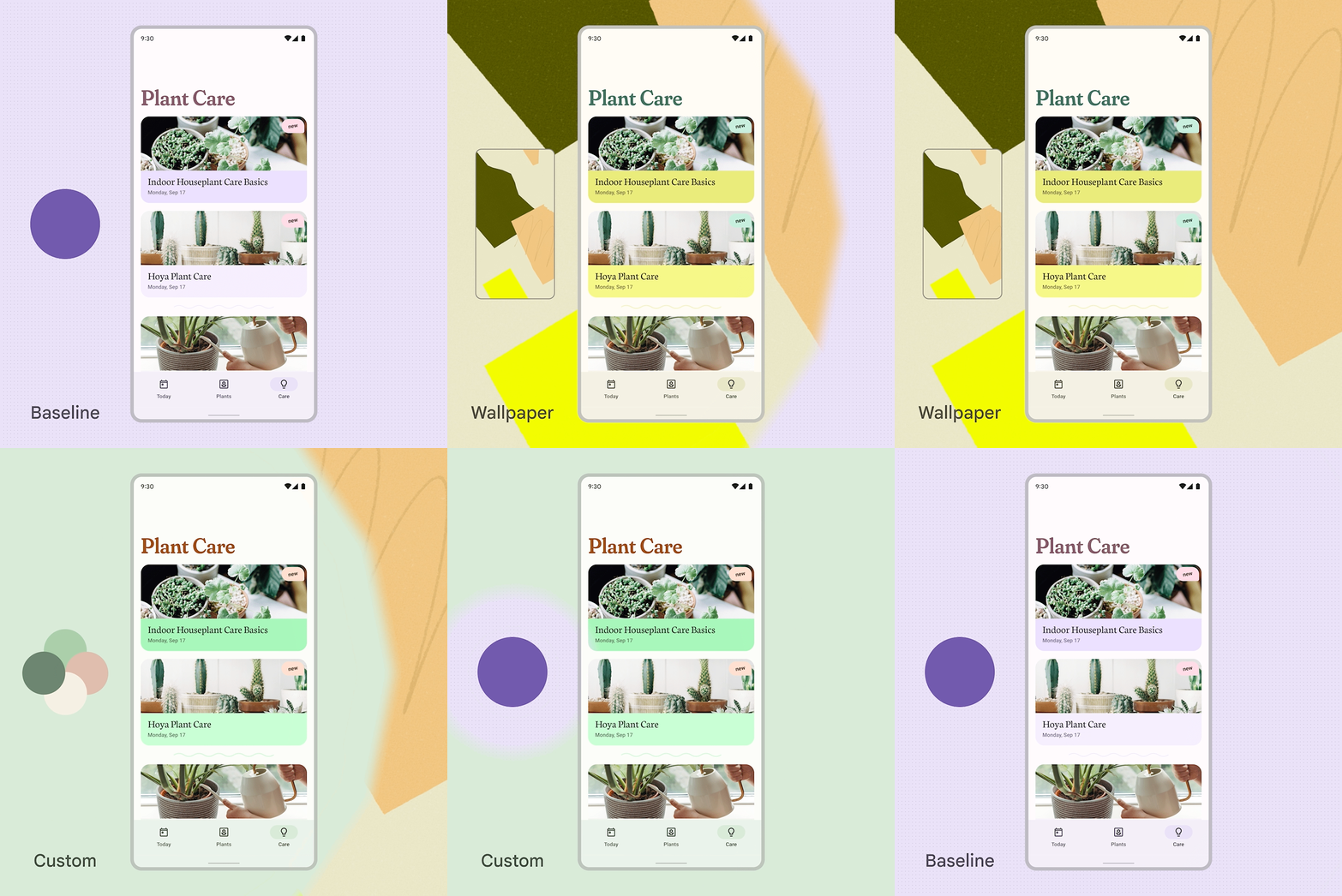
With Material Design 3, an App’s theme can change dynamically according to the wallpaper colors or user’s requests:

Material demo animation

Material demo animation

Cool isn’t it? 😄 Since Compose updates UI automatically, supporting this feature is much easier than supporting on xml structure.

Conclusion

In this article, we learned what is jetpack compose, why it is being seen as the future of native android UI development and its basics. If you want to dive deeper in Compose world, you can check out our upcoming Compose article series and Compose documentation:
the compose documentation page
.

What’s Next?

References

  1. Butter Knife
  2. Kotlin Synthetic
  3. Data Binding
  4. View Binding
  5. View Binding
  6. Xml vs Compose
  7. Jetpack Compose
  8. Material Design vs Material Design 2
  9. Material Design 2 vs Material Design 3
  10. Material Design 3