Posts

Automatic Code Signing for iOS

Automatic Code Signing for iOS

Code signing is a critical step in the iOS app development lifecycle, ensuring app security and compliance with Apple’s strict requirements. However, the process can be tedious and prone to errors, especially for teams juggling multiple projects. With Appcircle’s Automatic Code Signing feature, this challenge becomes a thing of the past.

Why Automatic Code Signing for iOS Matters

The traditional code signing process often presents the following challenges:
  1. Time-Consuming Configuration: Manually generating and managing certificates, provisioning profiles, and entitlements is both time-intensive and complex.
  2. Human Errors: Misconfigured certificates or missing profiles can lead to build failures, delaying releases.
  3. Scalability Issues: For teams managing multiple iOS projects, maintaining consistency across signing identities becomes a significant hurdle.
These obstacles slow down the development pipeline, adding unnecessary friction to an otherwise efficient CI/CD workflow.

How Appcircle Simplifies iOS Automatic Code Signing

Appcircle’s Automatic Code Signing feature is designed to eliminate the manual steps traditionally involved in iOS code signing. Here’s how it works:
  • Centralized Certificate Management: Store and manage your app code signing certificates securely within Appcircle.
  • Automatic Profile Matching: The platform intelligently matches provisioning profiles and certificates to your build configurations.
  • Error Reduction: Appcircle automatically handles signing configurations, reducing the risk of build errors caused by manual missteps.
  • Team Collaboration: Share signing identities across your team without compromising security or consistency.
For more details, explore the Signing Identities documentation.

Step-by-Step: Setting Up Automatic Code Signing with Appcircle

1. Upload Signing Identities

Start by uploading your Apple Certificates to the Signing Identities module in Appcircle. These assets are stored securely and made available across all your projects.

2. Configure Your Build Profile

Select your iOS project and link it to the appropriate signing identities. Appcircle’s intelligent matching ensures the correct certificates and profiles are used for every build.

3. Enable Automatic Signing

In your build workflow, activate the auto code sign option, choose the certificates you would like to sign the app with. Appcircle will take care of configuring the entitlements and signing processes dynamically.

4. Monitor and Debug

View detailed signing logs and reports directly within Appcircle. This transparency allows developers to troubleshoot any signing issues with ease.
For more information about Auto Code Signing, please visit our technical documentation.

Real-World Benefits of Appcircle’s Automatic Code Signing

  • Time Savings: Eliminate manual steps, allowing your team to focus on core development tasks.
  • Improved Security: Securely manage certificates and profiles with robust encryption.
  • Consistency: Ensure seamless signing processes across all team members and projects.
  • Scalability: Easily handle signing for multiple apps and configurations without additional overhead.

Integrating Code Signing into a Seamless CI/CD Workflow

Appcircle’s Automatic Code Signing integrates seamlessly into your CI/CD workflows. By automating builds, testing, and deployments, the platform provides end-to-end support for iOS app development. Whether you’re building for production or internal testing, Appcircle ensures that code signing is no longer a bottleneck. And if you’re comparing Xcode Cloud vs Appcircle, our detailed blog post on Xcode Cloud explains why Appcircle offers more flexibility and easier certificate management for teams of all sizes.

Conclusion

Managing iOS code signing has never been easier. With Appcircle’s Automatic Code Signing feature, you can streamline your workflows, reduce errors, and ensure compliance with Apple’s stringent guidelines. Empower your team to focus on delivering high-quality apps while Appcircle handles the complexities of code signing.
Streamlining Xcode Project Management with Appcircle and Tuist Integration

Streamlining Xcode Project Management with Appcircle and Tuist Integration

Managing complex Xcode projects can be challenging as teams grow. Manual project setups and .xcodeproj conflicts often create bottlenecks, leading to inconsistencies and wasted time. Tuist, a command-line tool for Xcode project automation, simplifies this process by generating and managing project files through code. When combined with Appcircle’s CI/CD capabilities, teams can streamline their workflows, reducing conflicts and automating project setup. This article covers how Appcircle’s Tuist integration enables seamless project generation and management, keeping developers focused on code and collaboration rather than configuration.

What is Tuist?

Tuist automates Xcode project generation by defining configurations in a centralized Project.swift file. This approach replaces manual .xcodeproj files with an automated, scalable setup. Key features include:
  • Automated Project Structure: Consistent, reusable project files generated with each update.
  • Minimized Conflicts: Fewer merge conflicts through automated project configuration.
  • Support for Modular Projects: Simplifies handling of complex multi-module projects, regardless of size.
By integrating Tuist with Appcircle, iOS teams can automate both project generation and workflow processes in a single CI/CD environment, eliminating repetitive tasks. For more information about Tuist, please visit Tuist Documentation.

Leveraging Appcircle for Seamless Tuist Integration

With Appcircle, integrating Tuist is as simple as adding specific components to your workflow. Appcircle’s Tuist Install and Tuist Commands streamline the setup, build, and test phases, making Tuist even more powerful within an automated pipeline.

Tuist Install with Appcircle: Automating Project Setup

Appcircle’s Tuist Install component simplifies initial setup and version control for Tuist projects. Once your repository is cloned, Appcircle automatically runs tuist generate, creating .xcodeproj and .xcworkspace files on demand. Key benefits include:
  • Automated Project Generation: Quickly sets up project files with the tuist generate command.
  • Version Management: Supports specifying Tuist versions directly.
  • Integrated CI/CD Workflow: Works seamlessly with other Appcircle iOS build steps, enhancing the CI/CD pipeline.

Running Tuist Commands with Appcircle

Appcircle’s Tuist Commands component supports a range of Tuist CLI commands for flexible project management. Running commands like tuist build or tuist test within Appcircle can replace other build steps, optimizing the workflow. Benefits of using Tuist Commands in Appcircle include:
  • Streamlined Build and Test: Combines Tuist commands to reduce redundancies in testing and building phases.
  • Focused Workflow Control: Allows targeted execution of builds or tests on specific modules.
  • Reduced Complexity: Centralizes commands within Appcircle, making large projects easier to manage across teams.

Why Appcircle and Tuist Make a Powerful Combination

By combining Tuist’s automated project management with Appcircle’s powerful CI/CD platform, iOS teams gain the following advantages:
  • Improved Efficiency: Automated project generation and command execution minimize manual setup and reduce time spent on repetitive tasks.
  • Enhanced Collaboration: Consistent project files ensure all team members work from the same structure, improving alignment and productivity.
  • Optimized CI/CD: A seamless integration that reduces maintenance, keeps project dependencies up-to-date, and automates workflows.

Best Practices for Using Tuist with Appcircle

To get the most out of Appcircle’s Tuist integration, here are some recommended practices to enhance efficiency and keep workflows organized:
  • Configure Project Paths Properly: Use the $AC_TUIST_PATH variable to specify the project directory in Appcircle, keeping workflow paths consistent across team members.
  • Leverage Versioning in Tuist: Specify Tuist versions in Appcircle to prevent compatibility issues, especially when using multiple versions across projects or teams.

Real-World Advantages of Using Appcircle and Tuist Together

Integrating Tuist with Appcircle provides tangible benefits in real-world scenarios:
  • Faster Development Cycles: Automating project file generation and eliminating manual steps speeds up the setup process, freeing developers to focus on feature development.
  • Consistent Builds Across Teams: By automating project configuration, teams work from the same structure, reducing discrepancies and improving collaboration.
  • Scalable Project Management: Appcircle and Tuist provide the foundation for scalable iOS project management, making it easier to manage complex projects with multiple modules or targets.

Conclusion

Appcircle’s integration with Tuist offers iOS teams a powerful solution for simplifying project management, minimizing manual tasks, and enhancing collaboration. With automated project generation, streamlined command execution, and a cohesive CI/CD pipeline, teams can maintain a consistent project structure and focus on delivering quality code. Whether you’re a small team or managing a large, modular project, Appcircle, and Tuist provide the tools needed for efficient, conflict-free workflows.

What’s New in Xcode 14, WWDC22

Hello fellow iOS developers and the ones who use Xcode every single day! I prepared a recap for you about Xcode 14 updates newly announced at #WWDC22.

I love practical improvements and this year there are several improvements for us which will speed up the development and quality so that I wrote this article in the practical improvements perspective.

Laptop lid opening

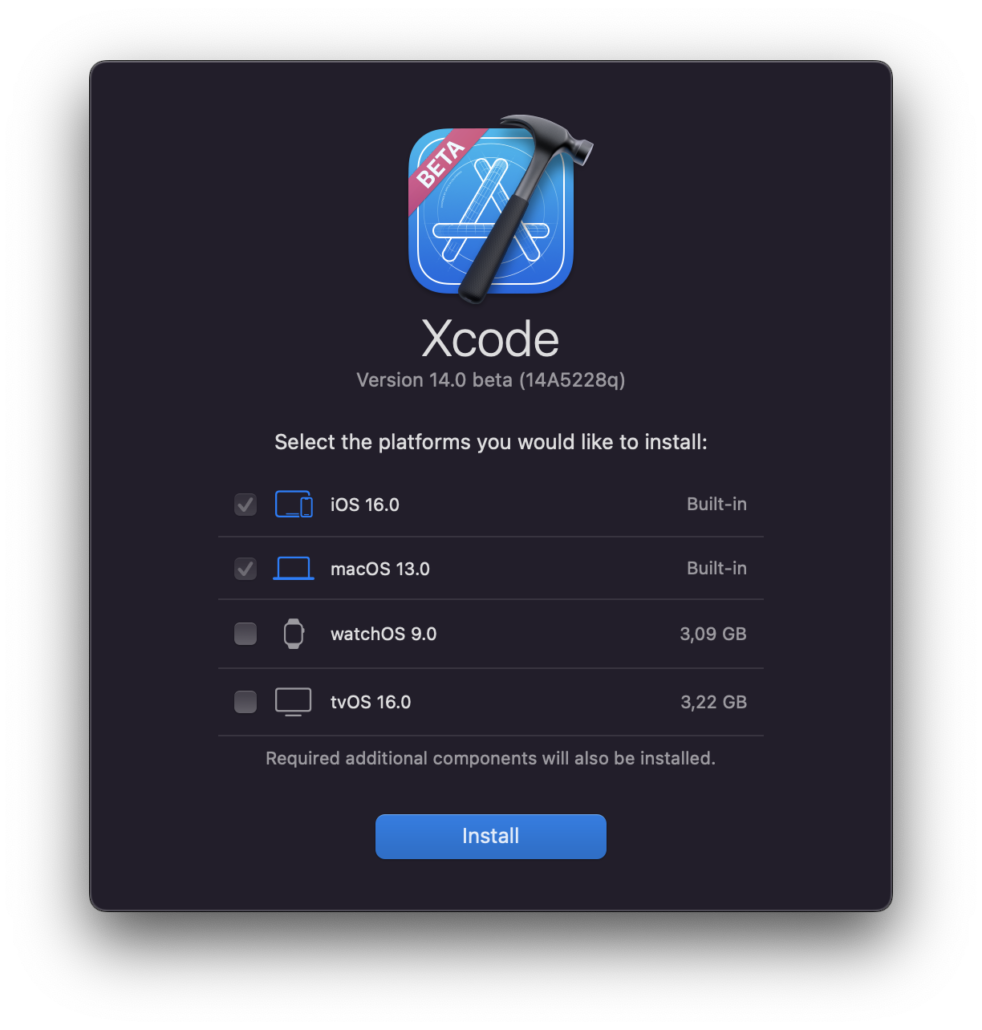
Installing Xcode 14 Beta

Installing Xcode 14 Beta

  • Faster launch
  • 30% smaller in size which lets you to download and install faster!
  • Selection for platform and simulators on the install screen.

AppIcon 🎉

Then; As I an iOS developer, when I create a new application, I still prefer to use https://makeappicon.com. Thanks to the team because it helped me a lot for the last 5 years. It’s logic is to upload an image of your logo with 1024×1024 size and it sends the all images for iOS and Android icons in to my e-mail. There are also another plugins on Figma to cover this needs.

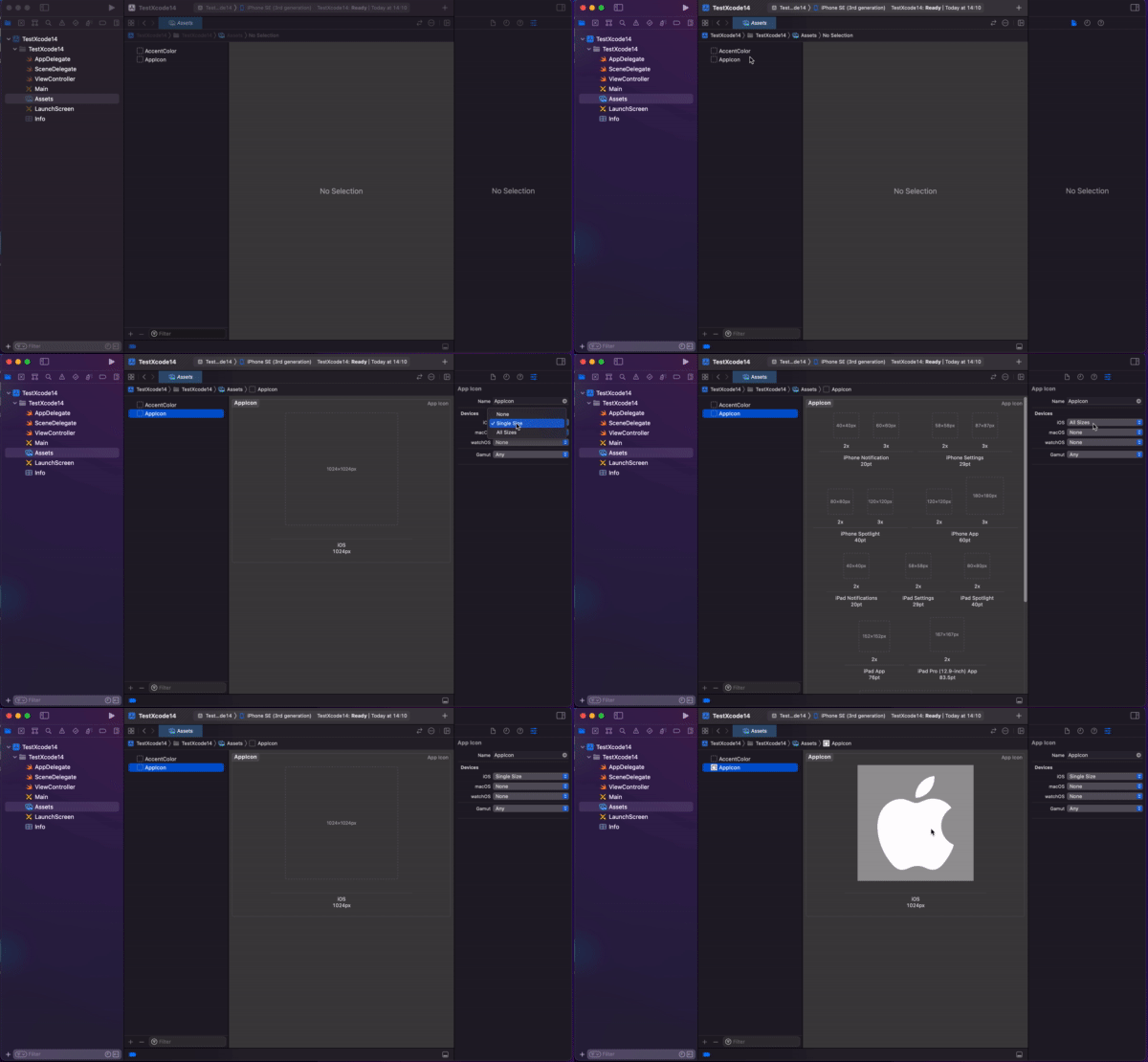
Now; I am sorry to drop using this tool because Apple announced brand new support on Xcode. All you need to do is to add 1024×1024 file in Xcode and select Single Size under Devices at AppIcon. That’s all:)

AppIcon Setting

Source Editor Updates

Pinning Code Structure in the source editor

Then; while I develop some new cool features or fixing a bug I was using scroll up and down to get where I was at.
Now; Apple added a new feature called Code Structure on the editor which shows you directly where you are as a scope. Great, right? Simple but sharp. Also you can enable it.

Source Editor Updates

To toggle this behavior, use “Show: Code structure while scrolling” in Xcode’s Text Editing preferences.

Code Completion

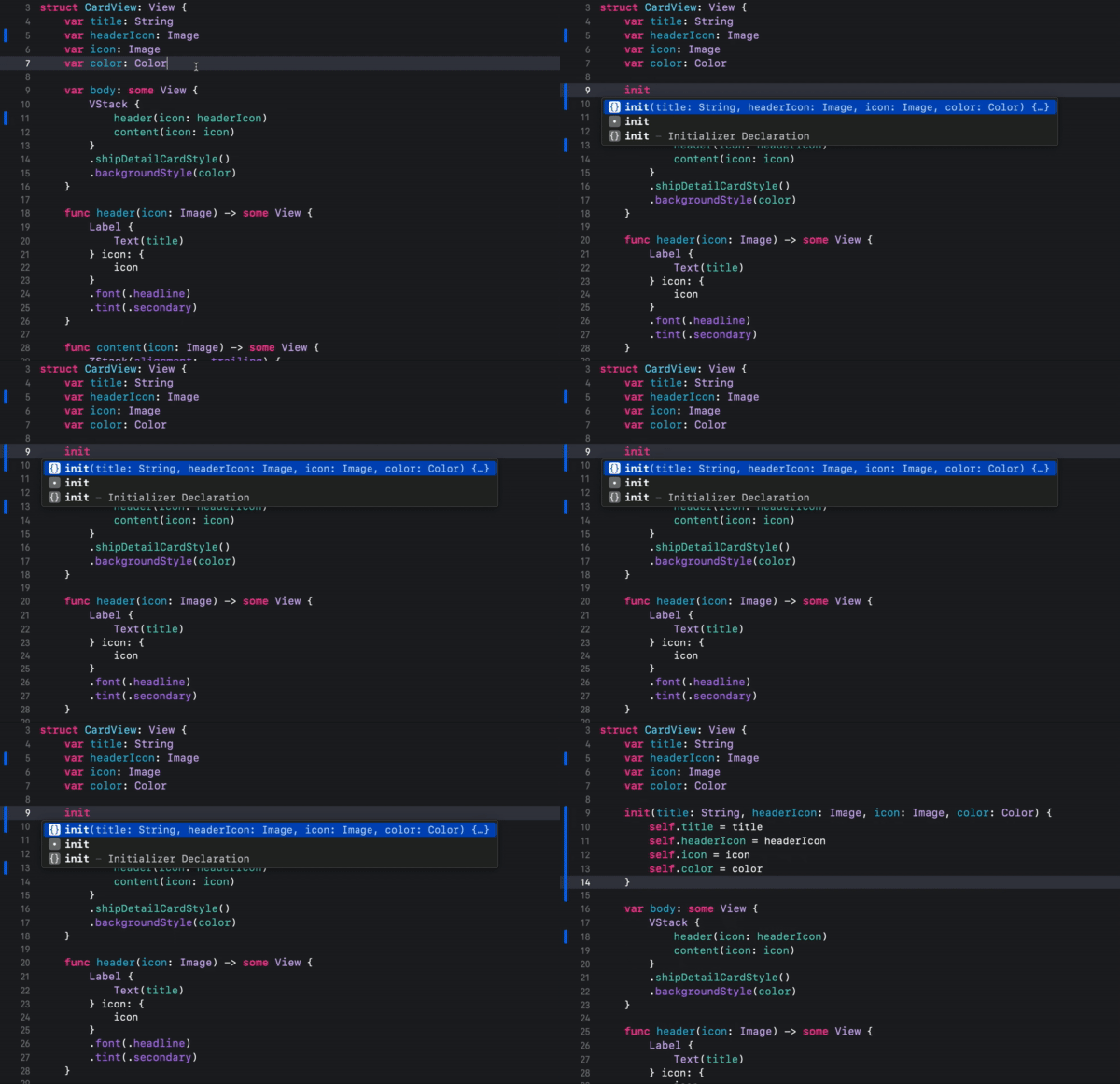
Then; We need to write whole initializers by hand or some code generating tools. I always did go with by hand. And of course it is time taking and sometimes annoying especially if you deal with more important stuff:)

Now; Now Xcode fixes this with intelligent auto completion.

Here is an example:
Code Completion

Also you can use it for codables!

Code completion in Swift now provides snippets for if case statements.
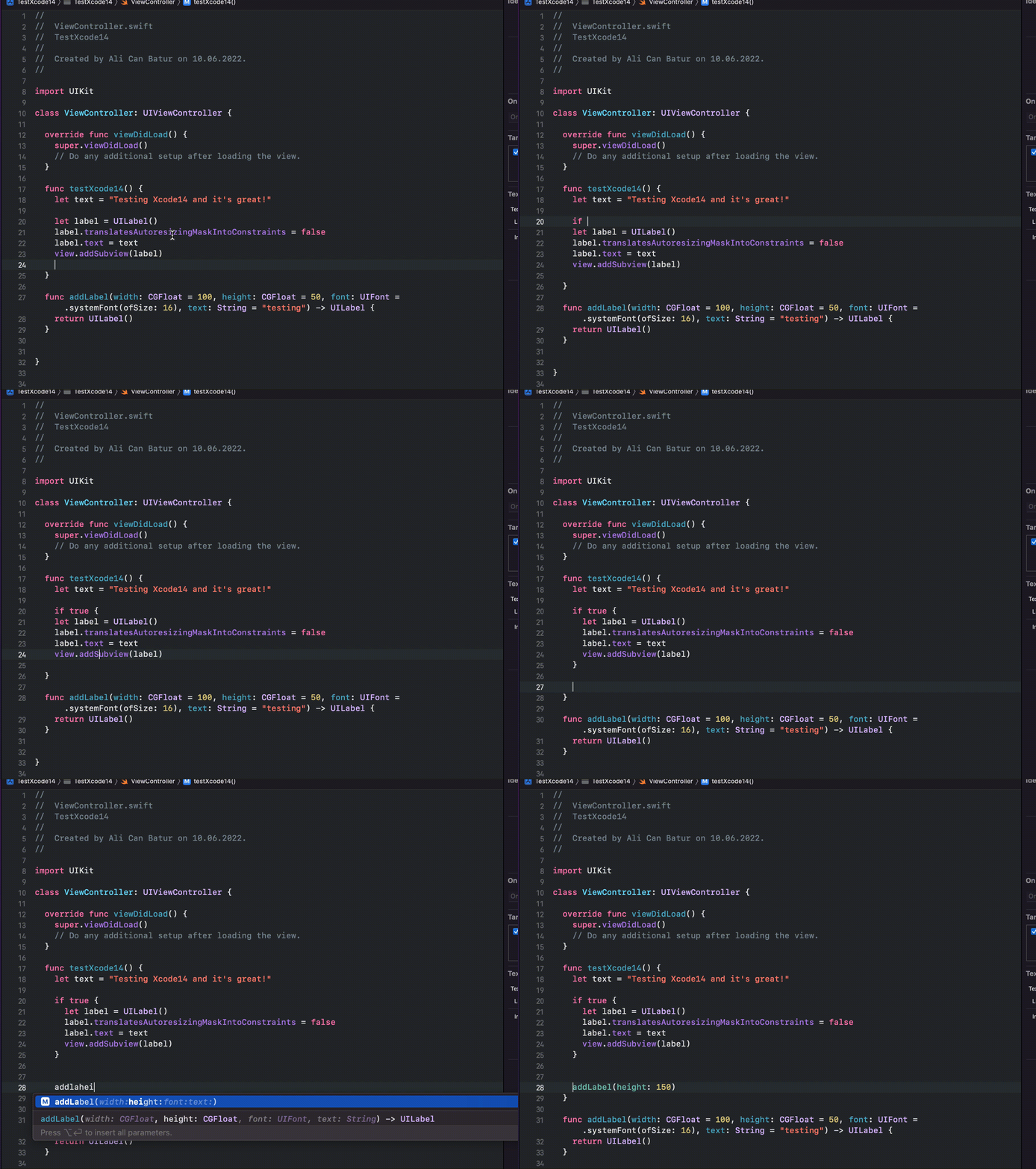
You can now select any combination of default parameters in code completion by typing to match the parameter names.
Improved accuracy of code completion in Swift.

Code Completion

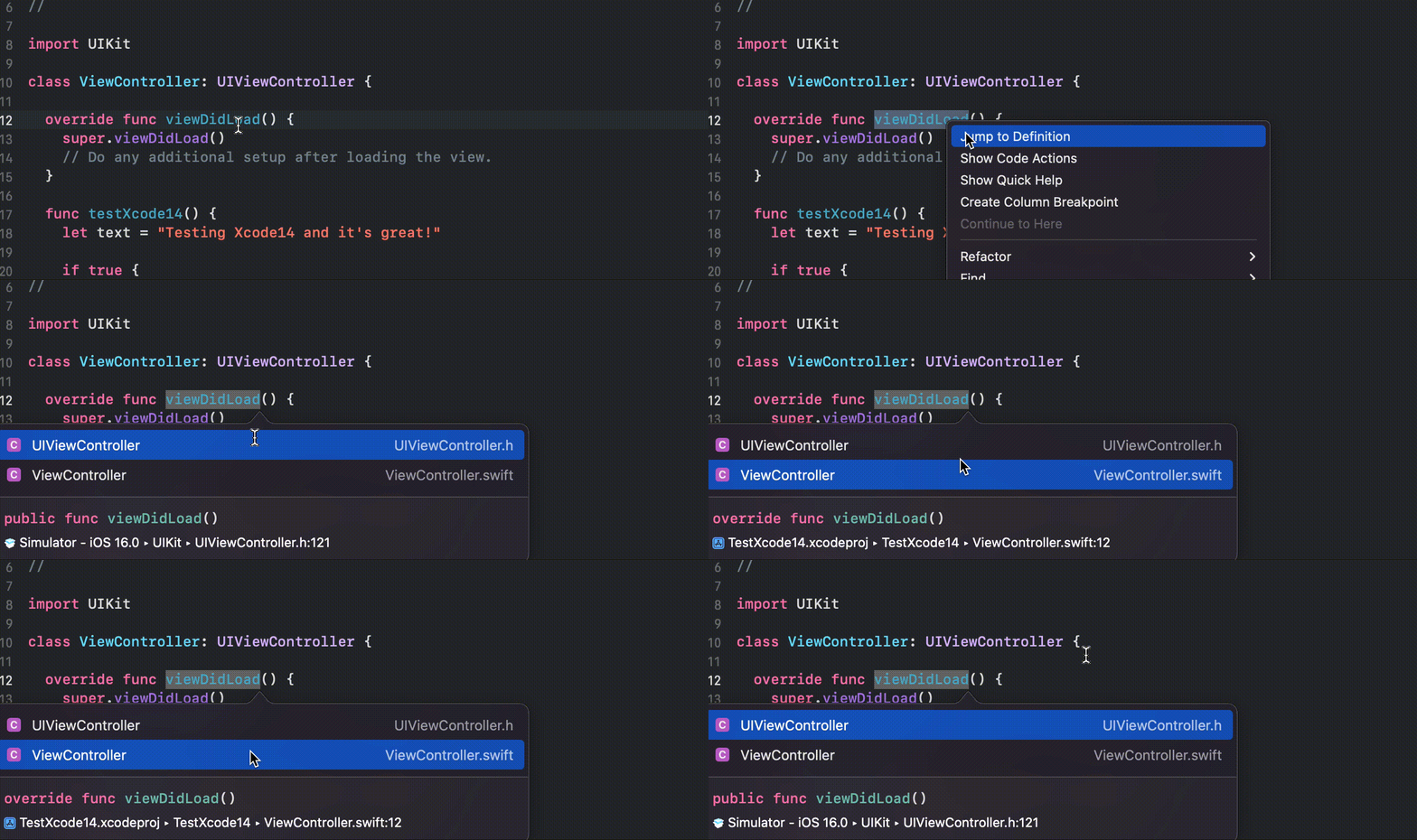
Jump to definition will show code samples

Code Completion

Also now Xcode is now aware of the arguments when auto completes (via Twitter):

Regex

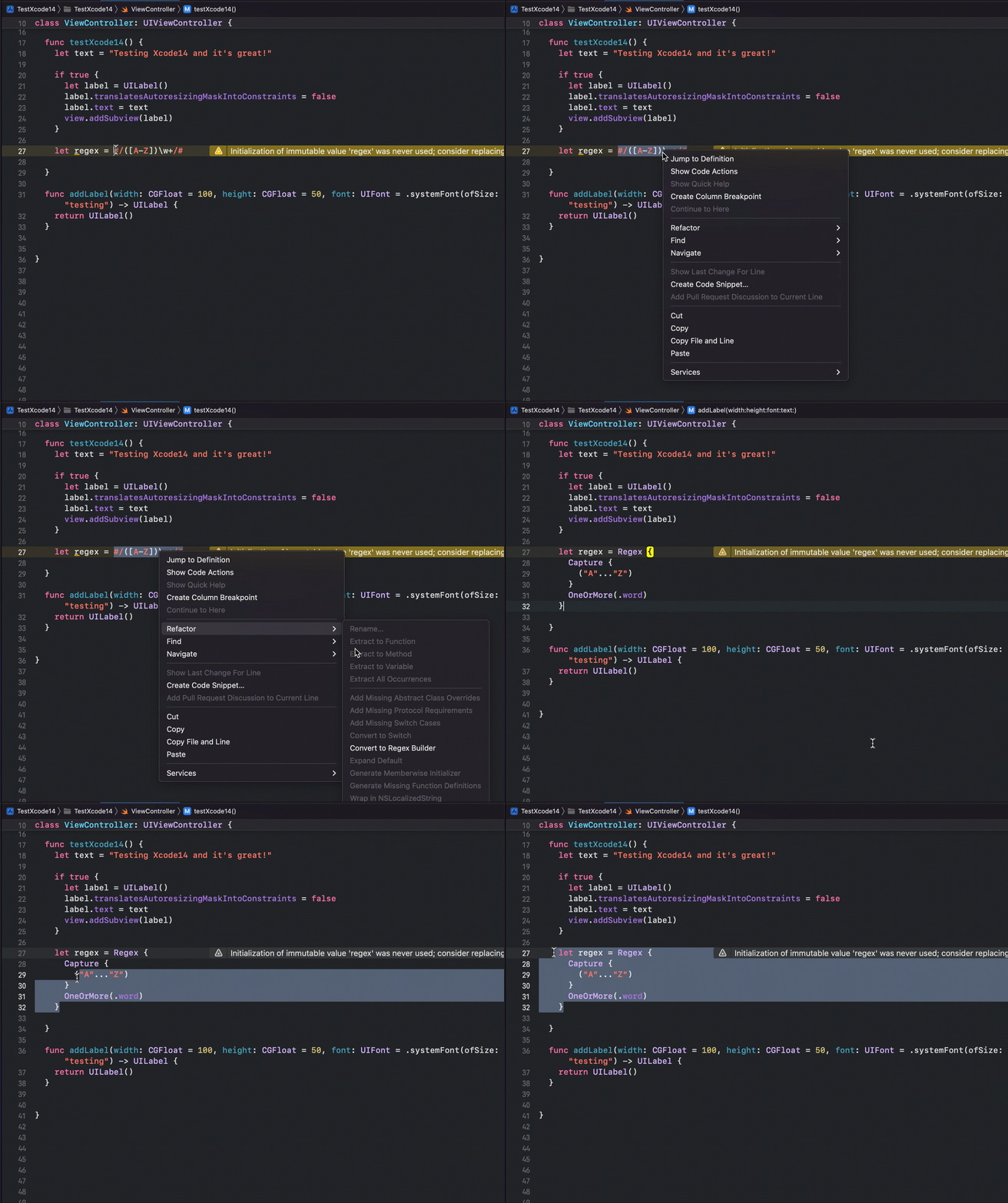
Added syntax highlighting and editing support for Swift Regular Expressions. You can convert your Regex to Swift’s Regex Builder format using Editor > Refactoring > Convert to Regex Builder.

Regex

SwiftUI Live Previews

Interactivity

Then; We were enabling interactiveness of the Preview Canvas with a button tap.

Now; Live Previews’ Canvas is interactive by default. So the changes are immediately live with the actions.

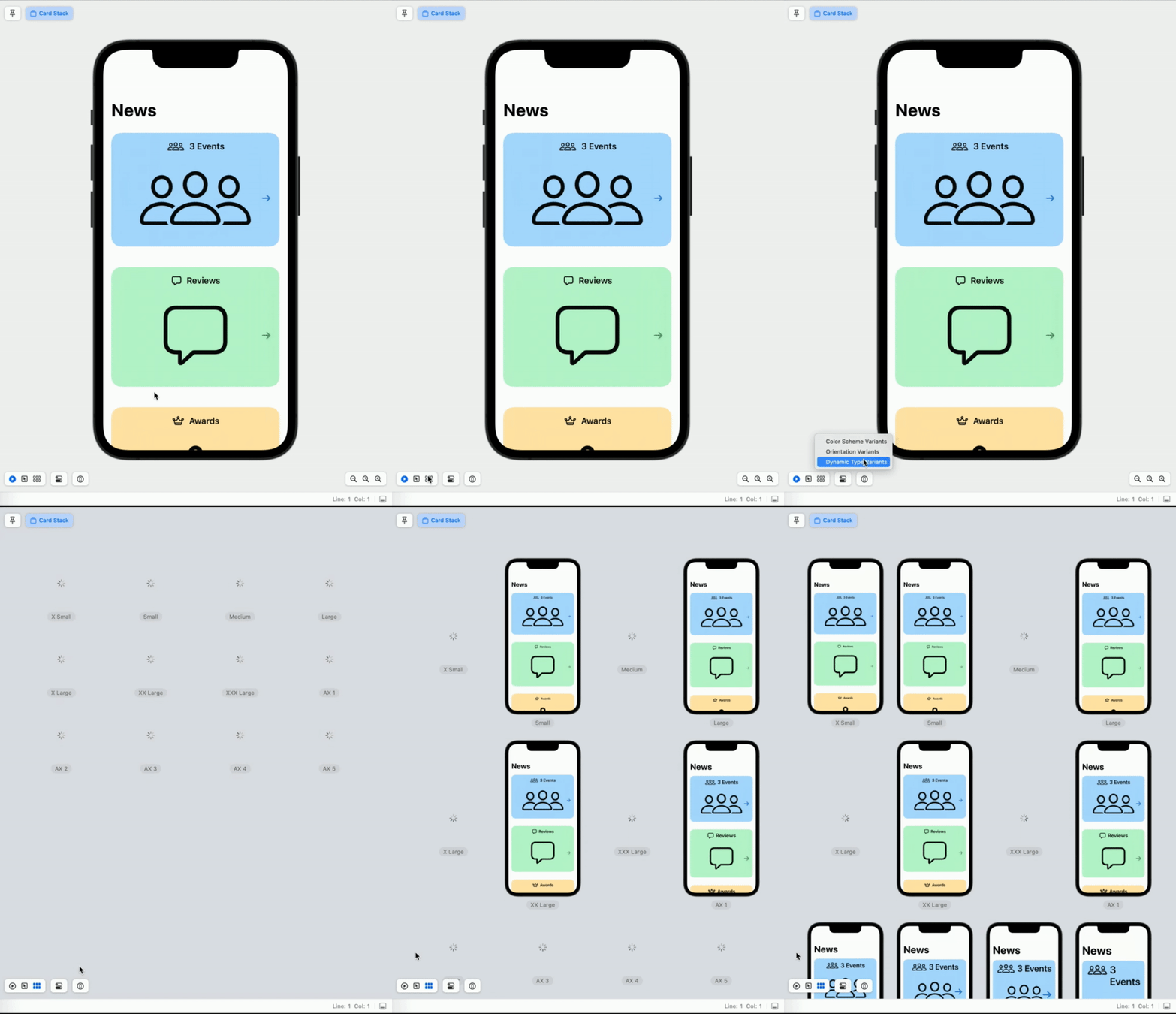
Preview Variants

There is a new control for additional variants to check without writing code.

It lets us to vary color schemes, text size, device orientations. Whenever you make your change, you will be able to see all variants. It did need some coding to have this support before.

SwiftUI Live Previews

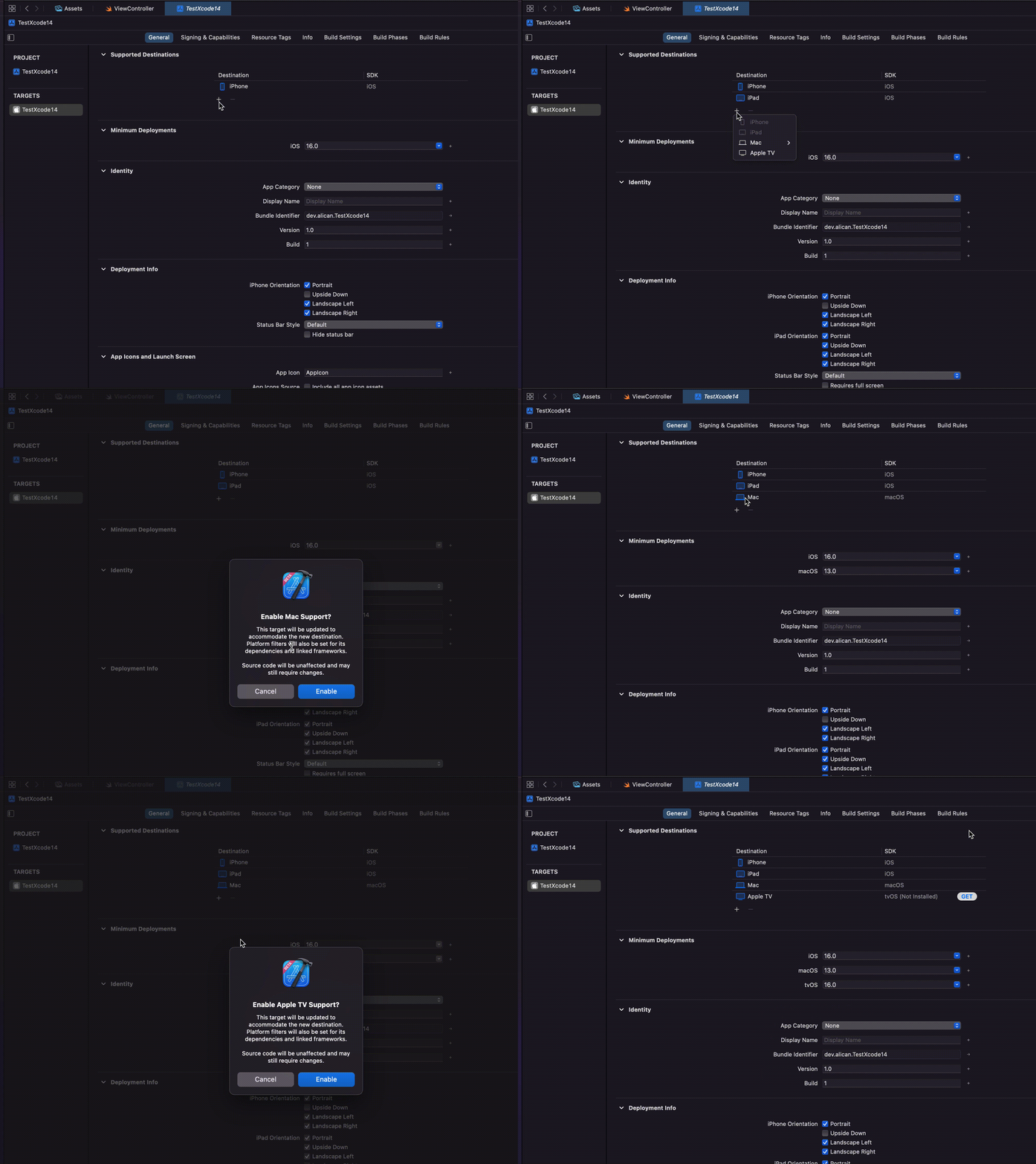
Single Target

Now Xcode will work with only one single target to support macOS, iPadOS, iOS.

Single Target

Build System

Apple says Xcode 14 has %25 more build speed.

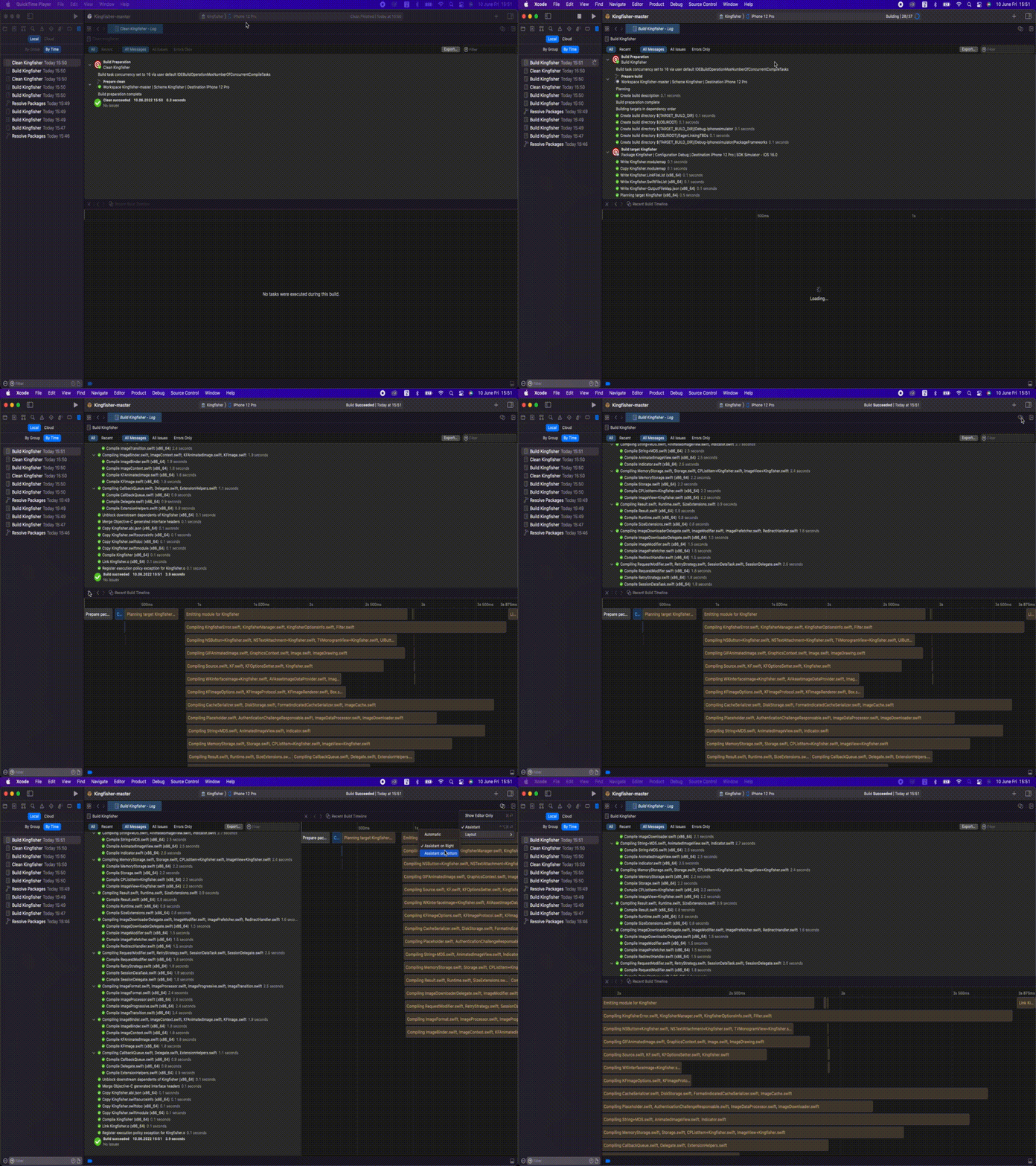
Build Timeline

I like this new feature in Xcode. It lets us to see the orders and how much time libraries and dependencies take while building our project. Let me show you how to enable it using Kingfisher repo.

Build System

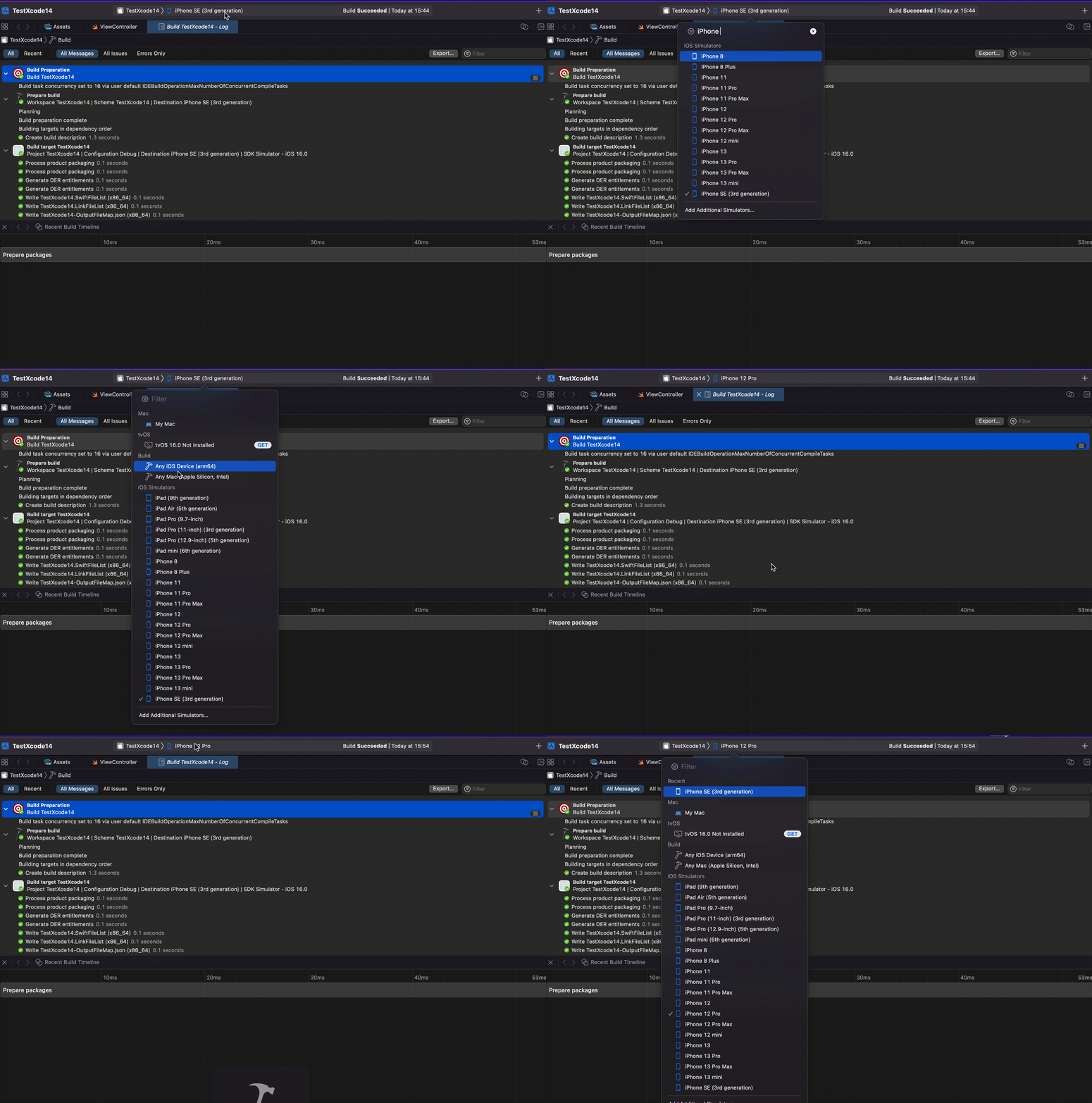
Did you notice the change on New Run Destination Chooser?

Now Xcode support search feature in Run Destination Chooser along with displaying recent devices list.
Run Destination Chooser

More

App intents, debugging, documentation, instruments, interface builder and more have been announced this year. To check more details; https://developer.apple.com/documentation/xcode-release-notes/xcode-14-release-notes

To download latest Xcode 14: https://developer.apple.com/download/applications/

If you like my content and want to reach you can always drop a DM on twitter https://twitter.com/alicanbatur

Human Readable Xcode Test Results with Slather

Unit testing is invaluable in helping us to identify problems early in the development cycle, both in terms of the implementation and the specification. It also facilitates change, providing confidence that any future changes to the tested code won’t break its expected behavior.

Unit tests are crucial for our project. They help us identify problems early in development. After we have our tests, we need to make sure our test scenarios cover much of our code. Apple defines code coverage as follows:

https://developer.apple.com/library/archive/documentation/DeveloperTools/Conceptual/testing_with_xcode/chapters/07-code_coverage.html

Code coverage is a feature in Xcode that enables you to visualize and measure how much of your code is being exercised by tests. With it, you can determine whether your tests are doing the job you intended.

Although Xcode shows the test coverage nicely, it is hard to visualize and export those results to a human-readable format. Meet Slather. It helps you to convert your test results to different formats such as JSON, HTML, corbura, etc.

Installing Slather

[sudo] gem install slather

Example

Let’s learn the usage of Slather by using an example project. We will create a basic SwiftUI application with a single SwiftPM package called FizzBuzzKit. This framework solves the famous FizzBuzz problem.

The algorithm is defined as below:

Print integers 1 to N, but print ‘Fizz’ if an integer is divisible by 3, ‘Buzz’ if an integer is divisible by 5, and ‘FizzBuzz’ if an integer is divisible by both 3 and 5.

We will create somehow over-engineered FizzBuzzKit. It will print a string according to the given rules. You can see the source code of the class from here

https://github.com/appcircleio/appcircle-sample-slather/blob/main/FizzBuzzKit/Sources/FizzBuzzKit/FizzBuzzKit.swift

We will write unit tests for FizzBuzzKit. Our tests will cover below scenarios

  • Default initializer should have default values for Fizz and Buzz
  • It should return correct values for given numbers
  • Class could be initialized with different numbers and strings
  • Class could be initialized with filter functions besides numbers

It is better to write tests for all those scenarios and check if our code is working for every path.

If you switch your scheme to ‘FizzBuzzKit’ and hit ⌘U you can see the test results. It all passes.

Our test covers all the mentioned scenarios. To be sure that our test covers all the code we’ve written we will check our test coverage.

Here are the steps to use Slather with Xcode and enabling it on our Appcircle workflow:

1. Enable Test Coverage

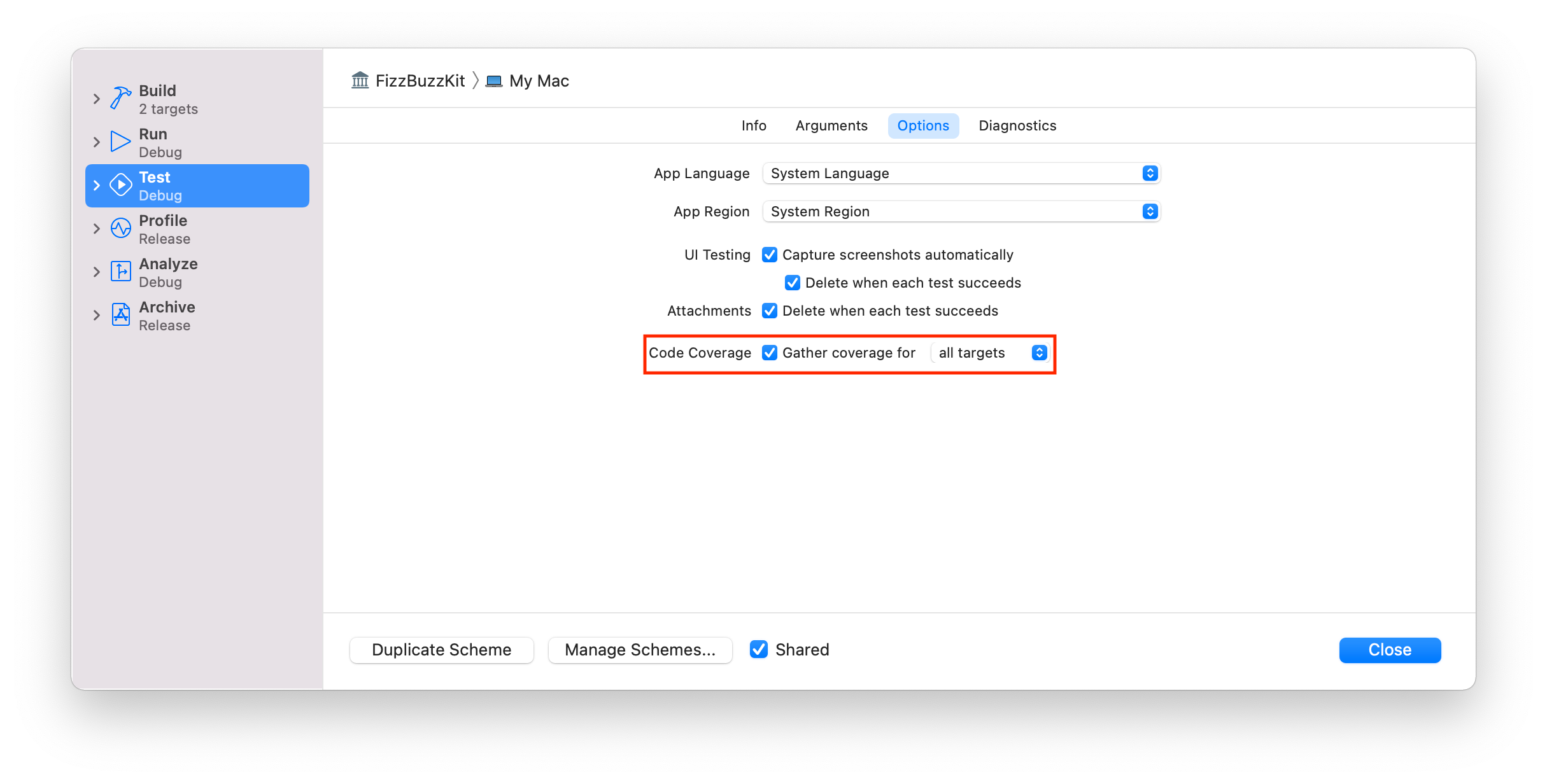
We need to enable test coverage in our project to get test coverage results. First, make sure your project has the following settings enabled.:

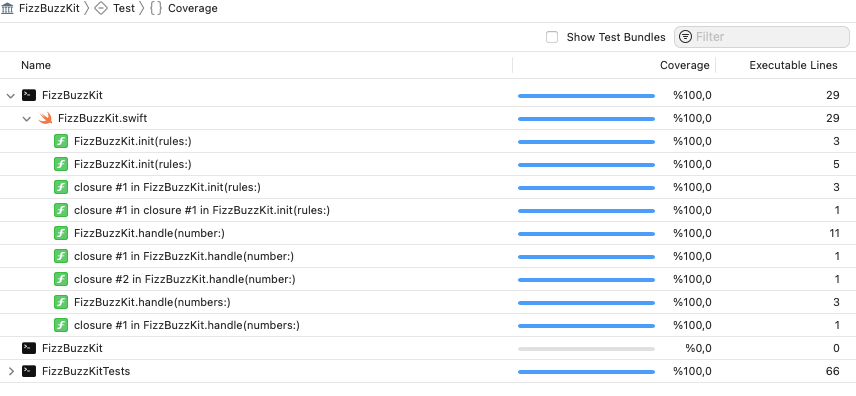
If we run our tests again, and click Coverage button we can see the coverage of our tests.

Coverage results can only be seen on Xcode. To get a human-readable format, we need to use an external tool.

Slather can convert Xcode test results to different formats.

2. Run Slather for Xcode

Go to the project directory open your terminal and run the below command

slather coverage --html --scheme FizzBuzzKit Appcircle.xcodeproj

If you are using workspaces or configs, you can change the command line parameters according to the Slather’s documentation.

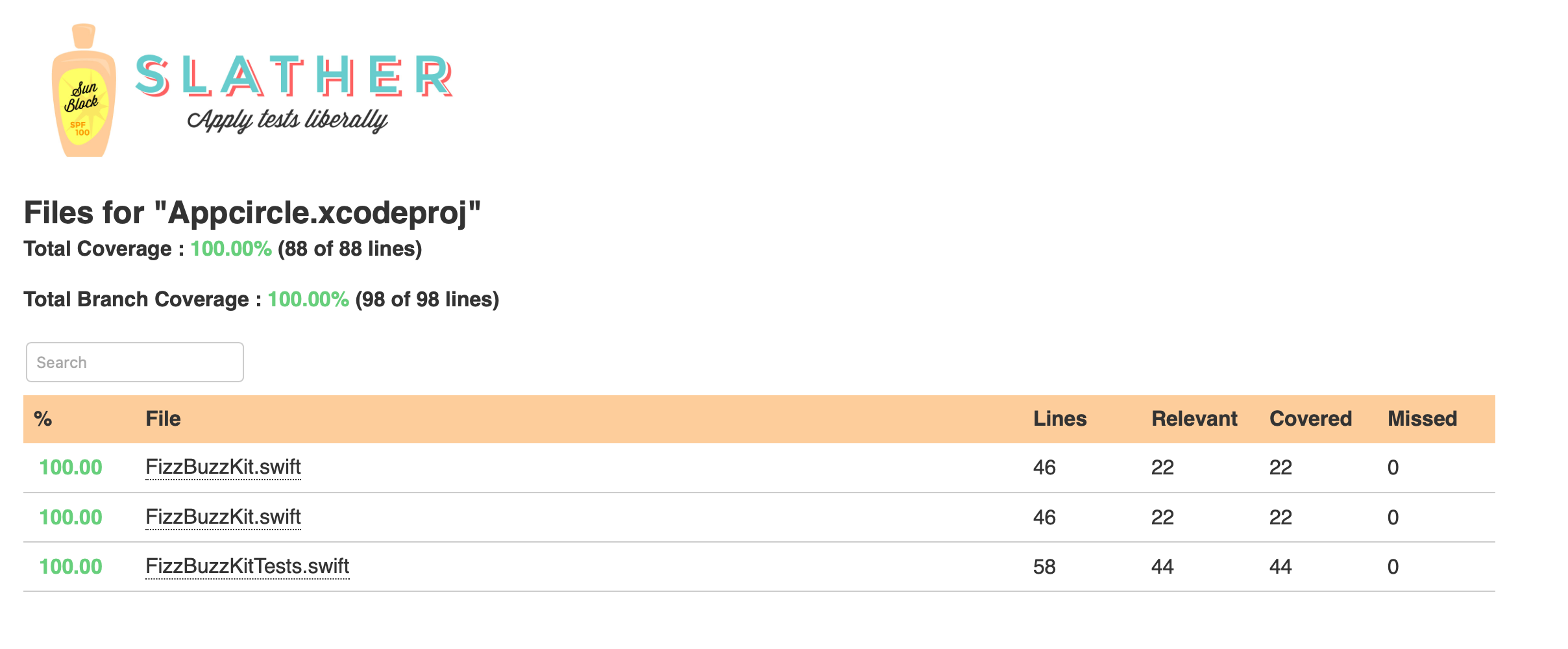
You’ll get a report something like below. If you get an error, try cleaning your DerivedData folder.

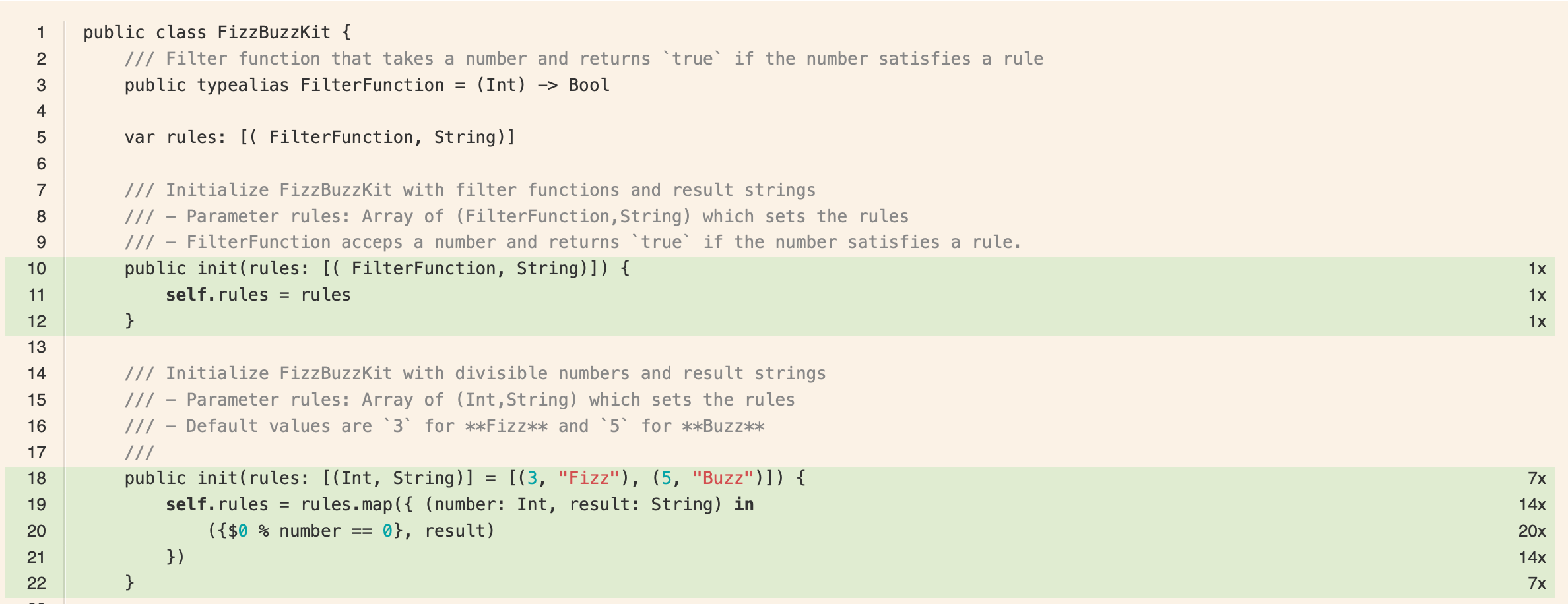
We can click on each file, and see how our test codes were run and how many times they were invoked.

Let’s add this project to Appcircle and see how easy to get test coverage results for our project.

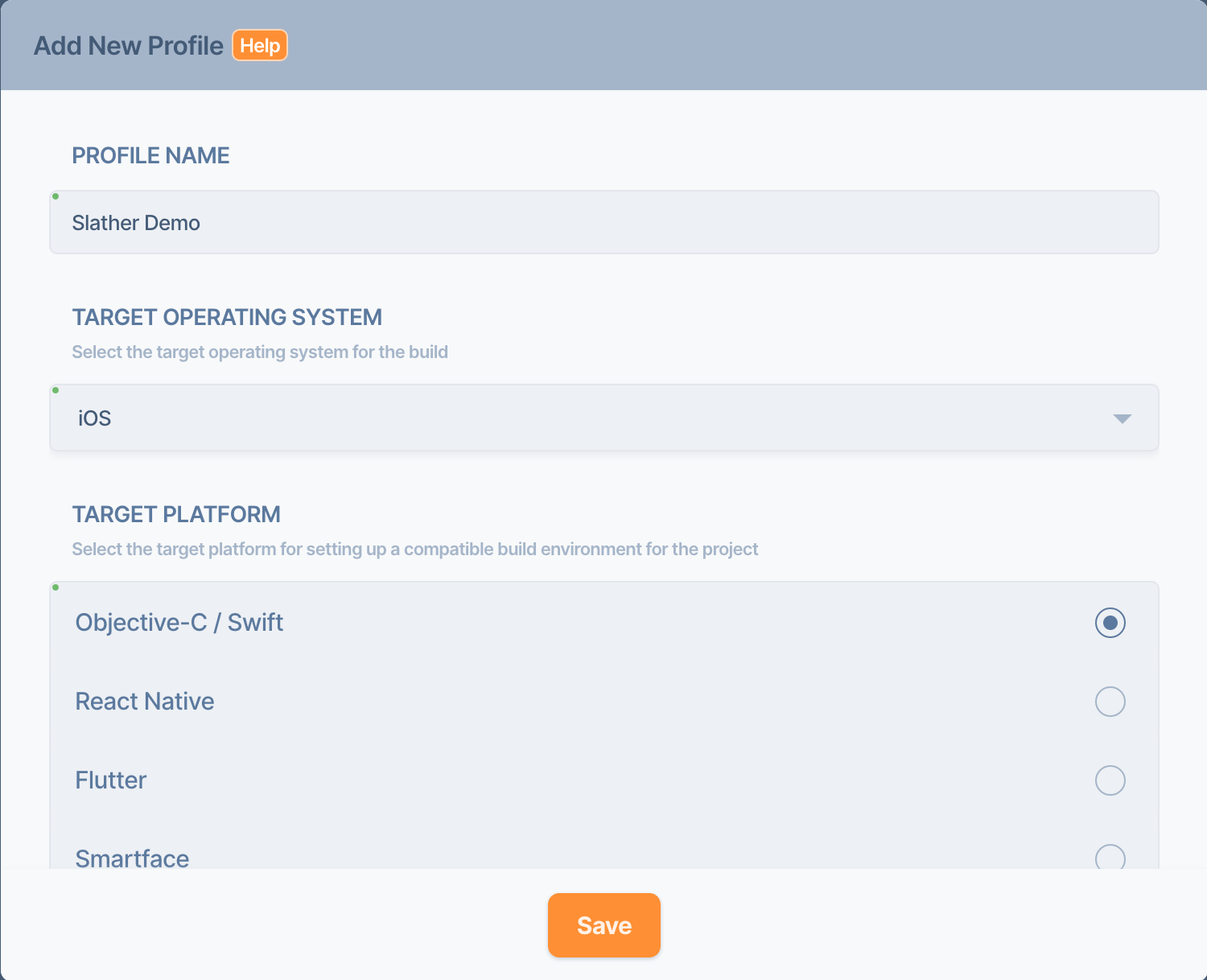
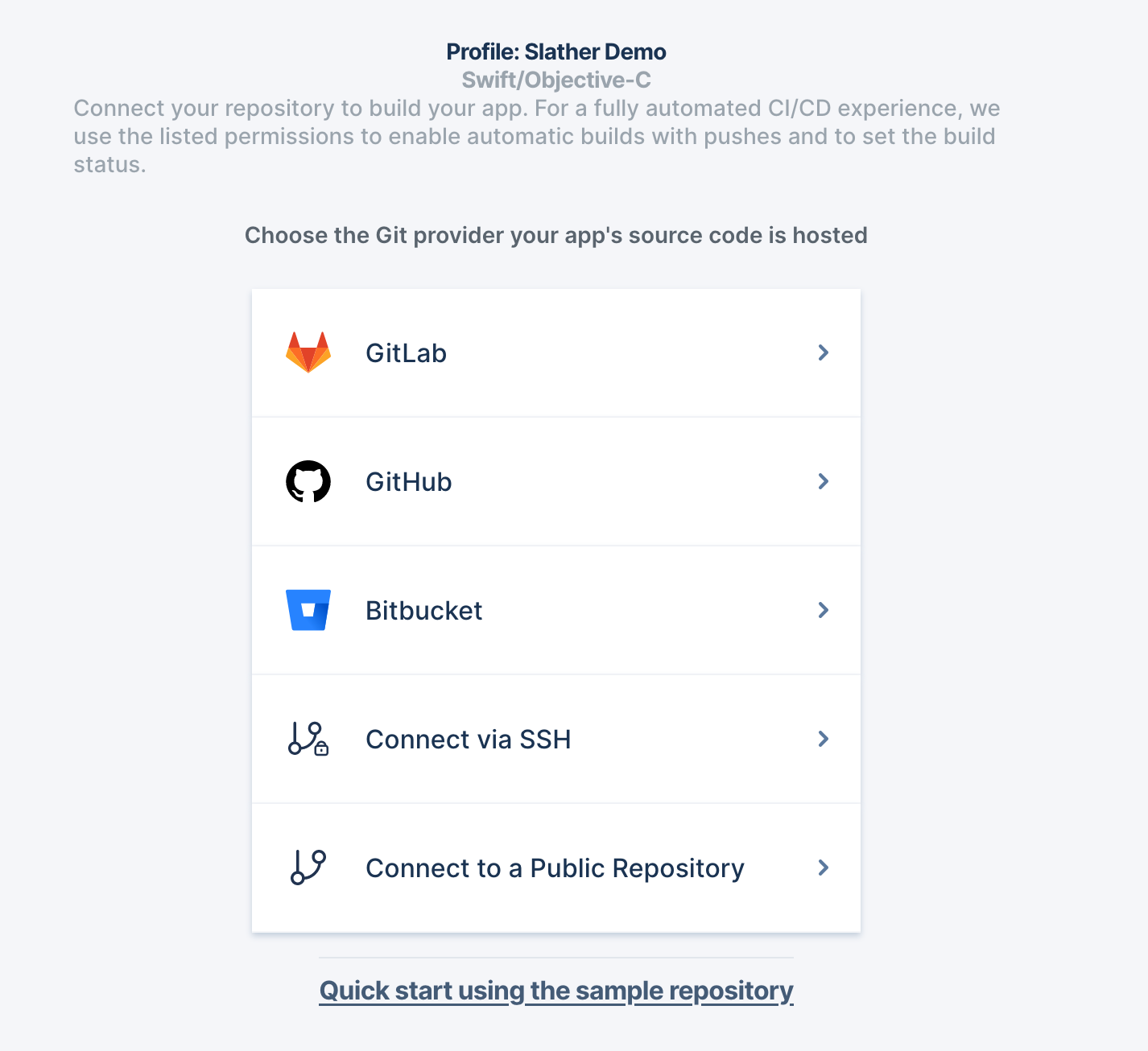
3. Create a new build profile

Create a new build profile and add our repo. You can either use its public link, or you can fork to your account and add it from there.


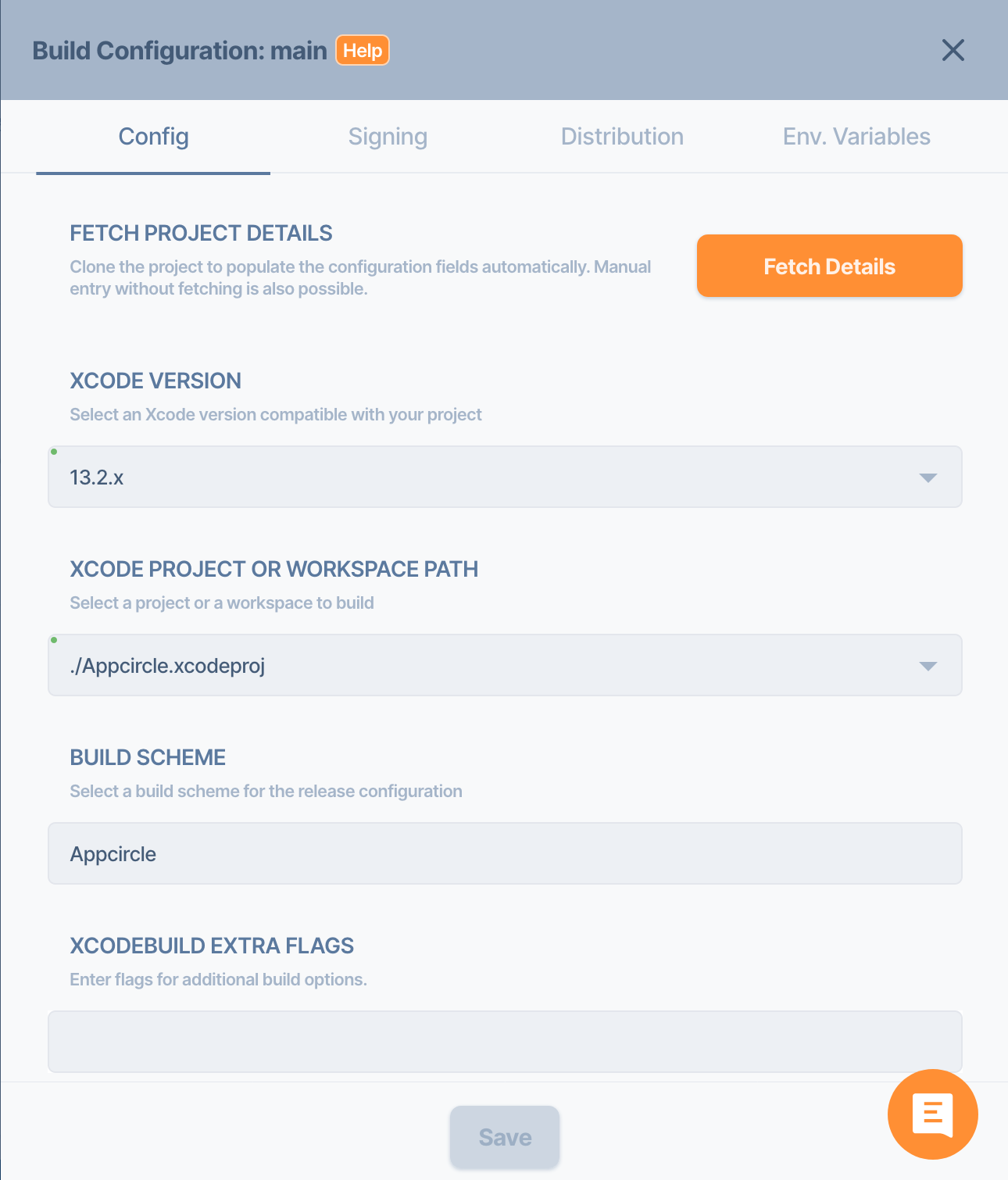
4. Configure your build profile

Go to the config section and fill in the details like below and hit Save.

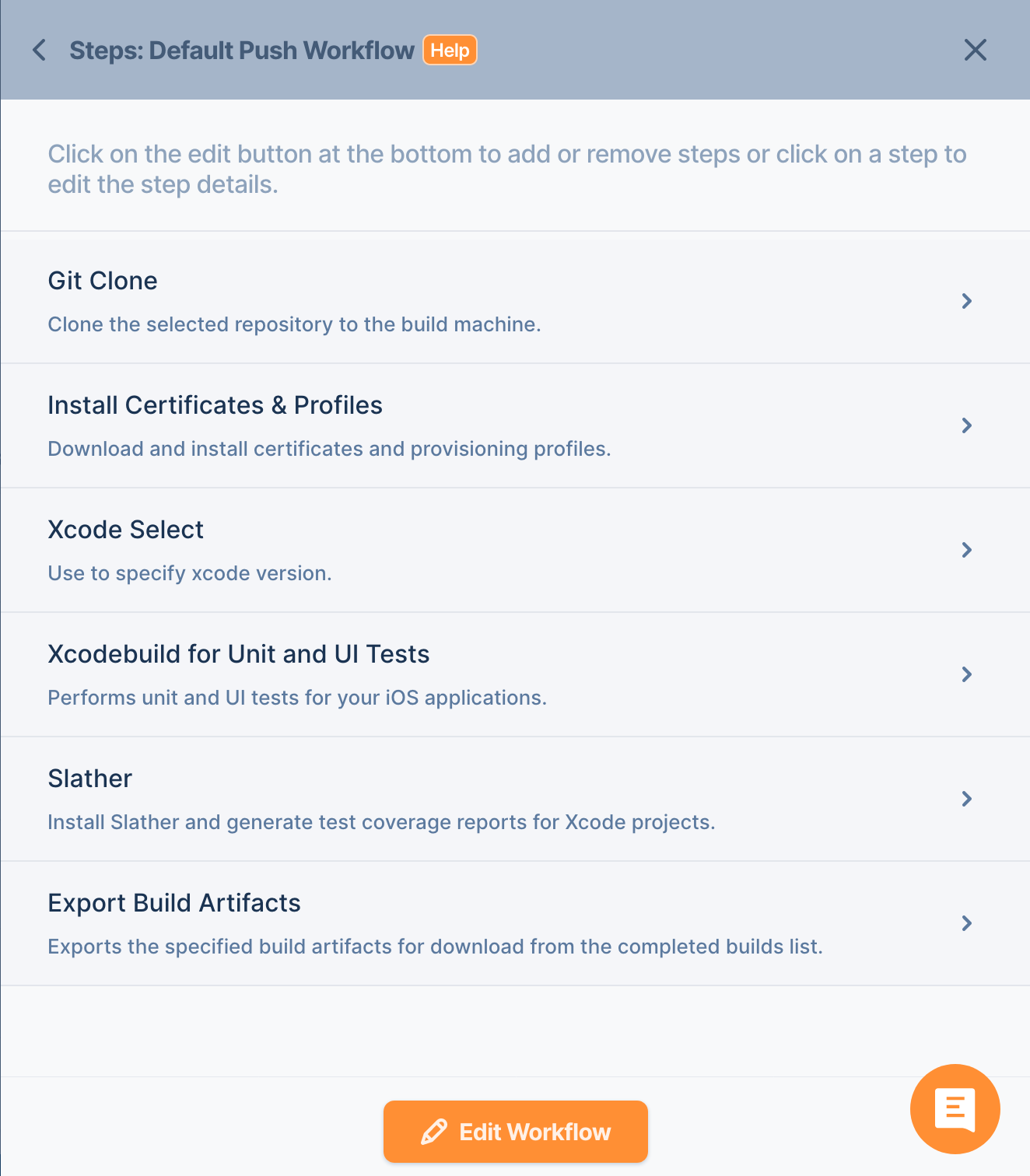
5. Edit your workflow

Edit your workflow and add Slather after the Xcode Unit Test.

6. Modify your test step

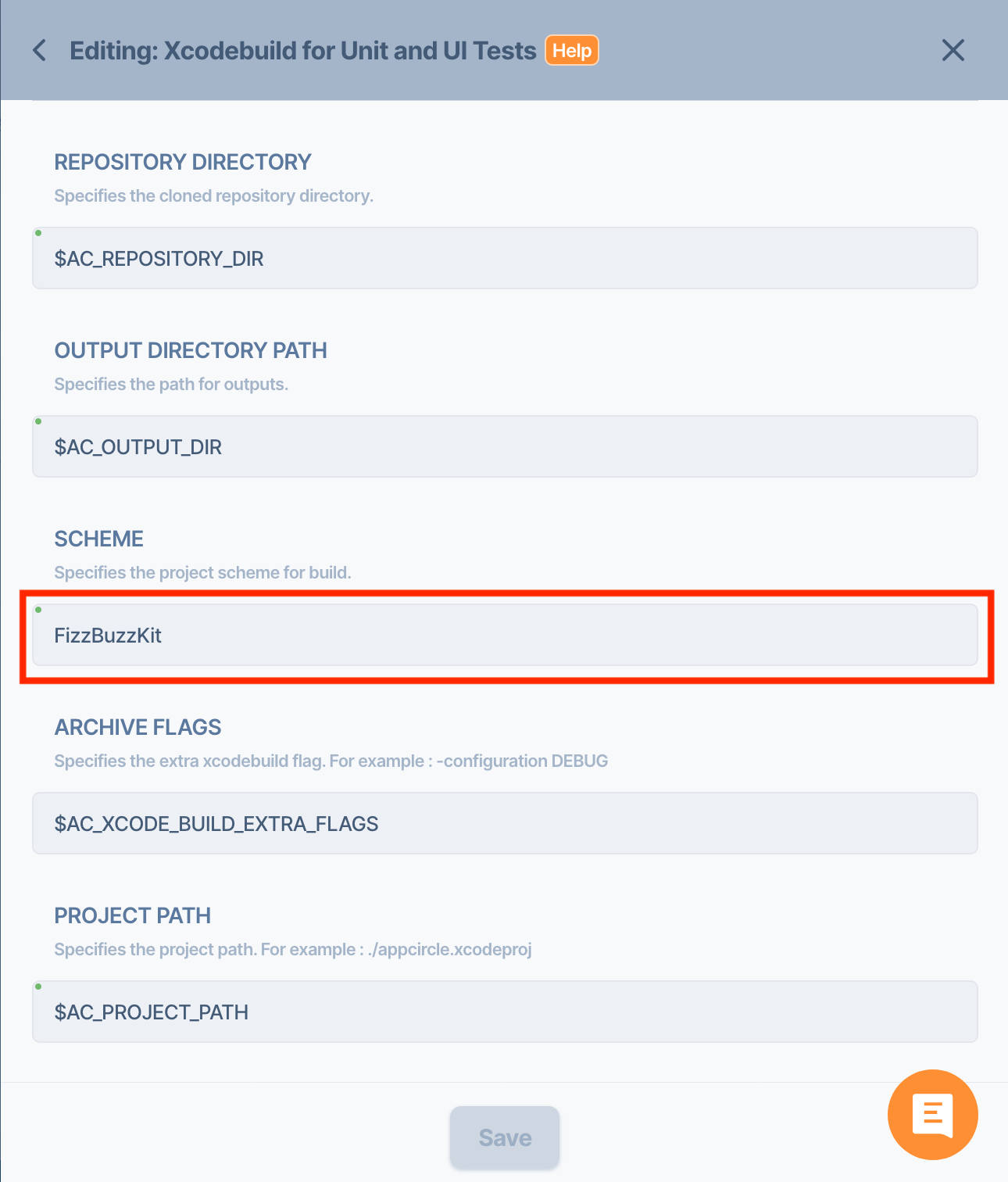
Go to your Xcodebuild for Unit and UI Tests step detail and change it like below:

7. Edit your Slather Step

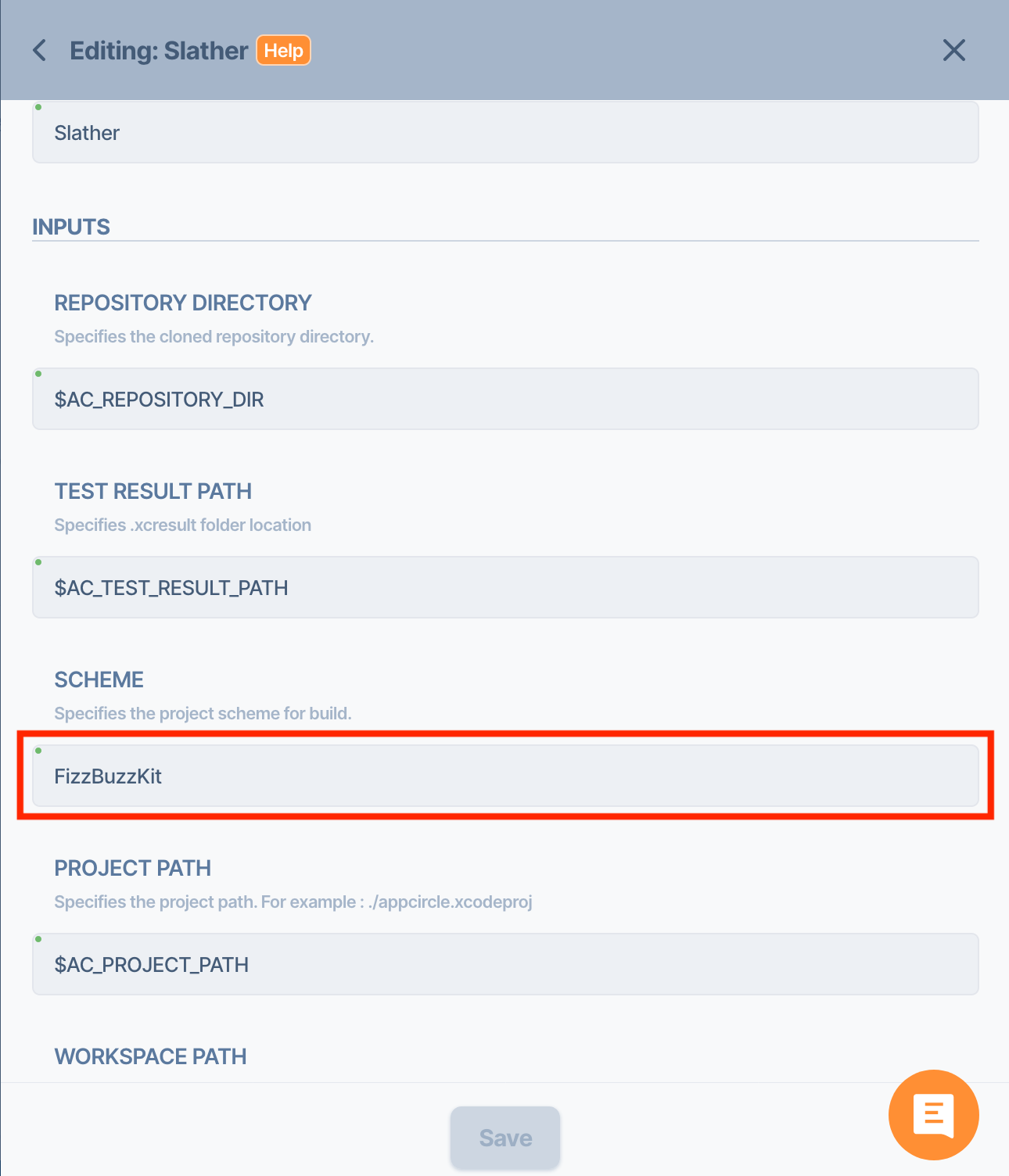
Finally, edit your Slather Step and change the configuration accordingly:

Hit the Build button. After the build is finished, tap the “Download Artifacts” button and easily download Slather coverage results.

Mobile CI/CD Benchmark Report

As a mobile CI/CD platform, reducing build times is always a high priority. To improve our build times, last week, we’ve upgraded our iOS build infrastructure. Our machines are now dramatically faster, regardless of the project’s size and complexity. After upgrade, our instruments reported %50-70 reduction in build times. That’s 2-3x faster!

We’re really proud of our build times. But how does our new infrastructure compare to other mobile CI/CD platforms? We’ve tried it out.

How much faster than competition? (Bitrise, Codemagic, Appcenter)

We benchmarked a special Xcode project made for testing build times. We built 3 times, and took the average time. We also used the same Xcode version (13.1.1). Here are the results using their regular plans:

The platform that took the longest time was Microsoft’s App Center. 15.3 minutes.

The second longest was with Codemagic. 11.9 minutes.

The third was Bitrise. 9.9 minutes

And the platform with the best build times was Appcircle! 7.7 minutes.

Here are the full results. Our new infrastructure is 2x faster than Appcenter.

PlatformSeconds (lower is better)Minutes (lower is better)% Dif
Appcircle460.5587.675
Bitrise596.9709.94929.61
Codemagic716.37811.93955.54
 Appcenter 913.74515.22998.39

Of course, with these results, we can clearly call this out:

Fastest Mobile CI Platform is Appcircle

We’re delighted to have the fastest iOS build times. Our customers realized the difference before we even announced the upgrade. Helping mobile developers is why we do what we do. Thanks to all of our users for choosing Appcircle. Many more improvements are on the line!

Happy coding!

12 Essential Desktop Apps for iOS Developers Header

12 Essential Desktop Apps for iOS Developers

For developers, using only the Code Editor or IDE to develop applications isn’t enough. While IDEs have many features to improve developer workflow, different apps focused on a single task does the job better. Here are 12 essential desktop apps we use and recommend for iOS developers:

Version Control

Tower ($69-99/year) macOS/Windows

Website

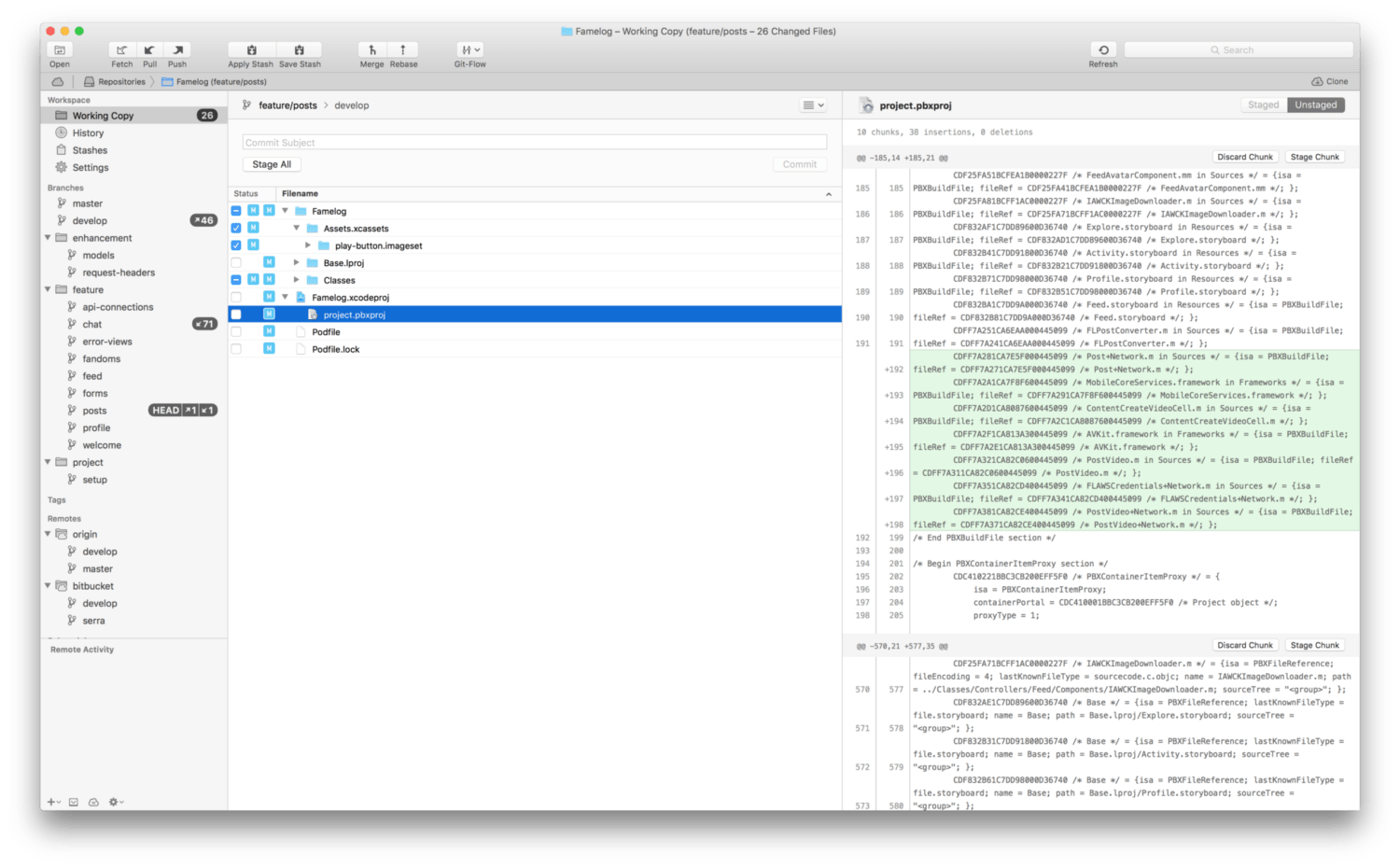
For those who prefer GUIs over CLI’s, Tower is a Git client that has all the functions Git has, and does it in a very simplified way. Adding remotes, managing branches and harder stuff like rebasing can be done via buttons and dragging/dropping. It can setup git-flow branching system, and has Gerrit support. You can choose which diffing tool you want to use to resolve conflicts. macOS version is going a little ahead of the Windows version, but both are very good.

File Diffing & Merging

Kaleidoscope ($69.99) macOS

Website

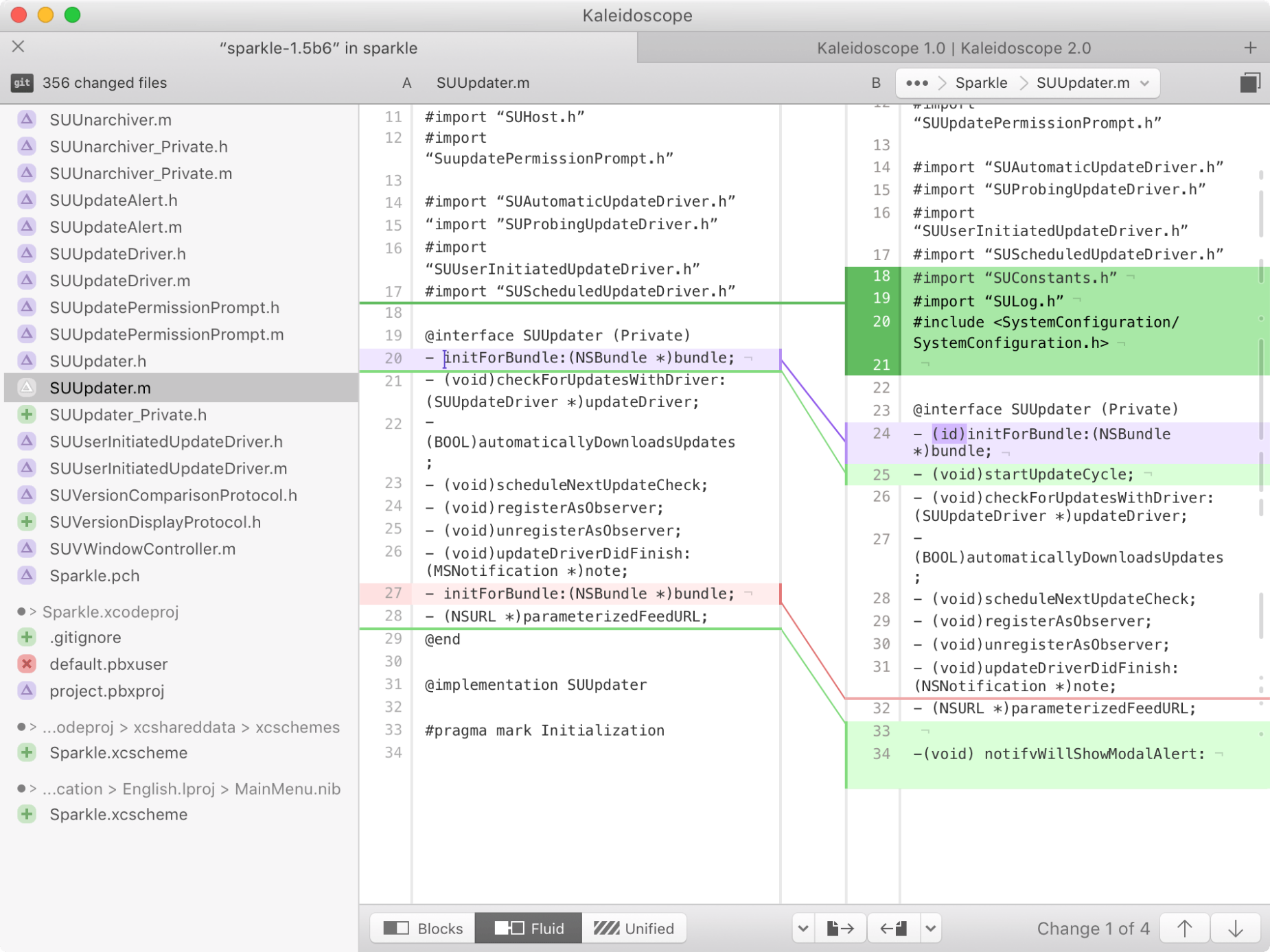
There is always the free FileMerge bundled with macOS, but it’s UI is old and non-ascii files and non-text formats are not supported. Kaleidoscope has a nice UI, and it can compare images, files and folders. It has built in support for Git, SVN and Mercurial as well. There’s also an iPad version, which is sold for $19.99.

Documentation

Dash ($29.99) macOS

Website

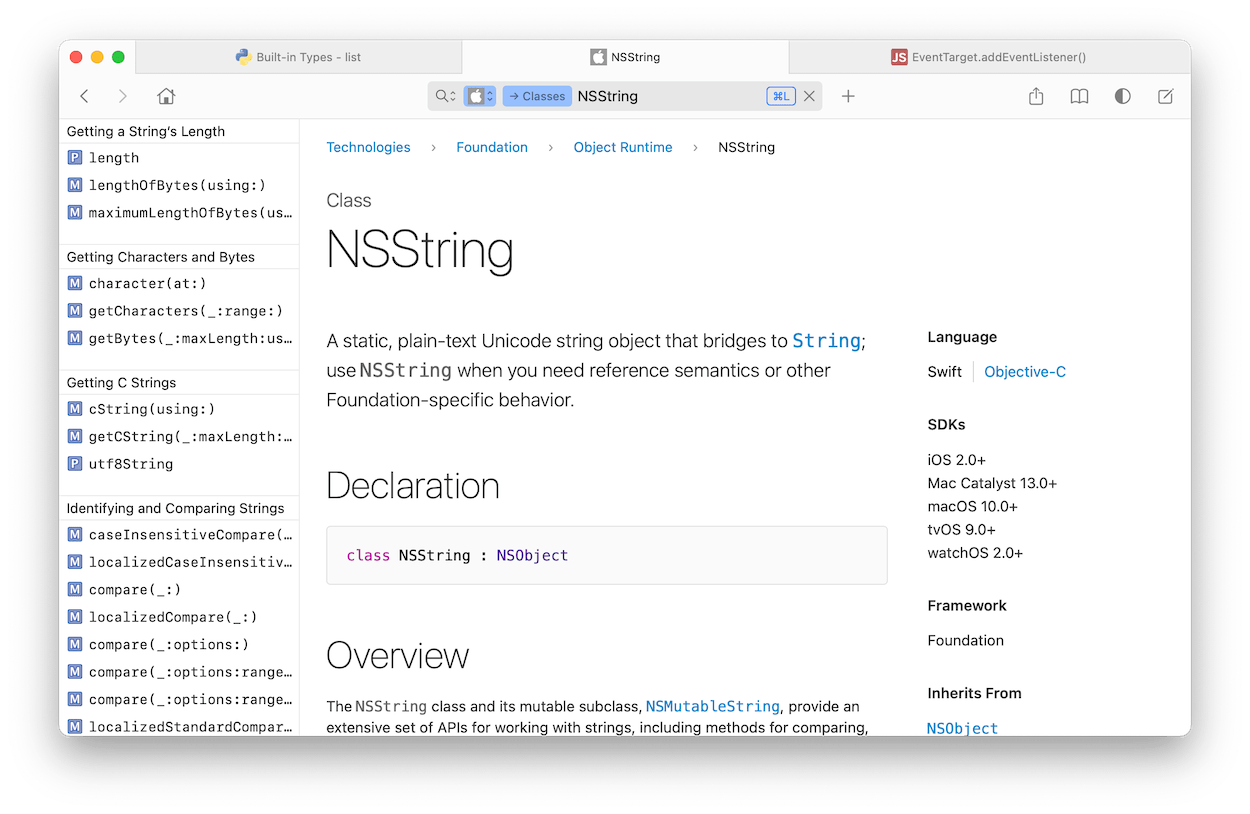
Developers spend a good chunk of their time reading documentation. Dash collects documentation from hundreds of programming languages and frameworks. You can navigate among them and it has good fuzzy search. It also integrates with most of the IDEs and automation software.

Dash for macOS

A Companion for SwiftUI ($49.99) macOS

Website

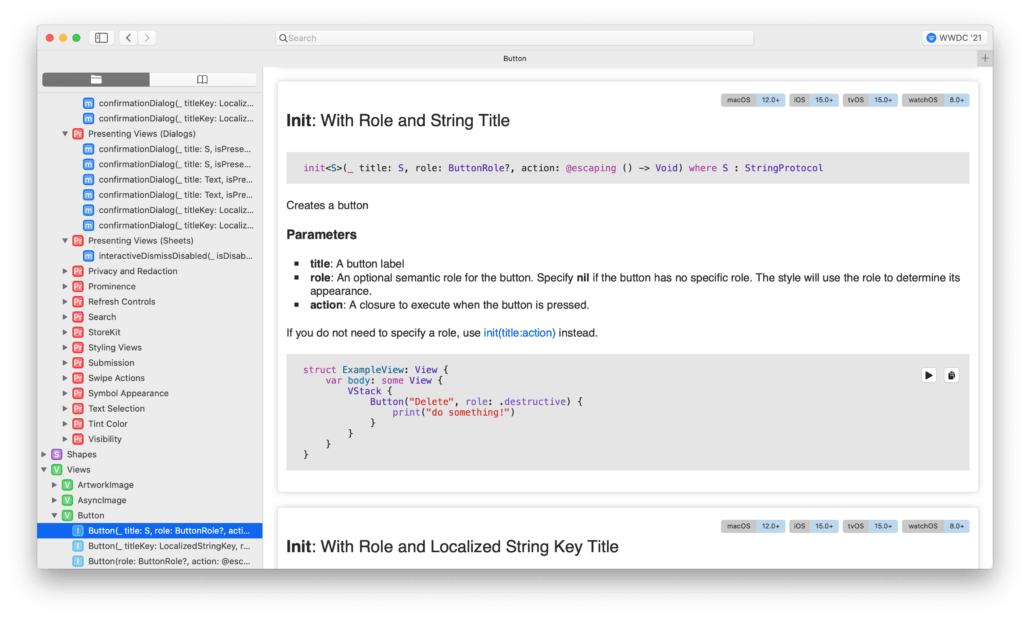
Apple’s SwiftUI documentation is lacking depth and some modifiers don’t have an overview. A Companion is SwiftUI is an app that lists all SwiftUI Types, Protocols and Methods with clear examples and explanation on how they work. You can also preview some of the types if they are also available on the Mac.

For a list of new things added to SwiftUI with iOS 15, check out our Major iOS 15 API Changes for Developers article.

A Companion for SwiftUI

View Debugging

Reveal ($59-119) macOS

Website

Reveal is a view debugging tool for UIKit apps. It’s much like the Web Inspector in browsers. You can see the entire view hierarchy in 2D or 3D, and filter views based on their memory address. You can inspect every view and its underlying CALayer, and updating a value from the inspector updates the app being debugged. It also inspects Auto Layout constraints and they can be altered as well. Reveal saved us many hours debugging UIs.

Reveal for macOS

Regular Expressions

Patterns ($2.99) macOS

Website

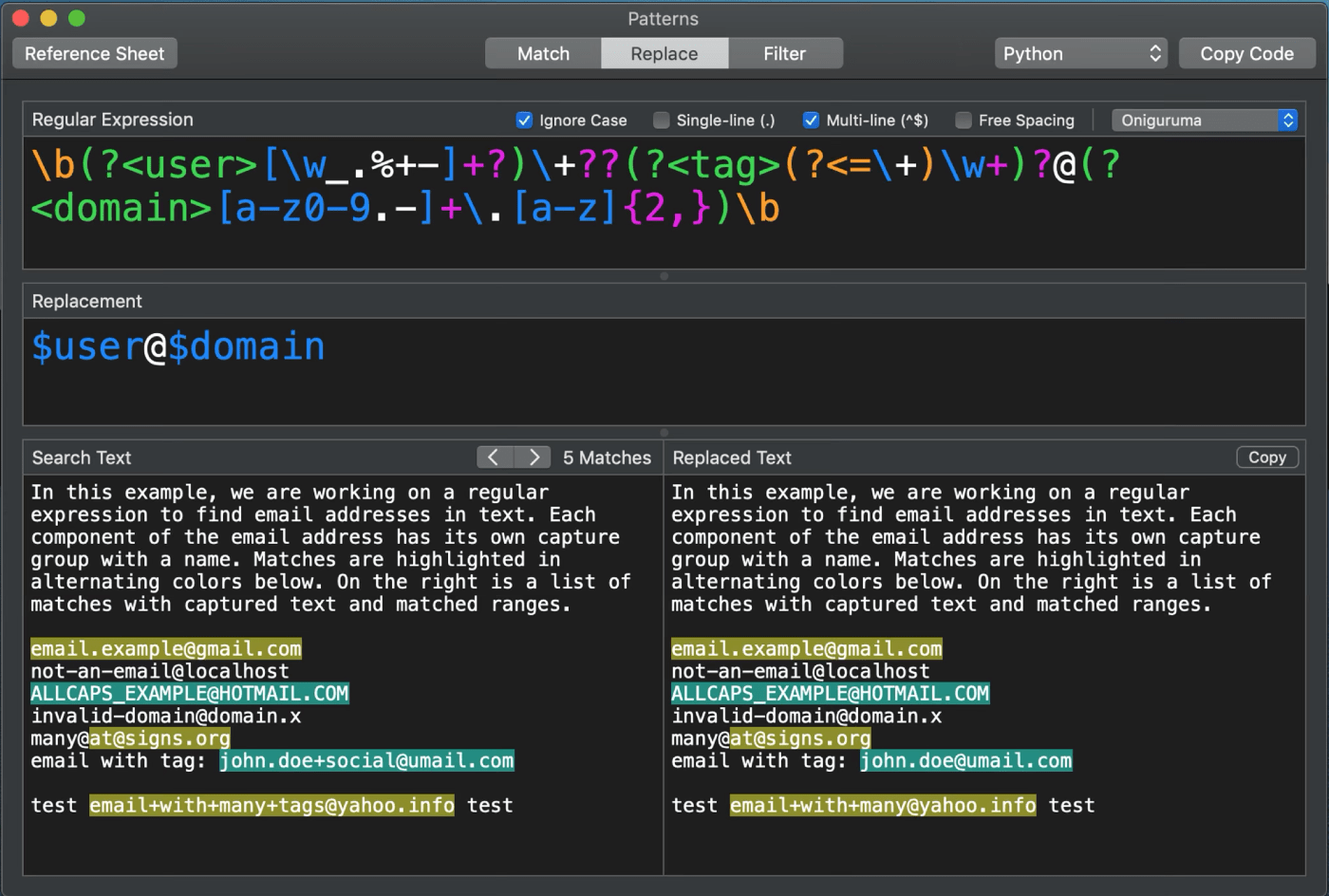
Patterns is an app to test and write Regular Expressions. It also exports code in a selected programming language

Patterns for Mac

Push Notification

Knuff  (Free, Open Source)

GitHub

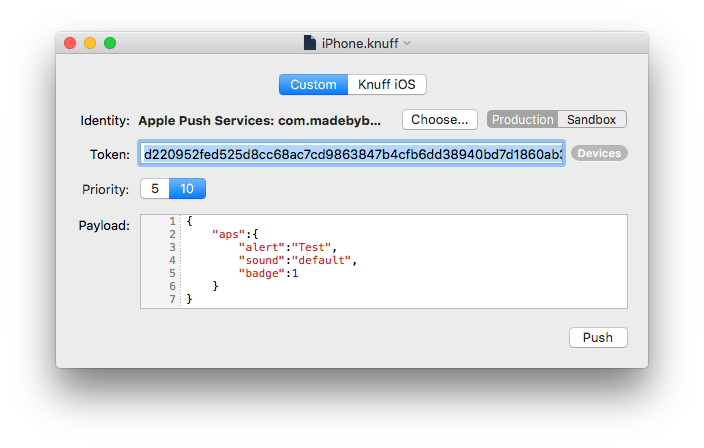
Knuff is an app to test push notifications. You can provide a JSON payload and select a certificate. Then given a device token, you can send notifications instantly. It also has an iOS app.

Knuff for macOS

HTTP Client

Paw ($49.99) macOS

Website

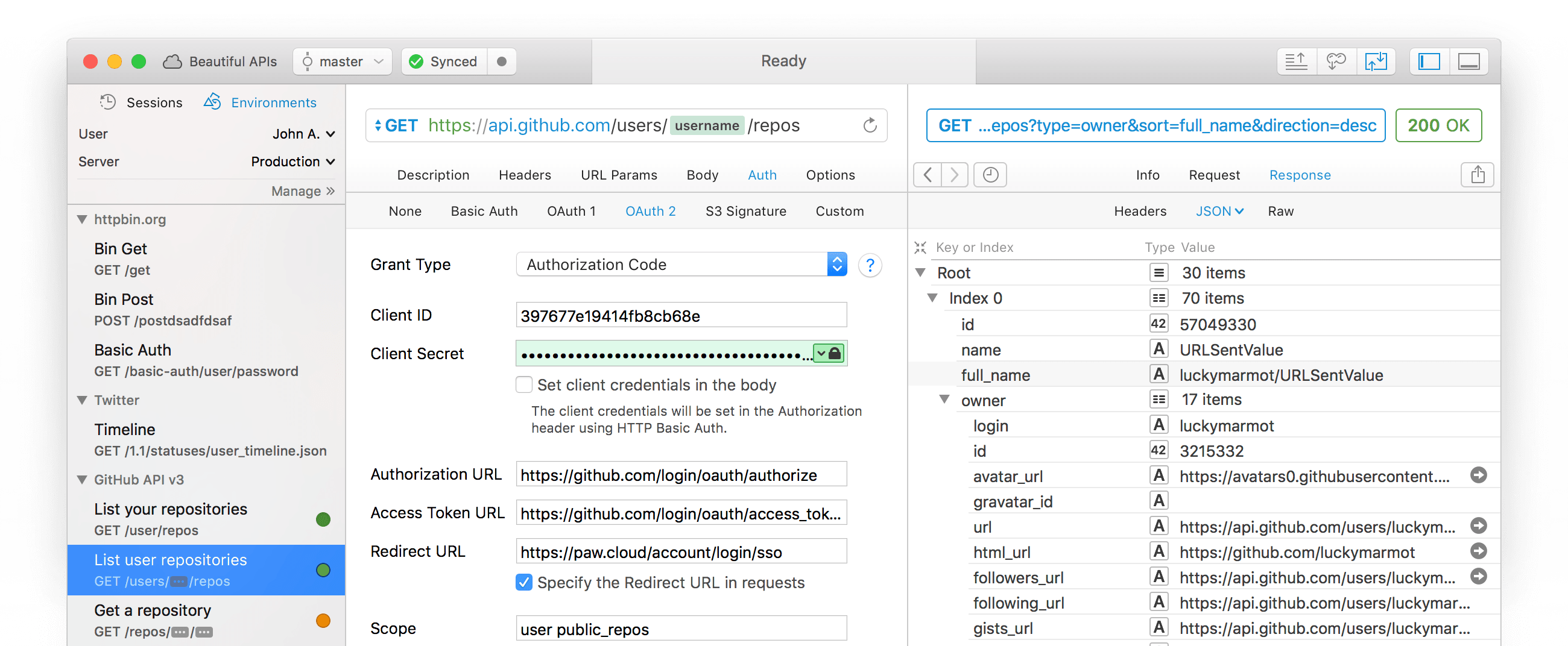
If you’re making an app that communicates with a server API, then Paw is highly recommended. You can add all the requests and Paw will send them and display responses. It exports code to a variety of networking libraries. You can also create variables from response values. It supports multiple server environments. You can import Postman files too.

Paw Client for Mac

Visuals

Codye (Free, with Pro version $8.99) macOS

Website

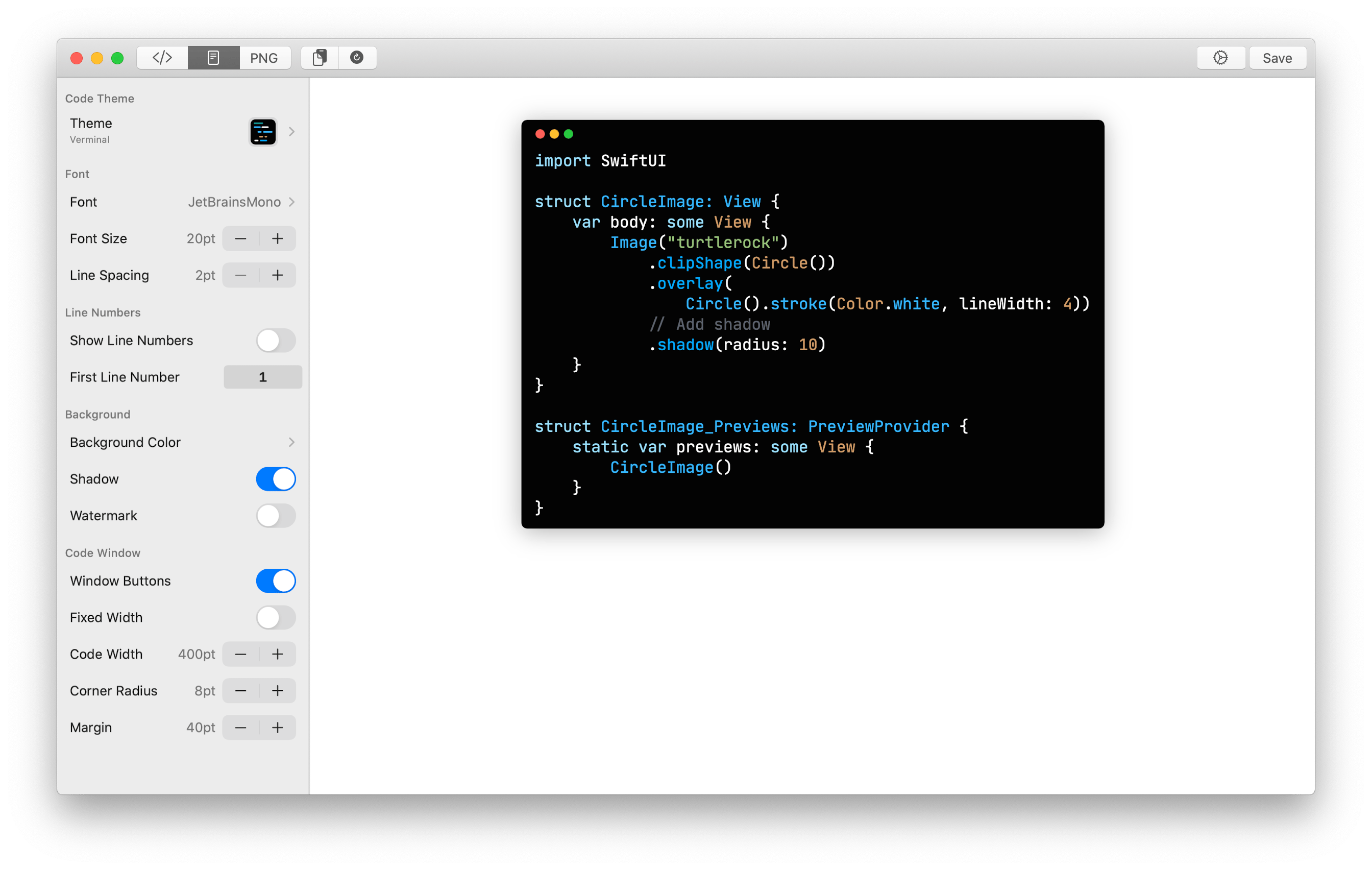
With Codye, you can generate screenshots for code snippets in an elegant way.

Codye UI Mac

PaintCode ($199/year) macOS

Website

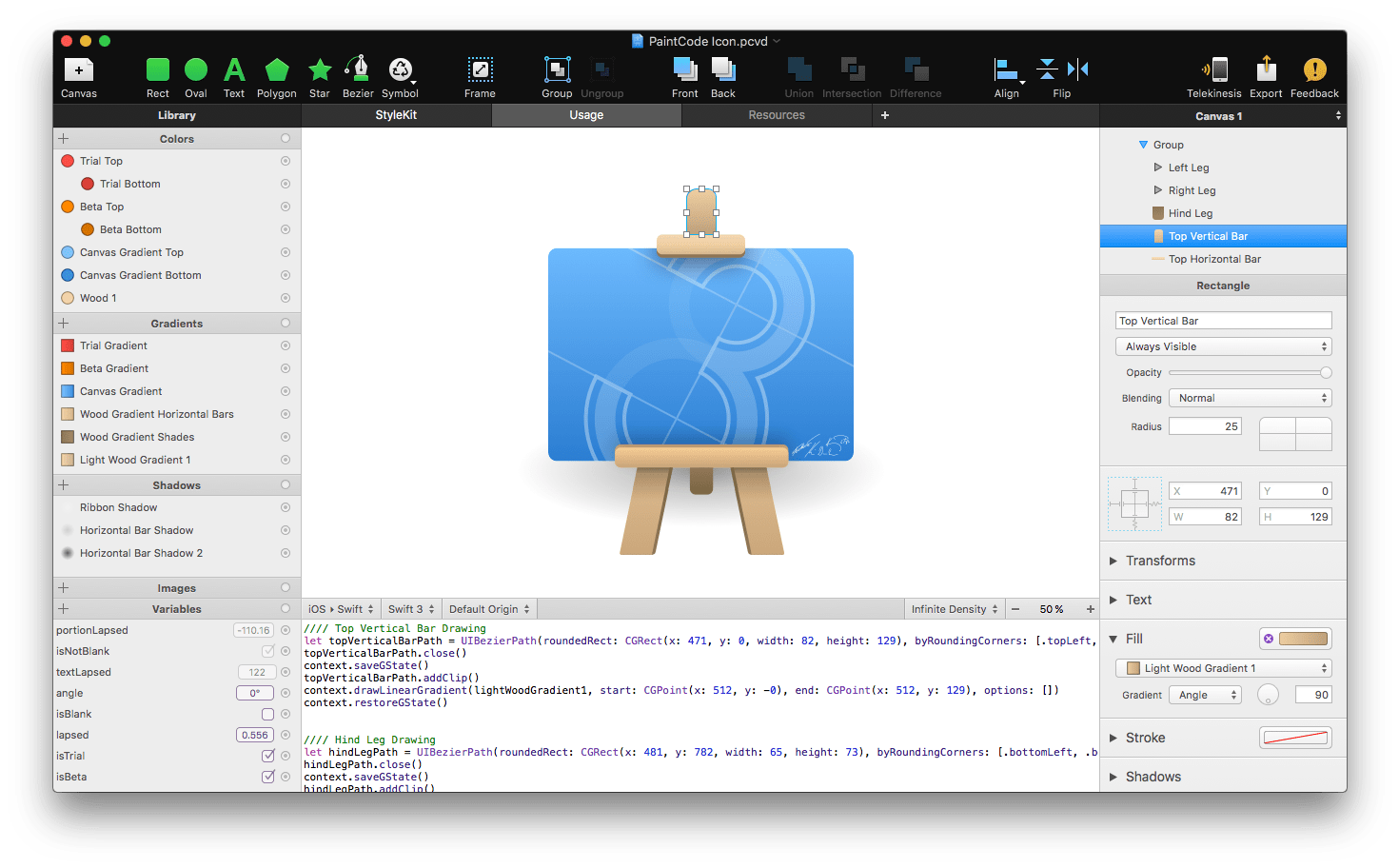
If you want to draw all visuals, iconography with code, PaintCode is a must. You can import vector graphics or draw your own and PaintCode gives you the UIBezierPath / CoreGraphics code. You can also parameterize certain values and they become configurable in your app.

PaintCode 3

ColorSnapper 2 ($14.99) macOS

Website

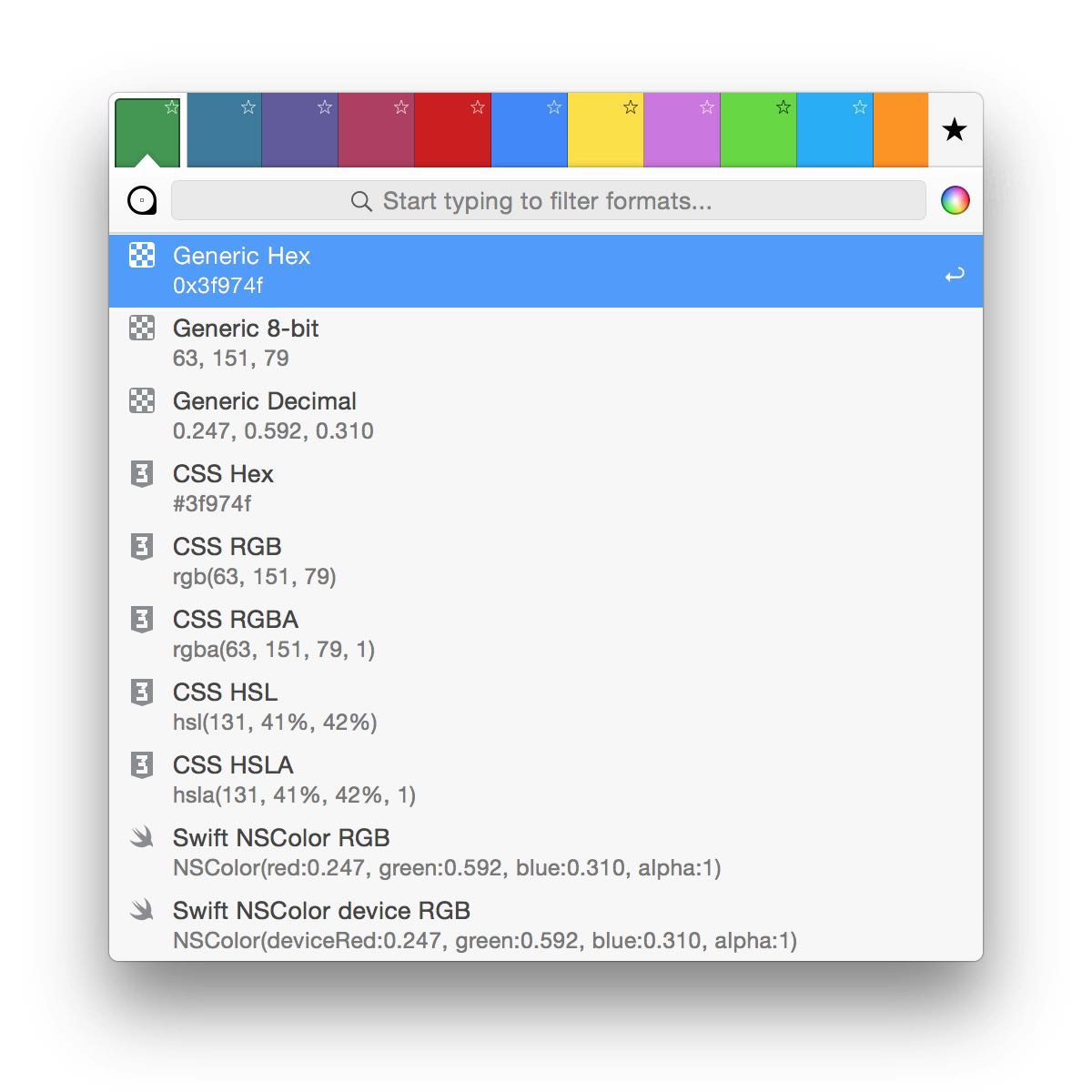
ColorSnapper is a color picker that can convert colors to values in code. You can easily get Swift/Obj-C UIColor/NSColor values from a color you picked. It also supports advanced settings to match copied value to match your code style.

ColorSnapper 2 Mac

Disk

DevCleaner for Xcode (Free)

Website

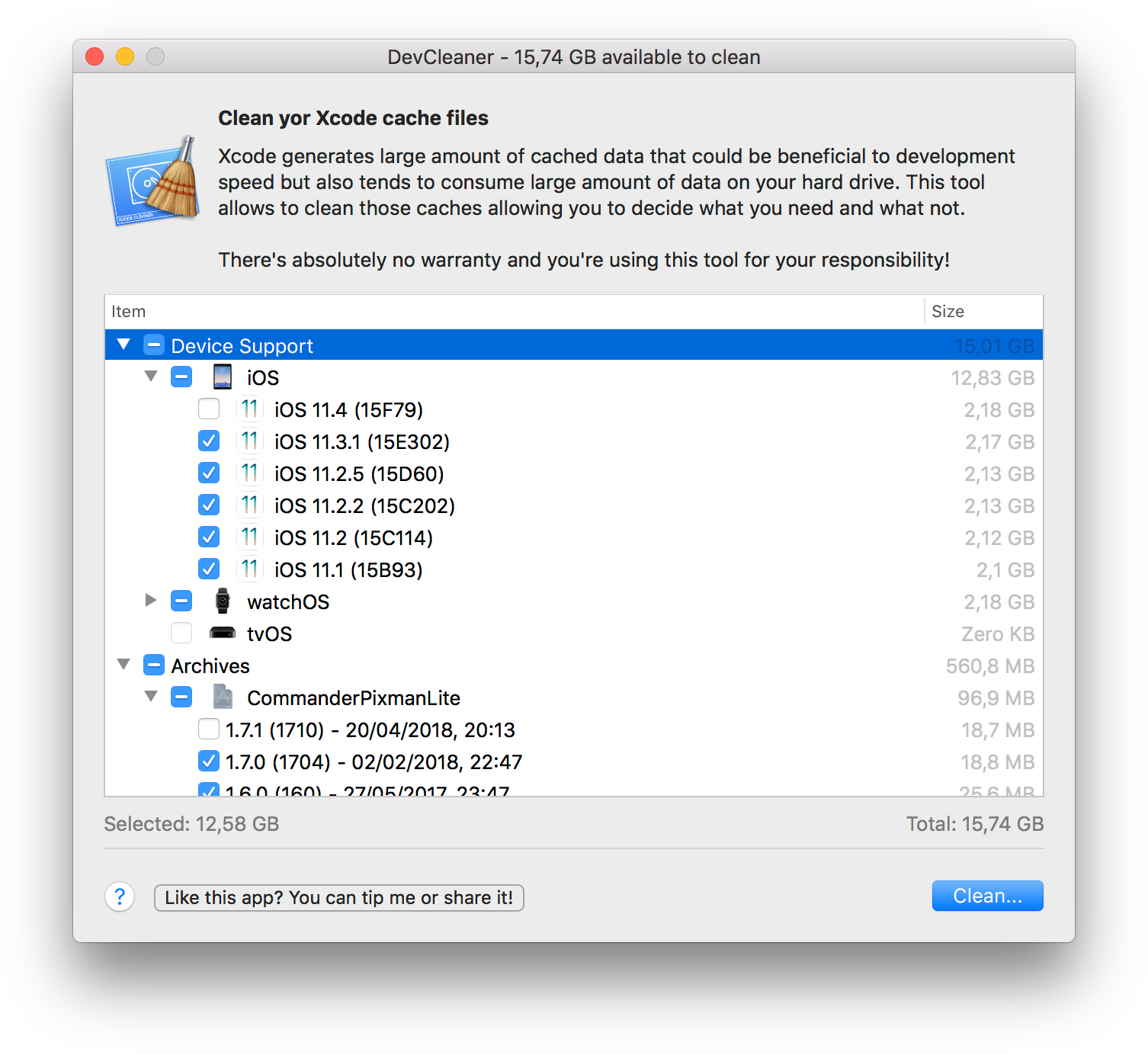
While developing in Xcode, the Developer folders increase in size over time. DevCleaner is a free tool that cleans your Xcode artifacts, such as DerivedData, iOS Images, Simulators, and more… You can pick what to delete and it supports multiple Xcode installations.

DevCleaner for Xcode

We’ve tried to list all the desktop apps we use frequently while developing iOS apps. If you’ve found this article useful, feel free to share this with others.


Major iOS15 API Changes for Developers

Major iOS 15 API Changes for Developers

Every year after WWDC, developers who make apps for iOS start working on all the changes and add new features. With next release coming in Autumn/Fall of 2021, we’ve put up a comprehensive list of developer-facing iOS 15 API changes for developers.

Brand New APIs

Apple introduced a few brand new user-centric features for iOS 15, which was also the highlight of the WWDC21 keynote.

SharePlay

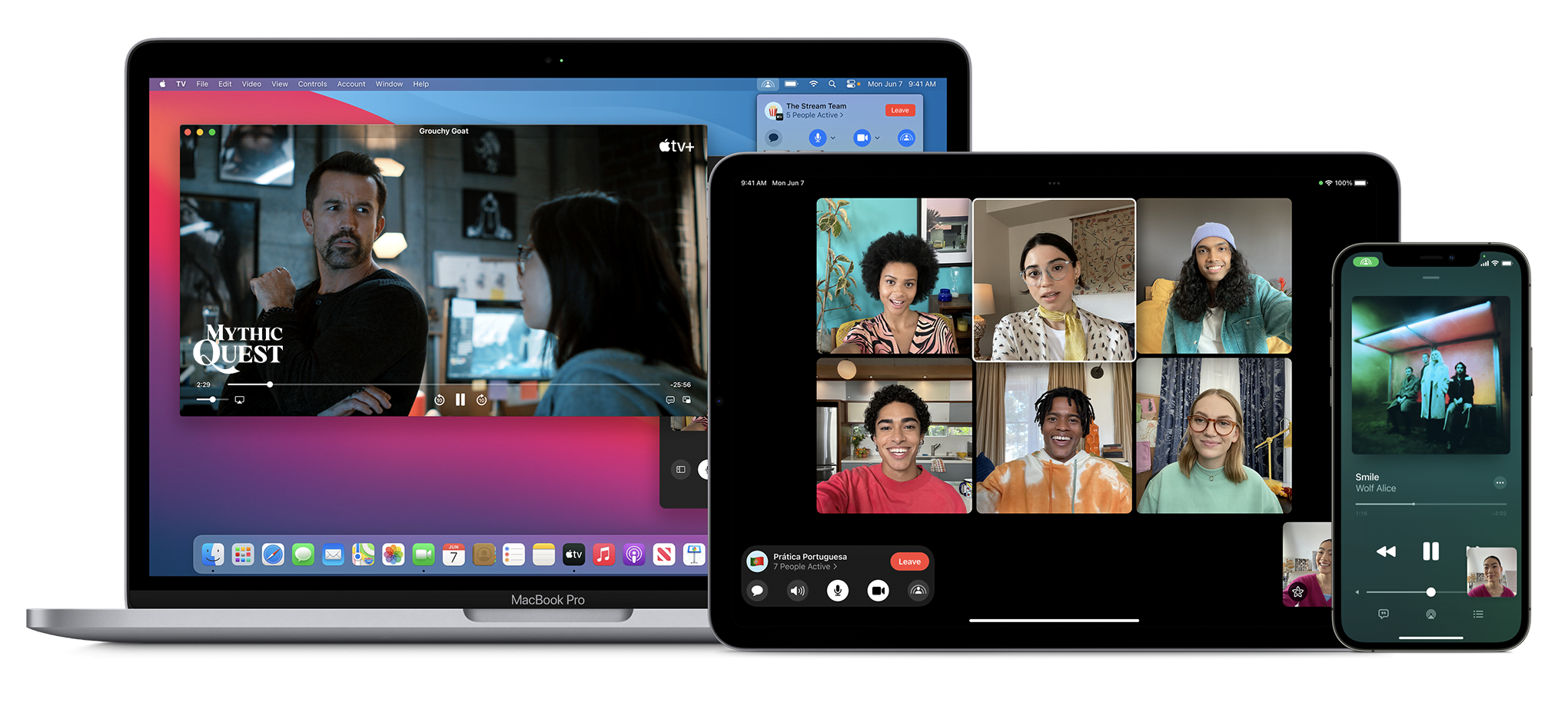
With SharePlay, your app’s features can be shared through FaceTime calls. If you have a media streaming app, you can use SharePlay APIs to let users watch or listen to media simultaneously. If your app is using AVFoundation to display content, then most of the work will be handled automatically. All you have to do is to use the new Group Activities API (https://developer.apple.com/documentation/GroupActivities) to provide that your app supports SharePlay and details about your content.

shareplay image

Note: Apple recently released a statement that SharePlay feature won’t be available on the initial release of iOS 15. It’ll be added via an update later this fall. More information here: https://developer.apple.com/news/?id=mxaeu6er

Focus Mode

Prior to iOS 15, users had the option to turn on Do Not Disturb mode to eliminate distraction from notifications and calls. iOS 15 adds the option to create different Focus Modes. Every mode can have their own list of allowed apps and contact list. Modes can be activated via a location change (arriving at the office), a time schedule, or when an app launches (when I launch Mail or Xcode).

In support of focus modes, Apple also introduced notification importance levels. With it, the system can determine whether to display a very important notification, breaking the rules of Focus mode, or not display a trivial notification until focus mode ends. Your app needs to categorize the notification types.

To see the types and how to configure, check the Notifications segment in Human Interface Guidelines: https://developer.apple.com/design/human-interface-guidelines/ios/system-capabilities/notifications

App Store Changes

App Store is getting new capabilities that will help you marketing your app. You can now create versions of your product detail pages and target them to different segments of potential users. If you have special events for a time period, App Store can display these events on the home page.

App Store

StoreKit API got a major new version as well. With StoreKit 2, Apple has simplified the use of StoreKit, implementing modern Swift features.

There is a new App Store Server REST API as well. Developers can query subscription statuses, get in-app purchase history of a user, and can send usage data to Apple in case the user asks for a refund.

Later this year, apps can extend the subscription’s deadline up to 90 days due to an error in their content delivery. Ability to look up a user’s refund history and retrieve invoices from an order id is also coming later this year. More information on the server API here: https://developer.apple.com/documentation/appstoreserverapi

Apple’s beta distribution platform, Testflight can distribute Mac apps now. It only works for macOS 12 (Monterey) apps though.

ScreenTime API

With the ScreenTime API, apps can apply parental controls based on the app’s usage via the ScreenTime API.

More on ScreenTime API here: https://developer.apple.com/videos/play/wwdc2021/10123/

ShazamKit

Now developers can use Shazam’s audio recognition capabilities in their own apps.

More on ShazamKit here: https://developer.apple.com/shazamkit/

Nearby Interaction API

If you’re making an accessory that communicates with an Apple Device that has a U1 chip, you can use the Nearby Interaction API to make UWB (Ultra Wideband) communication between the device and your app. Apple uses this API to help users locate AirTags.

More on Nearby Interaction API here: https://developer.apple.com/nearby-interaction/

Object Capture

Added with RealityKit 2, Object Capture turns your Apple device into a 3D scanner. By taking multiple images of a real-world object, the object is turned into a detailed 3D model you can use and distribute.

More on Object Capture here: https://developer.apple.com/augmented-reality/object-capture/

Swift

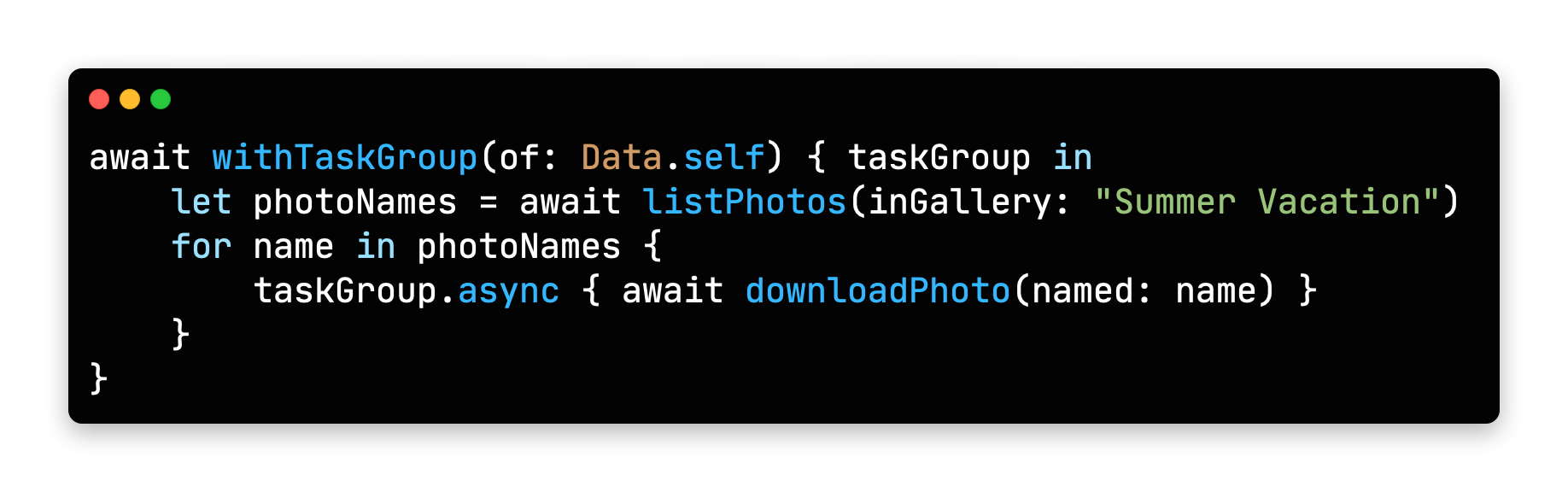
Swift Programming Language is getting lots of new features this year. Main focus during WWDC21 was on Concurrency. With it, Swift gets the async/await syntax to handle asynchronous code. All async functions inside iOS SDK is also updated for this new syntax.

Concurrency in Swift Example COde

Unfortunately, Apple acknowledged that concurrency features will not be backwards compatible, meaning it will only run on iOS 15 and above. But there is always hope: https://github.com/apple/swift/pull/39051

Conversion between CGFloat and Double

Starting with Swift 5.5, the compiler can convert Double values to CGFloat and vice versa, which previously required explicit type declaration.
https://github.com/apple/swift-evolution/blob/main/proposals/0307-allow-interchangeable-use-of-double-cgfloat-types.md

Other Swift 5.5 Additions

There are other Swift improvements like local lazy variables, Swift package collections, and Codable support to enum cases with associated values, and more.

Check the WWDC session video for a deeper dive at what’s added: https://developer.apple.com/videos/play/wwdc2021/10192/

SwiftUI

Apple’s new declarative UI framework, SwiftUI is getting developers excited for new additions every WWDC. Here are some of the SwiftUI changes in iOS 15:

AsyncImage

SwiftUI now has a view type that can load images asynchronously.

https://developer.apple.com/documentation/swiftui/asyncimage/

Refreshable

Any View can have pull-to-refresh functionality, and List views get UI handling automatically.
https://developer.apple.com/documentation/swiftui/label/refreshable(action:)

Animation modifier change

.animation() modifier caused glitches when a value that’s not associated with the animation was updated, or any time a system-wide animation is triggered (like rotating the phone to landscape). New .animation(_ value:) modifier changes that. It triggers the animation when only passed binding value updates.

Search bars

search bars

Any view inside a NavigationView can use .searchable() modifier, which adds a search bar to the top of the view and calls a closure whenever the search query changes. Listening to changes can be disabled and search closure gets called when user taps a button. You can even add search suggestions.
More on search here: https://developer.apple.com/videos/play/wwdc2021/10176/

Changes to Alert and ActionSheet syntax

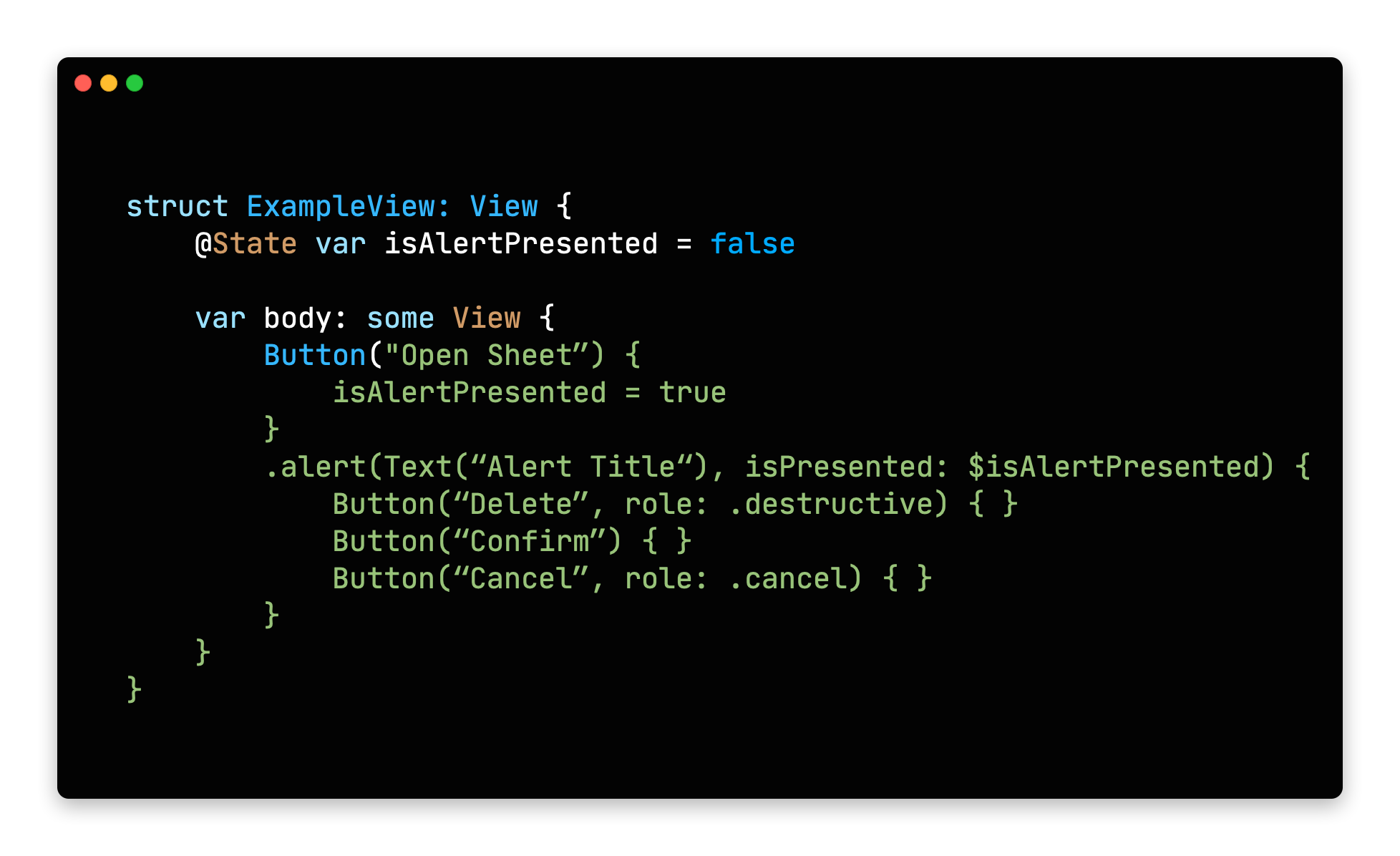
Previously, alert modifiers required to explicitly create actions inside an alert, the alert itself and finally return the alert. New syntax lets developers define buttons with roles and that’s it.

action sheet in swift ui

Buttons with roles

SwiftUI’s Button type initializer now can take a ButtonRole object. The predefined values for ButtonRole is the same as the ActionSheet actions: destructive, cancel and default(pass nil to make a button default)
https://developer.apple.com/documentation/swiftui/buttonrole/

Updates to List (list element bindings, individual separator insets, custom swipe actions)

We knew that SwiftUI’s List view was using UITableView in the background, but it missed UITableView’s customization and flexibility. With the next release, SwiftUI adds bindings to list elements individually, separator insets can be configured on cell level and custom swipe actions can now be added.
https://developer.apple.com/documentation/swiftui/list/

.task()

Previously, we used .onAppear() modifier to load async content after a view got displayed. Now there is a more safe .task() modifier to run async tasks after a view is rendered initially.

For more in depth information and other improvements, check out WWDC’s What’s New in SwiftUI session: https://developer.apple.com/videos/play/wwdc2021/10018/

We also suggest all SwiftUI developers to watch “Demystify SwiftUI” talk as well: https://developer.apple.com/videos/play/wwdc2021/10022/

Xcode

Xcode 13 also got many improvements this year.

Custom documentation with DocC

Xcode now takes markdown comments and inline documentation and displays them with Apple’s own documentation style. DDoC format can also be used outside Xcode, but it’s not widely supported yet.

Better version control

Apple added support for Code Reviews and Pull Requests. Version control tab also got many small improvements.

Vim Mode

For those who are used to Vim’s commands, Xcode now has a Vim Mode that maps all vim keyboard commands to Xcode. To enable select Editor -> Vim Mode.

Better code completion

Xcode now auto fills when you are unwrapping an optional with if-let, and switch cases gets auto-filled as well.

Foundation and UIKit

New Swift AttributedString Type

Swift now has its own AttributedString type. Create an AttributeContainer value to style chunks of text.

It also has built-in markdown support. All SwiftUI Text types are also accepting AttributedString values.
https://developer.apple.com/documentation/foundation/attributedstring

Date() -> Date.now

Date class now has a direct property to get the current date and time. A nice to have addition.
https://developer.apple.com/documentation/foundation/date/3766590-now/

Changes to UIWindow key window behavior

If your app is using multiple windows and calling making them key window, the behavior is changing in iOS 15:

Improvements to UICollectionView and UITableView Cell Prefetching and Reloads

UIKit team also made improvements to the way cells are prefetched in a UITableView and UICollectionView. This brings a large performance benefit.

They also added the reconfigure method, which lets you directly update a certain cell, instead of reloading the entire table view. More info on both is here:
https://developer.apple.com/videos/play/wwdc2021/10252/

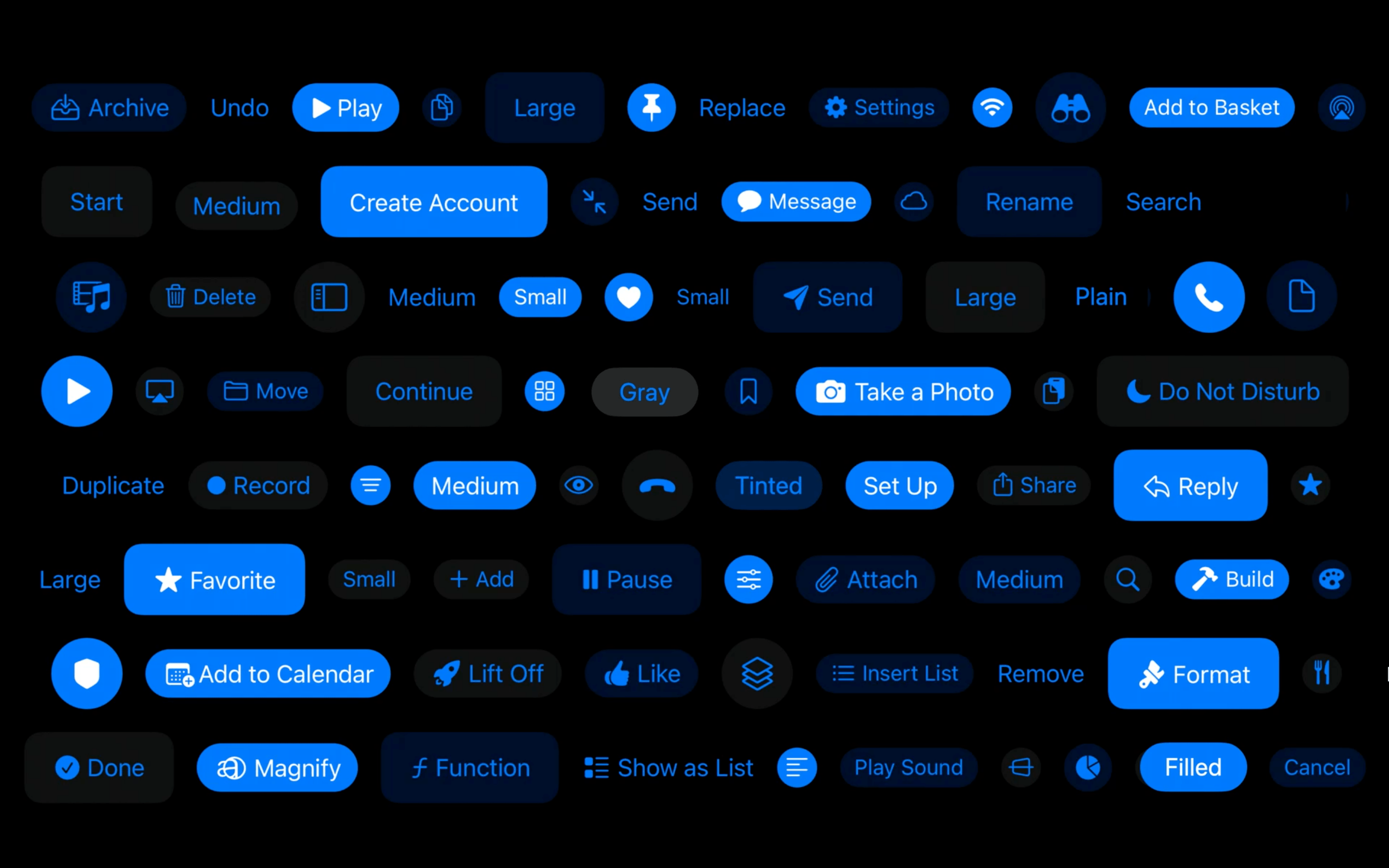
UIButton Configuration

New UIButton Styling

UIButton class got more customizable thanks to the UIButton.Configuration object. Title, subtitle, image setup, paddings between items, background/foreground color and many more options are available. You can define these styles or override the predefined styles to fit your app’s design system.
https://developer.apple.com/documentation/uikit/uibutton/configuration

Bottom Sheets

UIKit has support for bottom drawer sheets in iOS 15. UISheetPresentationController class lets you present smaller-than fullscreen sheets inside your app. Sheets can determine their height by using detents. Detents are height breakpoints that the sheet can grow/shrink to.

More information here:
https://developer.apple.com/videos/play/wwdc2021/10063/

SF Symbols

Apple’s Design team makes new additions every year to help designers and developers to make better functioning apps. SF Symbols was a step in this direction. This year, SF Symbols got a lot more new symbols and more features.

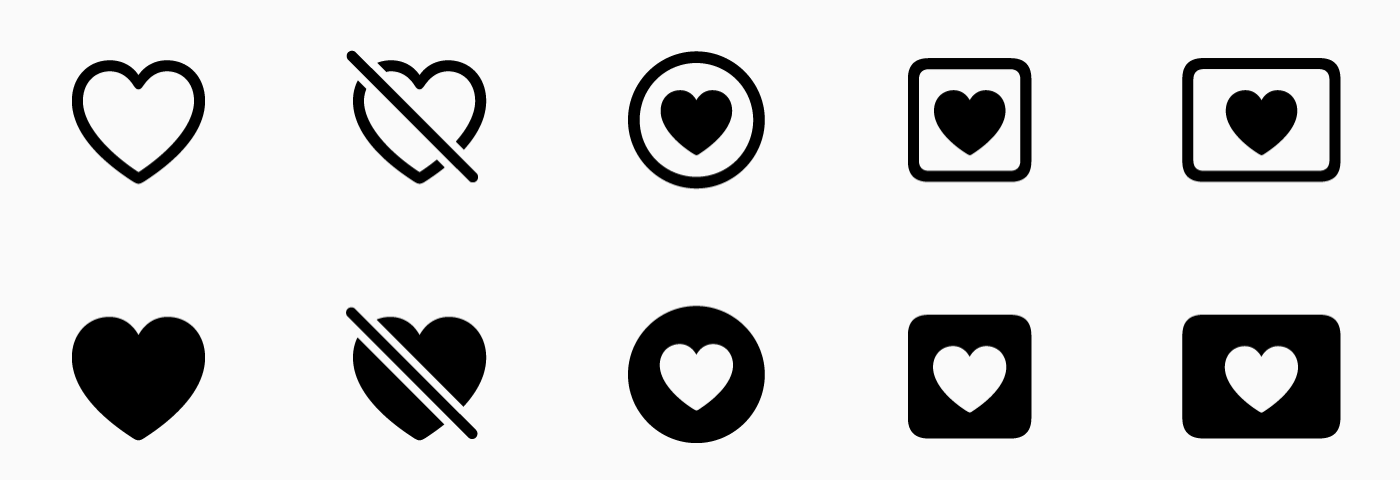
Symbol Variants

Apple grouped symbols into variants. A symbol can have a regular, slashed, enclosed and other versions within the same group.

Variants in SF Symbols 3

There are also variants for icons for different languages and writing styles.

Localized variants for sf symbols

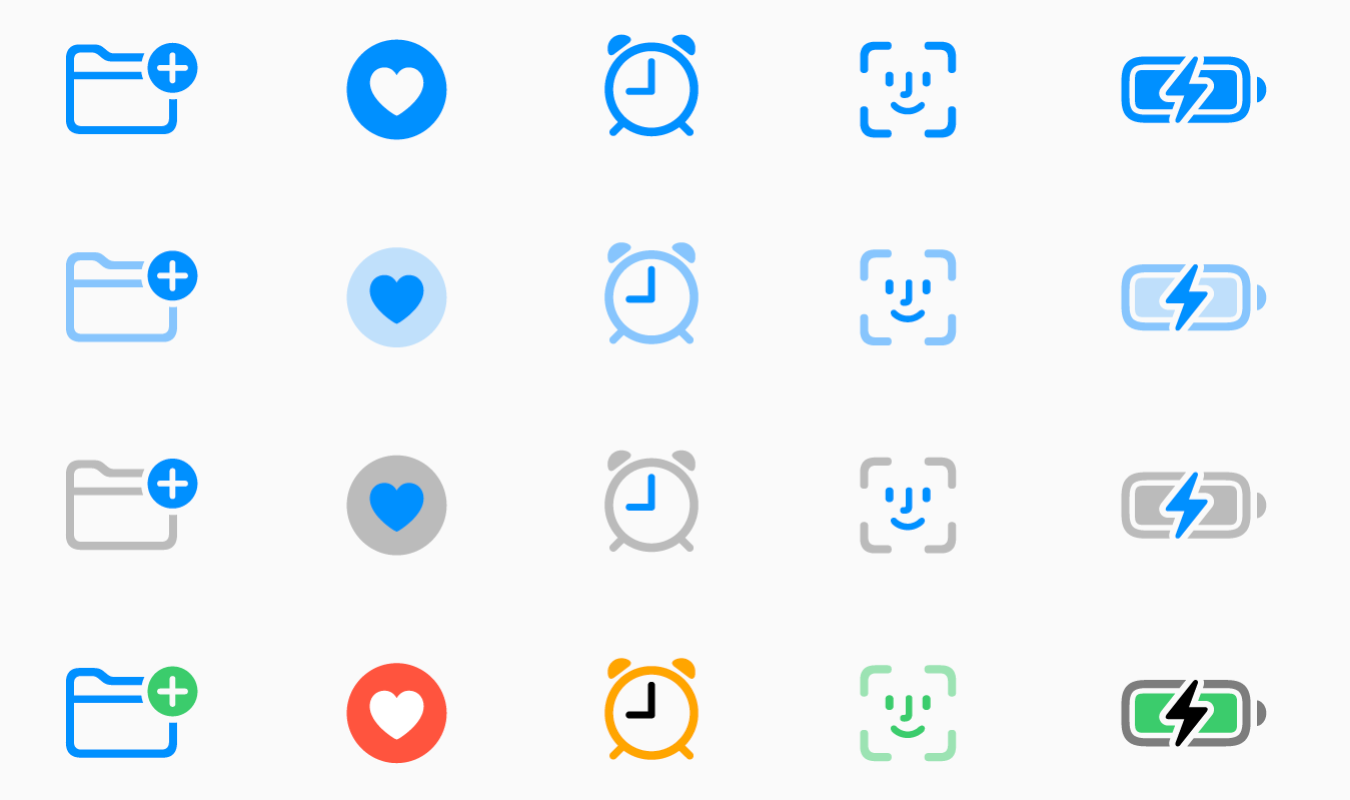
Symbol Colors

Now designers can pick between different styles of the symbols. Previously we had monochrome and multicolor variants. Now there are 2 new styles: Hierarchical and Palette. You can pick a single base color for hierarchical style or two colors for palette to modify icons based on your app’s color palette.

Symbol Colors

Custom Symbols

Now designers can also add their own custom symbols to sf symbols. Developers than can import them to their project and all the benefits of the SF Symbols arrive with them.

For all the new additions to SF Symbols check the WWDC talk: https://developer.apple.com/videos/play/wwdc2021/10097/

SF Arabic

San Francisco is Apple’s official font for all their products. This year, they added an Arabic version of the San Francisco font, called SF Arabic. You can download SF Arabic and all other Apple fonts here: https://developer.apple.com/fonts/

There are many other additions, changes and improvements on iOS 15, and listing all of them here would be impossible. We’ve tried to list major developer-facing iOS 15 API changes for developers.
To try out and use all the new additions, you need to use Xcode 13. As Appcircle, we support building with Xcode 13. And every new beta is available within 24 hours after its release. You can start using Appcircle for free.