Creating collection views for iOS apps were pretty straightforward. A simple UICollectionFlowLayout would create flowing lists or grids of items. But things got a lot harder when the layout got a little more complex. A horizontal list within a vertical collection view required some extra tricks that every experienced iOS developer has inevitably used. Hopefully, at WWDC19, Apple introduced UICollectionView Compositional Layout, along with Diffable Data Sources. Now we can create nested layouts via and creating these layouts are quite easy.
We are going to look at these two new APIs today. First, we are going to create UICollectionView Compositional Layout object and then we’ll to feed the UICollectionView using UICollectionViewDiffableDataSource.
UICollectionView Compositional Layout
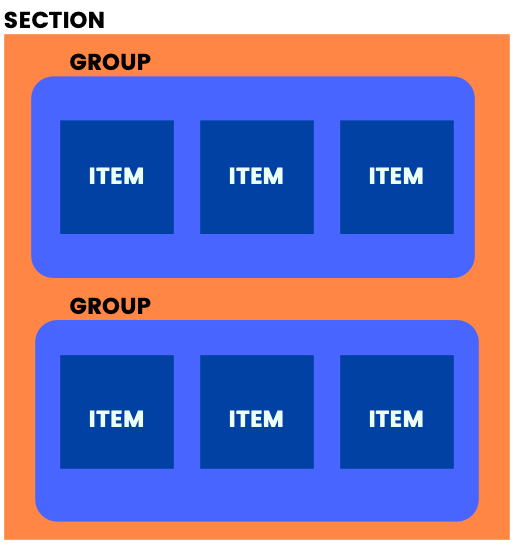
When we are creating new UICollectionViewCompositionalLayout we need three things; Section, Group and Item. Section is same as before but here we have actually new two things here, Group and Item. Think Group as another UICollectionView that has multiple UICollectionViewCell. Lastly, Item is a UICollectionViewCell. Sections has Groups and Groups has Items. See below figure for basic understanding.
Basic demonstration of Section, Group and Item inside UICollectionView Compositional Layout
Let’s create our first and fresh layout.
[gist id=”f10b1b48fa8d2ff69f7539b13ec29cb3″ /]
Above code snippet will produce below layout. Also at Line: 74, you will see orthogonalScrollingBehavior property is equal to .groupPaging. This property setup will make our layout scrollable by groups.
Also we have other useful options for orthogonalScrollingBehavior. Let’s take a quick look of them.
Continuous
It removes pageable scroll behaviour and makes our group scrollable continuously.
ContinuousGroupLeadingBoundary
It behaves like both .groupPaging and .continues options. You can scroll the group continuously but when you stop scrolling your group will fit the screen like .groupPaging smoothly.
None
The section does not allow users to scroll its content orthogonally. In our case, all the groups that we created will be layout vertically inside its own section.
This is all about creating UICollectionViewCompositionalLayout. Simple is that!
So what’s next? Without data a layout is nothing for us. For the next step we will create and implement our UICollectionViewDiffableDataSource. But first let’s look at what it is:
UICollectionViewDiffableDataSource
The classic and old way was using UICollectionViewDataSource. We were inheriting the protocol to our UIViewController and there were bunch of delegate methods for what cell to display, how many cells to display, which section to display the cells in, and so on.
The modern and new way is UICollectionViewDiffableDataSource and it removes most of the logical work and gives us convenience. It allows us to write simpler, clearer and error free code.
With this new approach we are just going to tell our modern data source to what Section and Item to display rather than the how many items to display.
The new diffable part is coming from that whenever you want to update your UICollectionView with new data source, the modern data source will calculate the differences between your old and new data and only will update different parts. This will reduce the amount of code you wrote and make your UICollectionView work high performance.
As I mentioned above we need to create Section and Item. Let’s create them and let me explain the details.
[gist id=”9d47e7aeafbe5ddec462d5bf63c23066″ /]
Why our Section and Item is implementing Hashable protocol? To determine the changes between old and new data. Hashable protocol makes this possible. Functions that we created in Section class are needed for hashing and checking if two Section are equal to each other.
Now it’s time to create actual UICollectionViewDataSource’s itself. See code snippets below.
Generating new UICollectionViewDataSource
[gist id=”ab34372ecbd11fc25ee5187d0a981afe” /]
We defined two typealias for making our code more readable and clean. You can ask What is Snapshot anyway? NSDiffableDataSourceSnapshot is basically stores your Sections and Items. You can think of it as reference for your modern data source.
Also we must create a SupplementryView for our sections. It’s simple as above code snippets shows.
Are we done yet? Nope. We need one last thing to implement. We must apply our Snapshot to our modern data source. How we are going to make it happen? See below code snippet.
[gist id=”2feb2068bfea865a6c7d1e1219e3075d” /]
We defined our sections as a class variable and using it applied our snapshot to data source. Every time you update your sections just call applySnapshot method and voila! you successfully updated your modern data source.
Summary
In this article you learned how to implement UICollectionViewCompositionalLayout and UICollectionViewDiffableDataSource to your new project as modern ways. You can challenge yourself with different types of layouts.
Where to Go From Here
You can check Apple’s official documentation: https://developer.apple.com/documentation/uikit/uicollectionviewcompositionallayout
Also you can watch WWDC19 video about Collection View Layouts: https://developer.apple.com/videos/play/wwdc2019/215/
Apple also has a Diffable Data Source video: https://developer.apple.com/videos/play/wwdc2019/220